How to Create a Fake Chat Video with a Custom Background Image: Step-by-Step Guide
Learn how to create a fake chat video with a custom background image to enhance storytelling, boost engagement, and maintain brand consistency.

Estimated reading time: 8 minutes
Key Takeaways
- Immersive Storytelling: Fake chat videos over custom backgrounds transform static conversations into engaging narratives.
- Enhanced Engagement: Personalized backdrops boost professionalism and viewer connection.
- Tool Variety: Options range from beginner-friendly Canva and CapCut to professional Photoshop/GIMP and FFmpeg scripts.
- Structured Workflow: Follow a clear six-step process: prepare background, set project, import, overlay chat, enhance readability, export.
- Best Practices: Match backgrounds to context, maintain clarity, test across devices, and adhere to legal guidelines.
Table of Contents
- Section 1: Understanding Fake Chat Videos
- Section 2: Importance of a Custom Background Image
- Section 3: Tools and Software Recommendations for Custom Background Image Video
- Section 4: Step-by-Step Instructions to Create a Fake Chat Video with a Custom Background Image
- Section 5: Best Practices and Creative Tips for Fake Chat Video with Custom Background
- Section 6: Legal and Ethical Considerations for Fake Chat Video
- Conclusion & Call-to-Action
Section 1: Understanding Fake Chat Videos
Definition of Fake Chat Video
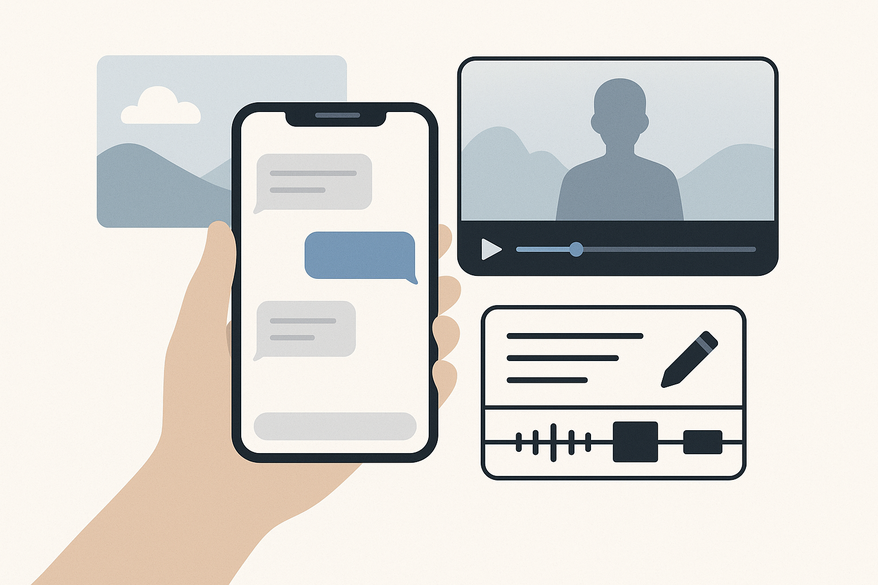
- Graphical elements—chat bubbles, avatars, timestamps—mimic a real messaging interface.
- Text overlays or PNG chat bubbles layer over a background scene to simulate conversations.
- Ideal for quick, engaging narratives in social media and short-form formats.
Popularity and Use Cases
- TikTok Skits: Comedy dialogues staged as text exchanges.
- Instagram Reels: Meme-driven conversations or Q&A sessions.
- YouTube Tutorials: Simulated customer support or tech demos.
Use-Case Examples with Custom Background
- Office Scene: Demonstrate business chat or customer service with credibility.
- Bedroom Setup: Convey personal storytelling for lifestyle or teen-oriented content.
By understanding how fake chat videos work, you can craft authentic and relatable content for your audience.
Section 2: Importance of a Custom Background Image
What Is a Custom Background Image?
- A visual placed behind chat overlays to simulate a real environment, static or animated.
- Can be a photo, design mockup, or abstract scene tailored to your video’s theme.
Benefits of Using Custom Backgrounds
- Personalization: Reflects your brand’s colors, logo, and tone.
- Professionalism: Moves beyond plain white screens or default colors.
- Viewer Immersion: Creates context—office, café, home—so viewers instantly connect.
Before-and-After Example
– Plain White Background: Chat bubbles float without context and look generic.
– Themed Workspace: A branded desktop or coffee shop backdrop makes the chat feel real and purposeful.
Custom backgrounds transform simple chat overlays into polished, engaging stories. Learn more at deeper dive into background options.
Section 3: Tools and Software Recommendations for Custom Background Image Video
Choosing the right tool depends on your skill level, design needs, and platform focus. Below are top options.
- Canva
- Drag-and-drop templates, custom sizing, photo filters.
- Pros: Beginner-friendly with a free tier and premium upgrades.
- Cons: Limited advanced editing and layer control.
- Photoshop / GIMP
- Precise layer management, filters, masking, export presets.
- Pros: Full customization and professional-grade results.
- Cons: Steep learning curve; Photoshop requires a license.
- CapCut
- Mobile and desktop video editing, text templates, transitions.
- Pros: Tailored for chat video creation and free.
- Cons: Limited graphic design features compared to dedicated tools.
- Vidulk Fake Chat Generator
- Integrated chat creator, background integration, text styling.
- Pros: Specialized workflow for fake chats and quick mockups.
- Cons: Limited export formats and fewer color-grading options.
- FFmpeg
- Command-line video encoding, layering, and animated backgrounds.
- Pros: Scriptable and highly customizable for batch processing.
- Cons: No graphical interface and requires technical setup.
Quick selection tips:
- Canva for speed and ease.
- Photoshop or GIMP for pixel-level control.
- CapCut or Vidulk for mobile-first storytelling.
Try Vidulk - Fake Text Message Story App to prototype chat scenes with AI-written scripts and custom backgrounds:
Section 4: Step-by-Step Instructions to Create a Fake Chat Video with a Custom Background Image
Prerequisites
- Custom Background Image: 1920×1080 px JPG/PNG at 72–150 dpi.
- Chat Bubble Overlays: PNG files or sliced chat screenshots.
- Installed Software: Canva, CapCut, Vidulk, Photoshop/GIMP, or FFmpeg.
Step 1 – Prepare Your Background
- Design or import the background in your chosen tool.
- Adjust brightness and contrast so chat bubbles pop.
- Export as a high-quality JPG/PNG under 2 MB.
Step 2 – Set Up Your Project
- Create a new sequence:
• YouTube: 1920×1080 px (16:9)
• TikTok/Reels: 1080×1920 px (9:16)
Step 3 – Import and Position Background
- Place the background on the bottom layer of your timeline and scale to fill the frame.
Step 4 – Overlay Chat Elements
- Import chat bubble PNGs or screenshots.
- Layer them chronologically using snapping or grid guides.
- Apply a 5–10 px feather on masks to soften edges.
Step 5 – Enhance Text Readability
- Add a semi-transparent rectangle (20–30% opacity) between the background and chat bubbles if needed.
- Ensure chat bubble opacity remains at least 90% for clarity.
Step 6 – Export Final Video
- Preview on your device to check readability.
- Export using H.264 codec to MP4:
• 1080p @ 30 fps for YouTube/desktop
• 720p @ 60 fps for TikTok/Instagram - Name your file descriptively (e.g., “OfficeChat_Skit.mp4”).
Troubleshooting
- Text Too Faint? Increase chat bubble opacity or brighten the background.
- Black Bars Appear? Match your sequence resolution exactly to the background.
- Pixelation? Re-export the background at full resolution or adjust scale settings.
Section 5: Best Practices and Creative Tips for Fake Chat Video with Custom Background
- Contextual Backgrounds: Use subtle gradients or blurred real-world photos and match the scene to the chat topic.
- Maintain Clarity: Keep chat bubble opacity ≥ 90% and avoid placing text over busy patterns.
- Test Across Devices: Preview on smartphones, tablets, and desktops to ensure legibility.
- Brand Consistency: Subtly apply your brand colors or logos and use the same font family across videos.
- Leverage Animation: Add gentle zooms or pans to the background for dynamic storytelling.
Section 6: Legal and Ethical Considerations for Fake Chat Video
- Disclose Simulations: Include a note in captions or descriptions: “This conversation is fictional.”
- Avoid Defamation: Don’t portray real individuals in harmful scenarios without consent.
- Respect Copyright: Use licensed or royalty-free images for backgrounds and attribute third-party assets properly.
- Follow Platform Policies: Check TikTok, YouTube, or Instagram rules on simulated content.
Conclusion & Call-to-Action
Creating a fake chat video with a custom background image enhances realism, engagement, and brand cohesion. You now know why custom backgrounds matter, which tools to choose, and the exact steps to design, import, and export your polished chat video. Don’t forget to apply best practices—test on multiple devices, maintain clarity, and follow legal guidelines.
Ready to make your own fake chat video with a custom background image? Share your creations or questions in the comments below. We can’t wait to see your storytelling come to life!
FAQ
- What is the ideal background size for fake chat videos? Use 1920×1080 px for 16:9 or 1080×1920 px for 9:16 to match platform requirements precisely.
- Can I use animated backgrounds? Yes, but ensure animations are subtle and don’t distract from the chat bubbles.
- Which tool is best for beginners? Canva and CapCut offer intuitive interfaces and templates ideal for novices.
- How do I maintain text readability? Use high chat bubble opacity (≥ 90%), add semi-transparent overlays, and test on multiple devices.
- Are fake chat videos legal? They’re permissible if you disclose simulations, avoid defamation, and use licensed assets compliant with platform policies.