How to Automate Chat Video Creation with Zapier: A Step-by-Step Guide
Learn how to automate chat video creation with Zapier to save time, scale outreach, and boost engagement using no-code automation workflows.

Estimated reading time: 12 minutes
Key Takeaways
- Automate chat-to-video workflows to save time and scale engagement.
- Leverage Zapier triggers, actions, filters, and multi-step Zaps without code.
- Step-by-step setup covers trigger selection, data mapping, template setup, and delivery.
- Optimize with AI enhancements, delay steps, and robust error handling.
- Real-world use cases span support, sales, marketing, and internal communications.
- Address challenges by focusing on template design, data quality, and regular maintenance.
Table of Contents
- Understanding Chat Video Creation
- Overview of Zapier
- Step-by-Step Guide to Automate Chat Video Creation
- Key Features and Optimization Tips
- Use Cases and Practical Applications
- Advantages and Potential Challenges
- Additional Tips and Resources
- Conclusion
- FAQ
Understanding Chat Video Creation
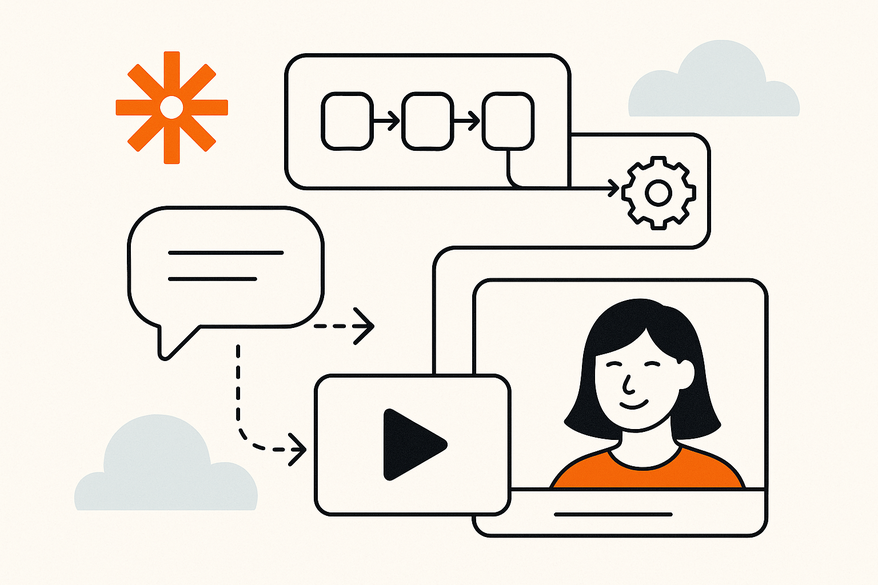
Chat video creation is the automated process of generating personalized or dynamic videos in response to chat events—such as a new message, support ticket, or CRM entry. By combining chat and video, you can deliver targeted, visual responses in seconds.
Why businesses adopt this automation:
- Manual video crafting is time-consuming and unscalable.
- Slow replies hurt customer satisfaction.
- Inconsistent branding reduces trust.
Core benefits include:
- Higher engagement: videos drive better click-through and retention.
- Streamlined workflows: fewer manual steps and faster turnarounds.
- Personalization at scale: templates auto-populate with user data.
Example: A support team auto-sends a 30-second welcome video when a ticket is raised, boosting follow-up responses by 50%.
Pro tip: Keep your templates simple to ensure quick rendering and delivery.
Overview of Zapier
Zapier is a no-code automation platform that connects over 7,000 apps to create Zaps—trigger-action workflows you build without writing code. It helps break down silos and automate tasks end to end.
Core concepts:
- Triggers: Events that start a Zap (e.g., new Slack message).
- Actions: Tasks performed in another app (e.g., generate video in Creatomate).
- Multi-step Zaps: Chain multiple actions in one workflow.
- Filters & Conditional Logic: Run actions only when specific criteria are met.
Pro insight: Chain filters and delays to control timing and ensure only high-value triggers produce videos.
Audit tip: Use Zapier’s built-in logging to track successes and failures for easy troubleshooting.
For WhatsApp implementations, see: WhatsApp Chat Video Maker Guide.
Step-by-Step Guide to Automate Chat Video Creation
Follow these steps to build a complete Zap that generates and delivers a video based on chat triggers.
Step 1: Choose Your Trigger
- Pick your chat app: Slack, WhatsApp, Facebook Messenger, or your CRM (for iMessage setups).
- Authenticate your account in Zapier.
- Select the trigger event (e.g., New Message, New Lead).
Tip: Using Slack as a trigger lets you test workflows in real time.
Step 2: Extract Relevant Data
- Identify fields: sender name, message text, contact email.
- Use Zapier’s “Custom Data” fields to pull in the data.
- Rename fields clearly (e.g., “UserName”, “ChatText”).
Pro tip: Validate email formats with a Filter step to avoid delivery errors.
Step 3: Select a Video Creation App
- Options include Creatomate, Pictory, or Sendspark.
- Authenticate your chosen app in Zapier.
- Build a dynamic video template with placeholders.
Pro insight: Creatomate offers flexible JSON-based templates for advanced users.
Step 4: Map Data to Video Template
- Assign each Zap field to template placeholders like {{Name}} and {{MessageSummary}}.
- Preview mapping to check text length and formatting.
Expert tip: Keep placeholder text under 100 characters to avoid overflow.
Step 5: Generate and Deliver the Video
- Configure the Zap action: generate a video file or share a link.
- Add delivery steps: email, chat reply, or upload to YouTube/cloud.
Example: A sales team auto-posts demo videos to a lead’s Slack channel.
Step 6: Test and Refine
- Run test data through your Zap.
- Review video quality, branding, and delivery success.
- Iterate: adjust template design, add filters, or improve error handling.
Tip: Use Zapier’s “Task History” to audit each run and spot any failures.
Key Features and Optimization Tips
After building a basic Zap, enhance it with advanced features to boost reliability and maximize value.
Multi-Step Workflows
- Add filters to run only for VIP customers.
- Include “Delay” steps to space out processing and avoid rate limits.
App Integrations
- Combine chat, CRM, video, and analytics tools for end-to-end insights.
- Example: After video delivery, log engagement metrics in Google Sheets.
AI Enhancements
- Integrate OpenAI to auto-generate scripts or summarize conversations (learn more: AI Chat Script Generator Automation).
- Use AI to suggest subject lines for follow-up emails.
Best Practices
- Maintain consistent naming conventions for Zaps.
- Monitor task usage in Zapier to manage your plan’s limits.
- Schedule quarterly reviews to catch deprecated fields or broken links.
Use Cases and Practical Applications
Automated chat video creation can transform many areas of your business:
- Customer Support: Auto-send personalized video answers to FAQs and reduce handling time.
- Sales & Marketing: Trigger demo videos for new leads, send follow-up video emails, and create dynamic ads.
- Content Repurposing: Convert chat transcripts or blog posts into short video summaries.
- Internal Communications: Automate training videos when HR posts new policies and send onboarding videos to new hires.
Advantages and Potential Challenges
Advantages
- Efficiency: cut manual video creation time by up to 90%.
- Consistency: maintain brand-aligned messaging in every video.
- Scalability: handle thousands of interactions without extra headcount.
- Enhanced CX: create more memorable engagements.
Challenges & Mitigation
- Template Design: invest in flexible, high-quality templates; test readability on mobile.
- Data Quality: enforce validation in chat apps and CRM to avoid “garbage in.”
- Integration Gaps: use webhooks or “Custom Request” for unsupported apps.
- Maintenance: schedule quarterly Zap reviews and test runs.
Additional Tips and Resources
- Leverage AI Tools: auto-generate scripts, voiceovers, or images for your videos.
- Monitor Analytics: connect Google Analytics or Mixpanel to track video engagement.
- Stay Updated: check Zapier’s “What’s New” page monthly for new integrations.
- Learn from Community: explore Zapier forums and tutorials for troubleshooting and creative ideas.
Conclusion
By following this guide, you can automate chat video creation with Zapier in just a few steps: choose your trigger, map data to a template, generate the video, and deliver it automatically. Start by building a basic Zap today, test with real chat data, and refine for improved quality and impact. Automating chat video creation streamlines workflows, elevates engagement, and drives strong ROI—empowering your team to focus on high-value tasks and creative innovation.
FAQ
- What chat apps can trigger video creation?
- You can use any supported chat or CRM app—Slack, WhatsApp, Facebook Messenger, HubSpot, Salesforce, and more.
- Which video tools integrate with Zapier?
- Popular options include Creatomate, Pictory, Sendspark, and many others—search the Zapier App Directory for your preferred tool.
- How do I optimize template performance?
- Keep designs simple, limit placeholder text to under 100 characters, and use efficient file formats to reduce render times.
- Can I personalize videos at scale?
- Yes—dynamic templates automatically populate with user data fields like name, message content, and timestamps for full personalization.
- How do I troubleshoot failed Zaps?
- Use Zapier’s Task History and built-in logs to identify errors, then add Filters or Delay steps to handle edge cases and retry logic.