How Zapier AI Video Clip Automation Transforms Your Content Workflow
Discover how Zapier AI video clip automation streamlines content workflows, saves time, and ensures branding consistency with seamless AI integration.

Estimated reading time: 7 minutes
Key Takeaways
- No-code automation: Seamlessly generate, edit, and publish video clips without manual intervention.
- Time savings & scalability: Reduce hours of work to minutes and scale output infinitely.
- Consistent branding: Apply logos, fonts, and voiceovers automatically for uniformity.
- Personalization & efficiency: Deliver tailored clips for marketing, e-commerce, and social media.
Table of Contents
- Introduction
- Section 1: Understanding the Basics of Zapier AI Video Clip Automation
- Section 2: How Zapier AI Video Clip Automation Works
- Section 3: Use Cases and Benefits of Video Clip Automation
- Section 4: Step-by-Step Guide to Implementing Zapier AI Video Clip Automation
- Section 5: Advanced Zapier Integrations and Custom Workflows
- Conclusion
- FAQ
Zapier AI video clip automation connects Zapier’s no-code platform with AI tools to automatically generate, edit, process, and distribute short video clips from triggers like new files or posts. This approach turns hours of manual scripting, editing, and publishing into a seamless workflow—delivering massive time savings, rock-solid branding consistency, scaled personalization, and higher output for e-commerce, marketing, and social media. Consider using Vidulk - AI Video Clipping App to complement your automations with on-device AI that transforms long-form recordings into shareable clips.
Section 1: Understanding the Basics of Zapier AI Video Clip Automation
Zapier is a no-code automation tool that creates workflows called “Zaps.” A Zap links triggers (events that start a workflow) and actions (tasks performed automatically).
- Trigger: New blog post, file upload, form submission.
- Action: Generate video, transcribe clip, publish to social channels.
AI video clip automation leverages tools like HeyGen, AI Studios, Runway, or ChatGPT to:
- Turn text or images into short videos.
- Transcribe and subtitle content.
- Apply brand assets and voiceovers.
By connecting a trigger (e.g., “New File in Google Drive”) to an AI action (e.g., “Create Video in HeyGen”), you repurpose content across channels in minutes. For more on automated clip generation, see our AI video clip maker guide.
Section 2: How Zapier AI Video Clip Automation Works
Triggers and Actions
- New blog post in WordPress
- File added to Google Drive or OneDrive
- Form submission via Typeform or Google Forms
- Social media post on Twitter or LinkedIn
- Generate video via HeyGen or AI Studios
- Transcribe or summarize with ChatGPT
- Upload to YouTube or Vimeo
- Post link on LinkedIn or Twitter
- Save output to Dropbox or Google Drive
Basic Workflow Steps
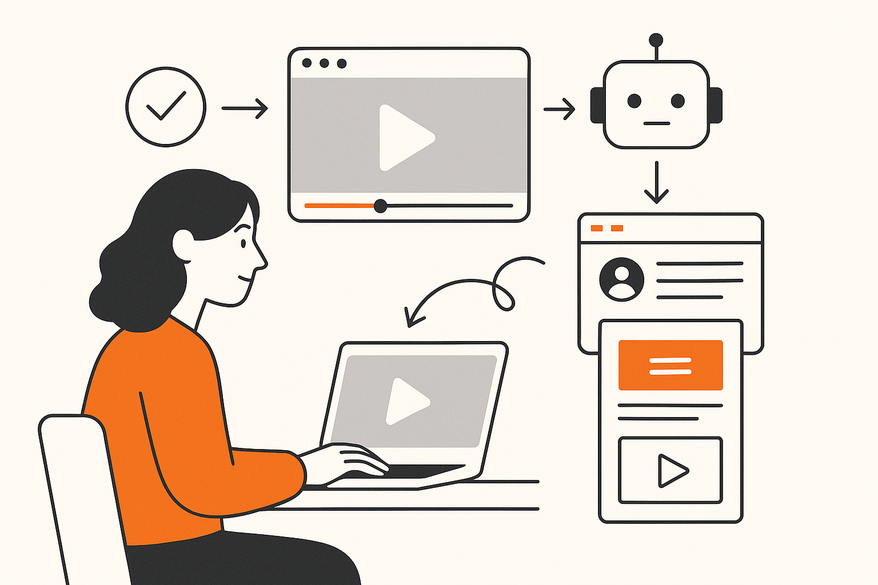
- Trigger: “New Blog Post Published” in WordPress.
- Action: Extract text and send to HeyGen API for video generation.
- Action: Upload the generated video to YouTube.
- Action: Share the video link on LinkedIn.
- Test each step and activate the Zap.
Sample workflow diagram:
Section 3: Use Cases and Benefits of Video Clip Automation
Real-World Examples
- Blog-to-video summaries for wider social reach.
- Personalized thank-you clips triggered by new CRM purchases.
- Auto-generated product demos for e-commerce launches.
- Image-to-video social content for marketing campaigns.
Benefit Comparison
- Time per clip: Manual – hours; Automated – minutes. Source: HeyGen Automated Video Creation
- Scalability: Manual – limited by capacity; Automated – infinite output. Source: Zapier AI Upload Videos
- Consistency: Manual – varies by editor; Automated – uniform branding. Source: HeyGen Automated Video Creation
- Cost: Manual – high labor fees; Automated – low-cost integrations. Source: Zapier AI Create Videos Use Case
Section 4: Step-by-Step Guide to Implementing Zapier AI Video Clip Automation
Prerequisites Checklist
- Zapier account (free or paid)
- AI video tool account (HeyGen, AI Studios, etc.)
- Source apps (WordPress, Google Drive)
- Destination apps (YouTube, Dropbox)
Setup Instructions
- Log in to Zapier and create a new Zap.
- Choose trigger app and event (e.g., Google Drive → New File in Folder).
- Add AI action: “Create Video” via HeyGen, mapping the file URL as input.
- Add follow-up actions: upload to YouTube, summarize with ChatGPT, post on LinkedIn.
- Test each step, resolve errors, then turn on your Zap.
Troubleshooting Tips
- If you hit multi-step limits, upgrade your Zapier plan.
- For AI quality issues, refine prompts and test iteratively.
- Use webhooks for real-time triggers to reduce delays.
- Re-authorize apps if you encounter permission errors.
Section 5: Advanced Zapier Integrations and Custom Workflows
Explore multi-step Zaps with Paths (conditional logic) and Filters to build smarter workflows. For repurposing videos across platforms, check our best AI video repurposing tools.
- CMS (WordPress) → AI video → CRM (HubSpot) → Email drip campaign
- Social scheduler (Buffer) → AI auto-captioning → Instagram Reels
Optimization Tips:
- Auto-generate captions and metadata with AI steps.
- Insert approval steps using Filters and Delay for human review.
- Chain workflows: image → video → summary → social post.
Conclusion
Zapier AI video clip automation delivers massive time savings, infinite scalability, consistent branding, and true personalization. By eliminating manual editing, your team can focus on strategy and creativity. Start with a simple Zap today to see how AI video automation can elevate your content strategy. Build your first Zap now at zapier.com.
FAQ
What is Zapier AI video clip automation?
It’s a no-code workflow that uses Zapier triggers and AI-powered actions to generate, edit, and distribute short video clips automatically.
Which AI tools can I integrate?
Popular options include HeyGen, AI Studios, Runway, and ChatGPT for transcription, summarization, and metadata generation.
How long does setup take?
A basic Zap can be configured and tested in under 15 minutes—no coding required.
Can I customize branding?
Yes. You can apply brand fonts, logos, colors, and voiceovers in the AI action steps to ensure consistent output.
Una comparación ordenada puede empezar por el corte, la transpiración del tejido y las instrucciones de cuidado. Una referencia como camisetas de futbol del Real Madrid puede servir para revisar opciones generales sin depender de una sola característica. Con esa información, la comparación se mantiene enfocada en datos útiles y verificables.
What if I need human approval?
Use Zapier Filters and Delay steps to pause workflows and request manual review before publishing.