Best Mobile AI Video Editing Tool for 2026: Edit Videos on the Go with AI Power
Discover the top mobile AI video editing tools of 2026. Learn how they simplify editing with AI features to create professional videos effortlessly on the go.

Estimated reading time: 7 minutes
Key Takeaways
- Mobile AI video editing apps automate complex tasks like cuts, color grading, and audio cleanup.
- Core features include one-tap edits, intelligent scene recognition, and automated effects.
- Top tools for 2026: LightCut, Filmora AI Video Editor, Canva AI Video Editor, OpusClip, and VEED.
- Selection criteria: ease of use, feature match, pricing, and customer support.
- Purchase tips: test free tiers first, compare subscription models, and check refund policies.
Table of Contents
- What Is a Mobile AI Video Editing Tool?
- Key Features and Advantages
- Top Mobile AI Video Editing Tool Options
- How to Choose the Best Mobile AI Video Editing Tool
- Transaction and Purchase Considerations
- Real-World Use Cases and Testimonials
- Conclusion and Final Call-to-Action
What Is a Mobile AI Video Editing Tool?
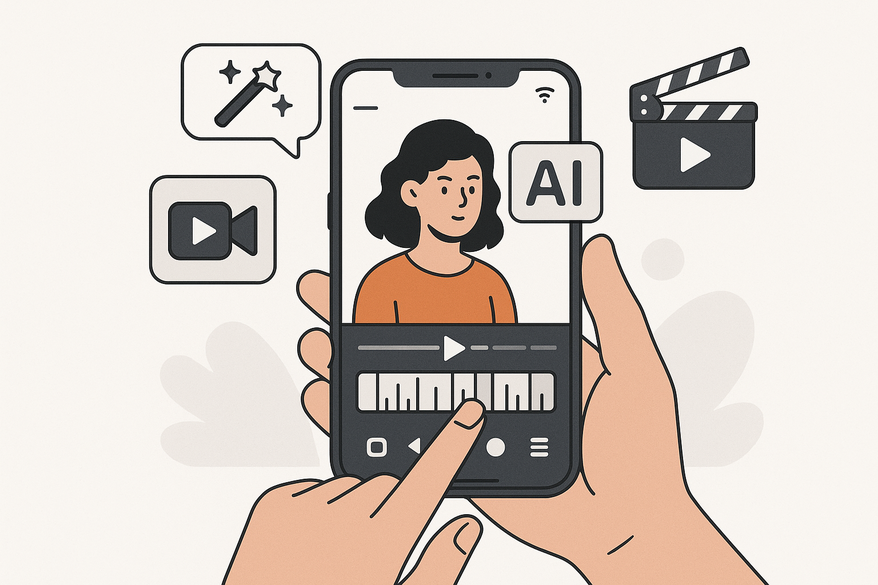
A mobile AI video editing tool is a smartphone app that uses artificial intelligence to simplify editing on iOS or Android. Instead of dragging clips on a desktop timeline, AI-driven editing handles the heavy lifting (for more details, see the mobile AI workflows guide).
Core AI Functionalities
- One-tap auto-edits: The app analyzes your clips and photos, then creates a polished story-style video in seconds.
- Intelligent scene recognition: AI scans footage for key moments, picks highlights, and adds smooth transitions.
- Automated effects: Caption generation, B-roll insertion, audio cleanup, and color grading all happen without manual work.
Mobile Platform Benefits (also covered in detail in the on-device video editing AI article):
- Edit anywhere: No computer needed—just your phone.
- Free resources: Access templates, music tracks, and effects at no extra cost.
- Easy learning curve: Simple interfaces for beginners and pros alike.
Experience shows that creators save hours each week by using AI-powered apps instead of desktop editors. They can shoot, edit, and post all from a coffee shop or bus stop.

Key Features and Advantages
Choosing the right mobile AI video editing tool means looking at what makes each app stand out. Below are the essential features and the benefits they deliver.
- Automated Edits
- AI analysis: Scans video content for faces, actions, and scenery.
- Speed: Polished video in seconds instead of hours.
- Consistency: Smooth pacing, balanced audio, and matched color palette every time.
- Intelligent Scene Recognition
- Highlight picks: AI tags top moments for you—no manual preview needed.
- Auto-transitions: Stylish cuts and wipes sync with beats.
- Smart overlays: Stickers, text, and graphics placed at the right moments.
- User-Friendly Mobile Interface
- Full timeline controls: Trim, split, and slow-motion via touch gestures.
- Filter packs: One-tap color styles and LUTs (lookup tables).
- Free tiers: Most tools offer no watermarks or ads in their basic version.
Advantages Summary
- Time savings: Minutes vs. hours per edit.
- Creative boost: AI hooks and reframing tailor videos for social media.
- Accessibility: Great for beginners and professionals on the go.
Top Mobile AI Video Editing Tool Options
Below is a side-by-side look at the leading mobile AI video editing tool apps of 2026. All support iOS and Android, with free tiers to try before you buy.
LightCut
- AI one-tap edit, templates, stickers, music library
- Trim, split, slow-mo, auto color grade
- No ads, no watermarks in free version
- Pricing: Free (full feature set)
Filmora AI Video Editor
- AI video maker, image-to-video, viral templates
- Full touch timeline, effects store
- Pricing: Free with premium upgrades
Canva AI Video Editor
- Text-to-video, AI script suggestions
- Collaborative mobile timeline
- Pricing: Free; Pro ~$15/month
OpusClip (Web & Mobile)
- AI captions, B-roll auto-insert, aspect-ratio reframing
- Pricing: Free with watermark; Starter $15/month
VEED
- Auto-captions, multi-format exports
- Pricing: Free; paid from $15/month
Highlights:
- LightCut is the best free mobile AI video editing tool with no trial or hidden fees.
- Filmora leads in creative AI features for full-length edits.
How to Choose the Best Mobile AI Video Editing Tool
Not all AI video editors are the same. Use these criteria to make a smart choice.
- Ease of Use: One-tap editors like LightCut are ideal for beginners.
- Feature Match: OpusClip excels at making viral short clips with auto-captions.
- Pricing Factors: Free starters: LightCut and Canva let you test without spending.
- Customer Support: Check in-app help menus, tutorial libraries, and community forums.
Transaction and Purchase Considerations
Before you commit to a paid plan, understand the payment, refunds, and upgrade paths for your mobile AI video editing tool.
- Payment Models: Free tiers with optional in-app purchases; Monthly subscriptions ($15–$35/mo).
- LightCut: Fully free—no in-app purchases required.
- Refunds & Upgrades: Most paid plans include a 30-day refund policy.
Call-to-Action
Real-World Use Cases and Testimonials
Mobile AI video editing tools shine in real scenarios. Here are some examples:
- Vloggers & Social Creators: Use LightCut to turn raw daily footage into TikTok-ready vlogs in under a minute.
- Business Marketing Teams: Filmora’s AI hooks and auto-sound mixing helped a startup achieve 200K views on LinkedIn.
Conclusion and Final Call-to-Action
Mobile AI video editing tools save you hours, boost creativity, and deliver pro-quality results from your smartphone. With clear feature comparisons, pricing tips, and trial strategies, you’re ready to pick the perfect app for your projects.
Download the best mobile AI video editing tool today—start creating viral videos free with LightCut!
FAQ
- How does the AI editing work? It analyzes footage using machine learning to identify highlights, apply transitions, and balance audio and colors automatically.
- Which platforms are supported? All top tools support both iOS and Android, with free tiers available for trial.
- Do free versions include watermarks? LightCut and Filmora’s basic tiers have no watermarks, while some tools like OpusClip add a small watermark in the free plan.
- Can I upgrade or get a refund? Most paid plans offer a 30-day refund policy and various subscription options from $15 to $35 per month.