How to Integrate Vidulk with Notion: A Complete Workflow Guide
Learn how to integrate Vidulk with Notion for a seamless content pipeline with AI-generated clips. Follow our guide for improved project tracking and collaboration.

8 min read
Key Takeaways
- Effortless Workflow: Combine Vidulk’s AI clipping with Notion’s project management to streamline content production.
- Centralized Management: Use a Notion database as your single source of truth for clip assets, captions, and statuses.
- Manual & Automated Options: Learn both hands-on logging and third-party automations via Zapier or Make.
- Customizable Pipelines: Apply templates, views, and naming conventions for consistent clip tracking.
- Collaborative Efficiency: Enhance team approvals, comments, and scheduling within Notion.
Table of Contents
- 1. Overview of Vidulk and Notion
- 2. Integrating Vidulk with Notion: Importance and Benefits
- 3. Step-by-Step Guide to Integrate Vidulk with Notion
- 4. Use Cases and Practical Examples
- 5. Troubleshooting Common Issues
- 6. Conclusion
1. Overview of Vidulk and Notion
Vidulk is a mobile AI clipping app that turns long-form video or audio into short social clips with auto-captions and styling. It’s designed to help creators repurpose content quickly.
- On-device AI transcription for privacy and speed.
- Automatic selection of 8–12 engaging moments.
- Caption styling and customization (fonts, colors).
- Multiple aspect ratios (9:16, 4:5) and up to 4K export.
- Direct share to Camera Roll or social apps.
Notion is a flexible, all-in-one workspace for notes, databases, wikis, and boards. Teams and individuals use it to plan projects, manage assets, and collaborate in real time.
- Custom databases (tables, boards, calendars) for content pipelines.
- Rich text pages with embedded media, checklists, and code snippets.
- Relations and rollups to connect pages (e.g., episodes → clips).
- Real-time collaboration via comments, mentions, and shared workspaces.
- Templates for content calendars, project trackers, and asset libraries.
2. Integrating Vidulk with Notion: Importance and Benefits
Even without a native connector, combining Vidulk and Notion gives you:
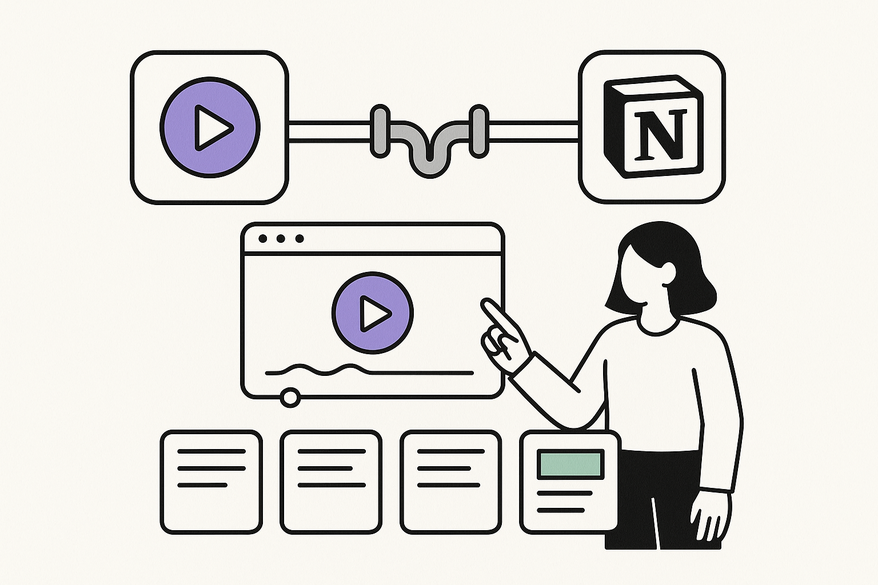
- Streamlined workflows – Plan topics in Notion → generate clips in Vidulk → log clips back in Notion.
- Centralized data management – Use Notion as the single source of truth for files, clip URLs, captions, and statuses.
- Improved project tracking – Monitor clip counts, platforms, and statuses across your pipeline.
- Enhanced team collaboration – Assign tasks, gather approvals, and comment on clips directly.
- Searchable clip archive – Build a library of high-performing hooks and reusable clips.
3. Step-by-Step Guide to Integrate Vidulk with Notion
*Prerequisites*
- Vidulk account on iOS or Android.
- Notion account with desktop or web access.
- Optional: Google Drive or Dropbox for hosting large files.
- Optional: Zapier, Make, or cloud-folder watchers for automation.
3.2 Create a Clips Database in Notion
- Create a new Notion page → select “Database” → “Table.”
- Title it “Vidulk Clips Library.”
- Add properties:
- Clip Title (Title)
- Source Content (Relation)
- Platform (Multi-select: TikTok, IG Reels, YT Shorts)
- Status (Select: Idea, Generated, Edited, Scheduled, Published)
- Vidulk Clip Link (URL or Text)
- Hook/Caption (Text)
- Publish Date (Date)
- Performance Notes (Rich text)
- Set up views: table, Kanban by Status, calendar by Publish Date.
3.3 Generate Clips in Vidulk
- Open the Vidulk app on your device.
- Import a long video/audio or paste a social link.
- Let the AI produce 8–12 clips.
- Adjust captions and aspect ratios.
- Export to Camera Roll or share to social apps.
3.4 Log Clips into Notion (Manual Workflow)
Approach A – File Upload:
- Transfer clips to your computer via cloud or USB.
- In “Vidulk Clips Library,” click “New” per clip.
- Attach the file or use the File property.
- Fill in properties: Title, Source, Platform, Status.
Approach B – Link/Embed:
- Upload clips to Drive, Dropbox, or unlisted YouTube.
- Copy the share link.
- Paste the link into the Vidulk Clip Link field or embed for inline playback.

3.5 Optional Automation via Third-Party Tools
- Sync a folder in Google Drive or Dropbox.
- Use Zapier or Make to watch for new files.
- Auto-create a new row in Notion with file name and URL.
- Set default Status to “Generated.”
For a detailed walkthrough, see automate Vidulk clips with Zapier.
3.6 Verify and Optimize Workflow
- Run a full cycle: plan → generate → log → update Status.
- Use consistent naming (e.g., EP05-Tip3) to match Notion records.
- Create a Notion template for new clip entries.
4. Use Cases and Practical Examples
Podcasters: Plan episodes → generate clips → log and track performance.
YouTube Educators: Extract “quick tip” clips and map to lesson plans.
Social Media Agencies: Use client portals in Notion for review and approval.
5. Troubleshooting Common Issues
Common Challenges:
- No direct integration – rely on export + database workflow.
- Large files slow Notion – host clips externally and link.
- Matching clips to sources – enforce consistent file naming.
- Neglected Status field – make it required and use the board view.
- Cannot trigger Vidulk from Notion – initiate clip creation in the mobile app.
6. Conclusion
Integrating Vidulk with Notion involves building a repeatable process: export clips from Vidulk, upload or link them in Notion, and track status and performance. This approach streamlines your content pipeline, centralizes asset management, and enhances collaboration—even without an official connector.
Set up your “Vidulk Clips Library” today, generate clips, and map them in Notion. Share your feedback, templates, or automation tips with your team!
FAQ
Q: Does Vidulk offer a desktop app?
A: No. Vidulk is currently mobile-only on iOS and Android.
Q: Can Notion embed Vidulk directly?
A: Only via publicly hosted URLs (YouTube or Drive). Vidulk doesn’t provide embed codes.
Q: Can clip creation be triggered from a Notion calendar?
A: Not directly. Use Notion as a planning calendar, then start clip generation in the Vidulk app.