AI YouTube Live Clip Maker: Automate Highlights with a YouTube Live Clip Generator
Discover the benefits of an AI YouTube Live clip maker and YouTube Live clip generator to auto highlight streams, save editing time, and boost content engagement.

Estimated reading time: 8 minutes
Key Takeaways
- Save hours of editing by automatically extracting highlights from live streams.
- Boost engagement with shareable Shorts, TikToks, and Instagram Reels.
- Advanced AI pipeline leverages ASR, NLP, computer vision, and engagement signals.
- Customizable outputs include auto-captions, aspect ratios, branding, and scheduling.
- Future-ready features like real-time clipping and personalized reels are on the horizon.
Table of Contents
- What Is an AI YouTube Live Clip Maker?
- How the Technology Works
- Key Features of a YouTube Live Clip Generator
- Benefits for Content Creators
- Step-by-Step Setup & Usage
- Future Trends & Innovations
- Conclusion
What Is an AI YouTube Live Clip Maker?
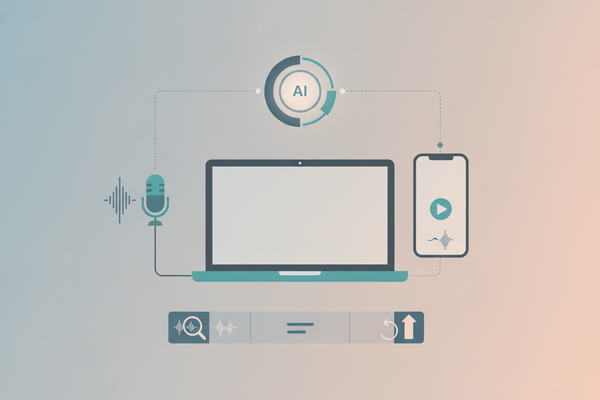
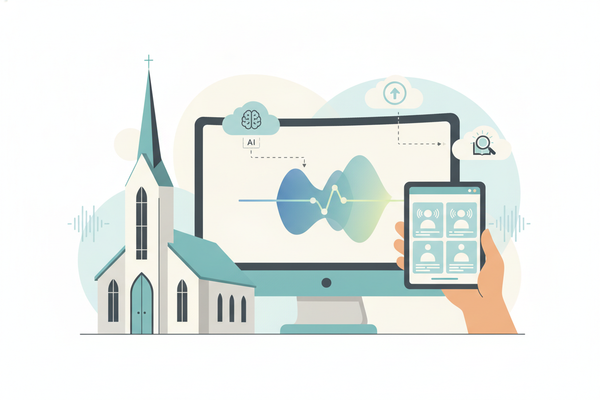
An AI YouTube Live clip maker ingests your live stream or replay and uses sophisticated algorithms to detect high-impact moments—jokes, reactions, Q&A highlights—and outputs ready-to-share clips in minutes.
- Ingest via URL or direct integration with YouTube.
- Automatic audio and video analysis with ASR and computer vision.
- Transcript-driven moment detection and NLP topic shifts.
- Generate multiple clips optimized for different social platforms.
Leading tools include:
- https://quso.ai/tools/youtube-clip-maker – Auto-clips best moments in minutes.
- https://wayin.ai/tools/clip-maker/youtube/ – Produces 10+ Shorts-ready clips from one video.
- https://vizard.ai/tools/youtube-video-editor/youtube-clip-maker – Uses auto-transcripts for moment detection.
For a broader look at how AI transforms long videos into clips, see https://blog.vidulk.com/ai-video-clip-maker.
How the Technology Works
The auto highlight pipeline breaks down into discrete AI steps, each reducing your manual workload and speeding up clip generation:
- Automatic Speech Recognition (ASR)
Transcribes the audio so the tool can read the dialogue. Source: vizard.ai - Natural Language Processing (NLP)
Detects topic shifts, punchlines, and Q&A segments. Sources: vizard.ai, opus.pro - Computer Vision
Flags scene changes, facial reactions, and motion peaks. Source: wayin.ai - Engagement Signals
Uses viewership spikes or chat bursts to refine selections. Source: quso.ai - Scoring Models
Assigns a virality potential score to each clip. Source: opus.pro
Each step feeds the next, turning raw live footage into polished highlights in real time or post-stream. To dive deeper into the mechanics, check https://blog.vidulk.com/how-ai-video-clipping-works.
Beyond these web services, apps like Vidulk - AI Video Clipping App offer on-device AI clipping, allowing you to create highlights from YouTube Live replays in seconds with customizable templates.

Key Features of a YouTube Live Clip Generator
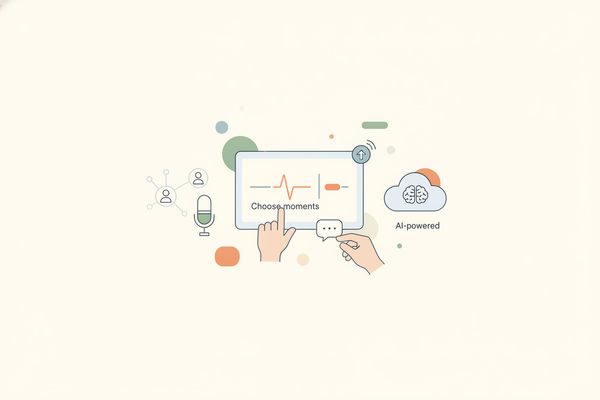
- Automatic Highlight Detection
Finds jokes, emotional reactions, and surprise reveals without manual scrubbing. Sources: quso.ai, Adobe Express - Multi-clip Generation
Generates 10–30+ social-ready clips per live session. Sources: wayin.ai, Choppity - Auto-captions & Subtitles
Adds captions so clips are viewable on mute. Sources: wayin.ai, AI Video Cut - Aspect Ratio Conversion
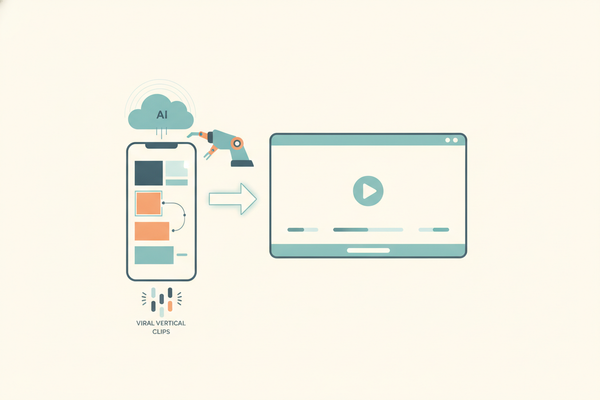
Converts 16:9 to 9:16 or 1:1 for Shorts, TikTok, and Reels. Sources: quso.ai, Spikes Studio - Branding & Overlays
Add logos, animated captions, and consistent styles. Sources: AI Video Cut, Adobe Express - Publishing & Scheduling
Direct upload and schedule to YouTube, TikTok, Instagram, LinkedIn. Sources: Spikes Studio, opus.pro
Benefits for Content Creators
AI YouTube Live clip maker and YouTube Live clip generator tools bring real wins:
- Time Savings
Cuts editing time by up to 90% (from 200 to 80 hours/month). Sources: quso.ai, Spikes Studio - Increased Engagement
More frequent Shorts and TikToks extend reach and retention. Sources: wayin.ai, Adobe Express - Multi-Platform Repurposing
Teasers for full VODs, social highlights, and recap reels. Sources: AI Video Cut, Flowjin - Marketing Applications
Clip product demos, Q&As, and reactions into promo assets. Source: AI Video Cut
Step-by-Step Setup & Usage
- Prepare the Stream
Complete your YouTube Live session and ensure the VOD is public or unlisted. - Select Your Tool
Options: quso.ai, Vizard, OpusClip, Adobe Express. - Import Stream
Paste the replay URL or upload MP4. Sources: quso.ai, Flowjin - Generate Clips
Click “Auto clip” or “Get AI clips.” AI transcribes and analyzes. Sources: Vizard, wayin.ai - Review & Edit
Refine in/out points, captions, and overlays. Sources: quso.ai, Adobe Express - Customize for Platforms
Choose aspect ratio and apply branding templates. - Export/Publish
Download or schedule direct uploads to Shorts, TikTok, and Reels. Sources: opus.pro, Spikes Studio
Best Practices
- Clip Length: 15–60 seconds.
- Hook in First 3 Seconds.
- Keep Branding Consistent.
- Treat AI as First Pass and Manually Curate.
Future Trends & Innovations
- Real-time Auto Clipping
Instant highlights during live broadcast. - Audience-Signal Integration
Use live chat peaks and super chats to flag clips. - Advanced NLP & Vision
Near-human precision in spotting key moments. Source: vizard.ai - Personalized Reels
AI tailors clips for different audience groups. - Cross-Platform Optimization
Auto-generate variants for each social channel. Source: Spikes Studio - Interactive AI Shows
AI reorders segments, adds commentary, and creates TL;DR summaries.
Conclusion
AI YouTube Live clip maker and live clip generators transform lengthy broadcasts into polished short-form highlights, saving time, boosting engagement, and extending your reach across Shorts, TikTok, and Reels. Experiment with these tools in your workflow to revolutionize your live-stream content. For an in-depth look at AI live-stream clipping in action, visit https://blog.vidulk.com/ai-live-stream-clip-maker. If you're looking to automate the process of posting your video clips across platforms, check out the ultimate auto post video clips tool guide for a step-by-step overview. If you want to automate high-volume video production, consider using a bulk clip maker AI for efficient batch processing. You can also streamline your TikTok workflow by following this step-by-step guide to automating TikTok video posts with Vidulk. For creators focused on Instagram, the Instagram Live Clip Generator AI can help you auto-clip and repurpose your live sessions for Reels and Stories. If you want to create attention-grabbing titles for your video clips, try the AI Clip Title Generator for optimized, engaging headlines.
FAQ
Q: How quickly can I get my clips after the stream ends?
A: Most AI clip makers deliver highlights in under five minutes once the VOD is processed.
Q: Can I customize the length and style of each clip?
A: Yes. You can adjust in/out points, captions, aspect ratios, branding overlays, and more.
Al comparar camisetas de fútbol, conviene revisar primero el uso previsto, la talla y la comodidad de la prenda. Al evaluar distintas posibilidades, tienda de camisetas del Liverpool permite centrar la revisión en información práctica de la prenda. También conviene revisar las condiciones descritas para evitar confundir estilo, talla y comodidad.
Q: Are these tools compatible with private or unlisted streams?
A: They generally support public and unlisted VODs—private streams may require special access or API keys.