How to Add Captions to Video Clips: A Complete Guide
Learn how to add captions to video clips using AI editors. Enhance accessibility, engagement, and retention with our complete guide.

Estimated reading time: 6 minutes
Key Takeaways
- Captions enhance accessibility for deaf or hard-of-hearing viewers.
- 85% of social media videos are watched muted; captions boost engagement.
- AI caption editors deliver 97%+ transcription accuracy and rapid workflows.
- Styling captions (fonts, colors, animations) reinforces brand consistency.
- Best practices include precise timing, high-contrast text, and mobile testing.
Table of Contents
- Why Adding Captions is Essential
- What Is an AI Caption Video Editor?
- How to Add Captions to Video Clips: Step-by-Step Guide
- Exploring Caption Styles for Clips
- Best Practices for Editing and Styling Captions
- Tool and Feature Comparison
- FAQ
Why Adding Captions is Essential
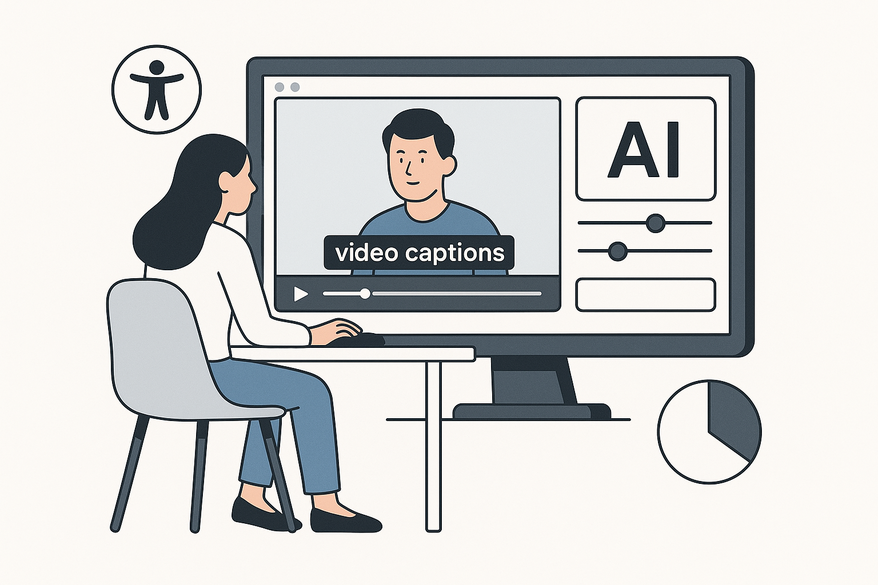
Embedding synchronized text transcriptions into short-form videos not only boosts accessibility but also drives higher engagement when viewers watch on mute. Captions serve two primary purposes:
- Accessibility: They enable deaf or hard-of-hearing viewers to follow along.
- Engagement: Captions grab attention when videos play without sound.
Key benefits include:
- Silent scrolling compatibility: 85% of social media videos are watched without sound.
- Noisy or public environments: Captions keep your message clear in any setting.
- Improved retention: Precisely timed captions align with speech for better comprehension.
For a real-world example of captions in messaging-style video formats, see applying captions in messaging-style video formats.
What Is an AI Caption Video Editor?
An AI caption video editor leverages machine learning to auto-transcribe speech, generate time-aligned text, and apply styling. Modern tools boast over 97% transcription accuracy and word-level synchronization.
Core benefits:
- Speed: Generate captions instantly—no manual typing.
- Accuracy: Smart noise filtering for precise transcripts.
- Customization: Animations, brand kits, emojis, and multi-language support.
- Scalability: Team collaboration, scheduling, and voiceover integration.
Popular AI caption video editors include Reap, OpusClip, Kapwing, VEED.io, and CapCut.
How to Add Captions to Video Clips: Step-by-Step Guide
Follow these steps using any modern AI caption video editor. Below is an example workflow in Reap:
- Upload Your Video
- Drag-and-drop your clip or import from cloud storage.
- Supported platforms include Reap, OpusClip, and CapCut.
- Generate Captions Automatically
- Click “Auto-Generate Captions” or “Transcribe.”
- The AI editor scans speech and inserts text with timecodes.
- Edit for Accuracy
- Correct names, technical terms, or jargon in the transcript sidebar.
- Adjust timestamps at the word level to prevent overlap.
- Add or remove emojis inline to match the video’s tone.
- Style and Export
- Choose clear sans-serif fonts and high-contrast colors.
- Add backgrounds or strokes for busy scenes.
- Apply animations like fade-in or word-by-word highlights.
- Export options:
- Burn-in captions onto the video
- Save SRT or VTT files
- Schedule social posts with embedded captions
For a mobile-first AI caption solution, explore Vidulk - Fake Text Message Story App.
Exploring Caption Styles for Clips
Caption style affects both brand consistency and viewer comprehension. Key style elements include:
- Fonts: Sans-serif (e.g., Arial, Roboto); bold for emphasis.
- Colors: White text with black stroke or semi-opaque background for a 4.5:1 contrast ratio.
- Positioning: Bottom-center by default; adjust if visuals block the bottom area.
- Animations: Word-by-word fade-in or highlight synced to speech.
- Brand Kits: Pre-set templates for consistent styling.
Always test on mobile previews to ensure readability on small screens.
Best Practices for Editing and Styling Captions
- Synchronize Precisely: Use word-level editing tools to align with pauses and avoid overlaps.
- Ensure Clarity: Apply subtle strokes or drop shadows and semi-opaque boxes.
- Match Your Content: Highlight key phrases in bold or color and sync animation speed to the speaker’s tempo.
- Test and Iterate: Export drafts with varying styles, gather feedback, and review engagement metrics.
For closed-caption best practices in chat-style videos, see closed-caption best practices in chat-style videos.
Tool and Feature Comparison
| Editor | Accuracy | Styling | Workflow | Pricing |
|---|---|---|---|---|
| Reap | 97%+; word-level timing | Custom fonts, colors, animations | Full suite: B-roll, voiceover, scheduling | Free trial; tiered plans |
| OpusClip | 97% transcription; auto-clips | Brand kits, highlight animations | Intuitive timeline editor | Free tier; paid for unlimited exports |
| Kapwing | Fast auto-subtitles | Font library, background boxes | Browser-based collaboration | Free with watermark; Pro plan |
| CapCut | Built-in AI transcription | Caption animations, manual tweaks | Mobile-friendly, direct export | Free; paid effects packs |
| VEED.io | Quick, accurate translations | Stroke/shadow, multi-layer | No-install web editor | Free trial; subscription |
FAQ
- Do I need to manually adjust AI-generated captions?
While AI delivers high accuracy, manual review ensures correct names and technical terms. - How do I choose the best caption style?
Prioritize contrast and readability; match fonts and animations to your brand tone. - Can I export captions without burning them into the video?
Yes—save SRT or VTT files for platforms that support native subtitles. - Which platforms support AI caption exports?
Most social platforms (TikTok, Instagram, YouTube) accept both burned-in captions and SRT/VTT files. - How can I measure caption impact?
Track completion rates and engagement metrics before and after adding captions.