Make TikTok Clips From Conference Recordings
Learn how to make TikTok clips from conference recordings using AI to find highlights, add captions, and convert video to vertical format effortlessly.

Estimated reading time: 18 min
Key Takeaways
- AI video clipping helps automatically find and extract the best moments from long conference recordings, saving hours of manual work.
- Converting horizontal conference footage to TikTok’s vertical 9:16 format is essential for engagement and maintaining viewer focus.
- Adding captions, subtitles, and animated text boosts accessibility, viewer retention, and content clarity on TikTok.
- Multiple clips can be created from one recording by focusing on different topics, speakers, or audience interactions, maximizing content reach.
- Tools like Vidulk streamline the entire workflow from import to export, incorporating AI-driven cropping, transcription, and editing features, thus saving time and effort.
Table of Contents
- Section 1: Uploading and Importing Conference Recordings
- Section 2: Using AI to Identify Best Moments to Clip
- Section 3: Formatting and Cropping Videos for TikTok
- Section 4: Adding Captions, Subtitles, and Animated Text
- Section 5: Editing Clips – Trimming & Fine-Tuning
- Section 6: Exporting and Posting TikTok Clips
- Conclusion
- FAQ
Section 1: Uploading and Importing Conference Recordings
Supported Sources for Conference Videos
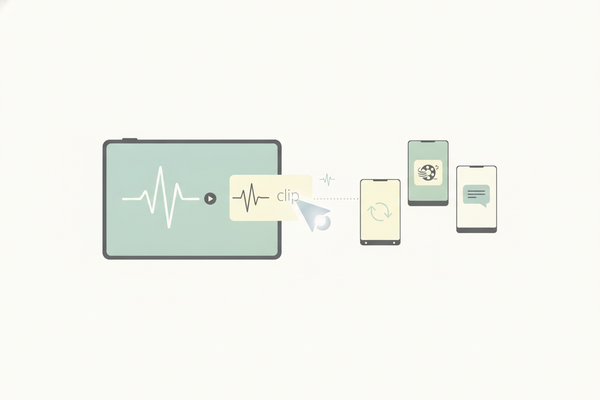
To create TikTok clips from conference recordings, the initial step is importing your content into an AI-powered clipping tool such as Vidulk. Vidulk supports a wide range of upload sources, enabling seamless integration with your existing workflows:
- Local files: Upload recorded MP4, MOV, or other common video formats directly from your computer or mobile device. This is useful for footage captured by DSLR cameras, smartphones, or dedicated video recorders.
- Zoom recordings: Import recordings saved locally on your device or directly from the Zoom cloud. Zoom’s native recording files often contain multiple audio tracks and gallery or speaker views, and Vidulk can intelligently select the best track or view for clipping.
- Google Drive: Connect your Google Drive account to import conference videos stored in the cloud. This is especially useful for teams who collaborate and share files remotely.
- YouTube links: Paste public or unlisted YouTube URLs to repurpose existing videos into TikTok clips without the hassle of downloading and re-uploading large files.
This flexibility means you can bring in a variety of content types—such as podcasts, interviews, lectures, webinars, or live streams—and start clipping immediately without needing extra file conversions or complicated setups. For example, if you have a 2-hour keynote recorded on Zoom with multiple speakers and sessions, you can import the entire file and segment it into multiple engaging TikTok clips.
Preparing Your Video for Clipping
Before starting the clipping process, it’s important to ensure your footage meets certain quality and organizational criteria to maximize AI accuracy and editing efficiency:
- High quality: Use videos with clear audio and high-resolution visuals. Audio clarity is crucial because AI transcription and emotion detection rely heavily on sound quality. For video, aim for at least 720p resolution, ideally 1080p or higher.
- Complete footage: Having the full session recording allows AI to analyze context, detect transitions, and find the best moments. Partial clips limit the tool's ability to identify key highlights.
- Organized files: Label files clearly with session names, dates, or speaker info so you can quickly locate specific content. Vidulk’s interface supports folder structures and metadata tagging to help manage large libraries.
Vidulk’s import interface (
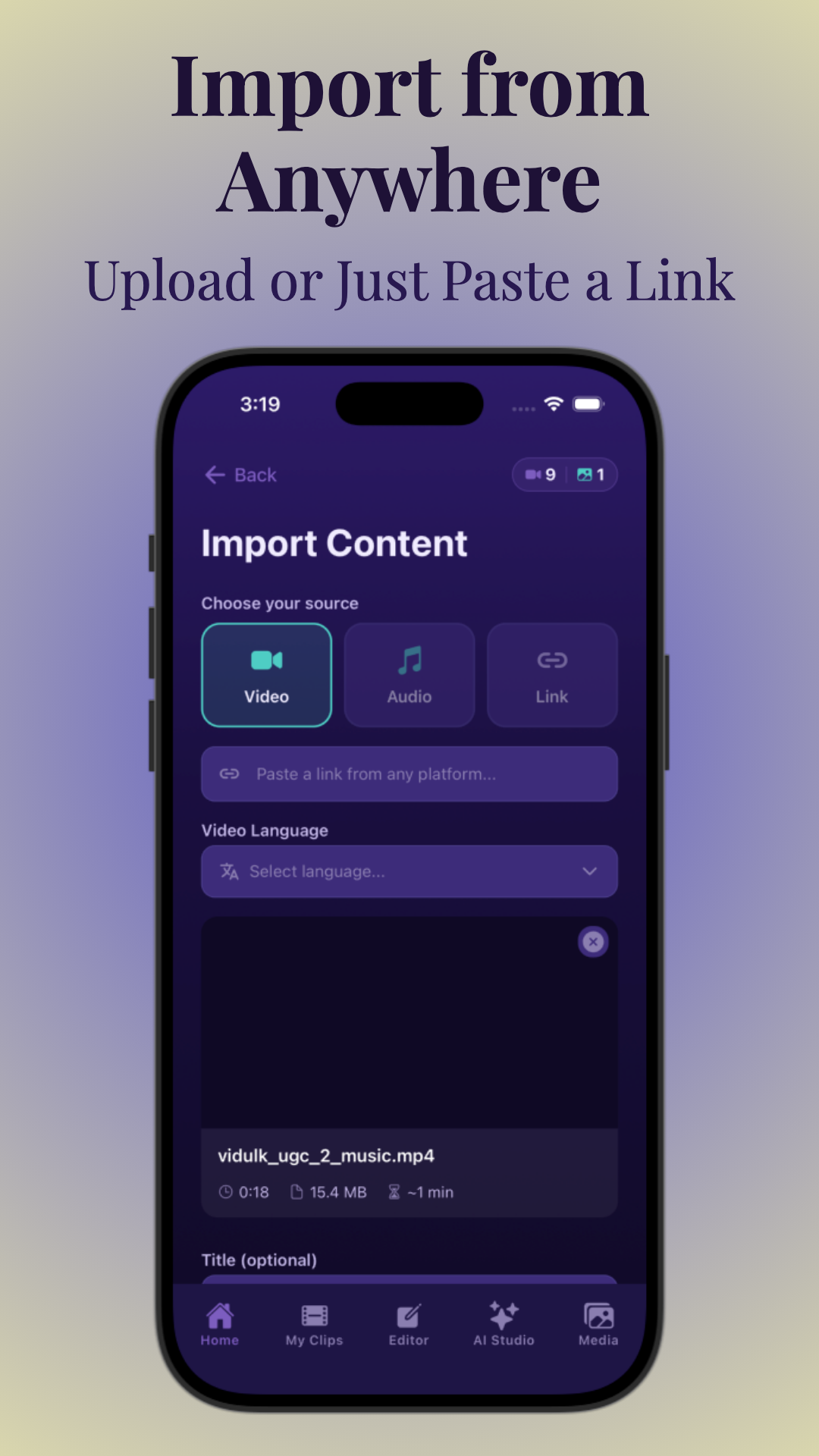
) enables simple drag-and-drop uploads or pasting of URLs. The platform automatically detects video formats and prepares your files for AI analysis. You can preview videos, rename them, and add tags before starting the clipping process.
Why Use an AI Clipping Tool?
Manually reviewing and clipping long conference videos is labor-intensive and prone to inconsistency. AI video clipping automates this process by analyzing the footage to find engaging sections based on multiple signals such as speaker emphasis, audience reactions, and topic changes. This automation allows creators to focus on content strategy and storytelling rather than tedious editing tasks.
For example, an AI engine can detect when a speaker’s tone becomes passionate or when the audience applauds, and mark these segments as potential highlight clips. The tool may also identify topic transitions by recognizing keywords or slide changes. This multi-layered analysis results in clips that have a higher chance of captivating TikTok viewers.
To dive deeper, check out our AI Video Clip Generator guide that explains how AI transforms long videos into engaging clips efficiently.
Section 2: Using AI to Identify Best Moments to Clip
How AI Finds Highlight-Worthy Moments
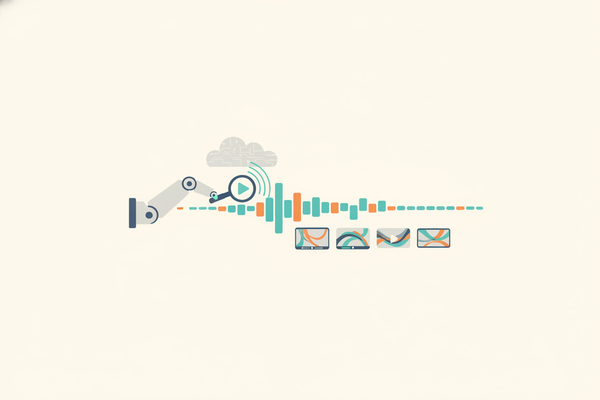
AI engines analyze long videos using a combination of audio, visual, and contextual cues to pinpoint the most engaging moments. Key detection methods include:
- Speaker energy: AI algorithms track changes in vocal pitch, volume, and speech speed to identify moments where speakers raise their voice, express strong emotion, or emphasize key points.
- Audience engagement: Sounds such as applause, laughter, or cheers are detected through audio analysis, signaling impactful or entertaining moments.
- Topic shifts: Natural breaks, slide changes, or shifts in discussion themes are detected via speech-to-text transcription and scene recognition, helping segment the content logically.
- Visual cues: On-screen text, speaker gestures, or changes in camera angles are identified to enhance clip relevance and focus.
By synthesizing these signals, AI ranks potential clips according to predicted viewer interest and engagement, recommending the best segments for TikTok’s fast-paced audience.
Choosing Clip Length and Focus
On TikTok, short clips between 15 and 60 seconds generally perform the best, as users prefer quick, digestible content. However, the optimal length may vary depending on your audience and content type:
- For motivational or inspirational content, 15-30 seconds focusing on a single powerful quote or moment can be highly effective.
- Educational clips may extend toward 45-60 seconds if they cover a clear concept or tip concisely.
- Humorous or entertaining moments should be quick and punchy, often under 20 seconds.
Vidulk allows you to set clip length preferences and select a target audience angle (such as educational, entertaining, or motivational). This customization helps the AI tailor clipping results to your content goals.
Repurposing Podcasts and Streams
Besides conference recordings, AI clipping is highly effective for podcasts and live streams, which often run for an hour or more. The same AI processes apply:
- Detecting intriguing quotes or exchanges during interviews.
- Highlighting moments of laughter, surprise, or debate.
- Segmenting thematic discussions such as technology, marketing, or lifestyle.
This approach enables creators to efficiently turn long-form audio or video into multiple TikTok-ready clips, significantly broadening content reach without additional recording effort.
For more details, see our post on AI Clip Generator: Transform Long Videos Into Viral Shorts.
Section 3: Formatting and Cropping Videos for TikTok
Why Vertical 9:16 Format Matters
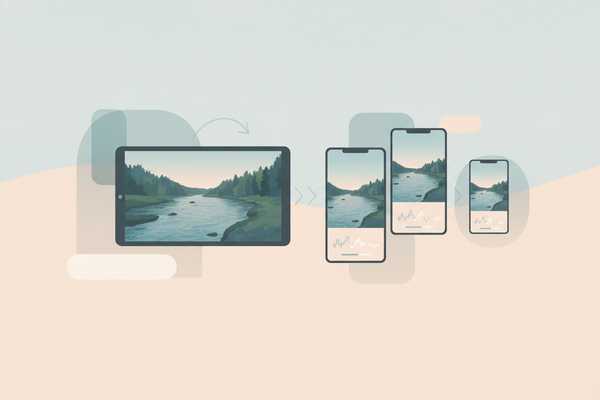
TikTok’s full-screen vertical video format follows a 9:16 aspect ratio, optimized for smartphone viewing. Most conference recordings are filmed in a horizontal 16:9 aspect ratio, which can cause issues such as:
- Black bars on top and bottom when viewed vertically, reducing screen space usage.
- Important visual elements or speaker faces being off-center or cropped out.
- Reduced viewer engagement due to awkward framing.
Converting your footage to vertical format ensures your clips fill the screen, keeping viewers focused and improving watch time metrics.
How to Crop to Vertical Using AI Tools
Manual cropping of a horizontal video to vertical is challenging and time-consuming, often resulting in loss of important context or poor framing. AI-powered cropping tools like Vidulk automate this process by:
- Detecting the most important subject(s) in each frame, typically the speaker’s face or key visual elements such as slides.
- Dynamically adjusting the crop window throughout the clip to keep subjects centered as they move.
- Maintaining video resolution and clarity by minimizing unnecessary zooming or pixelation.
This intelligent cropping preserves viewer engagement by ensuring that the focus remains on relevant content without manual repositioning.
Best Practices for Vertical Cropping
- Keep faces visible: Ensure speakers’ heads and upper bodies remain fully in frame throughout the clip to preserve non-verbal cues and emotional expression.
- Avoid cutting off text: When slides or on-screen text are shown, crop carefully to keep them legible; if necessary, pan or zoom dynamically.
- Use zoom sparingly: Excessive zooming leads to lower video quality and distracting jitter; crop only as much as needed.
- Add padding or blurred backgrounds: To fill vertical space when the footage doesn’t perfectly fit, consider using blurred or stylized backgrounds that complement the main clip.
Vidulk’s vertical cropping is fully integrated into the editing workflow, so once you upload your horizontal conference video, it’s automatically prepared for TikTok formatting, saving you significant time and ensuring professional results.
Section 4: Adding Captions, Subtitles, and Animated Text
Importance of Captions and Subtitles
Many TikTok users watch videos with the sound off, especially in public or workplace settings. Adding captions or subtitles is crucial to:
- Ensure accessibility for viewers with hearing impairments.
- Increase viewer retention by making content understandable without audio.
- Clarify complex points or jargon-heavy conference content.
- Improve SEO and discoverability within TikTok’s algorithm.
Research shows that videos with captions can increase view time by up to 12%, and they also invite more comments and shares.
How AI Generates Captions Automatically
Vidulk leverages advanced AI transcription models that convert spoken words into text accurately and quickly. Key features include:
- Automatic syncing of captions to precise timestamps in the video.
- Support for multiple languages and accents, useful for international conferences.
- Editable transcripts allowing corrections or customizations before finalizing captions.
- Customizable font types, colors, sizes, and background styles to match your branding or enhance readability.
This automation eliminates hours of manual transcription and synchronization work, accelerating your content production pipeline.
Using Animated Text for Emphasis
Animated text elements such as pulsing, sliding, or fading can be added to highlight important phrases, speaker quotes, or calls to action. Benefits include:
- Drawing viewer attention to key messages within the clip.
- Adding dynamic visual interest that complements the video content.
- Encouraging viewer interaction, such as prompting comments or shares.
For example, during an educational clip, highlighting a “Did you know?” fact with animated text can enhance retention. Promotional clips can use animated calls to action like “Follow for more!” or “Join our webinar.”
Here’s a screenshot showing caption customization in Vidulk (
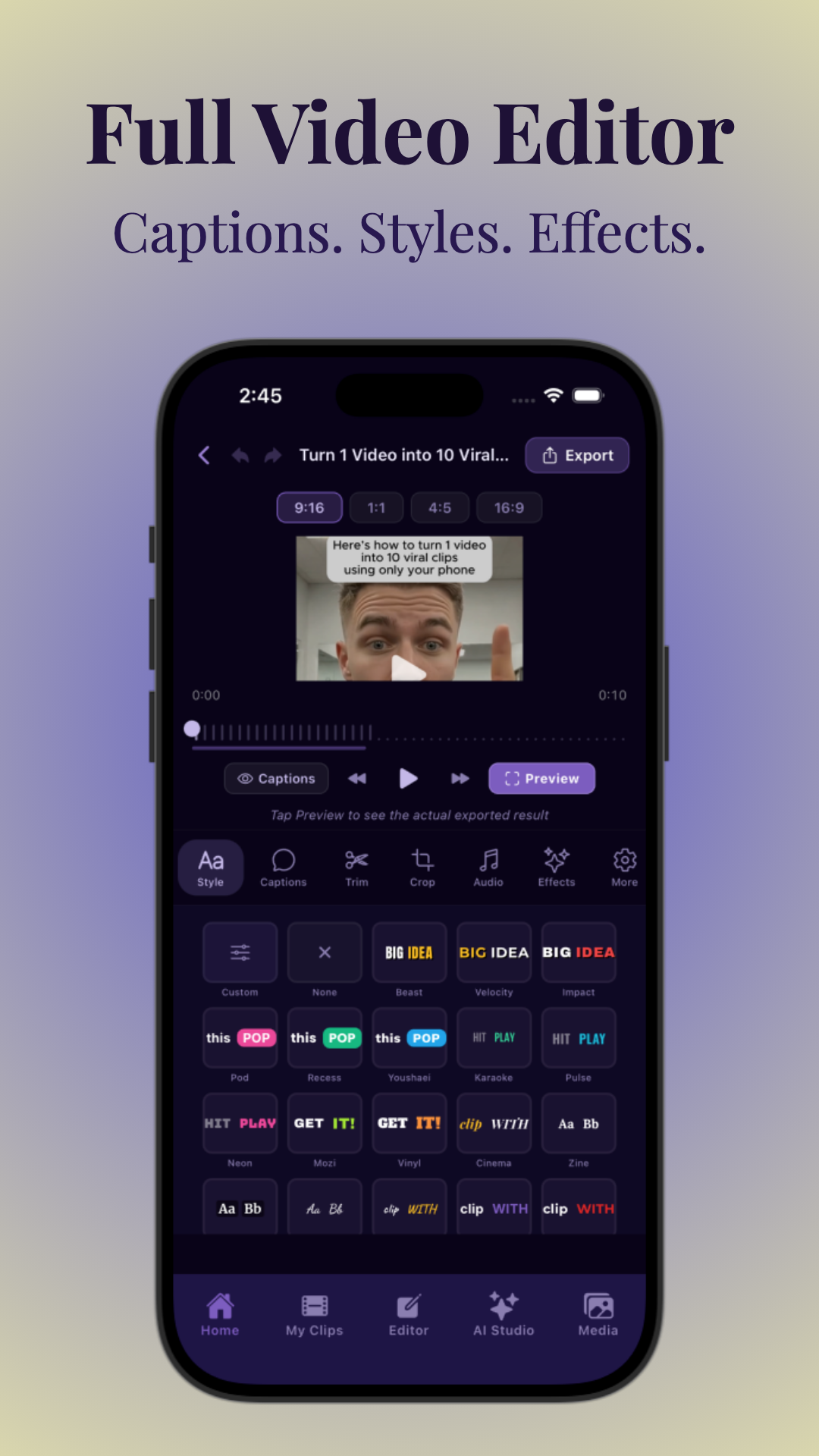
), illustrating the intuitive controls for fonts, colors, and animations.
Section 5: Editing Clips – Trimming & Fine-Tuning
Removing Pauses and Filler Words
Conference recordings frequently contain long pauses, “um”s, “uh”s, and other filler words that can reduce clip impact and viewer engagement. Vidulk’s transcript editor simplifies this by:
- Highlighting filler words and silent gaps in the transcript view.
- Allowing one-click removal of these segments, automatically adjusting the video timeline.
- Preserving natural speech flow to avoid choppy cuts.
By removing unnecessary pauses and filler words, your clips become tighter, more polished, and better suited for the fast pace of TikTok consumption.
Fine-Tuning Clip Start and End Points
Choosing the right start and end points is critical for maintaining viewer attention. Consider these tips:
- Start with a hook: Begin clips where the speaker delivers a compelling statement, question, or surprising fact to immediately capture interest.
- End with a memorable conclusion: Finish on a strong quote, call to action, or visual cue that leaves a lasting impression.
- Avoid abrupt cuts: Use fade-ins or fade-outs if possible, or trim just enough to ensure smooth transitions.
- Check audio and visual sync: Make sure your edits don’t create mismatches between speech and lip movement.
Vidulk’s timeline editor allows frame-accurate trimming and previewing, enabling precise control over clip boundaries.
Repurposing One Recording into Multiple Clips
One of the biggest advantages of using AI clipping tools is the ability to create multiple unique clips from a single conference recording. This multiplies your content output without requiring additional recordings. Examples include:
- Clip 1: Keynote speaker’s top insights, focusing on visionary statements.
- Clip 2: Panel discussion highlights, featuring engaging debates or consensus points.
- Clip 3: Audience Q&A highlights, showcasing interesting questions and expert answers.
- Clip 4: Behind-the-scenes moments or speaker introductions for a personal touch.
This approach enables you to target different audience segments or social media niches, such as educational content, professional development, or entertainment, all from the same source material.
Section 6: Exporting and Posting TikTok Clips
Export Options for TikTok Ready Videos
After editing, Vidulk allows you to export clips optimized specifically for TikTok’s technical requirements. Key export features include:
- MP4 file format with H.264 codec, compatible with TikTok uploads.
- Resolution set to 1080x1920 pixels (vertical 9:16) for full-screen mobile display.
- Optimized bitrate balances quality and file size for fast uploads and smooth playback.
- Option to export clips with embedded captions or as separate subtitle files (SRT) for future editing.
- Direct export to TikTok app drafts on mobile devices, enabling quick posting without manual file transfers.
This seamless export process accelerates your content pipeline from editing to publishing.
Scheduling and Posting Best Practices
To maximize reach and engagement on TikTok, consider these posting strategies:
- Post during peak audience activity: Use TikTok analytics to identify when your followers are most active—typically early evenings and weekends.
- Maintain consistency: Regular posting (e.g., 3-5 clips per week) helps build momentum and audience expectation.
- Use relevant hashtags: Include trending and niche hashtags related to your conference topics to improve discoverability.
- Engage with comments: Responding to viewer comments increases algorithm favorability and community building.
- Cross-promote clips: Share TikTok clips on other social platforms like Instagram Reels, YouTube Shorts, or LinkedIn to broaden reach.
Tracking Performance and Iterating
Monitoring clip performance is essential for refining your content strategy. Key metrics to watch include:
- Views and watch time: Longer average watch times indicate engaging content.
- Likes, shares, and comments: High interaction rates signal viewer interest and virality potential.
- Follower growth: Clips that attract new followers highlight successful themes or formats.
Use these insights to adjust your clipping parameters, topics, or editing style to better resonate with your audience over time.
For detailed guidance on creating AI video clips efficiently, explore our step-by-step guide on How to Make AI Video Clips.
Conclusion
Making TikTok clips from conference recordings offers a powerful method to repurpose valuable long-form content into engaging short videos that reach new and diverse audiences. By uploading your videos from Zoom, YouTube, or local files, leveraging AI-powered tools like Vidulk to identify the best moments, intelligently cropping to vertical format, adding captions and animated text, and fine-tuning clips, you can efficiently produce viral-ready TikTok content.
Moreover, creating multiple clips from a single recording multiplies your content output exponentially without requiring extra recording sessions, making your content strategy more scalable and cost-effective.
Vidulk’s user-friendly mobile app and AI Studio features automate the entire clipping, formatting, and exporting process—allowing content creators, marketers, and event organizers to focus on storytelling and audience engagement rather than tedious editing workflows. Visit Vidulk today to start transforming your conference recordings into TikTok hits that captivate viewers and grow your brand.
FAQ
Q: How do I turn a conference recording into TikTok clips automatically?
A: Use an AI video clipping app like Vidulk. Upload your recording from Zoom, YouTube, Google Drive, or local files, then the AI analyzes the content to detect highlight moments and automatically creates short clips optimized for TikTok’s vertical format, complete with captions.
Q: What is the best way to make vertical TikTok videos from Zoom or conference footage?
A: Convert your horizontal videos to vertical 9:16 format using AI cropping tools that track speakers and key visuals. Vidulk automates this step, ensuring clips fit TikTok’s full-screen mobile display perfectly without manual cropping or loss of important content.
Q: How long should conference highlight clips be for TikTok?
A: Clips between 15 and 60 seconds tend to perform best on TikTok. Focus each clip on a single key takeaway, memorable quote, or engaging moment to maintain viewer attention and maximize shares.
Q: How do I add captions and subtitles to clips from conference recordings?
A: AI transcription tools embedded in apps like Vidulk automatically generate accurate captions and subtitles from your conference audio. You can then customize the font style, size, color, and add animated text effects before exporting your clips.
Q: Can I make multiple TikTok clips from one conference recording?
A: Yes. Extract different clips focusing on unique speakers, topics, or session segments to maximize content output and appeal to diverse audience interests without additional recording effort.
Q: What should I look for when choosing highlights from a conference video for TikTok?
A: Look for moments featuring strong speaker emotion, audience reactions like applause or laughter, significant topic shifts, or memorable quotes. AI tools help identify these highlights automatically, saving time and improving clip effectiveness.
Free to start
Try the Vidulk app
Everything in this guide, in your pocket.
Get it on iPhoneGet it on Android