Edit Church Sermons into Short Video Clips with AI
Learn how to edit church sermons into short video clips using AI for captions, vertical reframing, and context-preserving highlights.

Estimated reading time: 18 min
Key Takeaways
- AI video clipping transforms full-length sermons into engaging short clips automatically, saving hours of manual editing.
- Uploading sermons from YouTube, livestreams, or local files is simple and supports transcript-based editing, enabling precise clip selection.
- Vertical reframing and auto-captions optimize clips for social platforms like Reels, Shorts, and TikTok, increasing viewer engagement and accessibility.
- Maintaining sermon context and scripture integrity is critical when clipping to preserve the intended message and doctrinal accuracy.
- Vidulk offers a streamlined mobile solution tailored for churches and volunteer teams, featuring AI-powered tools that require minimal technical expertise.
Table of Contents
- Section 1: Uploading and Importing Your Church Sermon Video
- Section 2: AI Detection and Selecting the Best Moments to Clip
- Section 3: Transcript-Based Editing Without a Timeline
- Section 4: Vertical Reframing for Social Media Shorts
- Section 5: Auto-Captions, Speaker Tracking, and Branding
- Section 6: Reviewing Clip Context to Preserve Sermon Meaning
- Section 7: Exporting, Scheduling, and Sharing Your Sermon Clips
Conclusion
FAQ
Section 1: Uploading and Importing Your Church Sermon Video
Supported Video Sources
Editing church sermons into short video clips starts with importing your source content. Vidulk supports multiple input methods to simplify this step, accommodating a wide range of church media workflows:
- YouTube URLs: Easily repurpose YouTube videos by pasting the link; Vidulk automatically fetches the video, including associated metadata and available subtitles, to prepare it for clipping. This is ideal for churches that already maintain sermon archives on YouTube or want to clip videos shared by guest speakers.
- Livestreams: Turn live sermons into clips by inputting the livestream URL during or after the broadcast. For platforms that support HLS or RTMP streams, Vidulk can process live feeds directly or from saved recordings. This allows ministries to capture real-time messages and quickly generate shareable highlights.
- Local Files: Upload sermon videos or audio podcasts stored on your device, supporting common formats like MP4, MOV, AVI, and MP3. This option ensures churches can work with content recorded on-site or from third-party services without needing to upload elsewhere first.
Benefits of Multiple Upload Options
This flexibility means churches can work seamlessly with existing sermon archives, livestream recordings, or podcasts without extra conversion steps. For example, a church might have several years of sermon videos on YouTube, weekly livestreams stored on their computer, and audio sermon podcasts. Vidulk’s import system handles all these sources, allowing staff or volunteers to start clipping quickly regardless of technical background or media format.
Furthermore, Vidulk supports batch uploading and queuing, so multiple sermon files can be imported and processed overnight, enabling efficient workflows that save time for ministry teams. It also preserves original video quality by supporting uploads up to 4K resolution, ensuring clips retain visual clarity when shared on high-definition devices.
Example Workflow
For instance, if your sermon is on YouTube, paste the URL directly into Vidulk’s import screen (see screenshot below). The app then processes the file for AI-driven clipping, extracting the audio and generating a transcript within minutes depending on video length.
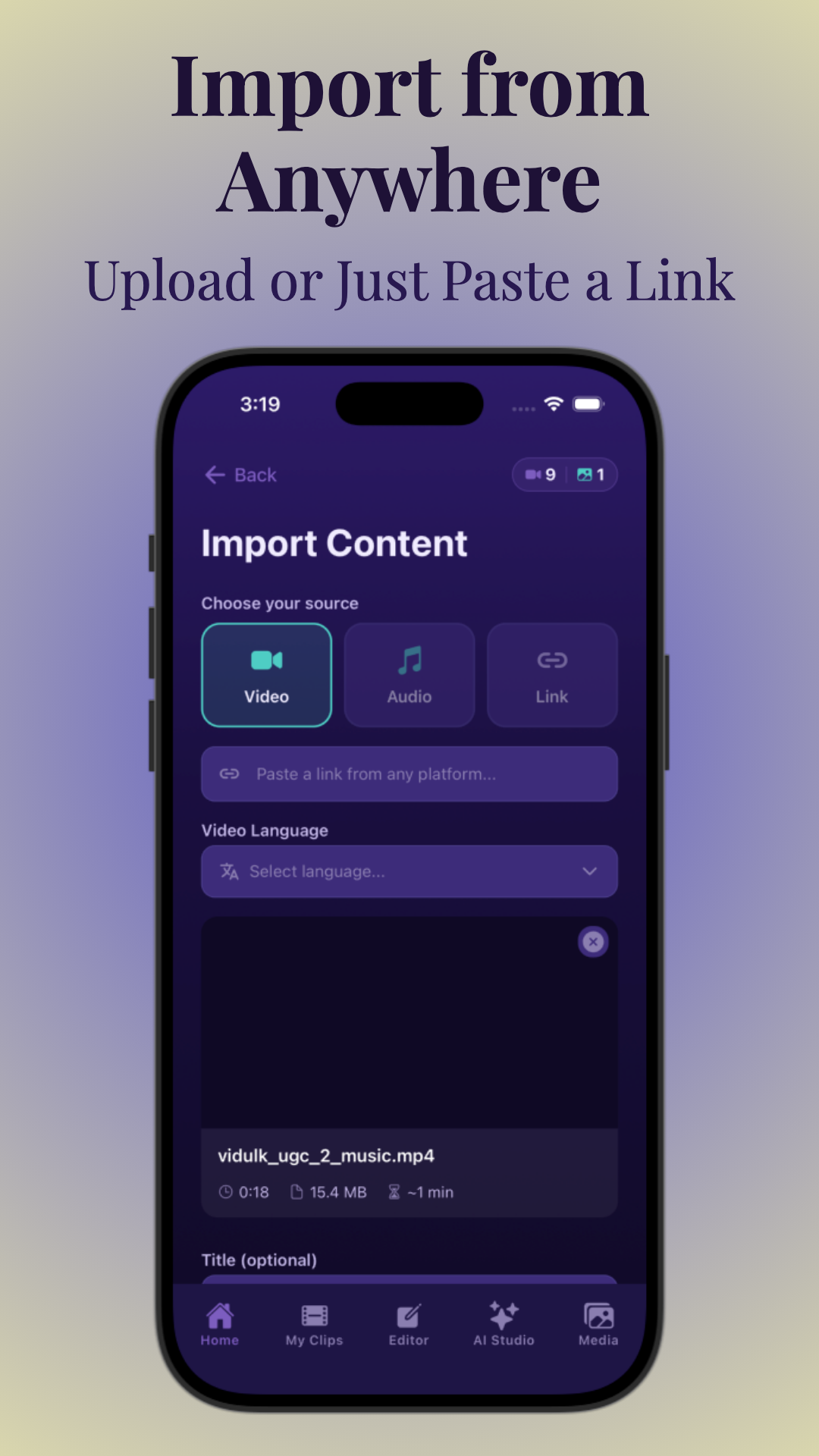
Once imported, the sermon appears in your Vidulk project dashboard where you can review, edit, and create clips. Having a one-stop platform to upload various sermon formats streamlines your workflow and sets the foundation for efficient editing without juggling multiple apps or conversions.
Section 2: AI Detection and Selecting the Best Moments to Clip
How AI Identifies Key Sermon Moments
Manually scanning sermons for highlight-worthy clips can be time-consuming, especially when sermons run 45 minutes to over an hour. Vidulk’s AI video clipping technology automates this by analyzing audio and video to detect impactful moments, improving efficiency and content quality. The AI employs multiple detection methods, including:
- Speech sentiment analysis: Identifies moments where the preacher’s tone intensifies, signaling passionate sermon points or emotional emphasis.
- Keyword spotting: Detects scripture references, key theological terms, and call-to-action phrases to highlight significant content.
- Visual cues: Recognizes speaker gestures, facial expressions, and audience reactions such as applause or laughter, indicating engaging or memorable moments.
- Speaker pauses and pacing: Finds natural breaks or transitions in the sermon, helping define logical clip boundaries.
Benefits of AI-Driven Clip Selection
- Time-saving: Automatically surfaces moments worth sharing without watching the entire recording, reducing clipping time from hours to minutes.
- Consistency: Maintains quality by selecting clips based on data-driven signals rather than guesswork, ensuring each clip delivers meaningful content.
- Relevance: Focuses on scripture and sermon highlights that resonate with viewers, increasing the likelihood of engagement on social media.
- Adaptability: AI algorithms learn from user feedback over time, improving suggestions tailored to your church’s style and audience preferences.
How to Refine AI Suggestions
After AI proposes clips, you can manually review and adjust selections to ensure perfect alignment with your message and audience preferences. Vidulk’s interface shows AI-suggested clips alongside the full transcript, allowing you to:
- Accept, reject, or combine suggested clips.
- Trim clip start and end points precisely to avoid cutting off sentences or scripture references.
- Add or remove captions and overlays for clarity.
- Insert transitions or intros for branding consistency.
This hybrid approach balances automation with human judgment, enabling volunteer editors to produce professional-quality sermon clips efficiently. For example, if the AI highlights a scripture reading but cuts off before the verse is fully read, you can extend the clip using transcript-based editing to include the entire passage.
Section 3: Transcript-Based Editing Without a Timeline
Editing Sermons Using Transcripts
Traditional video editing relies on complex timelines requiring precise frame-level adjustments, which can be daunting for volunteers without experience. Vidulk simplifies this by enabling transcript-based editing, where you can edit video content by directly interacting with the sermon text. Key features include:
- Text highlighting: Highlight or select portions of the transcript to instantly select corresponding video and audio segments, eliminating the need for scrubbing timelines.
- Drag-and-drop rearrangement: Reorder clips or segments by moving transcript blocks, enabling easy compilation of thematic sermon highlights.
- Delete or silence sections: Remove unwanted segments seamlessly by editing the transcript without affecting surrounding content.
- Search functionality: Quickly find scripture references or keywords within transcripts to locate relevant sermon moments.
Advantages for Churches and Volunteer Teams
This method is especially helpful for churches with volunteer editors who may not have professional video editing experience. It democratizes content creation by providing an intuitive, text-based interface familiar to most users. Advantages include:
- Reduced learning curve, allowing volunteers to contribute more effectively.
- Quicker editing cycles, enabling rapid turnaround for social media posting.
- Greater accuracy in clipping, since editors interact with the exact words spoken.
- Preservation of message flow, as transcript editing ensures clips maintain logical progression.
Example Use Case
Suppose you want to create a short clip explaining a key Bible verse mentioned during the sermon. Simply search or scroll to the verse in the transcript, highlight the relevant sentences, and Vidulk automatically generates a clip timed to those words, including a few seconds of surrounding context to maintain flow. You can then add captions and adjust framing before exporting.
Similarly, if a volunteer wants to create a themed compilation of all the sermon’s references to "faith," they can search that keyword, select multiple transcript segments, and assemble them into a single highlight reel without needing complex video editing skills.
Section 4: Vertical Reframing for Social Media Shorts
Why Vertical Video Matters
Platforms like Instagram Reels, YouTube Shorts, and TikTok prioritize vertical video formats optimized for mobile viewing. According to industry data, over 75% of social media video consumption occurs on mobile devices held vertically. To maximize reach and engagement, sermons must be reframed from traditional horizontal (16:9) to vertical (9:16) orientation.
Simply cropping horizontal videos often results in important content being cut off or viewers missing key visual elements like scripture text or preacher gestures. Therefore, smart vertical reframing is necessary to maintain visual storytelling and message clarity.
Vidulk’s Vertical Reframing Features
- Smart Cropping: Automatically detects key subjects such as the preacher’s face, hands, and scripture text on slides or screens, then centers these elements within the vertical frame. This avoids awkward cuts and ensures the most important visuals remain visible.
- Customizable Zoom and Positioning: Editors can adjust zoom levels and reposition the crop window manually to highlight specific gestures, expressions, or on-screen text, tailoring the clip to the message’s emphasis.
- Aspect Ratio Options: Support for exporting in vertical 9:16 format, square 1:1 for platforms like Instagram feed posts, or horizontal 16:9 if desired, providing flexibility depending on the target platform.
- Motion Tracking: In cases where the preacher moves across the stage, Vidulk can track subject movement and dynamically adjust framing to keep the speaker centered throughout the clip.
Best Practices for Sermon Shorts
- Keep clips between 30 and 60 seconds to match social media users’ attention spans and platform algorithms favoring shorter content.
- Focus on moments with clear visuals, strong messaging, and minimal background distractions to maximize impact.
- Use vertical framing to make scripture legible and the speaker prominent — avoid cropping out slide text or facial expressions.
- Consider adding subtle motion effects such as slow zoom or pan within vertical frames to maintain viewer interest.
- Preview clips on multiple devices and platforms to confirm framing works well across different screen sizes.
Section 5: Auto-Captions, Speaker Tracking, and Branding
Importance of Captions
Auto-captions boost accessibility and engagement, especially as many users watch videos muted (70% according to social media studies). Captions also help non-native speakers, hearing-impaired viewers, and those in noisy environments.
Vidulk’s AI generates highly accurate captions synced perfectly with sermon audio, using advanced speech recognition optimized for religious terminology and multiple accents. Captions can be styled and positioned to avoid overlapping important visuals.
Speaker Tracking for Multi-Person Sermons
For interviews, panel discussions, or sermons with multiple speakers (e.g., guest pastors, worship leaders), Vidulk tracks speaker changes to label captions accordingly. This maintains clarity in dialogue-heavy clips and ensures viewers know who is speaking.
Speaker tracking works by analyzing voice signatures and video face recognition, enabling caption attribution and even color-coded text for each speaker. This feature is particularly useful when clipping sermon Q&A sessions or roundtable discussions.
Branding and Customization Options
- Add church logos and watermarks: Reinforce identity and protect content from unauthorized reuse by embedding semi-transparent logos in corners.
- Customize caption fonts, colors, and backgrounds: Match your church’s branding guidelines to maintain a consistent visual style across clips, improving recognition and professionalism.
- Include intro/outro templates: Add branded opening titles or closing slides with service times, website links, or calls to action for consistency and promotional purposes.
- Overlay scripture references: Display Bible verse citations dynamically in captions or as separate text overlays, helping viewers connect spoken words with scripture.
- Use custom color grading and filters: Adjust clip color tones to match your church’s video style or to enhance mood and readability.
Section 6: Reviewing Clip Context to Preserve Sermon Meaning
The Challenge of Context in Sermon Clips
Cutting sermons into short clips risks losing essential context, potentially distorting scripture or message meaning. Inaccurate clipping can lead to misinterpretation or doctrinal errors, which is particularly sensitive for churches.
Maintaining integrity is crucial to uphold trust and doctrinal accuracy. Viewers unfamiliar with the full sermon need clips that stand alone without confusion or misleading omissions.
Strategies to Keep Meaning Intact
- Include Scripture References: Display or mention Bible verses explicitly in captions or overlays, so viewers know the source material.
- Use AI to Analyze Semantic Boundaries: Vidulk’s AI helps identify logical start and end points for clips by detecting sentence and paragraph boundaries, preventing clips from starting or ending mid-thought.
- Review Surrounding Content: Preview clips with preceding and following content to ensure completeness and that the message is conveyed in full.
- Maintain Thematic Coherence: Group related clips or add brief contextual intros if a clip references prior scripture or sermon points.
- Consult Ministry Leaders: Have pastors or ministry staff review clips for theological accuracy and appropriateness before publishing.
Manual Adjustments Post-AI Clipping
While AI provides a strong foundation, human oversight is important. Editors should watch clips fully and tweak trims or captions to maintain the sermon’s full intended message. For example:
- Extending a clip to include a clarifying sentence omitted by AI.
- Adjusting captions to correct transcription errors of scripture names or theological terms.
- Adding scripture overlay text to reinforce key verses.
- Inserting brief voiceover intros if the clip references prior content not included.
These final steps ensure clips are both engaging and faithful to the original sermon’s spiritual and educational goals.
Section 7: Exporting, Scheduling, and Sharing Your Sermon Clips
Exporting Formats and Quality
Vidulk supports exporting clips in optimized formats tailored for various platforms and use cases. Key export options include:
- MP4 files: Standard format with embedded auto-captions burned in or as separate subtitle files (.SRT). High compression settings preserve quality while maintaining manageable file sizes for fast uploads.
- WebM format: For platforms supporting modern codecs, enabling smaller files with transparency support.
- Resolution options: Export in HD (720p or 1080p) or 4K depending on platform requirements and original source quality.
- Aspect ratio presets: Vertical (9:16), square (1:1), or horizontal (16:9) to match social media specifications.
Scheduling and Direct Posting
To streamline outreach, Vidulk integrates with popular social media schedulers and platforms, allowing you to:
- Schedule clips for future posting on YouTube Shorts, Instagram Reels, Facebook, and TikTok directly from the Vidulk dashboard.
- Manage multiple social accounts and set posting times optimized for peak engagement hours based on analytics.
- Receive notifications when clips are published or require attention.
- Export clips for manual upload if preferred, providing flexibility.
Tips for Maximizing Reach
- Post regularly (e.g., 2-3 times per week) to maintain consistent engagement and grow your audience.
- Use relevant hashtags, tags, and trending topics to increase discoverability.
- Combine clips with engaging thumbnails, custom captions, and calls to action prompting viewers to attend services or visit your website.
- Analyze post-performance metrics (views, shares, comments) to refine future clip selection and posting schedules.
- Encourage congregation members to share clips on their networks to amplify reach.
For a full walkthrough on making AI video clips, check out this step-by-step guide on Vidulk’s blog.
Conclusion
Editing church sermons into short video clips is an essential strategy for modern ministries to expand their reach across social media and engage digital audiences effectively. Leveraging AI-powered tools like Vidulk makes this process fast, accessible, and effective, even for volunteer teams with limited video experience.
From importing your sermon video via multiple supported sources, to AI-powered highlight detection that identifies impactful moments, transcript-based editing that simplifies clip creation without timelines, vertical reframing tailored for mobile-first platforms, and context-aware clipping that preserves sermon meaning—Vidulk covers the entire workflow with intuitive tools designed specifically for churches.
Additional features like auto-captions, speaker tracking, customizable branding, and integrated scheduling streamline your digital outreach, ensuring clips are professional, accessible, and consistent with your ministry’s identity.
By adopting these techniques and utilizing Vidulk’s comprehensive platform, churches can repurpose sermons into engaging clips that resonate on platforms like YouTube Shorts, Instagram Reels, and TikTok—bringing scripture and messages to new audiences in the formats they consume most.
Try Vidulk today at Vidulk to automate sermon clipping, enhance your media ministry, and elevate your church’s digital presence.
FAQ
Q: How do I turn a full church sermon into short clips automatically?
A: Use AI video clipping tools like Vidulk that analyze your full sermon to detect impactful moments. Upload your video or audio via YouTube URL, livestream link, or local file. The AI generates short, captioned clips by identifying passionate points, scripture references, and audience reactions, saving you significant editing time.
Q: What is the best AI tool for making sermon clips for YouTube Shorts and Reels?
A: Vidulk is among the best AI video clipping apps tailored for churches. It supports various input sources, transcript-based editing without complex timelines, vertical reframing optimized for social platforms, auto-captions with speaker tracking, and branding features. This comprehensive feature set makes it ideal for creating sermon clips optimized for YouTube Shorts, Instagram Reels, and TikTok.
Q: How long should sermon clips be for social media?
A: The recommended length is between 30 to 60 seconds. This duration keeps viewers engaged while delivering a concise, impactful message suitable for platforms like Reels and Shorts, which favor shorter content for better reach and retention.
Q: Can I upload a sermon from YouTube and get short clips with captions?
A: Yes. Vidulk allows you to paste a YouTube URL to import the sermon video directly. It then automatically generates captioned short clips synced to the sermon’s transcript, ready for download or scheduling, streamlining the clipping process.
Q: How do I make sure a sermon clip stays in context and does not cut off the message?
A: Use AI tools that analyze semantic boundaries and provide transcript-based editing to precisely trim clips. Review clips with preceding and following content, include scripture references as overlays or captions, and consult ministry leaders for theological accuracy. Vidulk’s features help maintain message integrity by allowing precise trimming based on text and context.
Q: Which sermon clip maker is best for churches and volunteer teams?
A: Vidulk is designed with churches and volunteer editors in mind, offering easy transcript editing, AI-generated highlights, vertical reframing, and branding—all on a mobile-friendly platform that doesn’t require advanced video skills. Its intuitive interface empowers volunteers to create professional clips efficiently.
Free to start
Try the Vidulk app
Everything in this guide, in your pocket.
Get it on iPhoneGet it on Android