AI Background Removal Video Clips: The Ultimate Guide to Automated Video Editing
Discover AI background removal video clips and learn how these tools automate video editing, boost efficiency, and provide consistency across clips.

Estimated reading time: 7 minutes
Key Takeaways
- AI background removal automates framing, masking, and background replacement in seconds.
- Delivers time-saving efficiencies, consistent precision, and accessibility for all skill levels.
- Top tools include Adobe Express, Canva Pro, Cutout.Pro, Descript, Vmake AI, Higgsfield AI, and Unscreen.
- Best practices: controlled lighting, test clips, contrast management, and preview before export.
- Future trends point to real-time streaming support, sharper edge detection, and deeper NLE integration.
Table of Contents
- Understanding AI Background Removal
- Key Benefits
- Popular Tools and Software
- Step-by-Step Guide & Best Practices
- Challenges & Future Directions
- Conclusion
- FAQ
Understanding AI Background Removal for Video Clips
Definition
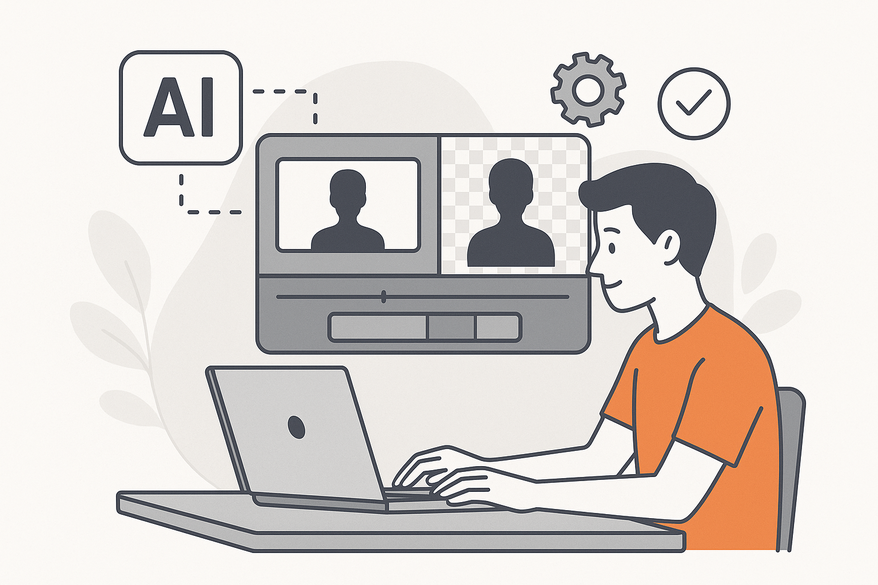
AI background removal video clips uses deep learning to detect and isolate subjects in every frame, eliminating backgrounds without manual masking. This replaces hours of rotoscoping with a single click and lets editors focus on creativity.
How It Works
- Neural networks analyze each frame to generate subject masks.
- AI tracks masks through motion, shadows, and low-contrast scenarios.
- Automated refinement occurs in milliseconds, ensuring frame-by-frame consistency.
Traditional vs. AI-Based Comparison
| Aspect | Traditional Manual Editing | AI-Based Removal |
|---|---|---|
| Time Investment | Hours of masking | One-click; minutes |
| Consistency | Variable, human error | Frame-perfect across clips |
| Green Screen | Required | Not required |
| Skill Level | Expert masking | Novice-friendly |
| Detail Handling | Manual touch-ups | Automatic complex motion |

Key Benefits of AI Background Removal
Time-Saving & Efficiency
- Processes that once took hours now finish in seconds or minutes.
- Speeds up social media clips, e-commerce demos, and marketing videos.
- Example: A social media manager cut editing time by 80% using AI removal.
Consistency & Precision
- Maintains edge quality on fast motion with pixel-perfect mattes.
- Eliminates jitter and edge artifacts for professional results.
Simplification for All Skill Levels
- No prior editing experience required—upload, click, and remove.
- Democratizes broadcast-quality effects for small businesses and freelancers.
Industry Applications
- Marketing: Product demos with interchangeable backdrops.
- Filmmaking: Composite actors without green screens.
- Social Media: Eye-catching Reels, TikToks, and Shorts.
- E-commerce: Clean product showcases to boost conversions.
- Education: Clear instructor videos for online courses.
Popular Tools and Software for AI Background Removal Video Clips
Beyond background removal, AI editing often includes clipping and enhancements—see AI clip editor apps for more.
Tool Profiles
- Adobe Express – One-click MP4 background removal; premium plans from $9.99/month; Creative Cloud sync.
- Canva Pro – Magic Design for Video; Pro plan $12.99/month; exports up to 4K.
- Cutout.Pro – Replace backgrounds with color, image, or video; API access; pay-per-use credits.
- Descript – AI Green Screen and transcription-driven edits; Creator plan $12/month.
- Vmake AI – Free background removal; paid tiers for bulk processing.
- Higgsfield AI – One-click pixel-perfect masks; subscription plans available.
- Unscreen – Background removal plus auto animations; HD exports with subscription.
Step-by-Step Guide & Best Practices for AI Background Removal Video Clips
For a detailed look at clipping workflows, read how AI video clipping works.
- Upload your video (MP4, MOV, WEBM, GIF up to 4K).
- Click “Remove Background” and wait seconds or minutes.
- Preview at low resolution, then switch to full resolution.
- Replace background with solid color, image, or video.
- Export as MP4 or publish directly to platforms.
Expert Tips
- Run a short sample clip to test mask accuracy.
- Use controlled lighting and high subject-to-background contrast.
- Favor slower motions for cleaner mask tracking.
- Avoid color clashes between subject and backdrop.
- Use AI output as a starting layer for manual NLE refinement.
Common Pitfalls to Avoid
- Low-contrast footage that confuses the AI.
- Skipping full-resolution previews before export.
- Poor lighting causing edge detection errors.
- Assuming perfect results on the first try.
- Uploading very large files without compression.
Challenges & Future Directions for AI Background Removal Video Clips
Current Limitations
- Transparent hair, thin fabrics, and reflections remain challenging.
- Uneven lighting leads to mask inconsistencies.
- Ultra close-ups can confuse edge detection.
- Processing large 4K files may take longer than expected.
Future Trends & Improvements
- Real-time background removal during live streams.
- Sharper edge detection for semi-transparent materials.
- Contextual scene awareness for overlapping subjects.
- Deep integration into Premiere Pro and Final Cut Pro.
- Expanded freemium access to AI editing.
Conclusion
AI background removal streamlines video editing by automating masking, ensuring consistent precision, and making professional-quality results accessible to everyone. Whether you're a marketer, filmmaker, social creator, or educator, these tools can save hours and elevate your storytelling. Embrace AI-driven video editing to stay ahead in your production workflow.
For on-device AI editing—including background removal and clipping—explore Vidulk - AI Video Clipping App.
FAQ
What is AI background removal for videos?
It's an automated process that uses deep learning to separate subjects from their backgrounds frame by frame, eliminating manual masking.
Which tool is best for beginners?
Adobe Express and Canva Pro offer one-click removal with intuitive interfaces and free tiers.
How accurate is AI segmentation?
Modern tools handle complex motion and fine details like hair with high precision, though extreme scenarios may need manual touch-ups.
Can I use AI removal in live streams?
Real-time background removal is emerging, with solutions integrating directly into streaming software for instant effects.