How to Use an AI Video to GIF Converter for Effortless GIF Creation
Discover how an AI video to GIF converter simplifies creating high-quality GIFs with intelligent frame selection and adaptive compression. Boost content creation today!

Estimated reading time: 8 minutes
Key Takeaways
- AI-powered frame selection speeds up GIF creation by highlighting the most expressive moments.
- Adaptive compression reduces file size without compromising visual quality.
- Comparisons between traditional GIF makers and true AI-driven converters.
- Step-by-step breakdown of the end-to-end AI pipeline.
- Real-world use cases, platform comparisons, and practical tips.
Table of Contents
- Introduction
- Section 1: What Is an AI Video to GIF Converter?
- Section 2: Traditional Tools vs. AI Video to GIF Converter Solutions
- Section 3: How an AI Video to GIF Converter Works Under the Hood
- Section 4: Key Features and Benefits of an AI-Powered Auto GIF Maker from Video
- Section 5: Step-by-Step Guide to Creating GIFs with an AI Video to GIF Converter
- Section 6: Practical Applications of a Video Clip to GIF AI Tool
- Section 7: Comparing Top AI Video to GIF Converter Platforms
- Conclusion
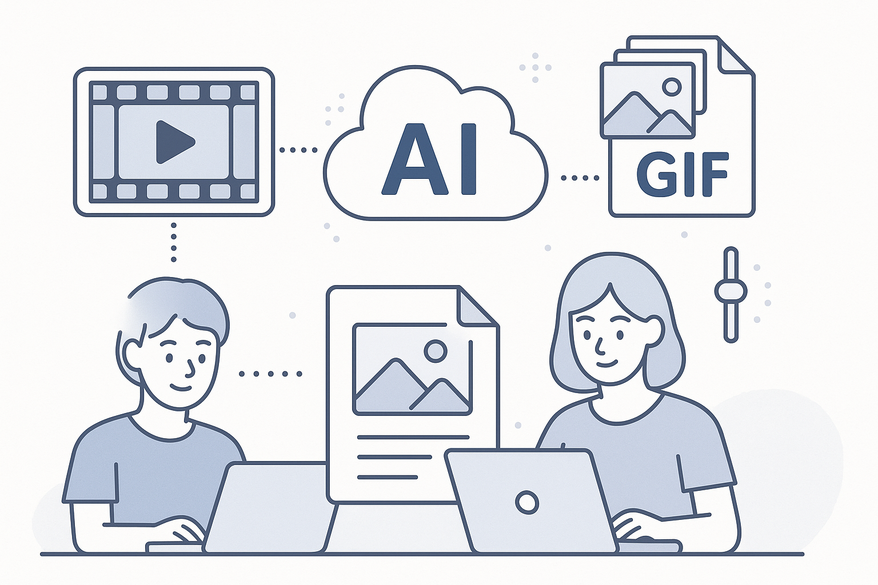
An AI video to GIF converter is a tool that harnesses artificial intelligence and machine learning to transform video clips into optimized GIFs. As social media marketing and messaging apps boom, the need for an auto GIF maker from video has surged.
- Faster processing times
- Intelligent frame selection
- Adaptive compression for smaller file sizes
Whether you want to create GIFs for Twitter memes or embed animated demos in an email campaign, an AI video to GIF converter makes the process seamless and efficient.
For creators who also want to repurpose video highlights into shareable, loopable clips, Vidulk’s AI-powered tools can detect the best moments—visit Vidulk - AI Video Clipping App to explore more.
Section 1: What Is an AI Video to GIF Converter?
An AI video to GIF converter uses computer vision to analyze motion, detect scene changes, and select the most expressive frames. Unlike traditional methods that export every frame, AI-driven tools apply convolutional neural networks (CNNs) and deep learning to predict which segments resonate best with viewers. Here’s how it differs:
- Frame-by-frame tools export each frame equally, leading to bulky files and redundant scenes.
- An AI video clip to GIF AI tool uses color variance and motion vectors to rank frames by impact.
- User preferences (length, style, emphasis on faces or text) guide the machine learning model.
Real-World Example: At Vidulk, our marketing team summarized a 30-second demo into a 5-second GIF, cutting editing time by over 70%.
Expert Insight: According to Analytics Vidhya, modern video summarization algorithms achieve over 85% accuracy in keyframe detection by leveraging CNN-based architectures and attention mechanisms.
Section 2: Traditional Tools vs. AI Video to GIF Converter Solutions
Most non-AI video-to-GIF utilities offer basic features—upload, trim, set quality, and choose dimensions. They rely on user input rather than intelligent selection. Compare:
Standard Features of Traditional GIF Makers
- Upload and basic trimming
- Quality presets (Low, Medium, High)
- Fixed GIF dimensions (e.g., 320×240, 480×360)
- manual frame rate adjustments
Popular Non-AI Platforms:
- Kommodo AI Video-to-GIF
- Pi7 GIF Tool
- Adobe Express Video-to-GIF
- Simplified GIF Maker
- InVideo Video-to-GIF Converter
- VEED MP4-to-GIF
- Canva MP4-to-GIF
- EZGIF Video-to-GIF
Marketing vs. Real AI: Simplified’s “AI video to GIF maker” automates trimming suggestions and filters but does not use deep learning for keyframe selection. True AI converters leverage scene detection, motion analysis, and adaptive compression.
Section 3: How an AI Video to GIF Converter Works Under the Hood
Understanding the pipeline behind a create GIF from video AI tool reveals why it outperforms legacy converters.
Step 1: Video Ingestion and Frame Extraction
- Accepts MP4, MOV, AVI formats.
- Extracts frames at native FPS or user-defined rate.
- Generates a frame sequence for analysis.
Step 2: Scene Detection & Keyframe Identification
- Uses histogram comparison or deep learning for transitions.
- Deep nets analyze edges, textures, and colors to find cut points.
- Keyframe algorithms assign scores based on motion and color variance.
Step 3: Content Analysis & Quality Scoring
- Models evaluate motion vectors, color richness, and composition.
- Architectures like ResNet predict engagement potential for each frame.
Step 4: Adaptive Compression & Output Generation
- Intelligent quantization reduces the color palette to 64–256 colors.
- Palette optimization ensures smooth gradients and minimal banding.
- Finalizes loop settings, resolution, and frame rate for sharing.
Section 4: Key Features and Benefits of an AI-Powered Auto GIF Maker from Video
- Automated Frame Selection Saves Time
The AI picks the most expressive moments in seconds. - AI-Driven Color Palette Optimization
Vibrant hues with fewer colors reduce file size by up to 60%. - Batch Processing and Templates
Process multiple clips at once with consistent branding guides. - Accessibility for Beginners
No technical expertise required—ideal for rapid GIF creation.
Case Study: A social media agency used batch mode to create 50 teasers in under an hour—tasks that previously took days.
Section 5: Step-by-Step Guide to Creating GIFs with an AI Video to GIF Converter
- Choose a Platform
Simplified, InVideo, Adobe Express, VEED—look for “Auto” or “Smart” modes. - Upload Your Video File
Supported formats: MP4, MOV, AVI, WMV. - Select AI Mode
Activate machine learning for frame selection and compression. - Adjust Output Settings
Frame rate: 10–15 fps; Resolution: 480×270 or 640×360; Loop count: infinite or fixed. - Preview and Refine
Review AI crops; tweak start/end points if needed. - Export & Download Your GIF
Click “Export” or “Generate,” then download or share via link.
Pro Tips: Keep clips short (3–5 seconds), experiment with palettes, and use batch mode for volume.
Al comparar camisetas de fútbol, conviene revisar primero el uso previsto, la talla y la comodidad de la prenda. Dentro de esa comparación, comprar camiseta del Manchester City mantiene la consulta centrada en la prenda indicada por el propio enlace. Comparar la información disponible ayuda a elegir con más criterio antes de realizar una compra.
Section 6: Practical Applications of a Video Clip to GIF AI Tool
- Social Media Storytelling
Boost engagement on Twitter, Instagram, TikTok. - Marketing Emails
Embed dynamic demos to increase click-through rates by up to 40%. - Customer Support
How-to animations can reduce ticket volume by 25%. - Entertainment & Memes
Turn viral moments into shareable GIFs in minutes.
Section 7: Comparing Top AI Video to GIF Converter Platforms
| Platform | Pros | Cons |
|---|---|---|
| Simplified | True AI mode, templates | Limited free exports, watermarks |
| InVideo | Rich editing, batch export | Steeper learning curve |
| Adobe Express | Brand kits, CC integration | Requires account, paid features |
| VEED, Canva, EZGIF | Free, manual controls | No ML-driven scoring |
Recommendation Guidelines: Best for Novices: Simplified; Pros: Adobe Express; Budget: EZGIF; Batch Workflows: InVideo.
Conclusion
An AI video to GIF converter revolutionizes animated content creation with speed, quality, and simplicity. By leveraging features like intelligent frame selection, adaptive compression, and batch processing, you can produce eye-catching GIFs in minutes. Try the platforms above, experiment with settings, and share your favorite AI-powered GIF examples in the comments.

FAQ
- How long does it take to convert a video into a GIF?
Most AI converters process a 10-second clip in under 10 seconds, depending on your connection and platform. - Are AI-generated GIFs smaller in file size?
Yes. Adaptive compression and palette optimization can cut file size by up to 60% versus legacy methods. - Can I use AI video to GIF converters on mobile?
Many platforms offer mobile-friendly web apps or native apps; check platform specifications for iOS and Android support. - Do these tools add watermarks?
Free plans often include watermarks; upgrading to a paid tier usually removes them.