Embedded Video Chat: How to Add Live Chat to Any Website or App
Learn how embedded video chat works, how to set up YouTube live chat embeds, and best practices for integrating chat into your site or app.

Estimated reading time: 13 min
Key Takeaways
- Embedded video chat lets you add real-time chat to websites or apps using YouTube, APIs, or SDKs.
- YouTube live chat can be embedded with an iframe, but domain restrictions and video IDs matter.
- Dynamic chat widgets, moderation tools, and mobile compatibility are key for user engagement.
- Embedding chat works for events, webinars, support, and online communities.
- CMS users (like WordPress) have plug-and-play options for embedded video chat.
Table of Contents
- Section 1: Understanding Embedded Video Chat
- Section 2: Embedding YouTube Live Chat – Setup and Behavior
- Section 3: Embed Code, Domain Restrictions, and the `embed_domain` Parameter
- Section 4: Implementation Methods – Iframes vs APIs
- Section 5: Dynamic Chat Loading and Video-Specific Chat
- Section 6: Embedding Video Chat in CMS, Mobile, and Use Cases
- Conclusion
- FAQ
Section 1: Understanding Embedded Video Chat
What Is Embedded Video Chat?
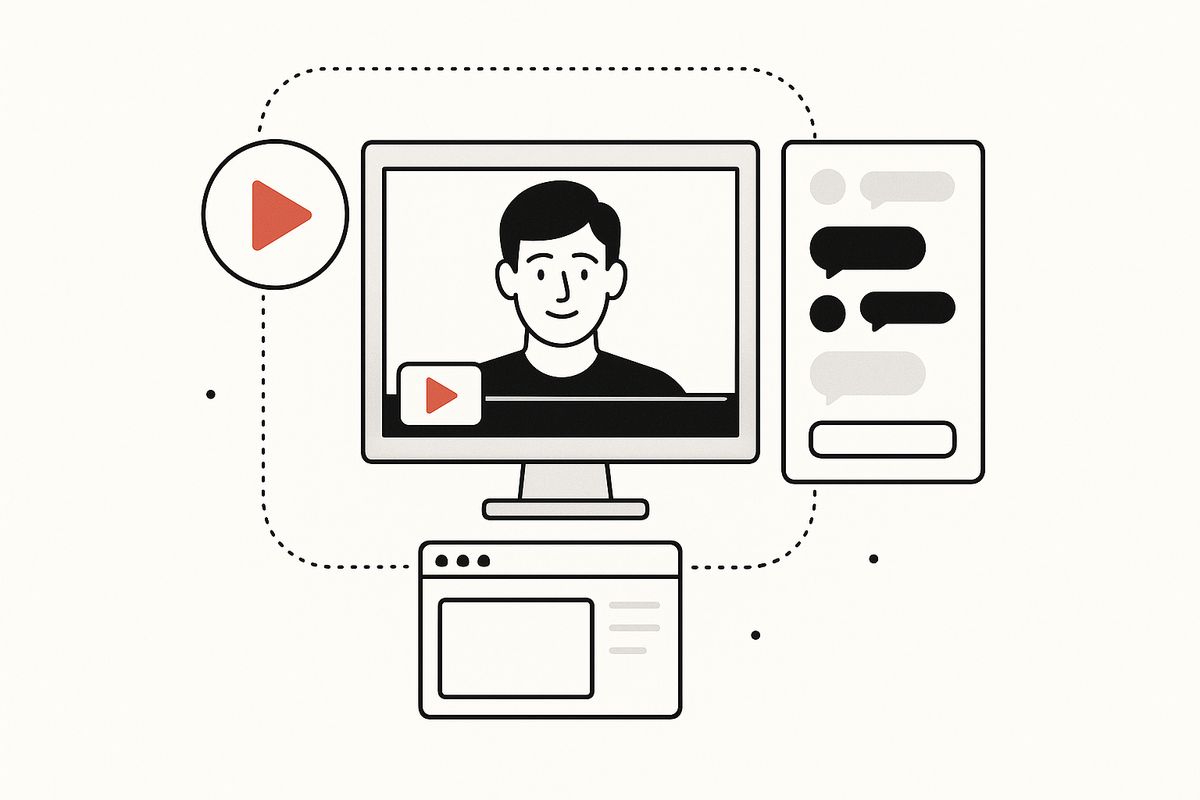
Embedded video chat refers to integrating real-time chat functionality alongside a video stream directly into a website or application. This is most commonly seen in livestreams, webinars, and online events, where viewers can interact live while watching.
- Enhances engagement: Viewers comment, ask questions, and interact live. This real-time feedback loop makes virtual events feel more like in-person experiences, increasing participation and satisfaction. For example, live Q&As during product launches or influencer streams often see hundreds or thousands of concurrent chat messages, fueling excitement and connection.
- Accessible from any device: Embedded video chat works on desktop and mobile browsers. Whether users are on a smartphone, tablet, or laptop, the experience is consistent and immediate. This ensures no audience segment is left out, even as mobile traffic surpasses desktop in many regions.
- Flexible implementation: Use iframes, APIs, or SDKs depending on your needs. Iframes are quick for basic use, while APIs/SDKs enable advanced features like custom branding, analytics, and integrations.
How Embedded Video Chat Works
At its core, an embedded chat widget loads a chat interface—like YouTube Live Chat or a custom solution—into a web page. This widget connects to a server that manages real-time messages and displays them in sync with the video content. The underlying technology often uses WebSockets or similar protocols to ensure low-latency message delivery, so users see updates instantly.
- For YouTube, the chat is tied to a specific video or livestream, ensuring that the conversation remains relevant to the content. For example, live sports streams often feature play-by-play reactions and polls that keep viewers engaged throughout the broadcast.
- For custom solutions, APIs or SDKs provide more control over the chat experience and moderation. You might, for instance, use an SDK to implement keyword-based filtering, user badges, or even integrate chat highlights directly with your video editing tools.
Why Add Embedded Video Chat?
Organizations use embedded video chat to:
- Host interactive webinars or Q&A sessions, allowing presenters to respond to audience questions in real time and tailor the session’s pace and content to participants’ needs.
- Build communities around livestreams or events. Ongoing chat threads can foster a sense of belonging, especially for recurring broadcasts or niche interest groups.
- Provide live support during product demos or launches. Chat enables instant troubleshooting, product feedback, and sales engagement.
- Boost watch time and repeat visits by fostering interaction. Platforms report that streams with active chat see higher average view durations and increased retention, as audiences return for the lively discussions.
Apps like Vidulk help creators generate viral video clips, but if you’re running a live event, embedded video chat can supercharge audience engagement in real time. Some creators even use chat data to identify key moments for highlight reels or to inform future content strategy.
Section 2: Embedding YouTube Live Chat – Setup and Behavior
How to Embed YouTube Live Chat
To embed YouTube live chat on your website, you use an iframe with a special URL format. The basic syntax is:
https://www.youtube.com/live_chat?v=[VIDEO_ID]&embed_domain=[YOUR_DOMAIN]
Replace [VIDEO_ID] with your livestream or premiere’s ID, and [YOUR_DOMAIN] with your website’s domain (like example.com).
Sample iframe code:
<iframe
src="https://www.youtube.com/live_chat?v=YOUR_VIDEO_ID&embed_domain=yourwebsite.com"
width="350" height="500" frameborder="0">
</iframe>
To find your YouTube video ID, open your video on YouTube and look for the string after v= in the URL (for example, https://www.youtube.com/watch?v=dQw4w9WgXcQ — the video ID is dQw4w9WgXcQ).
When embedding, ensure that the embed_domain matches the exact domain where the iframe appears. Otherwise, YouTube will block the chat widget from loading.
Key Behaviors and Limitations
- Video-specific: The chat is always tied to a particular YouTube video or livestream. If the video ends, the chat ends. Viewers cannot use a single chat thread for multiple videos, which helps keep conversations organized.
- Authentication: Users must be logged into YouTube to participate in chat. Otherwise, it’s view-only. If a user is not logged in, they can read but not post messages. This is important for events where you expect public participation—consider instructing your audience to log in ahead of time.
- Moderation: Follows the YouTube channel’s moderation settings (bans, slow mode, etc.). Channel owners can assign moderators, filter messages, apply timeouts, and block users. Features like slow mode (limiting message frequency) help manage high-traffic chats.
- Latency: There is typically a 1-3 second delay between chat messages being sent and appearing in the embedded widget, depending on network conditions and YouTube’s servers.
- Styling: The YouTube chat widget uses YouTube’s branding and has limited styling options. You cannot change fonts, colors, or layout, which may affect how well it blends with your site’s design.
- Language support: YouTube chat supports all languages offered by the platform, but right-to-left text and emoji rendering may not be fully customizable in the embed.
When to Use YouTube Chat Embeds
- For public events where your audience is already on YouTube. This includes concerts, gaming streams, and major announcements, where you expect most viewers to have YouTube accounts.
- If you want a plug-and-play solution without building your own chat backend. For example, a charity livestream may use YouTube chat to maximize ease of access and minimize setup time.
- When you want YouTube’s built-in moderation, spam filtering, and user reporting tools.
- If you expect a large audience and want to leverage YouTube’s scale and reliability, reducing the load on your own servers.
For a walkthrough on integrating video chat APIs, see How to Integrate Video Chat API for Seamless Content Creation. This can help you decide when to use YouTube chat versus a custom chat provider.
Section 3: Embed Code, Domain Restrictions, and the embed_domain Parameter
Understanding the embed_domain Parameter
The embed_domain parameter is required by YouTube to ensure only authorized sites can embed the live chat widget. If your domain doesn’t match, the chat won’t load. This is a key security and anti-spam measure that prevents malicious parties from embedding chat on phishing or scam sites.
- Syntax:
embed_domain=yourwebsite.com. This should match exactly what appears in your browser’s address bar, excludingwww.unless your site uses it consistently. - Must match: The domain in your iframe code must match the one in your browser’s address bar. For example, if users access your site at
https://events.mysite.com, setembed_domain=events.mysite.com. - Multiple domains: If you embed chat on multiple sites, you must generate separate iframe codes for each domain. This is essential for companies running various microsites or campaign pages.
Some web hosts and CDN providers (like Cloudflare) may rewrite URLs or redirect traffic. Always test the embed on the final, public-facing URL to ensure the chat loads.
Common Errors and Troubleshooting
- If you see a blank chat or error, double-check your
embed_domainvalue. Typos and mismatched domains are the most common issue. - Subdomains (like
blog.example.com) are treated as different domains fromexample.com. If your site uses several subdomains, create unique embeds for each. - HTTPS is required for embeds on most modern browsers. Attempting to embed over HTTP may result in mixed content errors or blocked widgets.
- Some browser privacy extensions or ad blockers can interfere with iframe-based embeds. Advise users to disable such tools if they have trouble seeing the chat.
- If hosting on localhost (for local development), use
embed_domain=localhostand test again on your production domain before launch.
Embed Code Best Practices
- Set
widthandheightto fit your page design. Typical chat widgets range from 300x400 px (mobile) to 400x600 px (desktop sidebar). - Use
frameborder="0"for a cleaner look, removing the default browser border around the iframe. - Add
allowfullscreenif supporting embedded video alongside chat. This enables users to expand the video while still seeing chat in a separate window or overlay. - Use responsive CSS (such as
max-width: 100%;) to ensure the chat widget scales on mobile devices. - Include
titleattributes for accessibility, for example:<iframe title="YouTube Live Chat" ...>. - Test embeds in private/incognito windows to ensure there are no authentication or cookie issues.
Embedding chat seamlessly alongside your video content can help keep audiences engaged and participating during live sessions. For events with large audiences, consider placing chat in a fixed sidebar or below the video for maximum visibility.
Section 4: Implementation Methods – Iframes vs APIs
Iframe Embeds
The most common way to add embedded video chat is using an iframe. This is simple and requires minimal coding:
- Copy and paste the supplied iframe code from YouTube or your chat provider directly into your HTML. For example, many event platforms let you insert iframes via a "Custom HTML" widget.
- Works in most browsers and CMS platforms with no extra configuration. You don’t need to set up servers or manage real-time connections.
- Easy to resize and reposition using CSS or drag-and-drop builders.
- Updates automatically as the source video or chat changes (when using dynamic src updates).
Limitations:
- Limited customization of the UI and chat behavior. You’re restricted to the appearance and features provided by the chat host (e.g., YouTube’s layout).
- No access to chat data for analytics or moderation outside the host platform. You cannot extract chat logs or analyze sentiment unless the provider offers an export feature.
- Limited integration with your own authentication system or user data.
- If the external chat platform goes down or changes its API, your embedded chat may stop working without notice.
API/SDK Integration
For more advanced use cases, you can use a video chat API or SDK. These let you:
- Build a fully customized chat UI, styled to match your branding, with custom fonts, colors, and layouts. For example, a virtual classroom platform might integrate chat as a collapsible sidebar with emoji support, polls, and attachments.
- Moderate messages, ban users, or trigger events in real time. You can set up automated moderation (AI-driven spam detection), keyword alerts, or integrate with third-party moderation teams.
- Integrate chat with your user authentication system (such as OAuth, SSO, or custom user IDs), ensuring only registered or paying users can participate.
- Access message data for analytics or AI-driven features. For example, you could use chat sentiment analysis to gauge audience reactions, or export chat logs for compliance and insights.
- Support advanced features like threaded replies, upvotes, file sharing, or video/audio messages.
Popular platforms for custom video chat integration include Twilio, Agora, and Sendbird. Each offers SDKs for JavaScript, React, iOS, and Android, with built-in features like typing indicators, read receipts, and message history. For an in-depth, practical walkthrough, see How to Integrate Video Chat SDK: A Step-by-Step Guide.
Most APIs charge usage-based fees, so consider your expected audience size and message volume when estimating costs. For instance, Twilio charges per participant-minute for video and chat, while Sendbird offers tiered pricing for message volume and features.
Choosing the Right Method
- Iframe: Fastest for public events and simple setups. Ideal for webinars, town halls, or one-off livestreams where you want to get up and running quickly without developer resources.
- API/SDK: Best for custom apps, branded experiences, and when you want data/control. Essential for SaaS platforms, learning management systems, or events with stringent privacy or compliance requirements.
- Consider a hybrid approach: start with iframe embeds, then migrate to API-based solutions as your needs grow.
Vidulk users who create video clips from livestreams may want to capture highlights from chat as part of their content workflow. Consider which method fits your goals, especially if you want to export chat logs or overlay chat on video highlights.
Section 5: Dynamic Chat Loading and Video-Specific Chat
Why Is Chat Tied to a Video ID?
On platforms like YouTube, every chat embed is linked to a specific video or livestream via its video_id. This keeps chat history, moderation, and viewers’ comments relevant to the content being shown. This design ensures that conversations don’t become disjointed or confusing across multiple unrelated events.
- One chat per video: Swapping out the video means swapping out the chat thread. This is especially important for scheduled livestream series, conferences with multiple sessions, or channels hosting back-to-back events.
- Replaying: Viewers can see historical chat during video replays if supported by the platform. On YouTube, for example, chat replays let new viewers experience the original audience reactions as if watching live.
- Moderation consistency: Chat bans and filters are enforced per video, reducing the risk of cross-event spam or abuse.
Dynamic Chat Widgets for Multiple Streams
If your website features multiple livestreams or switches videos dynamically (such as in a schedule of rotating events), you’ll want the chat widget to update as the video changes. Options include:
- JavaScript: Update the iframe’s
srcattribute to swap in the correctvideo_idwhen the video changes. This can be done via event listeners or by tying chat updates to navigation actions in single-page applications. For example, when a user clicks “Next Session,” your script automatically updates both the video player and the chat iframe to the new video ID. - APIs: Use a chat API to manage chat rooms that are not tied to specific videos, giving you more flexibility. This is ideal for virtual event platforms where the same chat channel persists across multiple sessions, or when you want to group discussions by topic rather than video.
- Server-side logic: For advanced setups, you can generate the correct chat embed URL server-side, ensuring each page or event has the right chat thread and domain parameters.
Auto-Updating Embedded Chat
- Detect the active video or livestream and update the embedded chat’s iframe
srcto match. This can be done using JavaScript frameworks (like React or Vue) or plain JavaScript event listeners. - For recurring events, automate the chat loading so each session has its own conversation space. Store video IDs in a schedule, and update the chat embed as the session changes.
- Ensure seamless transitions for users switching between live sessions. For example, fade out the old chat, update the iframe src, and fade in the new chat to preserve context and minimize confusion.
- Test the chat update mechanism on both desktop and mobile to avoid issues with iframe reloading or loss of authentication state.
For more ideas on leveraging dynamic video and chat for content creation, check out AI Video Clip Generator: Transform Long Videos with AI. Dynamic chat loading is particularly valuable for event organizers who want to capture audience sentiment or real-time reactions for later analysis or highlight reels.
Section 6: Embedding Video Chat in CMS, Mobile, and Use Cases
Embedding in WordPress and CMS Platforms
Most content management systems (CMS)—including WordPress, Wix, and Squarespace—let you embed video chat via HTML blocks or plugins:
- Paste your chat iframe code into a Custom HTML block. In WordPress, use the "Custom HTML" block in the Gutenberg editor, or the "Text" view in the Classic editor. For Squarespace, add a "Code" block to the desired page or section.
- Some platforms offer plugins for YouTube, Twitch, or custom chat providers. These plugins can handle embed codes, authentication, and responsive styling automatically. Examples include "WP YouTube Live" for WordPress or "Video Chat Widget" for Wix.
- Preview on desktop and mobile to ensure responsive design. Adjust width, height, and container styles for optimal appearance. Use CSS media queries to stack video and chat vertically on mobile, or side-by-side on desktop.
- For advanced use, plugins may offer options to schedule chat widgets, restrict access by user role, or integrate with event registration systems.
For WordPress, the built-in block editor makes it easy to drop in both video and chat so they appear side by side. Many event organizers use columns to place the livestream video and chat next to each other, facilitating real-time discussion without requiring viewers to leave the page.
Mobile and Browser Compatibility
- Modern embedded chat widgets are mobile-friendly by default, resizing for small screens. Most iframe-based embeds adapt to device width using CSS, but always test to ensure no content is cut off.
- Test across Chrome, Firefox, Safari, and mobile browsers for best results. Some features (like pop-out chat windows) may only be available on desktop.
- Some platforms restrict chat participation on mobile (e.g., requiring YouTube app login). For example, tapping "Sign in to chat" on a mobile browser may redirect users to the YouTube app, potentially interrupting their viewing experience on your site.
- Consider providing clear instructions for mobile users if login is required, or offering alternative chat channels (like Discord or Slack) for added flexibility.
- Accessibility: Ensure your chat widget supports keyboard navigation and screen readers for inclusivity. Many modern chat APIs provide ARIA attributes and focus management out of the box.
Moderation, Access, and Participation
- Moderation follows the host platform’s rules (e.g., YouTube’s spam filters, slow mode, bans). For custom chat, configure moderators and set up auto-moderation rules for offensive language or links.
- For private events, use a chat API with authentication to limit access. This can be tied to event registration systems or membership platforms, ensuring only invited guests participate in chat.
- Encourage viewers to log in for full participation. Display banners or tooltips prompting users to sign in to chat, post questions, or upvote comments.
- Monitor chat in real time during high-traffic events. Assign staff or volunteers as moderators to keep the discussion on-topic and handle inappropriate messages quickly.
- Offer chat guidelines or a code of conduct to set expectations for behavior. Pin these at the top of the chat or display them in an onboarding modal.
- Analyze chat transcripts post-event for insights into audience interests, frequently asked questions, or technical issues. Use this feedback to improve future events and highlight key moments for content repurposing.
Common use cases for embedded video chat include:
- Webinars with live Q&A sessions. Participants can submit questions, vote on topics, and interact with speakers in real time.
- Virtual conferences, expos, or church services. Multiple sessions or breakout rooms can each have their own dedicated chat, fostering networking and discussion.
- Live support for SaaS or ecommerce sites. Sales representatives or support agents can answer questions directly in chat, reducing friction and improving conversion rates.
- Community watch parties or reaction streams. Fans gather to watch premieres, esports, or TV show episodes together, sharing reactions and building hype.
- Educational livestreams and online classrooms. Teachers use chat for attendance, quizzes, and student questions, creating a more interactive learning environment.
- Product launches, fundraisers, and hackathons. Real-time chat drives engagement, encourages donations, and helps organizers respond quickly to audience needs.
Vidulk creators can capture highlights from these interactive sessions and generate short, viral clips for social media, maximizing reach and engagement. For example, you might clip the most upvoted audience question or a funny chat exchange and share it as a teaser on TikTok or Instagram. Try Vidulk to supercharge your content workflow and get the most out of your live events.

Conclusion
Embedded video chat is a powerful tool for boosting interaction, community, and engagement during live video events on your website or app. Whether you’re using YouTube’s built-in chat with domain restrictions or building a fully custom solution with an API, you can tailor the chat experience to your audience and goals. For creators, combining embedded chat with AI-powered video tools—like those from Vidulk—opens up new possibilities for repurposing and sharing the most engaging moments from your streams. As live video continues to grow, embedded chat will remain central to building loyal, active online audiences. By mastering the technical and strategic aspects of embedded chat, you ensure that every event or stream reaches its full engagement potential, driving both community growth and content impact long after the broadcast ends.
FAQ
Q: How do I embed YouTube live chat on my website?
A: Use an iframe with the URL https://www.youtube.com/live_chat?v=VIDEO_ID&embed_domain=YOUR_DOMAIN, replacing VIDEO_ID and YOUR_DOMAIN with your video and domain. Paste this iframe code into your site’s HTML. Make sure your domain exactly matches what users see in the browser, and test the embed on both desktop and mobile for reliability.
Q: Why does embedded live chat only work for a specific video?
A: YouTube live chat is tied to a single video or livestream. Each chat thread is unique to that event, ensuring conversations stay relevant to the content. If you switch to a new video or session, you’ll need to update the chat embed to match the new video’s ID, so the discussion remains focused and organized.
Q: What is the embed_domain parameter for YouTube chat embeds?
A: embed_domain restricts chat loading to your authorized domain. If it doesn’t match your site, the chat widget won’t appear for users. This prevents unauthorized or malicious sites from hijacking your chat, and ensures compliance with YouTube’s security policies.
Q: How can I make embedded chat update automatically for each livestream?
A: Use JavaScript to swap the iframe’s src to the new video’s ID as your livestream changes, or use a chat API to dynamically assign chat rooms. For example, you can listen for navigation events in your web app and update both the video player and chat iframe together, ensuring users always see the correct conversation.
Q: Can I embed live chat in WordPress or other website builders?
A: Yes, most CMS platforms support embedded chat via custom HTML blocks or plugins. Paste the iframe code or use a chat plugin compatible with your platform. Always check for mobile responsiveness and test user participation to ensure a smooth experience for all visitors.
Q: What are the best APIs or SDKs for building in-app video chat?
A: Popular APIs/SDKs include Twilio, Agora, Sendbird, and CometChat. They allow for custom chat interfaces, advanced moderation, and integration with your app’s features. Your choice depends on your specific needs: Twilio is known for scalability and reliability; Agora offers high-quality video and chat; Sendbird provides rapid integration and extensive documentation; and CometChat is favored for gaming and social platforms.