How to Clip User Generated Content for Social Media
Learn how to clip user generated content for social media with AI tools and best practices for viral shorts on TikTok, Instagram, and YouTube.

Estimated reading time: 12 min
Key Takeaways
- User-generated content (UGC) can be clipped from podcasts, livestreams, YouTube videos, and creator footage to create viral social media clips.
- Identifying the best moments like hooks, quotes, or highlights is crucial for engagement.
- Recommended clip lengths and vertical formats vary by platform: TikTok, Instagram Reels, and YouTube Shorts.
- AI-powered apps like Vidulk automate clipping, captioning, and formatting for fast, high-quality results.
- Proper crediting, branding, and platform-specific tailoring maximize UGC clip effectiveness.
User-generated content offers a goldmine for social media growth when repurposed effectively. Whether it's a podcast episode, a YouTube video, or a livestream, clipping UGC into short, engaging videos can drastically boost your reach and engagement on platforms like TikTok, Instagram Reels, and YouTube Shorts. This guide walks you through how to clip user generated content for social media, from selecting source videos to publishing polished clips, with a focus on leveraging AI tools like Vidulk to simplify and speed up your workflow.
Step 1: Understand What Clipping User Generated Content Means
Clipping user generated content (UGC) refers to extracting short, impactful segments from longer videos or audio recordings created by users, fans, or creators. These clips are optimized for social media sharing to drive engagement and virality. Common UGC sources include:
- Customer testimonial videos
- Raw footage from creators
- Livestream recordings
- Podcasts and interviews
- Long-form YouTube videos
By clipping and repurposing these, you leverage authentic, relatable content that resonates with social audiences.
Step 2: Choose the Right Source UGC to Clip
Not all UGC is equally valuable. To maximize impact, select source content based on:
- Relevance: Align clips with your brand or campaign message.
- Quality: Ensure decent audio and video quality for clarity.
- Length: Typically, longer videos like podcasts and streams offer more clipping opportunities.
- Engagement Potential: Look for content with natural hooks or viral potential.
For example, a podcast episode with a compelling guest quote or a YouTube video with standout moments is perfect for clipping.
Step 3: Identify the Best Moments to Clip
Finding the right moments to clip is key. Focus on:
- Hooks: Grabbing attention in the first few seconds.
- Memorable Quotes: Unique insights or emotional statements.
- Highlights: Funny, surprising, or valuable segments.
- Pauses or Reactions: Natural breaks can make clips feel authentic.
- Viral-Worthy Content: Trending topics or relatable moments.
Using AI tools like Vidulk, which automatically detect these highlights, saves time and uncovers moments you might miss manually.
Step 4: Determine Optimal Clip Lengths and Aspect Ratios
Each social media platform has its clip length preferences and vertical video requirements:
- TikTok: 15-60 seconds, vertical (9:16) format.
- Instagram Reels: Up to 90 seconds, vertical (9:16).
- YouTube Shorts: 15-60 seconds, vertical (9:16).
Keeping clips short and punchy maximizes watch time and shareability. Cropping to vertical formats ensures the video fits mobile screens perfectly.
Step 5: Use AI or Manual Tools to Clip and Edit UGC
Once you've selected moments, it's time to clip and edit. You have two main approaches:
- Manual Editing: Use video editors like Adobe Premiere, Final Cut Pro, or mobile apps to trim clips and add effects. This requires skill and time.
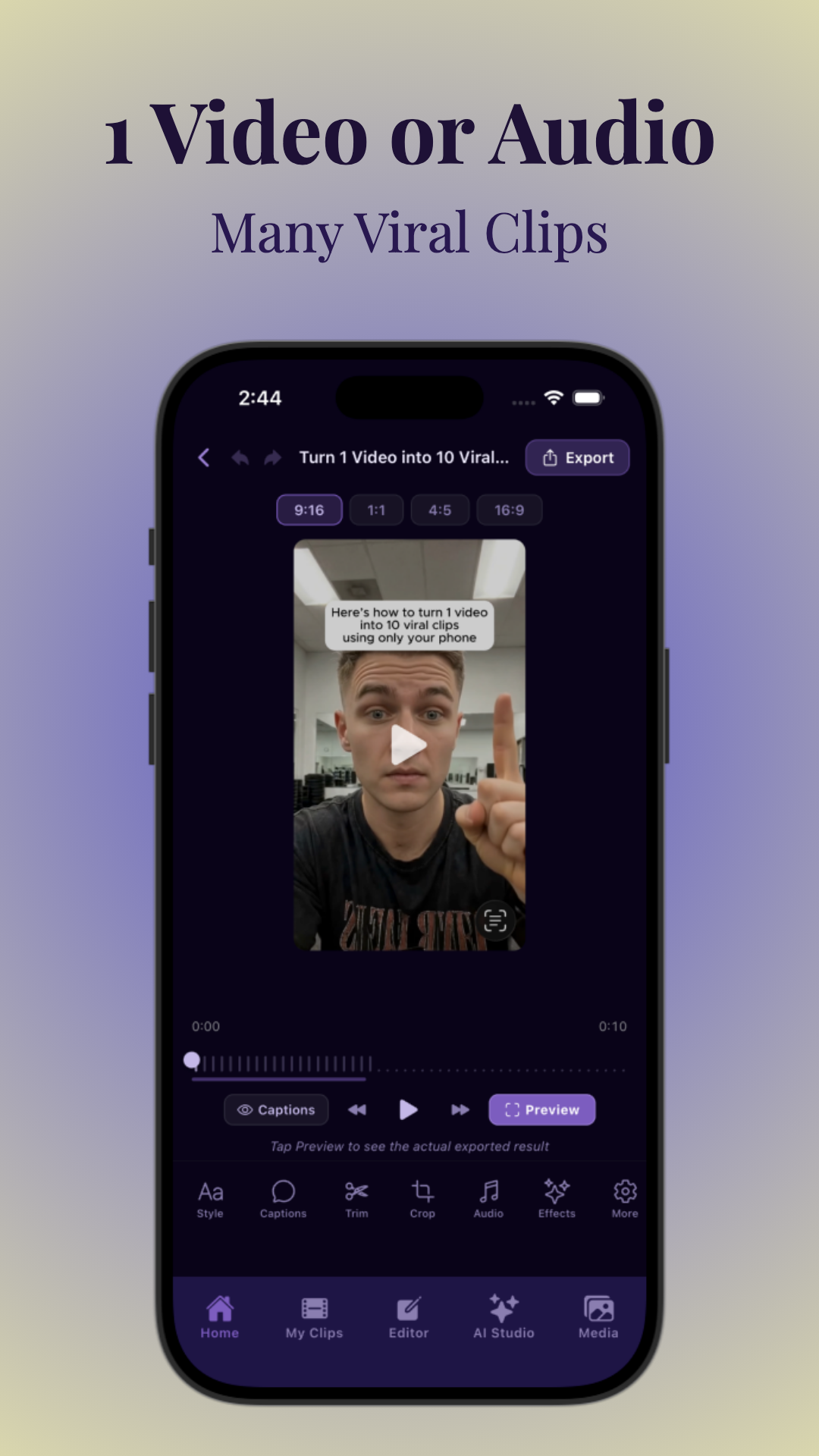
- AI Video Clipping: Apps like Vidulk use AI to automatically detect best moments, clip videos, and format them vertically with captions. Just upload or paste a link, and the AI does the rest.
Vidulk also offers an AI Studio to enhance clips with generated images, overlays, and caption customization, streamlining content creation.
Step 6: Add Captions, Branding, and Overlays
Captions boost accessibility and engagement since many watch videos muted. Branding elements like logos or colors reinforce your identity. Consider adding:
- Accurate, readable captions synced to speech
- Brand logos or color overlays
- B-roll footage or relevant background images
- Music or sound effects where appropriate
Vidulk simplifies adding captions and brand assets with easy tools to customize fonts, colors, and timing, helping your clips stand out.
Step 7: Maintain Vertical Formatting and Visual Quality
Ensure your clips keep a vertical 9:16 aspect ratio for mobile viewers. Key tips include:
- Focus on faces or speakers, cropping carefully to avoid cutting out important content
- Keep resolution high to prevent pixelation
- Use zoom or pan effects sparingly to maintain visual interest
AI clipping apps often handle this automatically, preserving quality while adjusting framing.
Step 8: Manage Creator Permissions and Credits
Before repurposing UGC, obtain necessary permissions to avoid legal issues. Best practices include:
- Requesting usage rights from the original creator
- Crediting creators visibly in clips or captions
- Respecting any usage restrictions specified
Transparent communication builds trust and supports the creator community.
Step 9: Tailor Clips for Each Platform and Schedule Posts
Customize clips slightly for each social platform's audience and trends. When ready:
- Export clips in the correct format and resolution
- Use social media scheduling tools to plan posts for optimal times
- Monitor engagement to refine future clipping strategies
Tools like Vidulk help export clips ready for TikTok, Instagram Reels, or YouTube Shorts, saving time and effort.
Tips & Common Mistakes
- Tip: Use AI clipping to speed up workflows, but review clips to ensure quality.
- Tip: Keep clips under 60 seconds for maximum engagement.
- Mistake: Ignoring vertical formatting reduces clip performance on mobile platforms.
- Mistake: Forgetting captions limits accessibility and watch time.
- Mistake: Using UGC without permission can cause copyright issues.
Conclusion
Clipping user generated content for social media is a powerful strategy to boost engagement and reach. By carefully selecting source videos, identifying the best moments, clipping with AI-powered tools like Vidulk, and tailoring clips for platforms, creators and brands can unlock viral potential efficiently. With the right workflow, your long podcasts, streams, and YouTube videos become a treasure trove of shareable, attention-grabbing short clips.
FAQ
How do you clip user-generated content for Instagram Reels and TikTok?Identify engaging moments from your long videos or podcasts, trim them to 15-60 seconds in vertical 9:16 format, add captions and branding, then upload to Instagram Reels or TikTok. AI apps like Vidulk automate much of this.What is the best length for UGC clips on social media?Clips between 15 and 60 seconds work best, depending on the platform. TikTok and YouTube Shorts favor up to 60 seconds, while Instagram Reels can be up to 90 seconds. Shorter clips maintain viewer attention.How do you turn raw UGC footage into short-form videos?Review the footage to find highlights or hooks, then use video editors or AI clipping tools to trim and format clips vertically. Add captions, overlays, and branding to polish them before posting.What tools can automatically clip UGC for social media?Vidulk is a leading AI video clipping app that detects the best moments in podcasts, interviews or streams and turns them into captioned, vertical clips ready to post.Do you need permission to clip and repost user-generated content?Yes, always request permission from the original creator and provide proper credit to avoid copyright or ethical issues.How do you add captions and branding to clipped UGC videos?Use video editing software or AI-powered apps like Vidulk to generate and customize captions, then add logos, overlays, and brand colors to maintain visual identity.
Free to start
Try the Vidulk app
Everything in this guide, in your pocket.
Get it on iPhoneGet it on Android