How to Make Vertical Clips from Landscape Videos
Learn how to make vertical clips from landscape videos with AI clipping, cropping, and captions for TikTok, Reels, and Shorts.

Estimated reading time: 12 min
Key Takeaways
- Transform long landscape videos into vertical clips optimized for social media.
- Use AI video clipping tools like Vidulk to automate selecting best moments.
- Manually crop, zoom, or add blurred backgrounds to maintain visual appeal.
- Choose export settings tailored for TikTok, Instagram Reels, and YouTube Shorts.
- Enhance clips with captions, subtitles, and branding for better engagement.
Vertical video formats dominate platforms like TikTok, Instagram Reels, and YouTube Shorts. For content creators, learning how to make vertical clips from landscape videos is essential to repurpose long podcasts, interviews, streams, and YouTube videos effectively. This guide covers the entire workflow—from selecting the best moments to crop, reframe, caption, and export vertical clips optimized for viral reach. Leveraging AI tools such as Vidulk simplifies and speeds up this process, helping you create engaging short videos effortlessly.
Step 1: Choose the Best Moments to Clip
Start by identifying the most engaging parts of your long-form content, whether it's a podcast, interview, or stream. The key is to find moments that capture attention quickly, such as insightful quotes, funny reactions, or key highlights.
You can do this manually by reviewing the footage or use AI video clipping tools like Vidulk. Vidulk’s AI automatically detects and extracts these viral-worthy snippets, saving you time and improving content relevance.
- Look for emotional peaks, surprising statements, or actionable tips.
- Keep clips short—typically between 15 and 60 seconds.
- For streams or podcasts, focus on moments with clear audio and visuals.
Step 2: Crop and Reframe to 9:16 Vertical Format
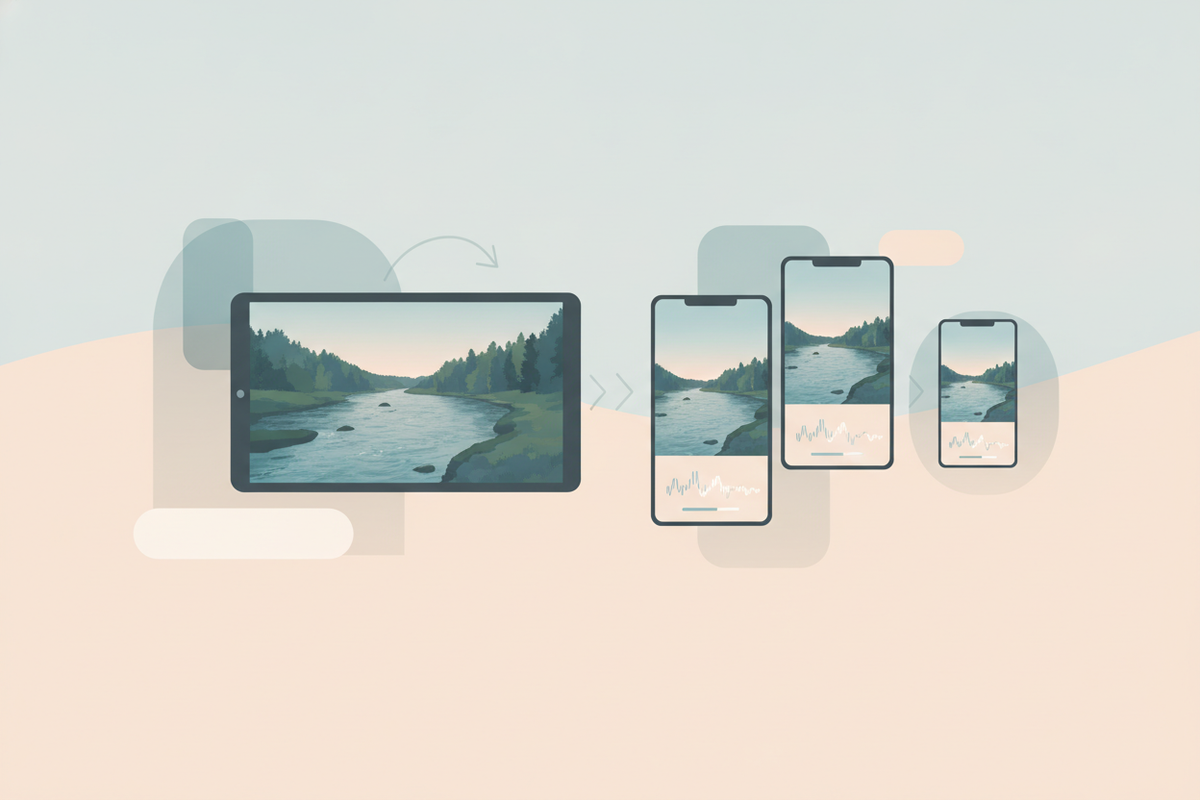
Once you have your clip, convert the horizontal 16:9 aspect ratio into the vertical 9:16 format preferred on mobile platforms.
There are three common approaches:
- Auto Reframe / AI Reframing: Use tools that automatically track the subject and center it in vertical crops. This avoids cutting off heads or important visuals.
- Manual Crop and Zoom: Adjust the crop box manually to feature the speaker or main subject prominently. Zoom in if needed but avoid excessive quality loss.
- Blurred Background Fill: Add blurred or gradient backgrounds on the sides to fill empty space without losing content. This keeps the entire scene visible while adapting to vertical.
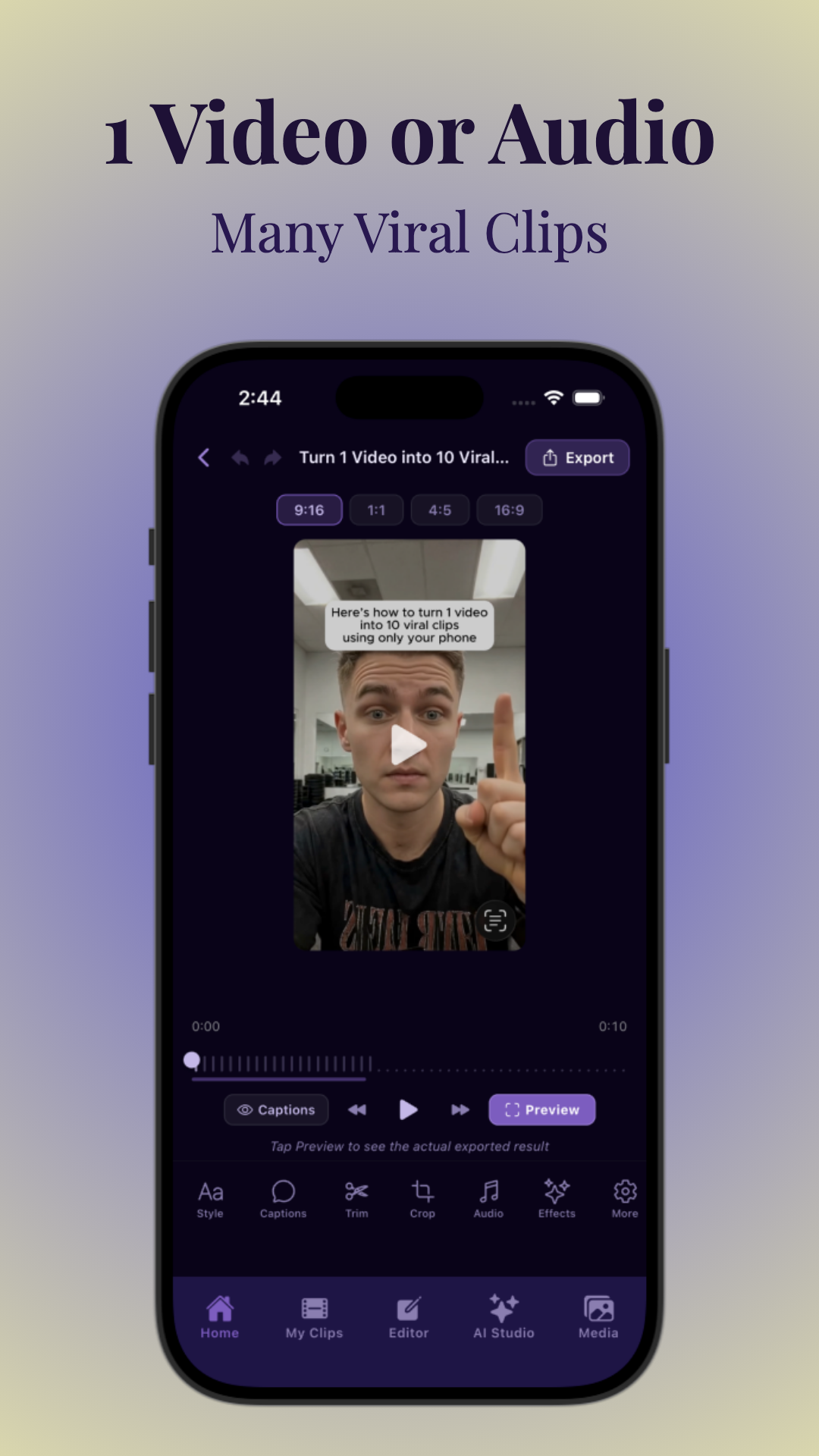
Vidulk supports AI reframing and cropping, making it easy to keep subjects centered and visually balanced.
Step 3: Add Captions and Subtitles
Vertical clips are often watched without sound, especially on TikTok and Instagram. Including captions or subtitles ensures your message is understood and increases engagement.
Options include:
- Auto-generated captions using AI, then edit for accuracy.
- Customizing font style, size, and color to match your branding.
- Positioning captions to avoid obstructing faces or key visuals.
Vidulk offers caption customization integrated within its AI Studio to streamline this step.
Step 4: Split Long Videos into Multiple Vertical Clips
If your source content is very long, like a full podcast or stream, consider splitting it into a series of vertical clips. This approach maximizes content reuse and allows you to highlight different topics or moments across posts.
- Identify natural break points or topic changes for clip separation.
- Use AI tools that automatically create multiple clips based on engagement potential.
- Maintain consistent style and branding across clips for recognition.
Step 5: Export with Optimal Settings for Social Platforms
Export your vertical clips with settings tailored for TikTok, Instagram Reels, and YouTube Shorts to ensure quality and compliance.
- Resolution: 1080 x 1920 pixels (9:16 aspect ratio).
- Format: MP4 with H.264 codec.
- Frame rate: Match source or use 30fps for smooth playback.
- Bitrate: 5-10 Mbps for good quality without excessive file size.
Many editing tools including Vidulk provide presets for these platforms, simplifying export.
Step 6: Posting and Branding Your Vertical Clips
After exporting, optimize your clips for posting:
- Add consistent branding such as logos or color overlays.
- Use engaging captions and hashtags relevant to the platform and audience.
- Schedule posts to reach your audience at peak times.
Step 7: Tools You Can Use to Make Vertical Clips
Besides Vidulk, several popular apps support vertical video editing and clipping:
- CapCut: Great for manual cropping, captions, and effects.
- Adobe Premiere Pro: Professional tool with flexible cropping and reframing.
- Descript: Ideal for podcasts and adding captions easily.
- VEED, Canva, Kapwing, FlexClip: User-friendly platforms for quick vertical edits and branding.
Vidulk stands out by automating clipping, cropping, and captioning through AI, drastically reducing manual effort.
Tips & Common Mistakes
Tips:
- Use AI clipping tools like Vidulk to speed up finding the best moments and framing.
- Always preview vertical clips to check for cut-off heads or drifting subjects.
- Keep clips short and engaging to align with platform trends.
- Customize captions and branding to stand out in crowded feeds.
Common Mistakes:
- Simply cropping without reframing can cut off important parts of the video.
- Ignoring captions limits reach since many watch videos muted.
- Uploading clips with wrong aspect ratios leads to letterboxing or empty spaces.
- Over-zooming reduces video quality and can make clips look amateurish.
Conclusion
Mastering how to make vertical clips from landscape videos is indispensable for modern content creators looking to repurpose podcasts, interviews, streams, or YouTube videos into viral short clips. Leveraging AI-powered apps like Vidulk simplifies selecting best moments, cropping, captioning, and exporting vertical videos optimized for TikTok, Instagram Reels, and YouTube Shorts. By following this step-by-step guide, you can maximize your content’s reach and engagement with minimal effort.
FAQ
How do I convert a landscape video to vertical without losing quality?
Use AI reframing tools like Vidulk that intelligently crop and reposition the subject to keep quality intact. Avoid excessive zooming and consider adding blurred backgrounds to fill space.
What is the best aspect ratio for TikTok, Instagram Reels, and YouTube Shorts?
The ideal aspect ratio is 9:16 (vertical) with a resolution of 1080 x 1920 pixels. This fits full-screen mobile viewing on these platforms.
How do I keep the subject centered when making a vertical clip from a wide video?
Auto reframe features in apps like Vidulk track the subject and reposition the crop dynamically. Manually, you can crop and adjust zoom to center the subject.
Should I crop, zoom, or add a blurred background to convert a horizontal video to vertical?
It depends on the content. Cropping/zooming works if the subject can fill the frame without quality loss. Otherwise, adding a blurred background preserves the full image context and avoids awkward cuts.
How do I make vertical videos in CapCut or Premiere Pro?
Set your project aspect ratio to 9:16, import the horizontal video, then crop and reposition the footage in the vertical frame. Add captions and export with vertical presets.
Why does my video get cut off when I change it to 9:16?
This happens if the crop area excludes parts of the original video. Use AI reframing or carefully adjust the crop and zoom so essential subjects remain fully visible.
Free to start
Try the Vidulk app
Everything in this guide, in your pocket.
Get it on iPhoneGet it on Android