How to Extract Highlights from Webinars Using AI Video Clipping
Learn how to extract highlights from webinars and turn long videos into viral clips with AI. Step-by-step guide for podcasts, streams, and YouTube videos.


Estimated reading time: 12 min
Key Takeaways
- Use AI transcription and highlight detection to find key moments in webinars quickly.
- Manually review transcripts to identify quotable moments and surprising stats.
- Trim and caption vertical clips optimized for social media platforms like LinkedIn and Shorts.
- Turn Q&A exchanges and customer stories into engaging highlight clips.
- Export clips easily for multiple social channels using AI-powered apps like Vidulk.
Webinars and long videos contain a treasure trove of valuable content, but their length often makes them difficult to share effectively on social media. Learning how to extract highlights from webinars is essential for content creators aiming to repurpose long-form video into short, engaging clips that attract attention and drive engagement. This guide walks you through the entire workflow—from detecting highlight moments using AI to trimming, captioning, and exporting clips ready for platforms like YouTube Shorts, Instagram Reels, and LinkedIn.
Step 1: Upload and Transcribe Your Webinar
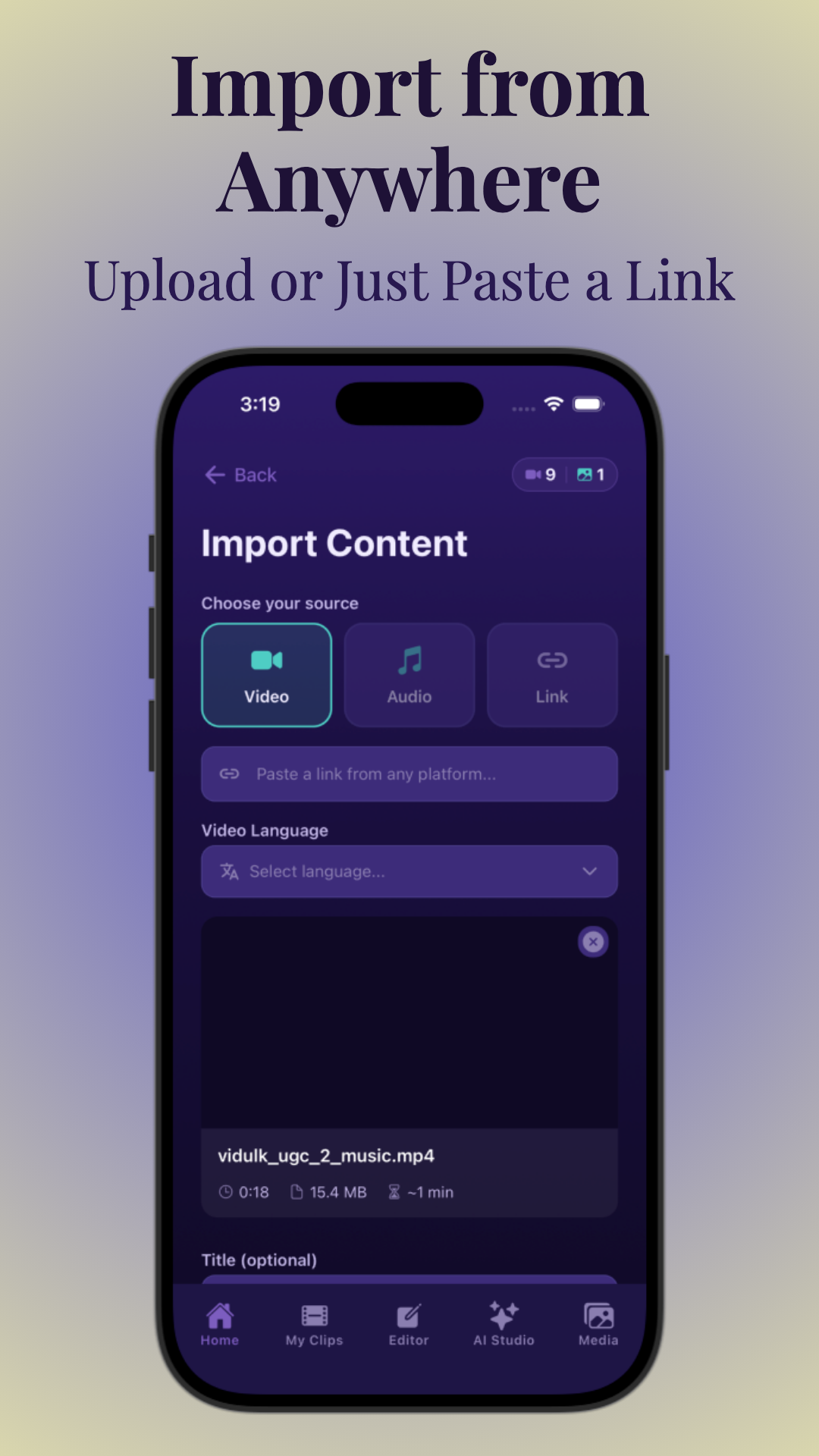
The first step to extracting highlights from webinars is uploading your video or audio file into an AI-powered clipping app. Tools like Vidulk simplify this process by allowing you to paste a link or upload a file directly from your device.
Once uploaded, the app automatically transcribes the entire webinar. AI transcription is surprisingly accurate and forms the foundation for identifying key moments within the content.
- Upload your webinar recording or paste the video URL into Vidulk.
- Let the AI generate a full transcript, highlighting sections with high engagement potential.
- Use the transcript as a searchable script to jump to interesting parts quickly.
Step 2: Detect and Review Highlight Moments Automatically
AI video clipping technology can scan transcripts and video to detect natural pauses, audience reactions, or emphasis points to suggest highlight clips. This automated highlight detection saves hours compared to manual searching.
However, it’s essential to review AI-suggested highlights to ensure accuracy and relevance. Look for moments that contain:
- Quotable phrases or surprising statistics
- Customer stories or testimonials
- Key takeaways and actionable tips
- Engaging Q&A exchanges
Vidulk’s AI Studio also lets you enhance clips with generated images and captions for more visual appeal.
Step 3: Manually Find Additional Highlights in the Transcript
While AI does the heavy lifting, supplementing this with a manual review helps catch valuable parts that AI might miss. Scan the transcript for:
- Unique insights or expert opinions
- Funny or emotional moments
- Important webinar questions and answers
Highlight these parts in the transcript and mark them for clipping. This manual workflow ensures no great moment is overlooked.
Step 4: Trim and Format Clips for Social Media
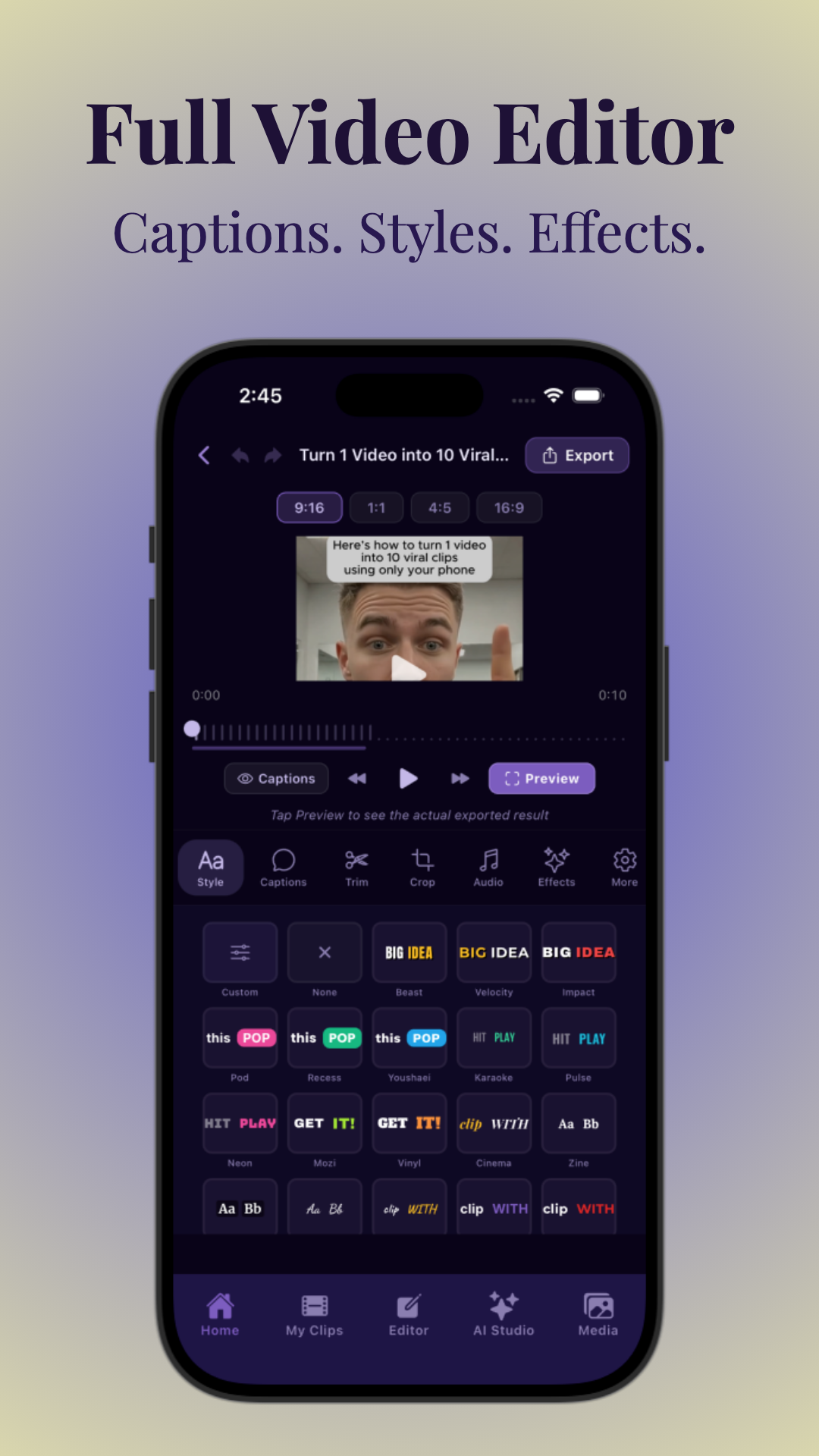
Converting long webinar segments into short clips optimized for mobile viewing is critical. Most social platforms favor vertical, captioned videos under 60 seconds.
Use Vidulk or similar apps to:
- Crop videos into vertical (9:16) aspect ratio
- Add accurate, readable captions automatically
- Adjust clip length to fit platform norms (e.g., 15-30 seconds for TikTok or Reels)
- Customize fonts and colors for branding consistency
Step 5: Repurpose Clips Across Platforms
Once clips are ready, export them in formats optimized for various social networks. You can easily repurpose webinar highlights into:
- LinkedIn posts to engage professionals
- YouTube Shorts and Instagram Reels for viral reach
- Twitter video clips for quick shareability
Vidulk supports exporting in multiple aspect ratios and resolutions, making it simple to share your content everywhere.
Step 6: Turn Webinar Highlights into Notes and Recaps
Beyond social clips, extracted highlights can be compiled into webinar summaries, notes, or blog posts. Use your AI-generated transcript and key moments to create detailed recaps or actionable takeaway lists.
This content can be repurposed into newsletters, LinkedIn articles, or website blog posts, extending the life and reach of your original webinar.
Tips & Common Mistakes
To maximize the impact of your highlight clips, consider these tips and avoid common pitfalls:
- Tip: Focus on emotional, surprising, or problem-solving moments for higher viewer engagement.
- Tip: Use captions to make videos accessible and watchable without sound.
- Common Mistake: Avoid clipping generic filler content or long monologues without a hook.
- Common Mistake: Don’t neglect reviewing AI-generated highlights for context and accuracy.
Conclusion
Learning how to extract highlights from webinars efficiently can transform your content marketing strategy. Using AI video clipping tools like Vidulk allows you to turn lengthy recordings into bite-sized, captioned, vertical clips ready for social sharing. Follow this step-by-step guide to upload, transcribe, detect, trim, and export your best moments across platforms. Repurposing long-form video not only saves time but also boosts your audience reach and engagement.
Ready to start clipping your webinars and podcasts automatically? Check out Vidulk for a powerful AI clipping app that streamlines your content creation workflow.
FAQ
How do I find the best highlights in a webinar recording?
Use AI transcription and highlight detection tools to scan the webinar for key moments such as quotable quotes, surprising stats, and engaging Q&A segments. Manually review the transcript to identify additional valuable clips.
What is the easiest way to extract clips from a webinar automatically?
Uploading your webinar to an AI video clipping app like Vidulk automates transcription and highlight detection, allowing you to quickly generate short clips without manual editing.
How do I turn webinar recordings into short social media videos?
Trim your webinar clips to under 60 seconds, crop to vertical format, add captions, and export in platform-optimized resolutions using AI clipping apps designed for social sharing.
What parts of a webinar make the best highlight clips?
Best clips include key insights, customer stories, surprising statistics, engaging Q&A exchanges, and moments that evoke emotion or offer actionable tips.
Can AI summarize a webinar and pull out key moments?
Yes, AI-powered transcription and highlight detection can analyze your webinar to identify and summarize the most important and engaging moments automatically.
How do I extract key takeaways or action items from a webinar transcript?
Review the AI-generated transcript and highlight sections where speakers emphasize tips, next steps, or lessons learned. These can be clipped or compiled into summary notes.
Free to start
Try the Vidulk app
Everything in this guide, in your pocket.
Get it on iPhoneGet it on Android