Vidulk 4K Clip Support: Export High-Resolution Clips with Ease
Discover Vidulk 4K clip support for seamless, ultra-high-definition clip exports. Simplify video editing with AI and maintain quality across all platforms.

7 min read
Key Takeaways
- 4K clipping preserves ultra-HD clarity for future-proof content.
- Vidulk’s on-device AI simplifies mobile-to-4K exports without desktop.
- Step-by-step workflow: import, AI-detect, customize, and export in 4K.
- Troubleshoot common issues like greyed-out 4K options and long render times.
Table of Contents
- Introduction
- Understanding 4K Video Clipping
- Deep Dive into Vidulk’s Features
- Step-by-Step Guide
- Practical Use Cases and Benefits
- Troubleshooting & Optimization Tips
- FAQ
Introduction
4K video clipping is the process of extracting short segments from a source video while preserving a resolution of 3840 × 2160. With Vidulk 4K clip support, you can import long-form videos or podcasts, let AI pick the best moments, add captions and thumbnails, then export stunning 4K clips—all on your mobile device. For a seamless experience, see Vidulk - AI Video Clipping App. For a deeper comparison of top AI clipping platforms, read the best AI clip tool comparison.
1. Understanding 4K Video Clipping
4K video clipping means extracting clips from a 4K source while maintaining 3840 × 2160 resolution. Instead of down-resing to HD, you keep every pixel intact for crystal-clear results.
Benefits of 4K vs. HD
- Future-proof quality as 4K screens proliferate
- Higher platform priority and bitrates (YouTube uses VP9/AV1 for 4K)
- Greater editing flexibility for cropping and zooming
- Enhanced professional perception and brand polish
Why high-res clips matter on social media
- Instagram Reels and TikTok: Sharp visuals stand out in crowded feeds
- YouTube Shorts: Better clarity increases watch time and engagement
- LinkedIn posts: Crisp text and graphics convey authority
By embracing 4K video clipping, creators ensure their content remains top-tier on any platform. Exporting with Vidulk high resolution clip export tools preserves detail and sharpness, vital for on-screen text, product demos, and dynamic visuals.
2. Deep Dive into Vidulk’s Features: Vidulk High Resolution Clip Export
A. What Is Vidulk?
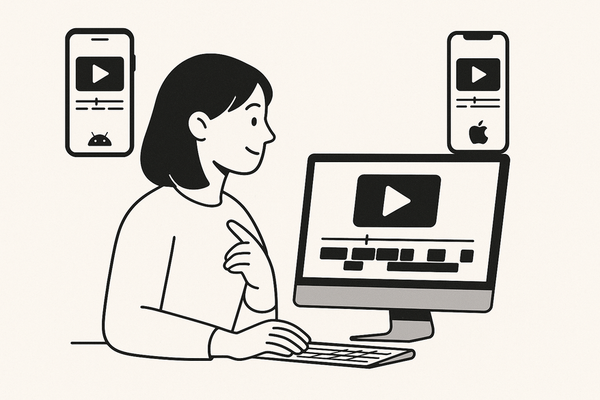
Vidulk is an AI-powered clipper app for iOS and Android designed to simplify short-form video creation. Core functions include:
- Import from YouTube, TikTok, Instagram URLs, camera roll, or audio files
- AI highlight detection to surface “viral,” “insight,” or “funny” moments
- Auto-generated captions with multiple fonts, sizes, colors, and animations
- AI-powered thumbnail and cover-image generation
- Multi-aspect exports (9:16, 16:9, 1:1, 4:5) up to 4K resolution
Vidulk offers a full Vidulk high resolution clip export workflow on mobile, eliminating the need for desktop editing suites.
B. Vidulk 4K Clip Support – Definition & Mechanics
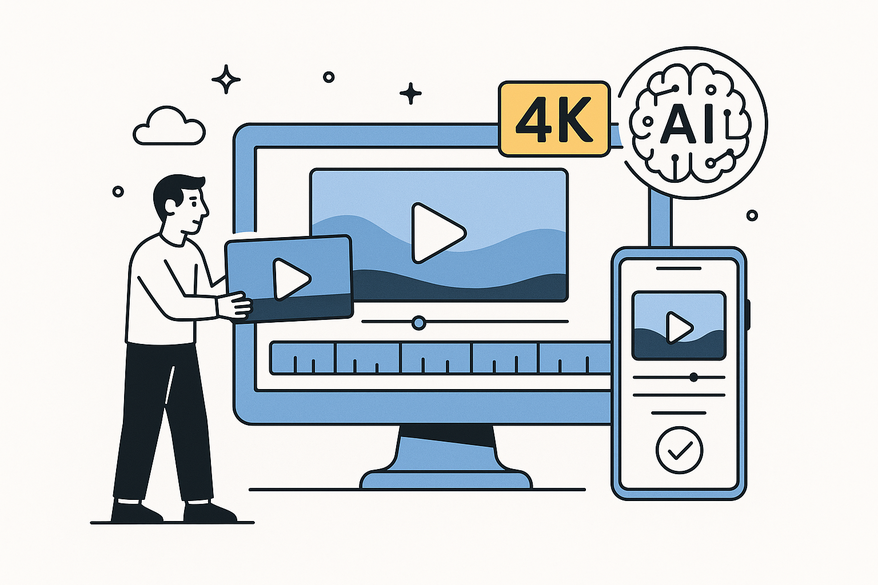
“Vidulk 4K clip support” is the feature that allows exporting clips at up to 3840 × 2160 resolution. Behind the scenes:
- On-device AI analyzes your uploaded video or audio for key segments
- The app maintains source resolution and lets you choose 4K at export
- Preset aspect ratios adjust cropping while prioritizing maximum quality
Resolution selection occurs in the Export menu, where you pick an aspect ratio and then select “4K.”
C. Key Advantages vs. Competitors
- Full end-to-end mobile workflow—no desktop required
- On-device AI for speed, privacy, and offline capability
- Auto-scored clips ranked by engagement potential
- Creator-friendly UI and platform presets
- High-resolution exports up to 4K in your pocket
For an in-depth look at how Vidulk stacks up against other repurposing platforms, see the best AI video repurposing tools.
3. Step-by-Step Guide: Export Clips in 4K Using Vidulk
- Install and launch Vidulk
- Download from App Store or Google Play
- Open the app, complete onboarding, and grant permissions
- Vidulk 4K clip support is enabled in settings
- Import source material
- Tap “Import” or the “+” icon
- Choose “Paste URL” for YouTube/TikTok/Instagram, “Camera Roll,” or “Record”
- Wait for Vidulk to analyze the file
- AI highlight detection
- Vidulk’s AI scans for viral hooks, key insights, and funny moments
- Review clips in the Clips panel—play, trim, reject, or reorder
- Add captions and styling
- Select a clip, tap “Captions”
- Customize font, size, color, and animation
- Tip: Use bold, large fonts for readability on 4K displays
- Set aspect ratio & resolution
- Tap “Export,” choose aspect ratio (9:16, 16:9, 1:1, 4:5)
- Select “4K” or the highest quality available
- Note: Device and source may auto-limit resolution if below 4K

- Final export & sharing
- Tap “Export” and wait for render (15 s clips ~1–2 min; 60 s ~3–4 min)
- Save to device or share directly to social or cloud
- Best practice: Use MP4 with H.264 or HEVC for uploads—see Google’s guidelines.
4. Practical Use Cases and Benefits: Vidulk 4K Video Clipping
- Podcasters & Interview Shows
- Context: 60–90 min episodes recorded in 4K
- Action: Auto-generate vertical 4K clips for TikTok and Shorts
- Benefit: High-fidelity visuals boost engagement and watch time
- YouTube Educators
- Context: Tutorials with on-screen text and slides
- Action: Export chapter clips in 4K to preserve legibility
- Benefit: Clear text and diagrams enhance learning
- Brands & Marketers
- Context: Product demos and promos
- Action: Create 4K ad clips and Reels with crisp detail
- Benefit: Premium look raises brand perception
- Gaming Creators
- Context: Gameplay recorded at 4K or 1440p
- Action: Clip key plays, export in 4K for social sharing
- Benefit: HUD elements and effects remain sharp
5. Troubleshooting & Optimization Tips: Vidulk 4K Clip Support
- Issue: 4K option greyed out
- Cause: Device limits, low-res source, or low storage
- Fix: Shorten clip, free up space, or import higher-quality source
- Issue: Long render times or stuttering
- Tip: Close background apps, plug in charger, export shorter batches
- Issue: Blurry clips after upload
- Explanation: Platform compression and re-encoding
- Best practice: Export in 4K and upload the original file
- Issue: Captions too small or cut off
- Fix: Increase font size, add margin, avoid edge placement
FAQ
- Q: Can I export 4K clips on any mobile device?
A: Most modern iOS and Android devices support 4K exports, but older models may limit resolution due to CPU/GPU constraints. - Q: Why is the 4K option greyed out?
A: This usually indicates a low-resolution source, insufficient storage, or device limitations. Try freeing up space or using a higher-quality video. - Q: How long do 4K exports take?
A: Render times vary by clip length and device. Expect ~1–2 minutes for 15 s clips and ~3–4 minutes for 60 s clips on a recent smartphone. - Q: What format should I use for best quality?
A: We recommend MP4 with H.264 or HEVC (H.265) for optimal compatibility and clarity, especially on platforms like YouTube. - Q: How can I ensure captions display properly on 4K?
A: Use bold, large fonts, add margins in the caption editor, and preview at full resolution before exporting.