How to Use the Vidulk Lecture Clip Generator: A Step-by-Step Tutorial
Learn to transform full-length lectures into bite-sized video segments using the Vidulk lecture clip generator, boosting education value with minimal effort.

Estimated reading time: 5 min read
Key Takeaways
- Convert lengthy lectures into concise, topic-based video micro-lessons.
- Leverage AI-powered on-device tools to automate transcription, clip detection, and captioning.
- Export in multiple aspect ratios for LMS, social media, or marketing purposes.
- Customize captions, backgrounds, and clip order to align with learning objectives.
- Integrate with LMS platforms and enrich clips with quizzes and annotations.
Table of Contents
- Introduction
- 1. Overview of Vidulk Tools
- 2. Getting Started with Vidulk Lecture Clip Generator
- 3. Creating and Editing Lecture Clips
- 4. Best Practices and Use Cases
- 5. Conclusion and Next Steps
The Vidulk lecture clip generator makes it fast and simple to turn long lectures into short, reusable e-learning clips. In this tutorial, you will learn how the Vidulk course video clip maker and Vidulk e-learning video clipping workflow help educators create micro-learning assets in minutes.

1. Overview of Vidulk Tools
Defining the Vidulk lecture clip generator
The Vidulk lecture clip generator is an AI-powered mobile app that automatically detects and extracts high-engagement segments from long-form videos. It uses on-device processing to ensure privacy and speed, turning recorded lectures, webinars, and presentations into bite-sized clips.
What is the Vidulk course video clip maker?
Vidulk doubles as a course video clip maker by offering a workflow to break lectures into topic-based micro-learning assets. It helps instructional designers segment full courses into modules, quizzes, and social teasers.
Understanding Vidulk e-learning video clipping
The Vidulk e-learning video clipping process includes:
- AI transcription using Whisper AI on-device
- Automatic clip scoring based on engagement potential
- Caption generation and styling
- Export options for LMS, YouTube, or social media platforms
Sources: what is an AI video clip generator, Vidulk AI Video Clipping on App Store
2. Getting Started with Vidulk Lecture Clip Generator
2.1 Installation and System Requirements
iOS
Search “Vidulk – AI Video Clipping” in the App Store. Requires current iOS version and at least 2 GB free storage. On-device processing preserves privacy and speeds up clip detection.
Android
Available on Google Play Store (search “Vidulk AI Video Clipping”). Recommended: mid-range CPU, 3 GB RAM, 2 GB free storage.
Sources: iOS App Store (CA), iOS App Store (US)
2.2 Initial Configuration
- Permissions: Grant access to camera roll and microphone (if recording live).
- Import options: Paste links from YouTube, TikTok, Instagram, Facebook, or X; or select local video/audio files.
- Default export settings: Enable 4K export and choose aspect ratios (16:9, 1:1, 9:16).
- No cloud login: Entire workflow runs on-device with no waiting walls.
Source: Vidulk FAQ
2.3 User Interface Walkthrough
Vidulk’s interface follows a straightforward, five-step pipeline:
- Import: Tap “Paste Link” or “Select File” to load your lecture.
- AI Transcription & Analysis: Whisper AI transcribes on-device, generating timestamps.
- Clip Detection & Scoring: Finds 8–12 engaging segments in a typical 45 min lecture.
- Edit & Customize: Trim, reorder, adjust captions, aspect ratio, background, and speed.
- Export: Save as MP4 or MOV for LMS upload or social sharing.
Source: Vidulk FAQ
3. Creating and Editing Lecture Clips
End-to-End Clipping Workflow
Follow these steps to produce ready-to-use lecture clips in minutes:
- Import lecture via YouTube link or local file.
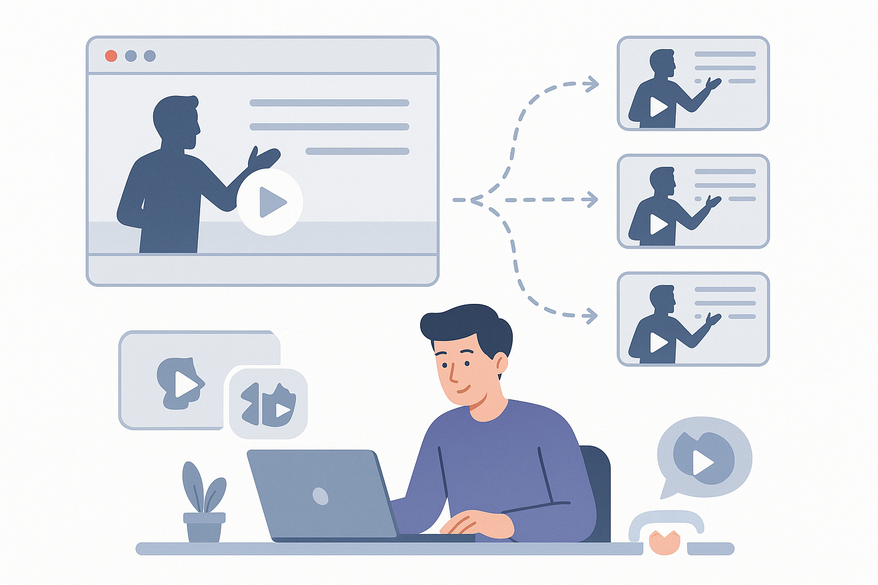
- Allow AI to detect 8–12 clip suggestions per 45 min video.
- Review thumbnail, duration, and engagement score; align with learning objectives.
- Trim start/end to remove filler content.
- Export in desired aspect ratio (16:9, 9:16, 1:1).
Tips for Using Vidulk Course Video Clip Maker:
- Keep clips 1–5 min for explanations; 30–60 s for quick recaps.
- Use clean, high-contrast fonts and avoid distracting animations.
- Test aspect ratios to preserve visuals; 1:1 works well for social posts.
- Apply branded or neutral backgrounds for audio-only clips.
Source: Vidulk on App Store
4. Best Practices and Use Cases
Productivity Scenarios
Vidulk accelerates content production in models like semester-long lecture capture, flipped classrooms, micro-learning libraries, and course marketing teasers.
Example: 12-Week Economics Course
An instructor records weekly lectures on YouTube (unlisted), imports each link into Vidulk to generate topic clips (supply/demand, elasticity, etc.), trims and standardizes captions, then embeds clips into LMS modules.
Troubleshooting & Common Pitfalls
- Battery drain: Plug in device or reduce video resolution before importing (Videotto vs Vidulk AI).
- Mismatched clip boundaries: Treat AI suggestions as drafts and manually adjust.
- Caption errors: Proofread technical terms before export.
- Vertical crop issues: Default to 16:9 for complex visuals.
5. Conclusion and Next Steps
Summary
The Vidulk lecture clip generator streamlines the creation of micro-learning videos by automating transcription, clip detection, and captioning—all on your mobile device. It saves educators hours of manual work while boosting engagement.
Next Steps
- Import a sample lecture in Vidulk and explore AI-detected clips.
- Experiment with caption styles, backgrounds, and aspect ratios.
- Integrate exported clips into your LMS and add quizzes or annotations.
Additional Resources
Vidulk FAQ
AI clip generator explained
iOS App Store (CA)
iOS App Store (US)
FAQ
- What devices support the Vidulk lecture clip generator?
- Vidulk runs on iOS and Android, requiring at least 2 GB of free storage and a recent OS version for on-device processing.
- How many clips can I generate from a typical lecture?
- The AI predicts 8–12 high-engagement segments for a 45 min lecture.
- Can I customize captions and clip duration?
- Yes. After AI suggestions, you can trim clip boundaries, adjust captions, and select aspect ratios before export.
- Does Vidulk require an internet connection?
- No cloud login is needed; the entire workflow runs on your device without uploading to external servers.