Fake Twitch Chat: How to Create Realistic Chat Overlays for Videos
Learn how to make a fake Twitch chat overlay for your videos. Step-by-step guide to adding engaging chat effects for viral clips with AI tools like Vidulk.

Estimated reading time: 7 min
Key Takeaways
- Fake Twitch chat overlays add engagement and authenticity to video clips.
- They help replicate live-stream vibes for podcasts, interviews, and reaction videos.
- AI-powered tools make generating and customizing fake chat fast and easy.
- Vidulk streamlines the process for creators aiming to go viral on social media.
Table of Contents
- Section 1: What Is a Fake Twitch Chat Overlay?
- Section 2: Why Use Fake Twitch Chat in Video Clips?
- Section 3: How to Create a Fake Twitch Chat Overlay
- Section 4: Best Practices and Creative Ideas
- Conclusion
- FAQ
Section 1: What Is a Fake Twitch Chat Overlay?
Definition and Purpose
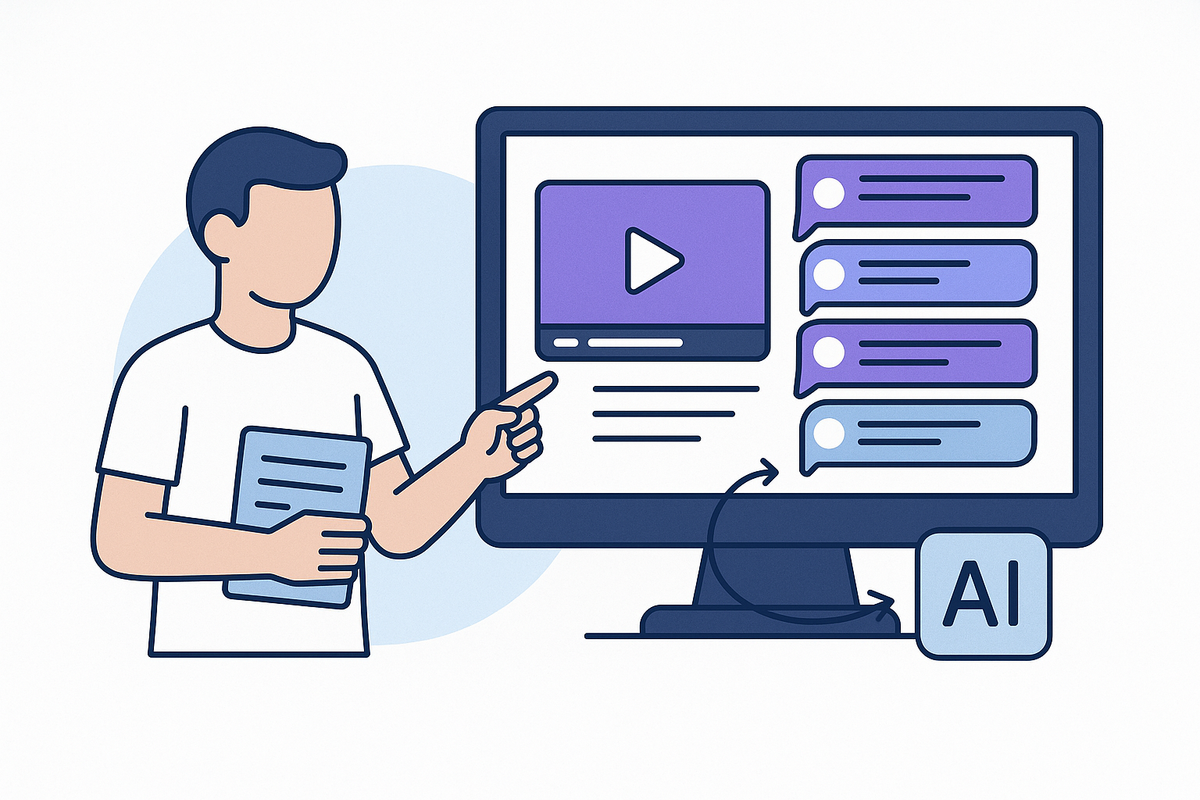
A fake Twitch chat overlay simulates the appearance of a live Twitch chat on a video. It replicates the scrolling messages, usernames, emotes, and chat style viewers expect from real streams. Creators use fake chat overlays to add energy and context to their content.
Common Use Cases
- Podcast Highlights: Injecting Twitch chat reactions into key moments for added humor or emphasis.
- Gaming Clips: Making gameplay look like it was streamed live, even if pre-recorded.
- Reaction Videos: Amplifying audience engagement by showing fake comments.
Section 2: Why Use Fake Twitch Chat in Video Clips?
Boosting Engagement and Authenticity
Videos with a fake Twitch chat overlay feel more interactive. Viewers are conditioned to associate chat overlays with high-energy, social content. This effect can make a video more relatable and engaging, especially on platforms like TikTok, Instagram Reels, and YouTube Shorts.
Standing Out on Social Media
- Social Proof: Chat overlays suggest a large, active audience—even if the video wasn’t streamed live.
- Virality: Quick, funny, or dramatic chat messages can drive shares and comments.
AI Tools for Efficiency
Traditionally, crafting a convincing fake Twitch chat overlay was tedious. Now, AI-powered apps like Vidulk automate this process, letting creators focus on content rather than editing details.
Section 3: How to Create a Fake Twitch Chat Overlay
Step 1: Plan Your Chat Content
- Decide on the tone: humorous, hype, critical, or supportive.
- Write out sample messages, usernames, and choose relevant emotes.
- Ensure your fake chat matches the context of the video clip.
Step 2: Generate and Customize the Overlay
- Manual Method: Use graphic design tools (Photoshop, After Effects) to build chat elements frame by frame. This approach offers flexibility but is time-consuming.
- Automated with AI: Leverage AI video clipping apps like Vidulk to generate overlays instantly. Vidulk can detect video highlights and suggest where to insert chat reactions for maximum impact. For an in-depth look at AI video clipping, see AI Clip Generator: Transform Long Videos Into Viral Shorts.
Step 3: Integrate the Overlay into Your Video
- Position the chat on the left or right edge, mimicking Twitch’s layout.
- Adjust opacity and animation speed for realism.
- Export your final video in vertical format for platforms like TikTok or Instagram Reels.
Section 4: Best Practices and Creative Ideas
Keep It Authentic
Use believable usernames and avoid overloading the screen with too many messages. Vary the timing and language style to reflect real Twitch chat dynamics.
Emphasize Key Moments
- Trigger chat reactions at moments of surprise, humor, or drama.
- Use emotes and memes popular with your target audience.
Combine with Viral Video Editing
Pairing fake chat overlays with AI-generated video clips can supercharge engagement. Apps like Vidulk make it easy to clip highlight moments and add overlays in one workflow. For more on automating viral short creation, check out Video Clip Maker: Effortlessly Turn Long Videos into Viral Clips.
Stay Ethical
- Disclose if a chat overlay is simulated, especially if the video is sponsored or promotional.
- Never impersonate real viewers or fabricate endorsements.
Conclusion
Fake Twitch chat overlays are a powerful tool for content creators looking to boost video engagement and authenticity. By leveraging AI-powered solutions like Vidulk, you can transform long-form content into viral, chat-driven clips with minimal effort. Start experimenting with overlays to see how they can level up your next video project.
FAQ
Q: Is it legal to use fake Twitch chat overlays in my videos?
A:
Yes, as long as you’re not impersonating real users or misleading viewers about your content’s origin. Always follow platform guidelines and disclose if the chat is simulated.
Q: Can I add Twitch chat overlays to any type of video?
A:
Absolutely. While most common in gaming and podcasts, fake chat overlays can enhance interviews, lectures, and even reaction videos for added engagement.
Q: What’s the fastest way to make a fake Twitch chat overlay?
A:
Using an AI-powered app like Vidulk dramatically speeds up the process. Simply upload your video, let the AI identify highlights, and customize the chat overlay for instant results.
Q: Are there risks to using fake chats for branded or sponsored content?
A:
Transparency is key. Always inform your audience if elements are simulated, especially in sponsored videos, to avoid trust issues.