How to Convert Long Videos to Shorts with AI: The Ultimate Guide
Learn how to convert long videos to shorts with AI. Discover the best AI tools for creators, auto captions, and tips to create viral clips for social media.

Estimated reading time: 13 min
Key Takeaways
- AI tools can automatically convert long videos to shorts, saving creators hours of manual editing.
- Modern AI clip generators detect highlights, add auto captions, and optimize videos for platforms like YouTube Shorts, TikTok, and Reels.
- Uploading a file or pasting a YouTube link is all it takes to start creating viral, captioned clips.
- Customization options include adjusting clip length, editing captions, and adding branding or music.
- Batch processing and automation let you repurpose a single video into multiple shorts for consistent content output.
Table of Contents
- Section 1: Getting Started with AI Video Clipping
- Section 2: How AI Detects the Best Moments
- Section 3: Supported Source Formats and Inputs
- Section 4: Editing Controls & Customization Features
- Section 5: Output Formats & Destinations for AI Shorts
- Section 6: Top AI Tools to Convert Long Videos to Shorts
- Conclusion
- FAQ
Section 1: Getting Started with AI Video Clipping
Why Creators Need to Convert Long Videos to Shorts with AI
Short-form video is now the dominant force on platforms like TikTok, YouTube Shorts, and Instagram Reels. However, manually cutting down podcasts, lectures, and interviews into bite-sized, shareable clips is a daunting task. This is where AI video editing tools for creators become game-changers: they automate the tedious process, enabling anyone to transform hours of content into multiple viral-ready clips in minutes.
Traditional video editing not only requires technical skill but is extremely time-consuming. For example, editing a 60-minute podcast down to ten 60-second highlights could easily take an experienced editor 3-5 hours, factoring in scrubbing, cutting, captioning, and exporting. For creators trying to maintain a daily or even weekly publishing schedule, this is often unsustainable. By contrast, AI-powered tools like Vidulk analyze, segment, and caption content automatically, reducing this process to 10-15 minutes per episode. This massive time savings frees up creators to focus on content quality and audience interaction instead of repetitive editing.
Additionally, the algorithmic nature of social platforms means that frequent posting is often rewarded with increased visibility and follower growth. Repurposing long-form content into multiple shorts allows creators to maximize every recording session's value, multiplying their output without multiplying their workload.
The Basic Workflow: Upload, Analyze, Clip, and Share
- Import your content: Upload a video file, audio recording, or simply paste a YouTube link. Most AI tools support drag-and-drop uploads or link-pasting directly from your browser or mobile device.
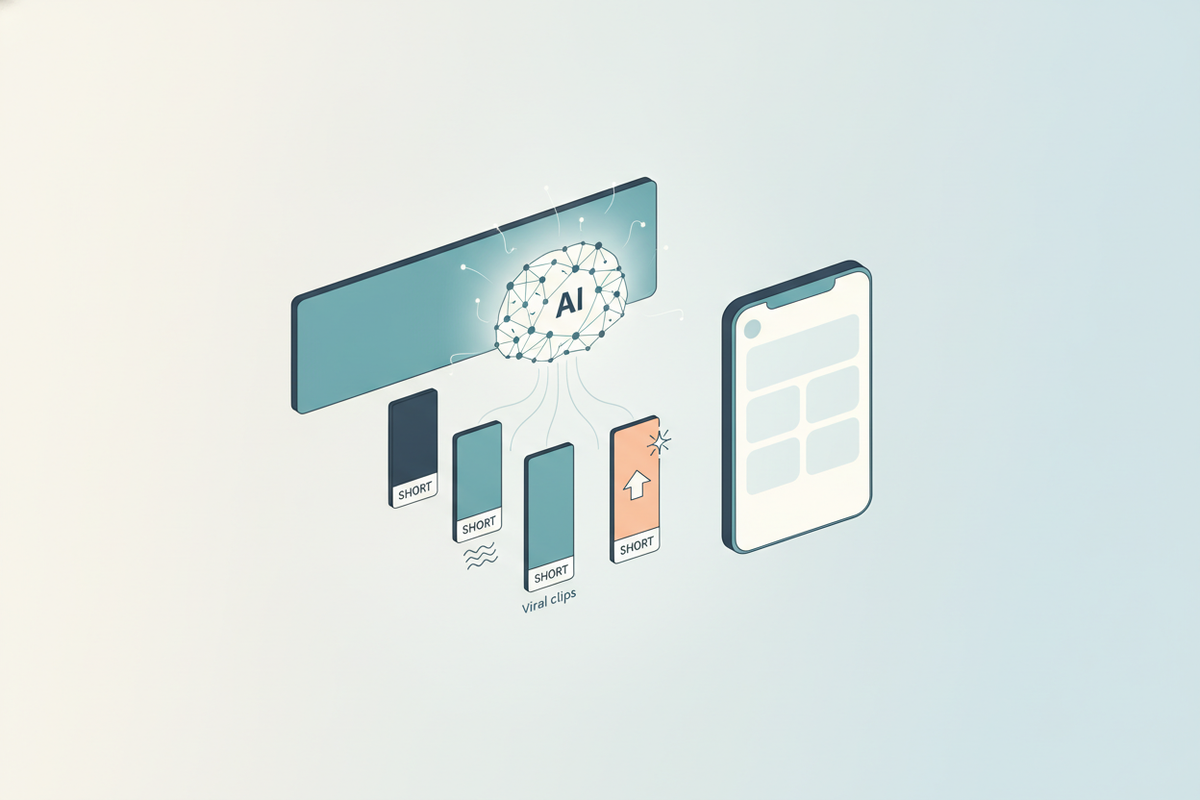
- AI analyzes the video: The system scans for engaging segments, speaker highlights, trending topics, and emotional peaks. This usually takes a few minutes, depending on video length and the tool's processing speed.
- Automatic clipping: AI selects the best moments and generates multiple short clips, often with auto-generated captions. You’ll typically see a preview grid of suggested clips, each flagged by topic or engagement score.
- Customize and export: Review, trim, tweak captions, add branding, and export clips formatted for your platform of choice. Most tools allow direct sharing to YouTube, TikTok, or Instagram, or you can download files for manual upload.
This streamlined workflow is especially valuable for teams or solo creators juggling multiple channels. For example, a single 90-minute interview can be instantly converted into 10-20 platform-ready shorts, complete with captions and branding, using just a smartphone.
Apps like Vidulk offer a seamless, mobile-first experience tailored for content creators, letting you create, edit, and post viral shorts directly from your phone.
What Makes AI Video Clipping Different?
Unlike traditional video editing, AI video editors for creators leverage machine learning to understand context, emotion, and audience engagement, not just scene changes. This boosts the chance of your shorts going viral, especially when combined with features like auto caption video and vertical reframing for mobile-first platforms.
For instance, while basic editors rely on manual timeline cuts, AI tools assess speech tempo, emotional tone, and even trending themes relevant to your niche. This context-aware understanding means you’re not just cutting at random intervals but surfacing the moments most likely to spark shares, comments, and follows. AI models are often trained on millions of hours of viral content, learning what works and why. With options to further refine with keywords, speakers, or topics, creators get the best of automation and manual control.
Section 2: How AI Detects the Best Moments
Highlight Detection Algorithms
The magic behind AI clip generators lies in their ability to identify which moments will resonate most with your audience. Modern systems use a blend of:
- Speech analysis: Detects high-energy quotes, emotional peaks, and key takeaways from conversations. For example, an AI may flag a guest's passionate answer or a memorable story as a highlight even if there’s no visual cue.
- Speaker changes: Finds natural transitions, such as a new guest speaking or a host's reaction. These transitions are often moments of increased engagement, such as when a co-host laughs, interrupts, or reacts in surprise.
- Visual cues: Monitors facial expressions, gestures, and on-screen action shifts. If a guest smiles, waves, or uses hand gestures, the AI can locate these as visual highlights. Sudden changes in lighting, scene, or background are also flagged.
- Pacing & engagement score: Scores moments based on pace, tone, and viral potential, surfacing those most likely to perform well as shorts. Tools may use audio volume spikes, laughter, or audience applause (in live recordings) as signals. Some even reference engagement data from previous posts to refine their selections.
Advanced AI tools combine these signals using proprietary scoring algorithms. For example, a moment with a high-energy quote, a host’s laughter, and a keyword match (like “biggest lesson learned”) might score highest and be prioritized for clipping.
From Raw Footage to Viral Clips
AI doesn’t just look for scene transitions. Advanced models also understand context—like when someone delivers a punchline, drops a quotable insight, or when the conversation heats up. Some tools even allow you to set prompts or keywords, guiding the AI to prioritize specific topics or soundbites.
For example, if your podcast episode covers both "entrepreneurship" and "mental health", you can instruct the AI to prioritize quotes mentioning either topic. In educational content, you might ask the AI to extract only the "key takeaways" or "step-by-step" moments, skipping unrelated tangents. This level of guidance transforms AI from a passive tool into an active creative partner.
Learn more about AI highlight detection and viral clip generation in our in-depth guide.
Increasing Engagement with Smart Clip Selection
- AI can detect and prioritize moments with high audience engagement potential (e.g., laughter, surprise, controversy). For instance, if a guest tells a funny story or a heated debate erupts, the AI can recognize increases in speech tempo or audience laughter to flag these clips.
- Some tools offer a 'virality score' or 'highlight ranking', letting you review and select top-performing segments for even better results. This helps creators quickly pick the best few clips from a large batch, focusing efforts on those with the greatest reach potential. For example, a tool might assign a 1-10 score based on detected engagement cues and suggest that clips scoring 8 or above be prioritized for posting.
This smart selection process not only saves time but increases the chances of your shorts catching fire on social media algorithms.
Section 3: Supported Source Formats and Inputs
What Content Can You Repurpose?
AI video clipping tools are designed for flexibility, supporting a wide array of content types and formats. Whether you’re a podcaster, educator, or social media influencer, you can import:
- Full-length podcasts (audio or video): These are among the most common sources for shorts, often yielding 5-15 engaging clips per episode depending on topic density.
- Webinars, lectures, and online courses: Educational creators can turn hour-long lessons into a series of highlight reels, making learning content more accessible and shareable.
- Interviews, panels, and roundtables: Group discussions generate dynamic content, with the AI flagging speaker transitions and audience reactions.
- Vlogs, video essays, and behind-the-scenes footage: Lifestyle and entertainment creators can spotlight their best moments, jokes, or emotional reveals.
- Live streams and recorded events: Gaming, Q&A sessions, product launches, or virtual summits can be mined for key highlights to amplify on social platforms.
For example, a single 2-hour webinar can be transformed into a week’s worth of daily shorts, each focusing on a different tip or question answered during the session. This approach keeps content fresh and maximizes exposure from one recording.
Uploading vs. Pasting a Link
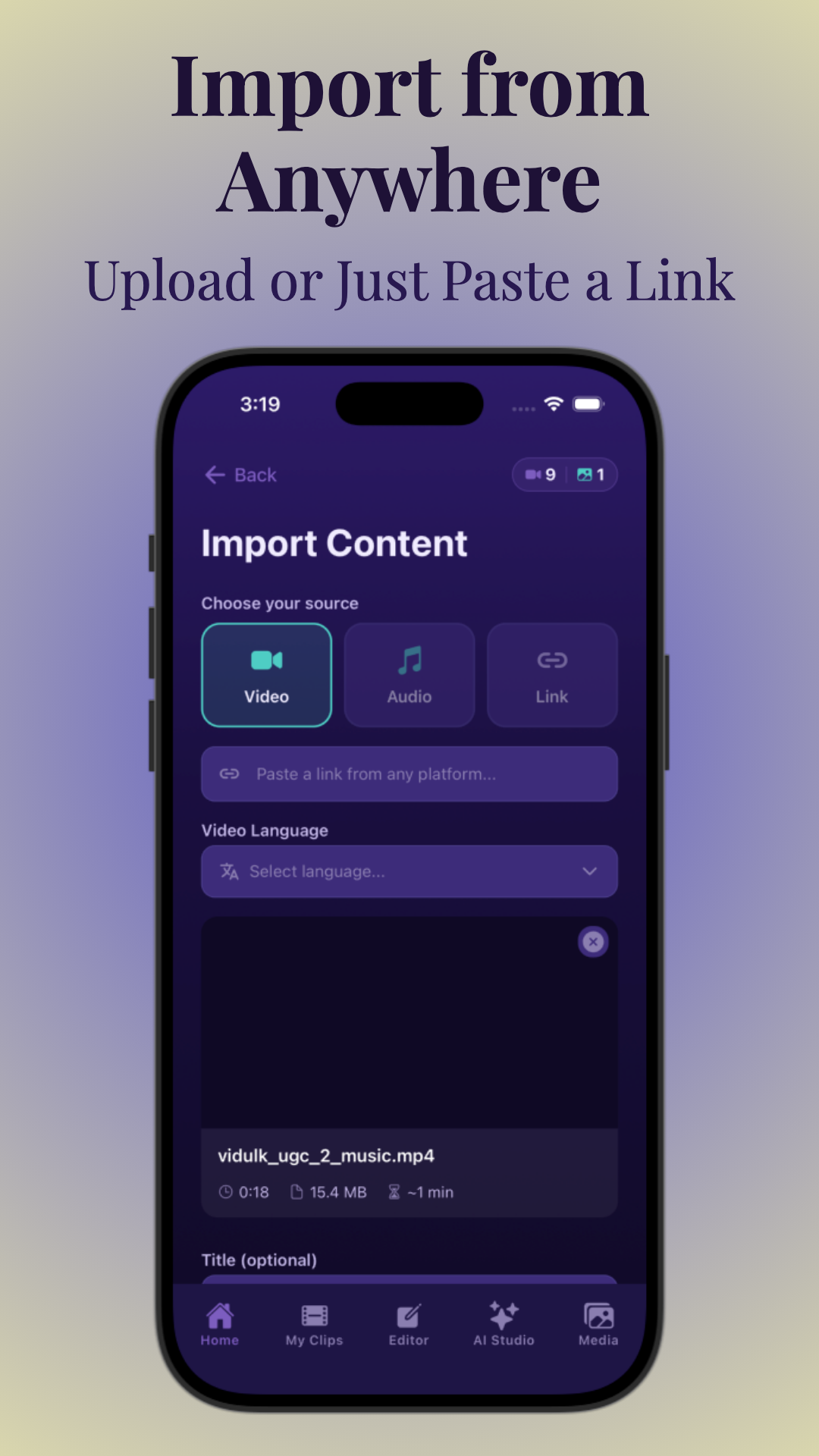
Most top AI video editing tools for creators support both direct file uploads and link-based imports. With Vidulk, for example, you can upload from your camera roll, cloud storage, or paste a YouTube (or other major platform) link—no downloads or conversions needed.
Pasting a link is particularly convenient for creators who livestream or publish long-form content directly to YouTube, Vimeo, or podcast platforms. Instead of downloading massive files, you simply paste the URL, and the AI tool fetches the media, analyzes it, and starts generating clips automatically. This saves bandwidth and device storage, and enables editing from anywhere, even on mobile networks.
Supported File Types and Limitations
- Common video: MP4, MOV, AVI, MKV – The majority of digital cameras, phones, and screen recorders output in these standards, ensuring wide compatibility.
- Audio: MP3, WAV, AAC – Great for podcasters or anyone with audio-only recordings.
- Links: YouTube, Vimeo, direct podcast URLs – Allows seamless integration with content already hosted online.
- Typical upload limits: Up to 2GB per file; some apps allow longer durations with premium plans, supporting files of 4GB or more and videos up to 3-4 hours long.
Some AI tools also support subtitle file uploads (SRT, VTT) for improved caption accuracy, and handle variable frame rates or resolutions, automatically converting 4K or 1080p files to the optimal size for shorts. It’s important to check your tool’s documentation for any limitations if working with niche formats or extremely long content.
Read our detailed breakdown of source formats and AI video clip generation for more specifics.
Section 4: Editing Controls & Customization Features
Fine-Tuning Your AI-Generated Shorts
While AI automates the heavy lifting, the best video editing tools for creators give you granular control over the final clips. Key features include:
- Clip duration selector: Adjust the length of each short (e.g., 15s, 30s, 60s) to fit platform guidelines. For example, YouTube Shorts require under 60 seconds, while Instagram Reels allow up to 90 seconds.
- Manual segment selection: Override AI picks to include or exclude specific moments. This is useful if you want to focus on a guest’s answer or skip a tangent that the AI included.
- Prompt-based editing: Enter keywords, topics, or speaker names to guide the AI’s focus. For instance, typing “growth strategy” or a guest’s name will highlight those segments in the timeline for easy selection.
- Batch editing: Generate and edit multiple clips at once, saving time and effort. Some tools show all AI-suggested clips in a dashboard where you can bulk approve, reject, or edit captions for many segments simultaneously.
Advanced tools also let you reframe horizontal content vertically (9:16 aspect ratio), automatically centering speakers or cropping to the most engaging part of the frame. With face tracking and smart cropping, your subject stays in focus even if the original recording was widescreen.
Auto Caption Video and Subtitle Features
Captions are critical for engagement, especially since most viewers watch shorts with the sound off. AI-powered tools can add subtitles to video automatically, with options to:
- Customize caption style, size, and color to match your branding. Many tools offer preset themes (bold, minimal, colorful) or let you upload your own font and logo for complete branding consistency.
- Edit transcript text for accuracy. While AI-generated captions are often 90-95% accurate, manual review ensures correct names, jargon, or foreign language phrases are captured perfectly.
- Translate captions into multiple languages for global reach. For example, you can instantly add Spanish, French, or Japanese subtitles to broaden your audience without re-recording.
Some platforms even synchronize captions with on-screen animations, highlighting each word as it’s spoken, which can boost retention and accessibility for hearing-impaired viewers. Captioned shorts are statistically more likely to be watched to completion and shared, especially on mobile devices with muted autoplay.
Branding, Music, and Effects
Modern AI video editors let you add logos, watermarks, background music, and visual effects to help your shorts stand out in crowded feeds. These features are especially useful for creators looking to build brand recognition across platforms.
For example, you can set your channel’s intro/outro, overlay a semi-transparent watermark, or add trending background tracks. Music libraries are often royalty-free, allowing you to pick upbeat, dramatic, or ambient tracks to match each clip’s mood. Some tools even suggest music based on the emotional tone of your highlights.
Visual effects such as animated emoji, lower-thirds, or sticker overlays can be added for emphasis—think of highlighting a guest’s surprise reaction or a key quote. This not only increases viewer engagement but also builds a consistent style that fans recognize.
For more on automating captions and subtitles, see our guide on how to make AI video clips with auto-captioning.
Section 5: Output Formats & Destinations for AI Shorts
Optimizing for Social Media Platforms
AI video clipping tools are built to meet the unique requirements of every major short-form video platform. When you convert long videos to shorts with AI, you can export clips in formats tailored for:
- YouTube Shorts: 9:16 vertical, up to 60 seconds. The platform prefers content under 1 minute, with clear captions and immediate hooks in the first few seconds.
- TikTok: Vertical, up to 10 minutes (but 15-60s is ideal). TikTok’s algorithm heavily favors punchy, visually engaging clips with captions and music.
- Instagram Reels: 9:16, up to 90 seconds. Shorter clips (under 60 seconds) tend to perform best, especially with bold captions and branded overlays.
- LinkedIn vertical clips: For educational or professional repurposing. Short knowledge drops, tips, or Q&A highlights are effective here, and captions ensure accessibility in workplace settings.
Each platform has its own optimal length, aspect ratio, and captioning conventions, so AI tools like Vidulk offer one-click export presets to ensure your shorts look perfect everywhere. For example, a single highlight can be exported in both 1:1 (square) and 9:16 (vertical) formats, with captions resized to fit.
Preview, Trim, and Export Workflow
- Preview: Watch each AI-generated clip, make adjustments, and ensure captions are accurate. Most tools let you play back clips with synchronized captions and branding overlays in real-time.
- Trim: Fine-tune start/end points, remove filler, and tighten pacing. You can drag handles on a timeline or input exact timestamps for precision.
- Export: Download to your device, schedule posts, or share directly to your preferred platform. Some solutions, like Vidulk, offer integrations with YouTube, TikTok, and Instagram APIs for one-tap publishing or scheduling.
Advanced export options include choosing video resolution (720p, 1080p, 4K), compression quality, and even adding end cards or platform-specific hashtags.
Batch Repurposing for Maximum Reach
One long video can yield a week’s worth of shorts. Many tools offer batch processing, letting you queue, review, and publish several clips at once—perfect for maintaining a consistent posting schedule without burning out.
For example, after uploading a one-hour podcast, an AI tool could suggest 8-12 highlights. You can select your favorites, edit captions in bulk, and schedule each short to post at optimal times throughout the week. Some creators even automate posting, letting the AI publish clips while they focus on new content or community engagement.
This workflow also helps you test different hooks, captions, or branding elements, analyzing which clips perform best and refining future content for even greater reach.
Section 6: Top AI Tools to Convert Long Videos to Shorts
The Best AI Clip Generators Compared
The market for AI tools for content creators is rapidly expanding. Here are leading options and what sets them apart:
- Vidulk: Mobile-first, fast import (upload or paste link), auto-detects highlights, robust AI Studio for image and video enhancement, and powerful batch editing. Try Vidulk here. With Vidulk’s AI, you can process up to 20 clips per session, apply custom branding, and export in multiple aspect ratios for cross-platform posting. Its mobile interface makes it easy to edit and share from anywhere.
- CapCut: User-friendly, strong auto-captioning, and popular among TikTok creators. CapCut’s templates and trending effects help creators quickly match current platform styles.
- OpusClip: AI highlight detection, batch processing, and platform presets. OpusClip is favored for its "magic cut" feature, which rapidly generates dozens of clips from a single video.
- Canva: Broad design suite, simple video clipping, and auto subtitles. Canva integrates video clipping with a massive template library for branded intros, outros, and overlays.
- VEED: Cloud-based, great subtitle tools, and multi-language support. VEED makes collaboration easy with team-based editing and advanced subtitle customization.
- FlexClip: Quick snippets, easy branding, and music integration. FlexClip is ideal for creators wanting fast turnaround and simple editing.
- Vizard, Choppity, Klap, Adobe Express: Each offers a mix of auto clipping, captioning, and creative effects. For example, Klap is known for its AI-driven viral moment detection, while Adobe Express leverages Adobe’s creative cloud for detailed edits.
Each tool has unique strengths, but Vidulk stands out for its balance of speed, accuracy, and mobile-first convenience—making it a favorite among solo creators and small teams alike.
What to Look for When Choosing a Tool
- Accuracy of AI highlight detection: Look for tools with positive user feedback on clip quality and context awareness.
- Speed and ease of import (especially link-based uploads): Time savings compound with every project—fast imports mean more content, less friction.
- Quality of auto captions and subtitle customization: Ensure the tool offers high transcript accuracy, easy editing, and robust branding options for captions.
- Batch processing and automation features: Essential for scaling your workflow and maintaining a consistent posting schedule.
- Support for your preferred platforms and formats: Confirm the tool exports in all necessary aspect ratios and resolutions for YouTube, TikTok, Instagram, and more.
Additional considerations include pricing (freemium vs. subscription), team collaboration features, and customer support responsiveness. Many tools offer free trials or limited free plans, allowing you to test before committing.
Mobile vs. Desktop Solutions
Mobile apps like Vidulk are ideal for creators on the go, while desktop/cloud tools may offer deeper editing layers. For creators who film and edit directly on their phones, mobile-first solutions provide the fastest path from recording to publishing. You can shoot a video at an event, upload it to Vidulk, and have several shorts ready to post before leaving the venue.
Desktop or browser-based tools, on the other hand, typically offer more advanced editing features such as multi-track timelines, color grading, or detailed effects. These are better suited for teams, agencies, or creators with complex workflows who want maximum granular control. Many professionals use a hybrid setup: capturing and rough-cutting on mobile, then refining and branding on desktop.
For a comprehensive review of mobile solutions, check what's the best clipping app for mobile?
Conclusion
Converting long videos to shorts with AI has transformed how creators grow their audience, repurpose content, and maximize reach. AI clip generators do more than just save time—they surface your best moments, auto-caption videos, and format everything for instant sharing on today’s top platforms. With advanced highlight detection, batch clipping, and customizable editing features, you can turn every podcast, interview, or webinar into a library of viral-ready shorts.
Embracing AI-driven video clipping is not just about efficiency, but about amplifying your creative voice and reaching audiences in places you might never have reached through long-form alone. By consistently sharing engaging, captioned shorts, creators can quickly build their brand, attract new followers, and keep existing audiences engaged across multiple platforms. Whether you’re a solo podcaster, a YouTube educator, or a social media entrepreneur, the ability to multiply your output without multiplying your effort is a game-changer in today’s fast-moving content ecosystem.
Ready to supercharge your content strategy? Explore Vidulk for effortless AI-powered video clipping, or dive deeper into our guide on transforming long videos into viral shorts with AI.
FAQ
Q: How do I convert long videos into shorts with AI?
A: Upload your video or paste a link into an AI video clipping tool. The AI scans for highlight moments, auto-generates short clips, adds captions, and formats them for social platforms. You can review, edit, and export ready-to-post shorts—no manual editing required.
Q: What is the best AI tool for turning long videos into YouTube Shorts?
A: Vidulk, CapCut, OpusClip, and VEED are leading options. Vidulk stands out for mobile-first workflows, fast import, and highly accurate AI highlight detection. Choose a tool that supports direct link imports and auto-captions for best results.
Q: Can AI automatically find the best clips in a long video?
A: Yes, advanced AI tools analyze speech, visual cues, pacing, and engagement signals to identify and extract the most compelling moments automatically, often ranking clips by their viral potential.
Q: How many shorts can I make from one long video?
A: It depends on the video's length and content richness. Typically, a one-hour podcast or lecture can yield 5-15 high-quality shorts. Batch processing features in AI tools make this process fast and scalable.
Q: Does AI add captions and subtitles automatically to shorts?
A: Most AI clip generators include auto-captioning. You can usually edit subtitles, choose styles, and even translate them for wider reach—all automatically synced to the video’s audio.
Q: Can I upload a YouTube link instead of a video file to make shorts?
A: Absolutely. Top AI video editors, including Vidulk, allow you to paste a YouTube link or other supported URLs. The AI will fetch, analyze, and convert the video into shorts without needing to download files manually.