How to Make a Texting Story with Subtitles: Step-by-Step Guide
Learn how to make a texting story with subtitles, from scripting fake iMessage and WhatsApp chats to exporting viral chat story videos for TikTok or YouTube.


Estimated reading time: 9 min
Key Takeaways
- Choose a chat story app or fake text message video maker that supports exporting videos.
- Script your chat with character names, avatars, and realistic dialogue.
- Add subtitles and customize their style for optimal mobile viewing.
- Export your fake iMessage or WhatsApp chat video in vertical format for TikTok, Shorts, or Reels.
- Use AI-powered tools like Vidulk to enhance, caption, and clip your chat story videos for virality.
Texting stories are everywhere—from viral TikToks to trending YouTube Shorts. If you want to learn how to make a texting story with subtitles, you’re in the right place. In this guide, we’ll walk you through choosing a fake text message video maker, scripting your story, exporting your chat as a video, and adding eye-catching subtitles for maximum impact. Whether your style is fake iMessage, WhatsApp, or Reddit chat, you’ll find actionable steps and app recommendations to bring your chat story video to life.
Step 1: Choose Your Texting Story App or Editor
The right app makes all the difference when creating a fake text message video. Look for features like chat bubble customization, exporting to video, and subtitle support. Here are some popular options:
- Vidulk: Quickly turn any video or audio into vertical, captioned clips. Its AI Studio can also enhance visuals and generate images for your chat avatars. Try Vidulk here.
- TextingStory: Classic fake iMessage video maker, ideal for simple chat bubbles. See our ultimate guide to making fake text message videos for similar styles.
- Chat Master/Chat Story Maker: Create fake WhatsApp or Messenger-style chats easily.
- AI Chat Video Generators: Automate story creation and video export. See our guide: Fake Chat Video: How to Easily Create Viral Clips with AI.
For advanced editing and viral potential, Vidulk stands out by letting you upload your exported chat stories and add dynamic captions, effects, and music in a single workflow.
Step 2: Script Your Chat Conversation
Before you dive into video editing, outline the conversation. A compelling script is the heart of any good chat story video.
- Define your characters: Assign names and choose profile pictures—use AI image tools like Vidulk’s Studio for fast avatar creation.
- Write the dialogue: Keep it concise, authentic, and true to texting language. Use slang, abbreviations, and emojis where appropriate.
- Plan message timing: Decide when each message appears. Pacing is crucial; too fast or too slow can ruin the effect.
- Format for your platform: Write with vertical video in mind, aiming for punchy lines and engaging reveals. See our ultimate guide on how to make vertical chat conversation videos for best practices.
For inspiration, study trending chat story videos on TikTok or Reddit. Notice how the best creators use suspense and cliffhangers in their fake WhatsApp or iMessage videos. You can also learn more about how to make a viral Reddit story video and chat story clips to boost your creativity.
Step 3: Build the Fake Chat in Your Chosen App
Now, it’s time to turn your script into a visual chat using your fake text message video maker. This is where you choose the look: iMessage, WhatsApp, Messenger, or even custom themes for a unique style.
- Enter the conversation: Copy your script into the app, assigning each line to the correct character.
- Customize: Set chat backgrounds, bubble colors, typing indicators, read receipts, and avatars for realism.
- Pace the messages: Most apps let you control how quickly each message appears. Adjust for dramatic effect.
- Preview the sequence: Watch your chat unfold and tweak timing or text as needed.
Want to include a voiceover or text-to-speech narration? Some apps let you add audio directly, or you can overlay it later in the editing stage.
Step 4: Export Your Chat Story as a Video
Once your chat flow looks perfect, export it as a video. This is crucial for sharing on TikTok, YouTube Shorts, or Instagram Reels.
- Choose vertical (9:16) format for short-form platforms.
- Export settings: Select high resolution (at least 720x1280) and a supported format like MP4.
- Screenshots method: If your app only allows screenshots, use a video editor to stitch them together and add pan/zoom effects for movement.
This exported video is your base for adding subtitles and other effects.
Step 5: Add Subtitles or Captions to the Video
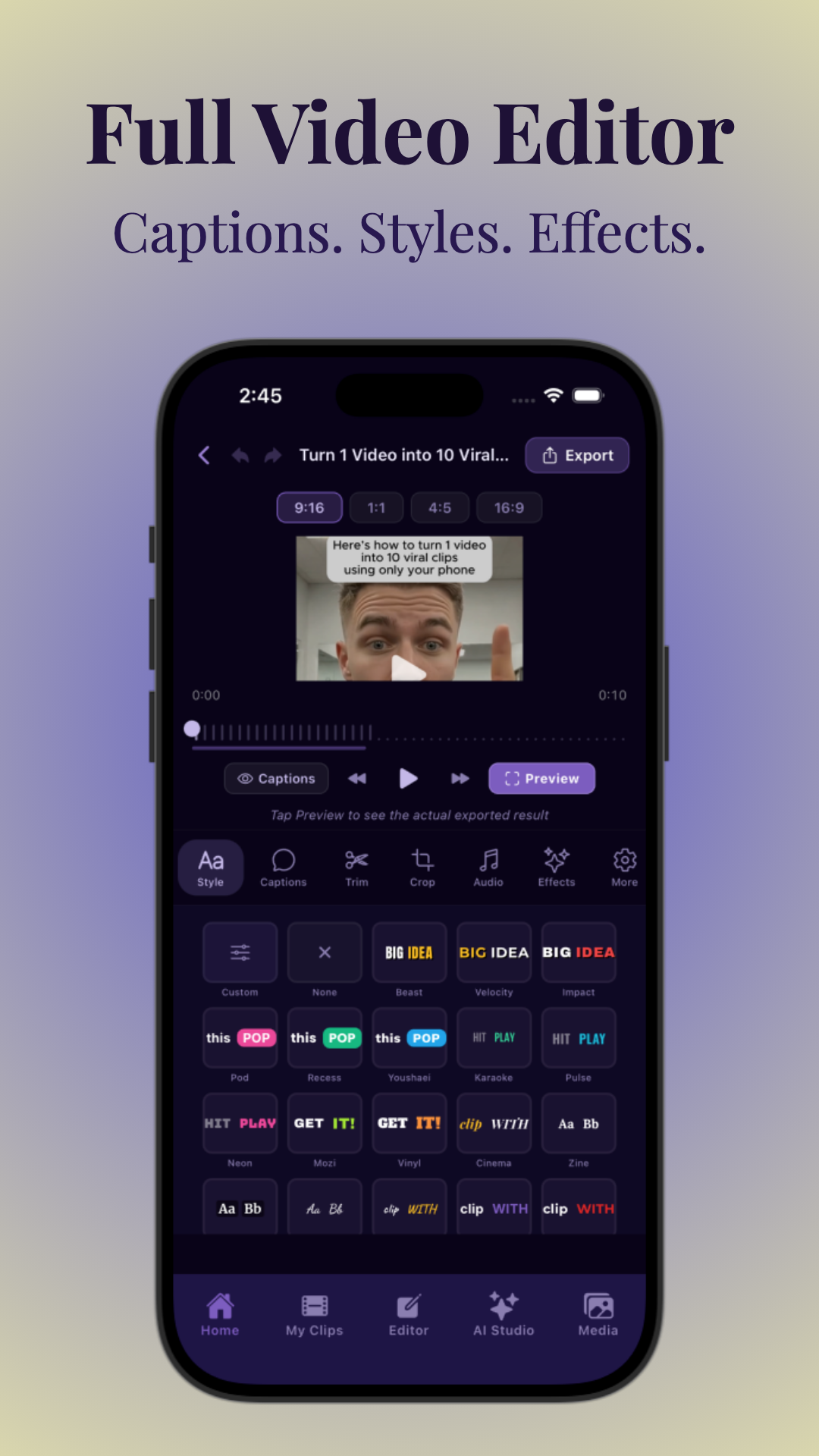
Subtitles boost engagement and accessibility—essential for viewers watching without sound. Apps like Vidulk offer powerful AI tools to automatically generate and customize captions, or you can add them manually in your editor.
- Import your chat video into Vidulk or your preferred video editor.
- Auto-generate subtitles with AI, or manually type in the text for each message reveal.
- Sync timing: Align each subtitle with the corresponding chat bubble’s appearance. This is crucial for a polished look.
- Style your captions: Adjust font, color, shadow, and background for readability. Place subtitles at the top or bottom, ensuring they don’t overlap chat bubbles.
For advanced tips on syncing captions and maximizing engagement, check out AI Clip Generator: Transform Long Videos Into Viral Shorts.
If you want to dive deeper into the process, see our ultimate guide to making fake text message videos for more detailed steps and expert tips.
Step 6: Enhance with Audio, Music, and Effects
A chat story video stands out with polished sound and visual effects. Consider these enhancements:
- Add background music: Choose royalty-free tracks that fit your story’s mood.
- Sound effects: Typing sounds, message sent/received pings, or subtle ambient noises add realism.
- Voiceover or text-to-speech: Narrate the story or let an AI voice read the messages for accessibility.
- Intros and outros: Use quick branding, story hooks, or call-to-actions to boost retention—see AI Intro Generator: Transform Your Video Content Creation for ideas.
Vidulk’s editing suite lets you add and sync these elements with precision, optimizing your video for virality.
Step 7: Export and Optimize for TikTok, YouTube Shorts, or Instagram
Ready to share your fake text message masterpiece? Optimize your export for each platform:
- File type: MP4 is universally supported.
- Aspect ratio: Always use 9:16 vertical for TikTok, Reels, and Shorts.
- Length: Aim for 15-60 seconds for maximum reach and algorithm boost.
- Thumbnail: Choose a frame with a dramatic message or cliffhanger.
Preview your video on mobile before posting to ensure subtitles and chat bubbles are fully visible. For more on short-form video optimization, see AI Video Clip Generator: Transform Long Videos with AI.
Tips & Common Mistakes
- Don’t overcrowd the screen: Too many bubbles or subtitles at once can be hard to follow.
- Use authentic texting language: Mimic real chat for believability and relatability.
- Sync subtitles perfectly: Mistimed captions break immersion—always preview before final export.
- Keep it concise: Viral chat stories are punchy and fast-paced.
- Test on multiple devices: Make sure your text and bubbles are readable on any screen size.
Avoid copyright music, cluttered layouts, or generic dialogue—these are common reasons chat story videos flop.
Conclusion
Making a texting story with subtitles is simpler than ever with modern apps and AI tools. From scripting realistic fake iMessage or WhatsApp chat videos to styling captions and adding viral sound effects, every step counts toward creating a share-worthy short-form video. With platforms like Vidulk, you can streamline the process and focus on creativity, not technical hurdles. Ready to make your own chat story video? Start experimenting and see what goes viral!
FAQ
- How do you make a texting story with subtitles?
Use a texting story app to create your chat, export it as a video, then import into an editor like Vidulk to add and sync subtitles. Style captions for mobile readability and export in vertical format. - What app is best for making texting stories?
TextingStory and Chat Master are popular for fake iMessage or WhatsApp chats, but Vidulk offers advanced video editing, AI-powered captioning, and export tools for viral clips. - How do you add captions or subtitles to a texting story video?
Import your chat video into a video editor (like Vidulk), auto-generate or manually type captions, and sync them with each message reveal. Customize style for clarity. - Can you make a texting story from screenshots?
Yes! Take screenshots of your chat, arrange them in a video editor, add pan/zoom effects, and overlay subtitles for a dynamic chat story video. For a detailed walkthrough, check out our step-by-step guide on how to make a fake texting video for Facebook. - How do you sync subtitles with text messages in a video?
Adjust the timing of each subtitle layer to match when its corresponding chat bubble appears. Preview and tweak timing for seamless pacing. You can also learn how to animate text message conversations for better subtitle syncing. - What format should a texting story be exported in for TikTok or YouTube Shorts?
Export as MP4 in 9:16 vertical aspect ratio. Aim for 720x1280 resolution or higher for best results on TikTok, Shorts, or Instagram Reels. For tips on group formats, see How to Make Group Chat Video for Instagram: The Ultimate Guide.