How to Embed Video Call on Your Website: Complete Guide
Learn how to embed video call on your website—no-code widgets, APIs, WordPress, features, security tips, and troubleshooting. Step-by-step tutorial.

Estimated reading time: 16 min
Key Takeaways
- Embedding video calls on a website can be done using no-code widgets, iframe/embed codes, or APIs/SDKs.
- Choosing the right video call integration depends on your technical skills, website platform, and business needs.
- Key features to look for: high-quality video/audio, screen sharing, chat, recording, security, and responsive design.
- Proper setup includes securing API keys, configuring room links, and ensuring permissions align with privacy requirements.
- Embedded video calls can boost conversions, support, or engagement, but require careful troubleshooting and vendor comparison.
Table of Contents
- Section 1: Embedding Video Call via Iframe or Embed Code
- Section 2: No-Code and Low-Code Video Call Widgets
- Section 3: Integrating Video Call with SDKs and APIs
- Section 4: Embedding Video Calls in WordPress and Popular CMS
- Section 5: Must-Have Features for Embedded Video Calls
- Section 6: Security, Permissions, and Troubleshooting
- Conclusion
- FAQ
Section 1: Embedding Video Call via Iframe or Embed Code
How Iframe Embeds Work for Video Calls
One of the simplest ways to embed a video call on your website is by using an iframe or embed code provided by a video conferencing platform. An iframe allows you to display an external web resource—such as a video meeting room—directly inside a web page. This approach requires minimal coding and works across most website builders and CMS.
- Iframe Syntax: Typically, you’ll copy-paste a snippet like
<iframe src="YOUR_MEETING_URL" width="100%" height="600" allow="camera; microphone; fullscreen"></iframe>into your page. - Providers: Platforms like Jitsi Meet, Daily.co, Whereby, and others offer instant embed codes for video rooms.
- Customization: Some vendors allow you to set meeting options, hide toolbars, or adjust permissions via URL parameters.
Step-by-Step: Embedding a Video Call with Iframe
- Choose a provider: Sign up for a service that supports iframe embedding (e.g., Jitsi Meet, Daily, Whereby).
- Create a room: Generate a unique meeting link or room URL from their dashboard.
- Copy the embed code: Most platforms offer a dedicated embed snippet or let you build your own using the meeting URL.
- Paste on your site: Insert the iframe code into your site’s HTML, custom code section, or via a widget block.
- Test: Visit your page to ensure the video call loads and functions on both desktop and mobile.
Best Practices and Limitations
- Responsive design: Set
width="100%"and use CSS to ensure the video call resizes on mobile. - Permissions: The
allowattribute is essential for camera and microphone access. - Limitations: Iframe embeds may not support advanced features (recording, server-side control, custom branding) unless the provider enables them.
- Security: Always use HTTPS URLs and restrict who can access your embedded rooms.
For more advanced integrations or custom branding, consider exploring SDK or API-based solutions (see Section 3). If you’re interested in AI-powered video editing, check out how Vidulk helps creators repurpose video calls into viral clips.
Section 2: No-Code and Low-Code Video Call Widgets
Overview of No-Code Video Call Widgets
No-code and low-code video call widgets are ideal for non-developers who want to quickly add video conferencing to their websites. These widgets are typically provided as easy-to-install plugins, scripts, or drag-and-drop modules for popular website builders and CMS platforms.
- One-click install: Add video call rooms to landing pages, support chat, or lead forms without touching code.
- Popular options: Daily Prebuilt, Whereby Embedded, Jitsi Meet, and 8x8 all offer widget or script-based solutions.
- Use cases: Customer support, virtual consultations, event registration, or sales demos.
How to Add a No-Code Widget
- Find a widget provider: Choose a video call platform with a no-code embedding option.
- Configure your room: Use the provider’s dashboard to set up meeting rooms, security, and branding.
- Get the install code: Most platforms provide a script or HTML snippet to paste into your site’s header or a specific page.
- Embed and publish: Insert the code where you want the widget to appear—contact pages, pop-ups, or product pages.
Benefits and Drawbacks
- Pros: Fast, easy, no technical skill required; most widgets are responsive and mobile-friendly.
- Cons: Limited customization; may not integrate deeply with your backend or data; provider branding may appear.
For more on seamless integrations, see our guide: How to Integrate Video Chat API for Seamless Content Creation.
Section 3: Integrating Video Call with SDKs and APIs
When to Use SDK or API Integration
For businesses or developers who need full control over the video call experience—custom UI, advanced analytics, or integration with existing apps—embedding via an SDK (Software Development Kit) or API (Application Programming Interface) is the preferred route.
- Popular vendors: Twilio Video, Agora, Vonage, Daily, Zoom SDK, and Jitsi offer developer tools for advanced integration.
- Flexibility: APIs/SDKs enable custom meeting flows, layouts, authentication, and data collection.
- Scalability: Suitable for web apps, SaaS platforms, and mobile applications requiring hundreds or thousands of concurrent users.
Basic Steps for SDK/API Integration
- Sign up for the provider: Register for a developer account (often free for small-scale use).
- Get API keys/credentials: Secure your API key, secret, or access token from the provider dashboard.
- Install SDK or library: Use npm, yarn, or CDN to integrate the SDK into your app or website codebase.
- Build the call UI: Implement video, audio, screen sharing, and chat using provider documentation and sample code.
- Set up security: Restrict room access, manage permissions, and handle authentication (JWT tokens, OAuth, etc.).
Example: Embedding with the Daily Video SDK
- Install:
npm install @daily-co/daily-js - Initialize:
const call = Daily.createCallObject() - Join room:
call.join({ url: 'https://your-domain.daily.co/room' }) - Handle events: Listen for
participant-joined,left-meeting, etc.
This approach unlocks maximum flexibility, but requires ongoing maintenance and security reviews. For a detailed step-by-step, see How to Integrate Video Chat SDK: A Step-by-Step Guide.
Section 4: Embedding Video Calls in WordPress and Popular CMS
WordPress Video Call Embedding Options
WordPress remains the world’s most popular website platform, and there are several ways to embed video calls into WordPress sites:
- Plugins: Search for plugins like "Video Conferencing with Zoom", "Jitsi Meet", or "Daily Video Calls" that allow simple embedding.
- Shortcodes: Some plugins generate shortcodes to insert video rooms into posts, pages, or widgets (e.g.,
[jitsi-meet room="myroom"]). - Gutenberg blocks: Visual blocks for drag-and-drop video call placement.
- Custom HTML: Paste iframe/embed codes directly into the block or classic editor.
Embedding in Squarespace, Wix, and Other CMS
- Squarespace: Use the "Embed" block or "Code" block for iframe snippets. For more features, explore third-party integrations.
- Wix: Add video call widgets via Wix App Market, or insert iframe code in the "Embed" element.
- Shopify: Use custom apps or paste embed codes into theme files for customer support or live shopping events.
Tips for CMS Embeds
- Always preview the page for mobile compatibility.
- Check plugin reviews and documentation for updates and security.
- Limit access to private rooms for sensitive calls.
Embedding video calls in CMS platforms is a fast way to add live interaction to your site. To see how AI can supercharge your video content, try Vidulk—an app that clips and captions your video calls in seconds.
Section 5: Must-Have Features for Embedded Video Calls
Core Video Call Features to Expect
When choosing a video call solution to embed, ensure it includes the features necessary for your use case. Here’s what to look for:
- HD Video & Audio: Clear, reliable video and sound are essential for any meeting or consultation.
- Screen Sharing: Crucial for demos, support, or collaborative sessions.
- Text Chat: Allows sharing links, notes, or support without interrupting the call.
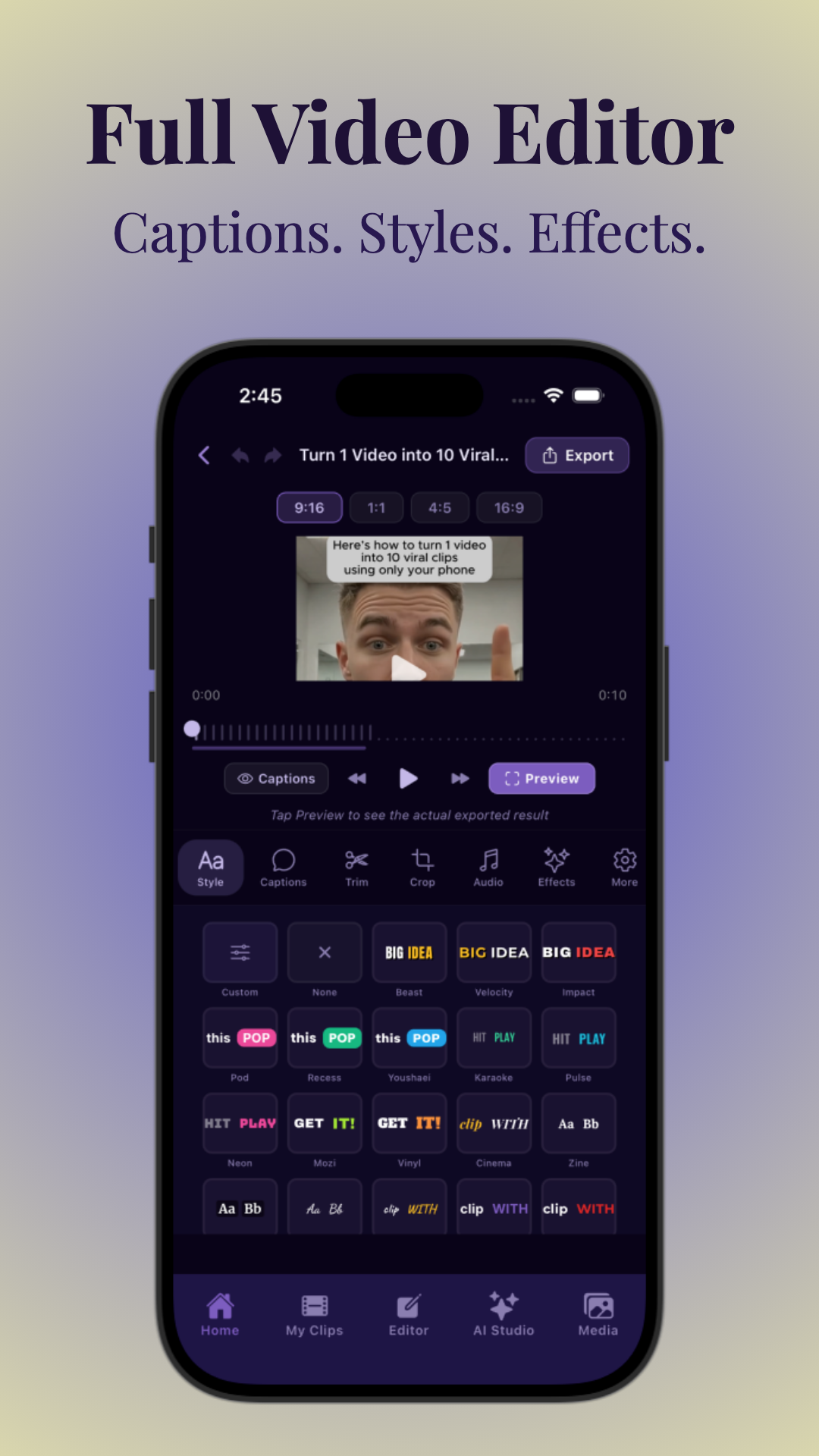
- Recording: Useful for reference, compliance, or content creation (e.g., turning calls into clips with AI tools like Vidulk).
- Breakout Rooms: For webinars or group sessions needing smaller discussions.
- Participant Management: Mute, kick, or promote users as needed.
- Custom Branding: Add your logo, colors, or meeting backgrounds.
- Mobile and Accessibility Support: Ensure the embedded call works on all devices and is accessible to all users.
Advanced Integrations
- APIs for Automation: Schedule meetings, send invites, or capture analytics automatically.
- CRM/Support Integration: Log calls or launch support sessions from help desk or sales tools.
- Lead Capture: Use embedded calls as conversion points—e.g., require email before joining.
Comparison of Top Providers
- Jitsi Meet: Free, open-source, supports iframe and SDK, no user sign-up required.
- Daily.co: Easy embeds, APIs, and widgets; robust developer support.
- Whereby: Clean UI, simple embeds, good for client calls.
- Zoom: Requires more setup, but integrates with WordPress and offers SDKs for custom builds.
- Twilio/Agora: Full SDK/API power, but requires developer resources.
For a deeper dive into turning video calls into viral content, see our post on the AI Clip Generator.
Section 6: Security, Permissions, and Troubleshooting
Securing Your Embedded Video Calls
Security is paramount when embedding live video calls. Without proper precautions, you risk unauthorized access, privacy breaches, or abuse.
- API Keys & Secrets: Never expose API secrets in client-side code. Use backend servers to generate secure tokens.
- Room Links: Use unique, hard-to-guess room URLs. Expire links after use or set time-based access.
- Authentication: Require users to log in, enter a passcode, or authenticate via OAuth/JWT before joining.
- Permissions: Restrict who can share screen, record, or invite others. Set role-based controls for hosts and guests.
- Compliance: Ensure your setup aligns with data privacy regulations (GDPR, HIPAA, etc.) if recording or storing calls.
Common Troubleshooting Steps
- Browser Compatibility: Test the embed on Chrome, Firefox, Safari, and mobile browsers. Some features (like screen sharing) may require permissions or extensions.
- Network Issues: Slow or unstable internet can cause call drops or lag. Suggest minimum bandwidth requirements to users.
- Permissions Problems: If users cannot access camera or mic, check browser settings and the
allowiframe attribute. - Widget Not Loading: Ensure scripts are loaded over HTTPS and that ad blockers or browser privacy settings aren’t interfering.
Accessibility and Placement
- Place the embedded call above the fold or as a sticky widget for maximum engagement.
- Use ARIA labels and keyboard navigation for accessibility.
- Make sure the embed resizes gracefully on all devices.
For more troubleshooting and advanced integration help, refer to our guide: How to Integrate Video Chat API for Seamless Content Creation.
Conclusion
Embedding a video call on your website has never been easier, whether you’re using a simple iframe, a no-code widget, or a full-featured API. The best approach depends on your technical expertise, website platform, and the features you need—from real-time chat to secure authentication. Prioritize user experience, security, and accessibility to ensure your embedded video calls drive engagement, support, or conversions.
If you want to transform your recorded video calls into viral, captioned clips, try Vidulk—the AI-powered app for creators looking to maximize their video content.
FAQ
Q: How do I embed a video call on my website?
A: The easiest way is to use an iframe or embed code from a provider like Jitsi Meet, Daily, or Whereby. Paste the code into your site’s HTML or use a widget/plugin for your CMS. For advanced use, integrate with a video call SDK or API for custom features.
Q: What is the easiest way to add video conferencing to a website?
A: No-code widgets or iframe embeds are the fastest. Choose a provider that offers a plug-and-play solution, copy their code, and paste it onto your site or landing page—no development needed.
Q: Which video call widget or API is best for embedding on a site?
A: For simple needs, Jitsi Meet (free/open-source) or Whereby (easy UI) are great. For full control, consider Daily or Twilio Video APIs. Compare features, pricing, and integration options before choosing.
Q: Can I embed video conferencing in WordPress or Squarespace?
A: Yes. Use dedicated plugins (WordPress) or embed/code blocks (Squarespace) to insert iframe or widget codes. Check your platform’s documentation for compatibility and security best practices.
Q: What features should an embedded video call solution include?
A: Look for HD video/audio, screen sharing, chat, recording, secure authentication, responsive design, and accessibility support. Advanced options include breakout rooms and CRM integration.
Q: How do I secure an embedded video call with an API key or room link?
A: Use unique, secure room links, require authentication (passcodes, logins, tokens), and never expose API secrets in public code. Limit permissions and regularly audit your integration for security gaps.