How to Turn Long Videos Into Short Clips: The Complete AI Workflow
Learn how to turn long videos into short clips using AI. Discover the best tools, workflows, and tips for repurposing podcasts, YouTube, and streams.

Estimated reading time: 18 min
Key Takeaways
- AI video clipping automates finding and extracting best moments from long videos, reducing hours of manual work to minutes.
- Uploading or linking to podcasts, YouTube videos, or streams is simple and fast, supporting multiple file types and URLs.
- Customizing clip length, aspect ratio, captions, and branding boosts engagement and tailors content for each platform.
- Reframing long videos into vertical formats optimizes content for Shorts, Reels, and TikTok, increasing mobile audience reach.
- Preview, trim, and export clips ready to share on social platforms directly from the app with seamless workflow integration.
Table of Contents
- Section 1: Getting Started with AI Video Clipping
- Section 2: Uploading Your Long Video or Podcast
- Section 3: Automatically Finding Best Moments to Clip
- Section 4: Customizing Your Clip Length, Aspect Ratio, and Format
- Section 5: Adding Captions, Subtitles, and Animated Text
- Section 6: Branding, Previewing, and Exporting Your Clips
- Section 7: FAQ
Section 1: Getting Started with AI Video Clipping
Understanding AI Video Clipping
Turning long videos into short clips used to require hours of manual editing—scrubbing through content, selecting highlights, and formatting for social media. Today, AI video clipping revolutionizes this process by automatically detecting and extracting the best moments to clip from hours of footage.
This technology analyzes audio and visual cues to identify engaging segments such as key quotes, exciting reactions, or topic highlights, saving creators valuable time and effort. Whether you're working with podcasts, interviews, lectures, streams, or YouTube videos, AI clipping offers a scalable, efficient solution.
At its core, AI video clipping uses machine learning models trained on vast datasets to understand speech patterns, emotional tone, and visual context. This allows the system to pick moments that humans typically find compelling—like a punchline in a podcast or a dramatic reaction during a livestream—without requiring you to comb through hours of footage yourself.
Moreover, AI clipping integrates natural language processing (NLP) to transcribe speech and identify key phrases or keywords that highlight the topic's essence. This means clips are not only visually engaging but also contextually relevant, making them more likely to resonate with your audience.
Why Use AI Video Clipping for Content Repurposing?
- Speed: Instantly generate clips without manual searching, reducing editing times from hours to mere minutes.
- Accuracy: AI detects moments with high engagement potential by analyzing multiple data streams simultaneously.
- Consistency: Maintain a steady stream of content across platforms without the bottleneck of manual processes.
- Optimization: Tailor clips for each social format automatically, ensuring your content fits perfectly on TikTok, Instagram, YouTube, and more.
- Scalability: Easily handle bulk video repurposing, ideal for creators with large video libraries or frequent uploads.
Apps like Vidulk harness AI clipping to transform lengthy videos into viral-ready content quickly, empowering creators to focus on storytelling rather than editing. This technology also supports iterative content strategies, where creators can test different clip versions to see what resonates best, then refine their approach accordingly.
Common Use Cases
- Clipping podcasts into shareable audio-visual snippets that highlight guest insights or memorable moments, perfect for social teasers or cross-promotion.
- Repurposing YouTube videos into vertical Shorts or Reels to tap into mobile-first audiences and increase channel visibility.
- Extracting highlights from livestreams for social promotion, enabling clips of peak gameplay moments, interviews, or Q&A sessions.
- Turning interviews and lectures into bite-sized clips suitable for educational microlearning or social sharing.
- Creating teaser trailers or trailers for longer content to boost anticipation and drive viewers to full episodes.
Section 2: Uploading Your Long Video or Podcast
Supported Input Sources and File Types
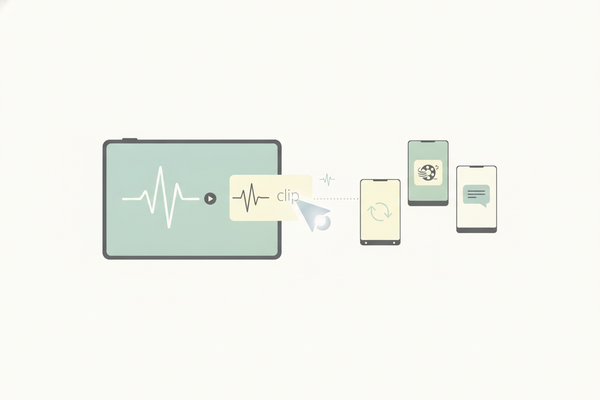
You can turn a stream into clips or repurpose any long form content by uploading directly or pasting URLs from popular platforms. Vidulk supports a broad range of inputs to maximize convenience:
- YouTube URLs and videos: Import full videos or livestream recordings by pasting URLs without manual downloads.
- Google Drive and Dropbox uploads: Seamlessly bring in cloud-stored files, enabling collaboration and easy access.
- Local video files: Compatible formats include MP4, MOV, WEBM, MKV, and AVI, covering almost all common video types.
- Audio-only files: Upload MP3, WAV, AAC, or FLAC files for podcast clipping and repurposing.
- Livestream capture: Some workflows support direct stream URLs or saved broadcasts for clipping recent live content.
This flexibility means creators can clip podcasts, streams, or YouTube videos without cumbersome downloads or conversions, streamlining the workflow from source content to finished clips.
How to Upload or Paste a URL
Uploading is straightforward and optimized for speed and ease:
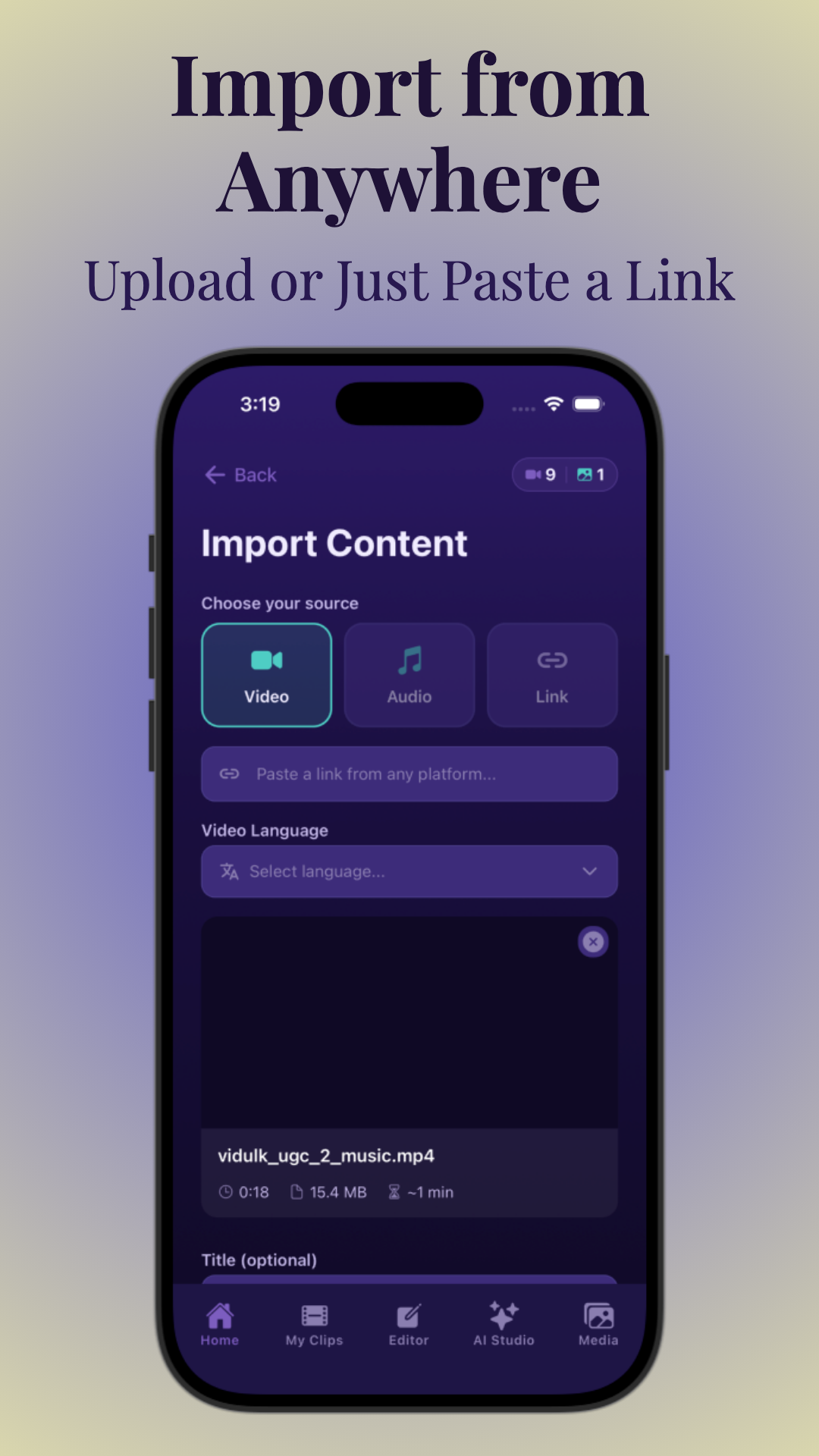
- Open the Vidulk app and choose either “Upload Video” for local or cloud files, or “Paste Link” for online videos.
- For podcasts or interviews, upload your audio file or long video directly from your device or cloud storage.
- For YouTube or livestreams, paste the video URL directly into the input field; the app will automatically fetch the content.
- The app then processes the file, converting formats if necessary and preparing it for AI analysis.
- Progress bars and notifications keep you informed during upload and processing phases.
Tips for Uploading
- Ensure stable internet: Faster, stable connections reduce upload time and processing delays, especially for large files.
- Use high-quality source files: Higher resolution and clear audio improve AI detection accuracy and final clip quality.
- Check copyright permissions: Ensure you have rights or licenses to clip third-party content to avoid takedowns or legal issues.
- Prepare your files: Trim excessively long intros or outros if desired before upload to save processing time.
- Organize files: Naming and tagging files before upload helps keep projects organized within the app.
Section 3: Automatically Finding Best Moments to Clip
AI Highlights Detection Explained
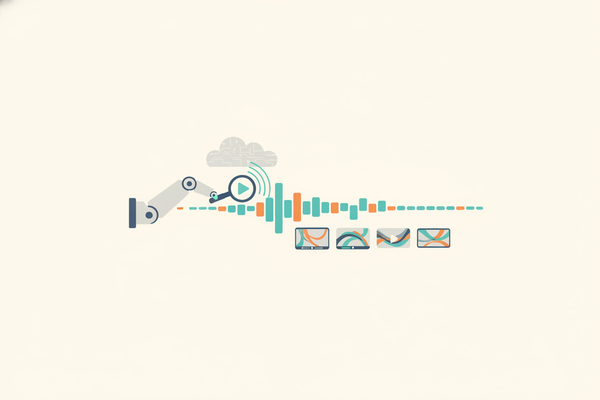
The core of how to make clips from a long video lies in effective highlight detection. Vidulk’s AI analyzes multiple data streams simultaneously to identify moments that stand out:
- Audio spikes: Detects laughter, tone changes, raised voices, emphasis, or silences indicating punchlines or emotional moments.
- Visual cues: Recognizes facial expressions like smiles, surprise, or nods, and detects scene changes or action peaks in gameplay or events.
- Content structure: Uses speech-to-text transcription to identify topic shifts, key quotes, questions, or repeated themes.
- Engagement signals: Some systems incorporate viewer interaction data (likes, comments, shares) if available to prioritize clips.
This multi-modal analysis lets the app pinpoint moments that resonate with viewers, eliminating guesswork and boosting the likelihood of viral success.
Choosing the Best Moments to Clip
While AI suggests highlights, creators retain full control to customize and refine clips for maximum impact:
- Select specific timestamps or quotes: Use transcript search to jump to particular statements or segments.
- Manually adjust clip start/end points: Fine-tune the timing to include context or trim down to punchy moments.
- Use AI suggestions as a starting point: Quickly generate multiple clip options, then pick and polish favorites.
- Combine clips: Merge related highlights into a single, cohesive story or thematic montage.
- Add custom annotations: Highlight key takeaways or speaker info to add context.
For example, when clipping podcasts, look for unique insights, emotional peaks, or humorous exchanges. In streams, exciting gameplay, surprising reactions, or impressive feats make great clips. Vidulk also provides a detailed guide on best moments to clip to help creators strategize.
Benefits of AI Clip Generation
- Save hours of manual review: Automated suggestions let you focus on curation rather than searching.
- Increase viral potential: Optimized clips based on engagement signals help your content perform better.
- Scale content repurposing: Generate dozens or hundreds of clips quickly for multi-platform distribution.
- Maintain content freshness: Regularly release highlights from archives or ongoing streams.
- Improve audience targeting: Select clips that appeal to different segments or social platforms.
Section 4: Customizing Your Clip Length, Aspect Ratio, and Format
Choosing the Right Clip Length
Different platforms favor different clip durations, and understanding these nuances helps maximize viewer retention and engagement:
- TikTok, Reels, Shorts: 15 to 60 seconds is the sweet spot. TikTok recently extended max length to 10 minutes, but short clips under a minute consistently perform better for discovery.
- Instagram Stories: Up to 15 seconds per clip; longer videos are automatically split into segments.
- YouTube Shorts: Under 60 seconds, with a vertical 9:16 aspect ratio.
- Facebook and LinkedIn: Clips around 30 to 90 seconds perform well for professional audiences.
- Twitter: Clips under 45 seconds fit best for quick shares.
Vidulk lets you specify desired clip lengths before generating, enabling batch creation of platform-optimized videos. You can also set minimum and maximum lengths to control clip tightness.
Aspect Ratio and Reframing
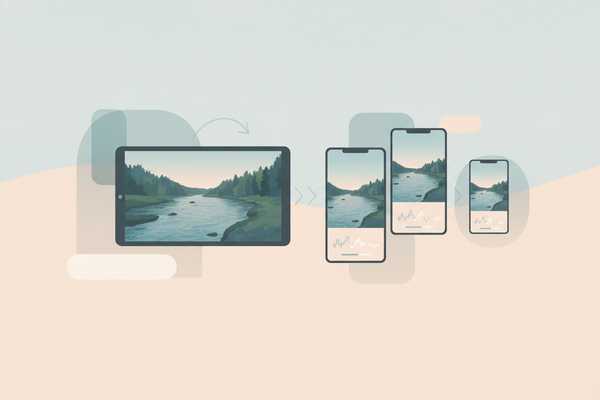
Vertical video formats like 9:16 dominate Shorts, TikTok, and Reels, while horizontal (16:9) is standard on YouTube and desktop platforms. Vidulk automatically reframes clips by:
- Cropping or resizing horizontal videos to vertical: The AI identifies key subjects (faces, text, action) and centers them within the vertical frame to avoid cutting off important content.
- Adjusting important visual elements: It preserves context by dynamically zooming or panning when necessary, ensuring a natural look.
- Allowing manual repositioning: Creators can fine-tune framing by dragging or resizing the crop box for perfect composition.
- Supporting square (1:1) and cinematic (21:9) ratios: For Instagram feeds or artistic uses.
This ensures your clips look native and polished on mobile-first platforms, avoiding awkward cropping or letterboxing.
Output Formats and Quality Settings
- Export in MP4 or MOV: These formats are widely supported across social media and video editors.
- Choose resolution options: Options range from 480p for faster uploads to 1080p or 4K for high-quality needs.
- Support for WEBM: Ideal for web-optimized clips with smaller file sizes and faster loading.
- Bitrate control: Adjust bitrate to balance quality and file size, important for platforms with upload limits.
- Frame rate adjustments: Maintain smooth motion with 24, 30, or 60 fps options depending on source material and platform.
These options help maintain crisp video quality while optimizing for fast uploads and playback, crucial for retaining viewer attention.
Section 5: Adding Captions, Subtitles, and Animated Text
Why Captions Matter
Most social media users watch videos muted by default, especially on mobile devices in public or quiet environments. Adding captions boosts engagement and accessibility by:
- Improving comprehension without sound, enabling viewers to grasp content anytime.
- Increasing watch time and shares since users are more likely to watch full clips if text aids understanding.
- Enhancing SEO and discoverability by making videos searchable through transcript indexing.
- Serving viewers with hearing impairments, meeting accessibility standards and broadening your audience.
Automated Caption and Subtitle Generation
Vidulk’s AI automatically transcribes audio and syncs captions with your clips using speech recognition models trained on diverse accents and languages. You can:
- Edit captions for accuracy and clarity within the app’s editor to fix misheard words or add punctuation.
- Choose font styles, colors, sizes, and background highlights to match your brand and improve readability.
- Add subtitles in multiple languages by uploading translations or using integrated machine translation features, expanding global reach.
- Export caption files (SRT, VTT) alongside clips for platforms that support separate subtitle tracks.
Animated Text and Graphics
Make clips more dynamic and attention-grabbing by adding animated text overlays that highlight key phrases, speaker names, or calls to action. Features include:
- Entrance and exit animations like fade, slide, or bounce to draw viewer focus.
- Customizable timing to sync text animations precisely with audio cues or visual events.
- Overlay graphics such as lower thirds, logos, or emojis to enhance personality.
- Template presets for quick styling or fully manual design for unique branding.
These enhancements increase viewer retention and add professional polish, helping your clips stand out in crowded feeds.
Section 6: Branding, Previewing, and Exporting Your Clips
Customizing Branding Elements
Maintain consistent brand identity across clips by adding customizable elements such as:
- Logos or watermarks: Upload transparent PNGs or SVGs and position them in corners to protect your content and reinforce branding.
- Custom intro/outro screens: Create short animated or static sequences to bookend clips with calls to action or branding messages.
- Background music or soundtracks: Add royalty-free or licensed audio tracks to set mood and enhance viewer engagement.
- Color overlays and filters: Apply brand colors or visual styles to unify clip appearance.
Vidulk offers intuitive drag-and-drop tools and presets to upload, position, and preview these elements seamlessly, ensuring your clips look polished and on-brand without complex editing software.
Previewing and Trimming Clips
Before exporting, reviewing clips within the app is essential to maintain quality and compliance with platform guidelines. Features include:
- Trim unnecessary frames: Remove dead air, stutters, or irrelevant content to keep clips tight and engaging.
- Adjust captions or text overlays: Synchronize text timing and correct errors.
- Check aspect ratio and framing: Verify that important visual elements remain in frame after cropping.
- Playback at variable speeds: Quickly scan clips for pacing and flow.
- Batch preview: Review multiple clips in sequence to ensure consistency.
This step saves time by catching issues early and ensures your final clips meet quality standards and platform requirements.
Exporting and Sharing
Once ready, export clips in your chosen format and resolution. Vidulk streamlines the workflow by enabling direct sharing to major social media platforms including TikTok, Instagram, YouTube Shorts, Facebook, and LinkedIn. Benefits include:
- One-click uploads: Save time by posting directly from the app without manual downloads or multiple steps.
- Scheduled posting: Plan clip releases to maintain a consistent content calendar.
- Integrated analytics: Track clip performance across platforms to optimize future content.
- Multi-platform export: Generate tailored clips for different network specs in one session.
For creators wanting to streamline the entire repurposing process from start to finish, Vidulk is an ideal choice. Explore more on how to turn long videos into short clips for detailed steps, tutorials, and best practices.
Conclusion
Repurposing long videos into short clips is essential for content creators aiming to grow their audience across social platforms. Leveraging AI video clipping tools like Vidulk simplifies this complex task by automating highlight detection, cropping, captioning, and exporting. Whether you need to clip a podcast, repurpose YouTube videos into Shorts, or turn a stream into clips, the right workflow ensures maximum engagement with minimal effort.
By following the comprehensive steps outlined—uploading your source, letting AI identify best moments, customizing clip length and format, adding captions and branding, then exporting—you can efficiently generate viral-ready content tailored for TikTok, Instagram, and YouTube.
Additionally, using AI clipping enables you to maintain a consistent posting schedule, test different clip versions for audience preferences, and expand your reach by adapting content for multiple platforms effortlessly. This agility is critical in today's fast-paced digital landscape where timely and engaging content drives growth.
Try Vidulk today to experience how AI can transform your long-form videos into captivating short clips that drive views and shares. Visit Vidulk to get started and unlock your content's full potential.
FAQ
Q: How do I turn a long video into short clips automatically?
A: Use an AI video clipping tool like Vidulk that analyzes your video to detect highlights and automatically generates short clips optimized for social platforms. This removes manual editing and speeds up content repurposing. The AI considers audio, visual, and textual cues to find engaging moments and formats clips to platform specifications.
Q: What is the best AI tool to make shorts from long videos?
A: Vidulk is a leading AI clip generator designed specifically to turn podcasts, interviews, YouTube videos, and streams into viral short clips with captions and vertical formatting. Its intuitive interface, wide format support, and advanced AI models make it suitable for creators at all levels.
Q: How do I choose the best parts of a long video for clips?
A: Focus on moments with emotional impact, key insights, humor, or high energy. AI tools can help by automatically detecting these highlights based on audio spikes, visual reactions, and transcript keywords, but manual review and editing can refine selections for your audience to ensure relevance and polish.
Q: Can I convert a YouTube video into short clips?
A: Yes. Many AI clipping apps, including Vidulk, allow you to paste YouTube URLs to import videos and create short clips without downloading the original file. This saves time and storage while enabling quick repurposing of popular content.
Q: What length should short clips be for TikTok, YouTube Shorts, or Reels?
A: Short clips typically perform best between 15 and 60 seconds on these platforms. Tailor your clip length accordingly to maximize viewer retention and engagement. TikTok also supports longer videos, but shorter clips are better for discovery and shareability.
Q: How do I add captions or subtitles to clipped videos?
A: Use AI-powered captioning features in video clipping apps like Vidulk, which transcribe audio and sync text automatically. You can customize font style, position, and language before exporting. This improves accessibility, watch time, and engagement across social media.