Reels Safe Zone: The Complete Guide for Vertical Video Creators
Master the reels safe zone, vertical video aspect ratios, and TikTok/Shorts formatting. Ensure your clips look perfect on every platform with this in-depth guide.


Estimated reading time: 14 min
Key Takeaways
- Understanding the reels safe zone is essential for creating platform-ready vertical videos.
- Optimizing for vertical video aspect ratio (9:16) ensures your content displays perfectly on Reels, TikTok, and Shorts.
- Safe zones vary slightly between platforms—knowing these differences prevents cropped captions and cut-off graphics.
- AI-powered tools like Vidulk streamline the process of generating perfectly formatted, viral-ready clips.
- Practical strategies help keep text, logos, and calls-to-action visible and engaging.
Table of Contents
- Section 1: What Is the Reels Safe Zone?
- Section 2: Vertical Video Aspect Ratio Essentials
- Section 3: Platform Differences — Reels, TikTok, and Shorts Safe Zones
- Section 4: Designing for the 9:16 Video Dimensions
- Section 5: Common Mistakes Creators Make (and How to Avoid Them)
- Section 6: How Vidulk Makes Safe Zone Editing Effortless
Section 1: What Is the Reels Safe Zone?
Defining the Safe Zone
The reels safe zone refers to the area within a vertical video (typically 9:16 aspect ratio) where crucial visual elements—such as text, logos, and calls to action—remain visible on all devices and platforms. Instagram Reels, TikTok, and YouTube Shorts each display vertical content slightly differently, but all have interface overlays (like buttons, captions, and icons) that obscure portions of the screen. Anything outside the safe zone risks being cut off or hidden behind these elements.
- Top and bottom overlays: Navigation bars, usernames, captions, and engagement buttons can block portions of your video.
- Side overlays: Some platforms add icons along the edges, especially on smaller screens.
- Safe zone = the central area free from overlays and cropping, typically centered vertically and horizontally.
Why the Safe Zone Matters
When content falls outside the safe zone, viewers may miss key information, resulting in:
- Cut-off subtitles or branding
- Hidden calls to action, reducing engagement
- Unprofessional appearance, lowering retention rates
Consider, for example, that even a small misplacement—such as a logo that extends just 30px into a platform’s button overlay—can render it unreadable. Since many users watch videos with sound off, captions are essential. If these are partially hidden, your message loses clarity, which can reduce average watch time and make it less likely that viewers will follow, share, or interact with your content. On platforms where engagement and watch time drive algorithmic distribution, this can directly impact your content’s reach.
Real-World Example
Suppose you upload a vertical clip to Instagram Reels with captions placed too low. The bottom navigation and like/comment/share buttons cover your text, making it unreadable. To prevent this, always keep crucial elements inside the designated safe zone.
Another common scenario: a creator adds a call-to-action, like “Swipe Up” or “Follow for more,” flush to the bottom edge of their video. On TikTok, the share and profile icons will obscure this prompt, meaning viewers never see the CTA. The result? Missed conversions and a lack of clarity in what action you want viewers to take. By designing with these overlays in mind, you ensure your video looks intentional and polished, regardless of where it’s viewed.
Section 2: Vertical Video Aspect Ratio Essentials
The 9:16 Standard
The vertical video aspect ratio universally used for Reels, TikTok, and Shorts is 9:16. This means the video is nine units wide for every sixteen units tall, perfectly matching the shape of a modern smartphone held upright. Most platforms require videos to be at least 1080x1920 pixels.
- Instagram Reels: 1080x1920px recommended
- TikTok: 1080x1920px (9:16)
- YouTube Shorts: Minimum 600x1067px, but 1080x1920px preferred
It’s important to note that while 1080x1920px is the standard, some creators export in higher resolutions (like 4K vertical, 2160x3840px) for future-proofing and higher-quality edits. However, the aspect ratio must remain 9:16 for platform compatibility.
Benefits of Sticking to 9:16
- Ensures consistent playback across all major platforms
- Prevents unwanted cropping or letterboxing
- Keeps your clips ready for cross-posting
Consistent use of the 9:16 ratio also optimizes for how people hold their phones. With over 90% of social video consumption happening on mobile, this aspect ratio ensures your content feels native and immersive. Additionally, 9:16 videos fill the screen, maximizing the real estate for your message and visuals.
Other Aspect Ratios (and Why to Avoid Them for Reels)
While you may encounter 4:5, 16:9, or 1:1 formats elsewhere, using anything but 9:16 for vertical video will almost always result in black bars or cropping on Reels, TikTok, and Shorts. Always export and edit in 9:16 for best results.
For example, a 16:9 video (1920x1080px) uploaded to Reels will be pillarboxed—black bars appear above and below, shrinking your content and making it less compelling. Similarly, a 1:1 video may be cropped at the top and bottom, potentially removing important content. In rare cases, platforms will zoom in to fill the screen, which can result in low resolution or unintentional cropping of faces or branding.
If you’re repurposing content originally shot in landscape, consider using editing tools to crop or reposition the frame to fit 9:16. This may mean zooming in on the subject or moving overlays to stay within the safe zone, but it maintains the integrity of your message and visual appeal.
Section 3: Platform Differences — Reels, TikTok, and Shorts Safe Zones
Instagram Reels Safe Zone
Instagram overlays several UI elements on Reels, so keeping text and graphics within a central band is crucial. The Reels safe zone is generally:
- Top margin: 250px safe (navigation bar covers the top ~130px)
- Bottom margin: 420px safe (caption, like, comment, and share buttons obscure bottom ~270px)
- Side margins: Keep ~90px clear on each side
For example, if you’re designing a 1080x1920px video, draw a rectangle from (90,130) to (990,1650) to represent the central safe zone. Anything outside this rectangle might be hidden behind UI elements. Instagram sometimes updates its overlays, so it’s wise to double-check by previewing in the app before publishing.
TikTok Safe Zone
The TikTok safe zone is similar, but the interface varies slightly:
- Top: 150px clear
- Bottom: 320px clear (to avoid hashtags, captions, and profile info)
- Right side: 130px clear (for like/share/profile icons)
TikTok’s right-hand stack of icons (profile, like, comment, share) is more prominent than on Instagram, so keep all crucial visuals away from the right edge. If you add a logo or watermark, position it on the left, at least 130px from the right border. For captions, keep them above the bottom 320px—otherwise, hashtags or auto-generated captions may cover them.
YouTube Shorts Aspect Ratio and Safe Zone
For Shorts aspect ratio (9:16), YouTube's overlays are less intrusive, but the bottom 120px may be covered by engagement controls and the top 80px by the title or channel name.
- Top: 80px clear
- Bottom: 120px clear
- Sides: Minimal overlays, but 60px is safe
Unlike Instagram or TikTok, YouTube Shorts typically overlays only basic controls and the channel name. However, device differences and future updates can affect exact overlay placement. When in doubt, give yourself extra padding.
Summary Table
- Reels: Avoid top 130px, bottom 270px, sides 90px
- TikTok: Avoid top 150px, bottom 320px, right 130px
- Shorts: Avoid top 80px, bottom 120px, sides 60px
For more on AI-powered clipping tailored for these platforms, see AI Clip Generator: Transform Long Videos Into Viral Shorts.
When designing for all three platforms, use the most restrictive safe zone as your guide. This often means centering key elements within the innermost rectangle defined by the largest margins (e.g., TikTok’s right-side overlay). This approach guarantees nothing important gets lost, no matter where your video is posted.
Section 4: Designing for the 9:16 Video Dimensions
Planning Your Layout
Effective vertical video design starts with a blank 9:16 canvas and mapping out the safe zone before adding elements. This ensures all essential content remains visible on every platform.
- Start with a 1080x1920px project in your editing app.
- Draw guides or overlays representing the safe zones for each platform if cross-posting.
- Keep key elements—captions, faces, branding—well inside these boundaries.
Many video editors (including mobile apps) allow you to add custom guides or overlays. For example, you could create a PNG overlay with transparent rectangles for each platform’s safe zone. Layer this over your footage as you edit. Once you’ve positioned your content, remove the overlay before final export. This method minimizes the risk of accidental placement errors.
Best Practices for Text and Captions
- Use large, legible fonts (minimum 50px for mobile visibility).
- Stick to high-contrast text colors for readability over video backgrounds.
- Position captions in the lower third, but above the bottom safe zone margin.
For example, if your bottom margin is 270px (Instagram Reels), place captions at least 300px above the bottom edge. Test different font weights and backgrounds—semi-transparent boxes behind text can boost readability against busy visuals.
When adding subtitles, avoid overly decorative fonts. Sans-serif fonts like Roboto, Helvetica, or Arial work well. For accessibility, maintain a minimum contrast ratio of 4.5:1 between text and background.
Visual Hierarchy and Calls to Action
Use the central safe zone to highlight faces, action, and calls to action:
- Place faces and focal points near the vertical center for engagement.
- Overlay CTAs (like “Follow for More” or arrows) inside the safe zone, never flush to the edge.
- Test your video by previewing with overlays to ensure nothing important is cropped.
CTAs are most effective when they are both visually distinct and within the viewer’s natural line of sight. For example, add a subtle animation (like a pulsing arrow) within the safe zone pointing to your call to action. If you’re asking viewers to comment or share, use a contrasting color to make the prompt stand out.
Remember: even a small misplacement can have consequences. For instance, if your CTA sits at 1900px on a 1920px-tall canvas, it will be hidden on all three platforms. Move it up to at least 1700px for safety.
Testing is crucial: Before finalizing your edit, export a short section and upload as a private post to each platform to confirm overlays don’t hide your content. Many creators also use screen recording to capture what the video looks like in the actual app, overlaying this footage back in their editor to double-check placements.
Section 5: Common Mistakes Creators Make (and How to Avoid Them)
Placing Text Too Low or Too High
Text and captions are often placed at the very bottom or top of the frame, causing them to be obscured by platform overlays. Always check safe zone guides before finalizing exports.
For example, if your caption sits at 1870px on a 1920px-high canvas, it may look fine in your video editor but will be covered by TikTok’s or Instagram’s caption overlays. Similarly, placing a logo at 50px from the top could result in it being hidden behind the username or navigation bar. Instead, position elements at least 150-200px from the frame’s edges.
Ignoring Platform-Specific Overlays
Creators frequently overlook subtle differences in where overlays appear on TikTok vs. Reels vs. Shorts. This can lead to perfectly visible text on one platform, but cropped or hidden elements on another.
For instance, a watermark placed on the right side of a TikTok video might be visible on Instagram Reels, but on TikTok itself, the right-side stack of icons will obscure it. The safest strategy is to either center your watermark or align it to the left, away from overlays.
Not Testing Across Devices
- Preview your clip on both iOS and Android devices.
- Test in-app before publishing—platform overlays can change with app updates.
- Solicit feedback from viewers using different devices and screen sizes.
Mobile apps sometimes render overlays differently on tablets versus phones, or on different device aspect ratios. For example, iPhones with a "notch" might display overlays slightly lower than Android phones. Before making your video public, test it in as many scenarios as possible. If you don’t have access to multiple devices, ask friends or collaborators for screenshots.
Choosing the Wrong Aspect Ratio
Uploading landscape (16:9) or square (1:1) videos to vertical-first platforms results in black bars and a less engaging viewer experience.
Black bars shrink your content and signal to viewers that the video wasn’t designed for the platform. This can reduce watch time and lead to lower algorithmic reach. Always crop or re-edit for 9:16 if your source footage is in a different aspect ratio.
Fixes and Pro Tips
- Use editing software or apps like Vidulk that offer built-in safe zone overlays and previews.
- Keep all branding and captions within the inner 80%-85% of your canvas.
- Refer to the 9:16 safe zone template every time you edit or export a new clip.
Many professional creators keep a reusable template file (in Premiere, Final Cut, or Canva) with safe zone guides for each platform. This speeds up editing and reduces mistakes. If you’re editing on mobile, look for apps that let you import custom overlays or have safe zone guides built-in.
Bonus tip: After exporting, upload your video as a “private” or “unlisted” post on each platform. This allows you to preview overlays and make last-minute adjustments without risking engagement or algorithm penalties from deleting and re-uploading.
Section 6: How Vidulk Makes Safe Zone Editing Effortless
AI-Driven Clipping for the Perfect Format
Vidulk is an AI-powered mobile app designed specifically for creators who want to turn long-form videos and podcasts into viral vertical clips. Its AI automatically detects the best moments and formats them for Reels, TikTok, and Shorts—taking safe zones into account.
- Paste your podcast, interview, or video link—Vidulk ingests the content and analyzes it for clip-worthy highlights.
- Clips are generated in true 9:16 aspect ratio for seamless posting across all major platforms.
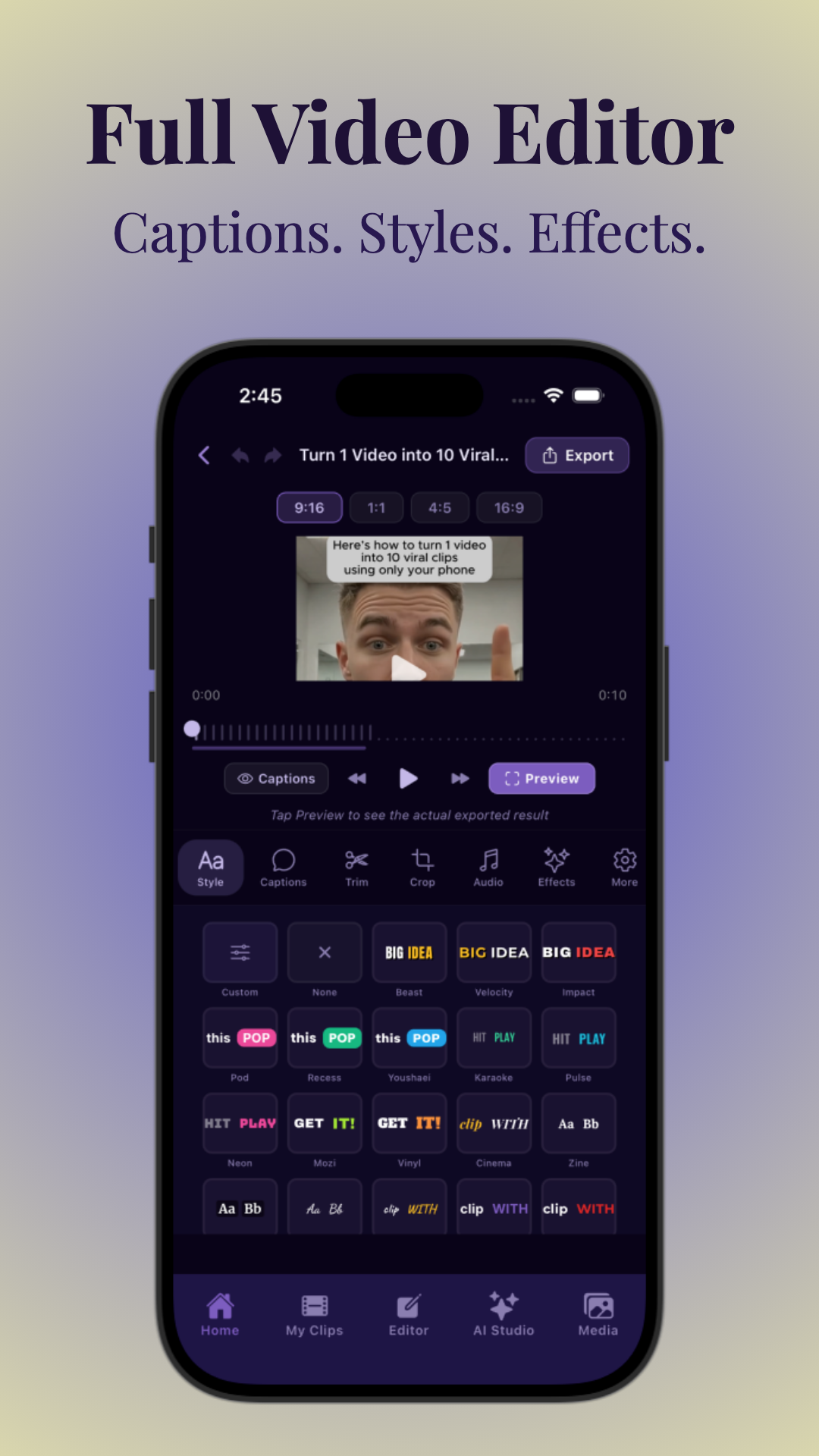
- AI captions are auto-placed within the safe zone, and you can customize their style, color, and position.
Vidulk’s AI models are trained on thousands of top-performing vertical videos, so they know exactly where overlays appear and how to keep your content visible. For example, if your original footage has lower-third graphics, Vidulk will automatically shift them upward, ensuring nothing is hidden by platform overlays.
Caption Customization and Visual Guides
- Edit captions, branding, and overlays using intuitive drag-and-drop tools that respect safe zone boundaries.
- Vidulk’s editing screen (see below) shows clear guides for each platform’s overlays, so you always know what will be visible.
- AI can recommend optimal placement for CTAs, logos, and text based on current platform standards.
For example, if you add a "Subscribe" CTA, Vidulk will suggest a location above the bottom overlay, and if you drag it too close to the edge, it’ll highlight the risk zone. When you adjust caption size or color, real-time previews show exactly how your clip will look on each platform. This is especially helpful when batch-creating multiple variations for cross-posting.
The app also offers preset templates for different platforms. If you select “TikTok,” the safe zone guides automatically adjust, so your edits are always platform-perfect. This is especially valuable for creators producing dozens of clips from a single video and want to guarantee every version is compliant.
Cross-Posting and Exporting
- Export in platform-ready formats: 1080x1920px, with safe zone overlays optionally burned in for review.
- Automatically generate multiple versions for Reels, TikTok, and Shorts, each tailored to that platform’s unique overlays.
- Streamline your workflow from long-form to viral-ready short with minimal manual intervention.
For a detailed walkthrough, check out Video Clip Maker: Effortlessly Turn Long Videos into Viral Clips, which illustrates the process of turning full-length videos into platform-perfect highlights.
Imagine you record a 60-minute podcast. With Vidulk, you can generate a dozen short, vertical clips—each automatically formatted for TikTok, Reels, and Shorts, with captions and branding safely inside each platform’s overlays. No more manually repositioning text or worrying about changing guidelines. Vidulk’s AI stays up-to-date with the latest platform changes, so your content always looks its best.
Conclusion
Mastering the reels safe zone and related concepts like the vertical video aspect ratio, tiktok safe zone, and shorts aspect ratio is non-negotiable for today’s content creators. With every platform overlaying its own controls and UI elements, failing to account for the safe zone means risking cut-off captions, missed branding, and a less professional appearance. By designing every vertical video in 9:16, keeping key elements inside the safe area, and using modern tools like Vidulk to automate and preview your edits, you’ll ensure your content looks flawless—and maximizes engagement—across Reels, TikTok, and Shorts.
If you want to consistently create videos that drive engagement, retain viewers, and look professional across every platform, make safe zone design a core step in your workflow. The extra care you take upfront will pay off in higher watch times, more followers, and greater shareability. And by automating the technical aspects with Vidulk, you can focus on storytelling and creativity rather than pixel-perfect placement.
Ready to streamline your workflow and produce viral, perfectly-formatted vertical clips? Try Vidulk today and let AI handle the technical details while you focus on storytelling.
FAQ
Q: What are the exact pixel dimensions for the Reels safe zone?
A: For a 1080x1920px vertical video, keep essential elements at least 130px from the top, 270px from the bottom, and 90px from each side. This ensures captions, branding, and CTAs aren’t blocked by Instagram’s interface.
Q: Can I use the same clip for Reels, TikTok, and Shorts?
A: Yes, as long as you keep all critical visuals within the tightest overlapping safe zone (i.e., the area that’s clear on all platforms). Many creators design for TikTok’s slightly larger overlays to guarantee cross-platform visibility.
Q: What happens if my captions are outside the safe zone?
A: Captions placed outside the safe zone risk being obscured by navigation bars, engagement buttons, or platform overlays, making them unreadable to viewers and reducing engagement.
Q: How does Vidulk help with safe zone formatting?
A: Vidulk’s AI auto-detects and formats content for Reels, TikTok, and Shorts, placing captions and graphics inside the safe zone, with visual guides to preview exactly what will be seen on each platform.
Q: Where can I learn more about AI-powered video clipping?
A: Read AI Video Clip Generator: Transform Long Videos with AI for a deep dive into how AI tools like Vidulk make the clipping process fast and platform-perfect.
Cuando se busca una camiseta de club, es útil comparar medidas, corte y detalles de confección antes de decidir. Una referencia como tienda de camisetas del FC Barcelona puede servir para revisar opciones generales sin depender de una sola característica. También conviene revisar las condiciones descritas para evitar confundir estilo, talla y comodidad.