Best Vertical Video Editor iOS: Top Apps for Viral Clips in 2024
Discover the best vertical video editor iOS apps for creators. Compare free, easy, and AI-powered vertical video editors for iPhone and boost your content.

Estimated reading time: 13 min
Key Takeaways
- The best vertical video editor iOS apps combine intuitive tools, AI automation, and rapid exporting for creators.
- Top vertical video editors for iPhone offer free options, advanced captioning, and social-ready formats.
- AI-powered apps like Vidulk automatically turn long videos into viral, captioned vertical clips.
- Choosing the right app depends on editing needs, platform support, and workflow integration.
Table of Contents
- Section 1: Why Vertical Video Editing Matters on iOS
- Section 2: Essential Features of the Best Vertical Video Editor iOS Apps
- Short form video content ideas are a great way to start your vertical video journey.
- Section 3: Top Free Vertical Video Editor Apps for iPhone
- Section 4: AI-Powered Vertical Video Editing – The Vidulk Advantage
- Section 5: Step-by-Step Guide – Editing Vertical Videos on iPhone
- Section 6: Advanced Tips for Viral Vertical Video Clips
- Conclusion
- FAQ
Section 1: Why Vertical Video Editing Matters on iOS
The Rise of Vertical Video on Mobile
In 2024, vertical video isn’t just a trend—it’s the dominant online format. With billions of views on TikTok, Instagram Reels, and YouTube Shorts, creators are shifting their focus to vertical-first content. iOS, with its massive user base and advanced camera hardware, is at the heart of this revolution. Users demand the best vertical video editor iOS apps that cater directly to this new content style.
Vertical video’s popularity is rooted in how people use their phones: over 90% of smartphone use is in portrait orientation. Social platforms have prioritized vertical feeds, giving this format prime algorithmic placement. TikTok, for example, only accepts 9:16 videos, and Instagram Reels penalize landscape uploads with less reach. For creators and brands, this means vertical content is non-negotiable for maximum exposure.
Why iPhone Creators Need Specialized Editors
Editing vertical video isn’t simply cropping landscape footage. It requires:
- Maintaining subject focus in a tall frame
- Adding legible captions and dynamic overlays
- Ensuring fast, easy sharing to social platforms
The native iOS Photos app offers basic trimming and cropping. However, for creators aiming for viral impact, a vertical video editor app with advanced features is essential.
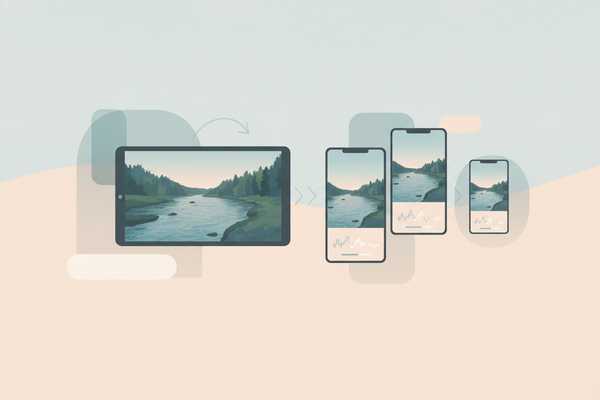
For instance, reframing a talking head video from landscape to vertical often means the subject is off-center or cropped awkwardly. Specialized editors include smart reframing tools—sometimes powered by AI—that track faces or moving objects and keep them centered. This is especially useful for repurposing webinars, interviews, and recorded livestreams.
Commercial Impact of Vertical Video
Brands and influencers see up to 4x higher engagement on vertical videos compared to standard formats. This makes having the best vertical video editor on iPhone a strategic advantage for:
- Content creators
- Social media managers
- Podcast hosts and educators
Vertical videos now account for the majority of ad spend on platforms like TikTok and Instagram. Marketers note that vertical ads have a 90% higher completion rate than horizontal ones. For educators and podcasters, vertical clips can turn hour-long sessions into bite-sized, shareable highlights that reach new audiences.
In short, editing vertical video on iOS is now a core skill for anyone creating video content professionally or for personal brands.
Section 2: Essential Features of the Best Vertical Video Editor iOS Apps
User Experience and Workflow
The best vertical video editor iOS apps stand out by making the editing process fast and intuitive. Here are key UX features to look for:
- Vertical-first interface: Menus and timelines designed for portrait mode
- One-tap import: Bring in videos from Camera Roll, iCloud, or direct link
- Real-time preview: Instantly see edits in vertical aspect ratios (9:16, 4:5)
For example, an ideal app will open with a vertical timeline layout, display the most important controls within thumb’s reach, and provide live previews that match the output on TikTok or Reels. Some editors even allow you to drag and drop video elements or text overlays directly within the vertical frame, rather than using small pop-up menus.
Editing Power for Viral Clips
To move beyond basic cropping, top apps provide:
- AI-powered clipping: Automatically find highlights in long videos
- Smart captions: Auto-generate, style, and animate captions for maximum engagement
- Split and merge: Seamlessly break long videos into short, shareable moments
- Transitions and effects: Keep viewers hooked with motion, zooms, and filters
For example, Vidulk’s AI analyzes your video to clip out the best moments, then adds dynamic, social-ready captions.
Advanced editors like Vidulk include features such as speaker detection—helpful when editing interviews or multi-person podcasts. AI can distinguish between speakers, apply different styles to each, or even generate automatic jump cuts to improve pacing. Some apps also provide gesture-based trimming and storyboard views so you can quickly rearrange or split clips with a swipe.
Export and Sharing Options
A great vertical video editor iPhone app supports:
- Direct uploads: One-tap sharing to TikTok, Instagram Reels, and YouTube Shorts
- Multiple resolutions: Export in 720p, 1080p, or 4K
- Optimized file sizes: Quick posting without losing quality
The best apps make it possible to go from raw footage to a viral-ready vertical clip in minutes.
Exporting also includes metadata support (such as auto-generating hashtags, descriptions, or thumbnails), which can save time when publishing across multiple platforms. For creators managing several social profiles, some editors provide bulk export and direct scheduling integrations with platforms like Buffer or Hootsuite.
Section 3: Top Free Vertical Video Editor Apps for iPhone
Free vs. Paid: What Do You Really Get?
Many users search for the vertical video editor free options, hoping for pro-level tools at zero cost. Free apps are great for casual editing, but most limit features like advanced captions, AI clipping, or export quality. Still, some stand out in the free tier:
- iMovie (Apple): Free, with basic vertical editing support after 2023 updates
- InShot: Popular for quick cropping, music, and overlays
- CapCut: TikTok’s official editor, strong for filters and effects
While iMovie recently updated to better support vertical formats, its feature set remains basic. InShot and CapCut have become popular because they offer more creative control—such as stickers, sound effects, and a variety of aspect ratios—but advanced features are often behind a paywall.
Comparing Popular Free Editors
- iMovie: Reliable but minimal vertical video templates; lacks AI features
- InShot: Robust text overlays, stickers, and aspect ratio conversion
- CapCut: Excellent for short clips, but watermark removal and higher export quality often require in-app purchases
All three are worth a try for simple edits. But if you want to automate clipping or add dynamic captions, you’ll quickly outgrow free versions.
For example, CapCut’s auto-caption tool is limited in customization and may not always transcribe accurately for longer videos. InShot’s text options are flexible, but manual captioning is time-consuming. Free apps also limit export options; for instance, videos may be capped at 720p or include app watermarks unless you pay for a premium plan.
Transitioning to Advanced, AI-Powered Apps
Once you’re ready for viral results, apps like Vidulk offer a leap forward. Vidulk’s free tier lets users test AI-powered vertical video editing before upgrading for unlimited exports and advanced features. If you want to see how AI can save hours of manual work, check out this detailed guide: Offline AI Video Editor: Effortless Video Clipping with AI.
Vidulk’s free tier is unique because it provides a real taste of AI-powered video processing: you can upload or paste a link to a long-form video or podcast, let the AI detect and clip highlights, and test auto-captioning. While advanced features (like batch exporting, brand templates, and unlimited exports) require an upgrade, the free version is not just a demo—it’s a functional tool for creators getting started.
Section 4: AI-Powered Vertical Video Editing – The Vidulk Advantage
AI-Driven Clip Generation
Vidulk stands out as the best vertical video editor iOS for creators who want to automate the most time-consuming parts of editing. Here’s how it works:
- Paste any video or podcast link (or upload from your device)
- AI scans the content for the most engaging moments
- Automatic clipping into short, vertical segments
- Instant captions: Smart transcription and eye-catching styling
This process turns a 60-minute podcast or interview into a set of viral-ready clips in minutes, not hours.
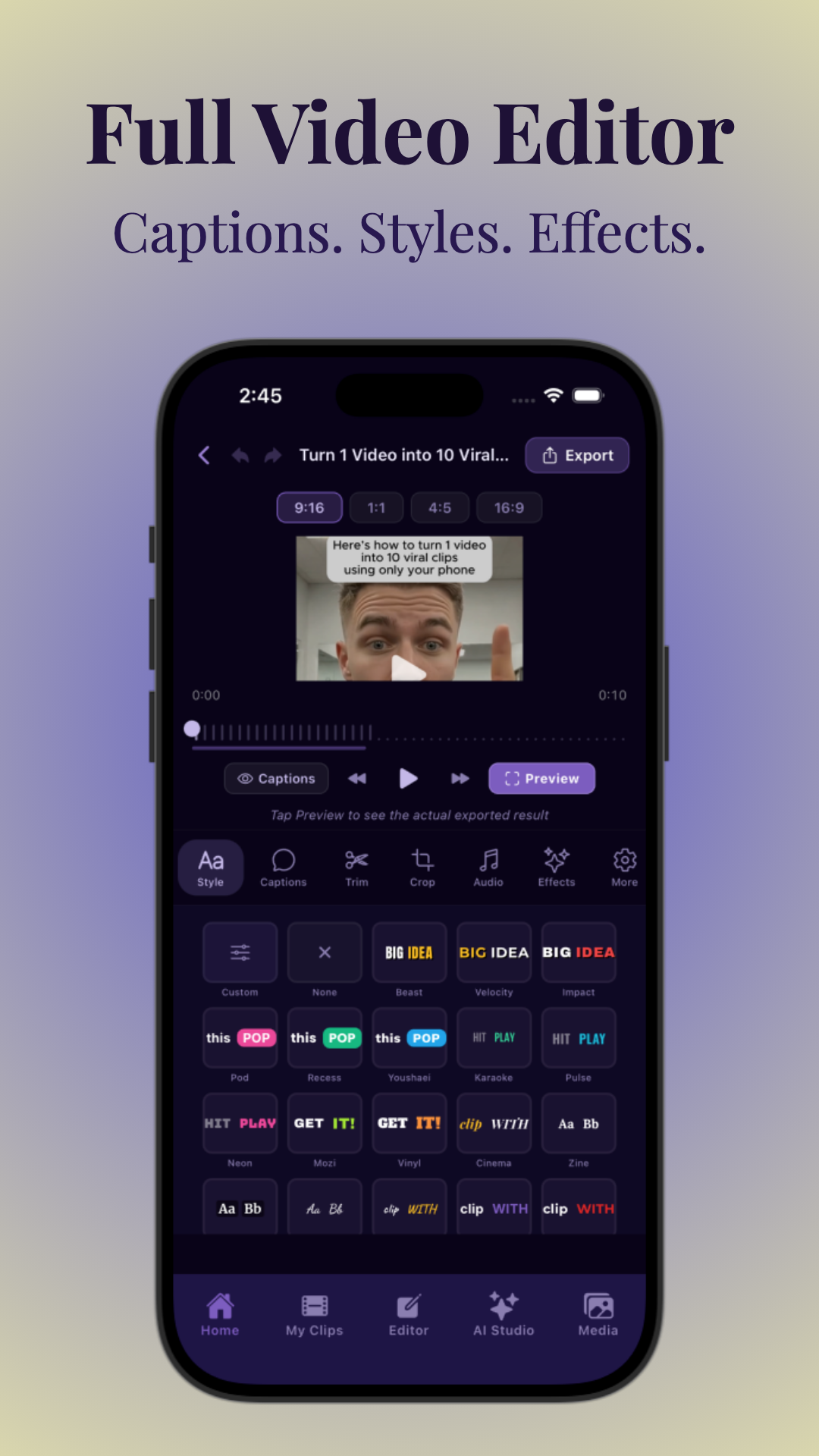
Vidulk’s AI also detects emotional peaks, applause, and laughter (for podcasts or interviews), ensuring your clips capture the most compelling moments. It can automatically ignore filler words, long pauses, or off-topic tangents, producing polished, snappy content without manual review. For creators working with large volumes of content, this is a major time-saver—what took days can now be done in under an hour.
Caption Customization and Engagement
Vidulk’s AI Studio lets creators:
- Customize fonts, colors, and caption positions
- Add animations or highlight keywords for viral appeal
- Edit or correct transcriptions on-device
High-quality, readable captions are proven to increase watch time and engagement, especially on silent autoplay platforms.
For example, you can use bold, high-contrast fonts for accessibility, apply animated highlights to important phrases, and position captions so they never block key visuals or faces. Vidulk also supports multiple caption tracks—for instance, speaker identification or multiple languages. For brands, you can set your own custom color palette and logo watermark for all exports.
Unique AI Studio Features
Vidulk goes further with tools like:
- AI image generation: Create and enhance custom thumbnails or overlays
- Batch editing: Process multiple long videos into clips at once
- Export presets: Instantly format for TikTok, Instagram, and YouTube
For a deep dive into how AI-powered video editors work, explore Free AI Video Clip Maker: Top Tools for Effortless Video & Podcast Clips.
Ready to try it? Download Vidulk and see how fast you can generate vertical viral clips from any long-form content.
Batch editing is especially useful for social media teams. Imagine processing a week’s worth of podcast episodes or webinars in a single session, with all clips styled and captioned consistently, then exported in formats ready for every major social channel. Vidulk’s AI image tool can automatically create a branded thumbnail or select a frame with the most engagement potential, further increasing your clips’ chances of going viral.
Section 5: Step-by-Step Guide – Editing Vertical Videos on iPhone
1. Importing Content
Most vertical video editor iPhone apps support quick import. Here’s how to get started:
- Open your editor app (e.g., Vidulk, InShot, CapCut)
- Tap 'Import' or 'New Project'
- Select video(s) from Camera Roll, Files, or paste a link (Vidulk supports direct link import for podcasts/interviews)
When importing, check if your app supports cloud storage integration, such as iCloud or Dropbox, which is useful if you’re managing footage across devices. Vidulk’s link import is particularly valuable for creators who want to repurpose content already hosted online—no need to download massive files to your phone.
2. Setting the Vertical Aspect Ratio
Always choose the 9:16 (portrait) or 4:5 ratio for TikTok, Reels, and Shorts. Look for an 'Aspect Ratio' or 'Canvas' setting to switch formats before editing.
- Crop and reframe to keep key subjects centered
- Use pinch-to-zoom and drag to adjust framing
In apps like Vidulk, smart reframing uses AI to follow faces or speakers, ensuring your clips remain visually focused. If you’re editing manually, double-check that important visual elements (faces, products, gestures) are never cut off by the top or bottom borders.
Pro tip: For Instagram Reels, a 4:5 aspect ratio is also accepted, which can help if your original video is slightly wider. Some editors allow you to switch between these aspect ratios with a single tap, previewing how your video will appear on each platform.
3. Clipping, Captions, and Effects
- Manual clip selection: Scrub through and trim the best moments (traditional apps)
- AI-powered clipping: Let Vidulk auto-detect highlights and suggest viral segments
- Add captions: Use auto-caption tools for fast, accurate subtitles
- Apply effects: Enhance with transitions, stickers, and color grading
For a step-by-step tutorial using AI-powered tools, see How to Make AI Video Clips: A Step-by-Step Guide.
When clipping manually, focus on sections with the strongest emotion or action. For podcasts, look for moments with laughter, applause, or quotable lines. Vidulk’s AI highlights these moments automatically, but you can also fine-tune the suggested clips. When adding captions, preview them on both light and dark backgrounds to ensure readability. Use effects sparingly: too many stickers or animations can overwhelm mobile viewers.
4. Export and Share
- Choose export resolution (1080p recommended for social)
- Preview the final clip in vertical mode
- Post directly to TikTok, Reels, Shorts, or save to device
The right app streamlines this workflow into minutes, not hours.
Before exporting, some editors provide a safety margin preview—showing what will be visible in mobile feeds versus profile grids. This ensures text or logos aren’t cut off by platform overlays. Once exported, you can share directly from the app to your preferred platforms, or schedule posts for optimal timing. Vidulk’s export presets ensure your video meets each platform’s technical requirements, reducing the risk of upload errors or quality drops.
Section 6: Advanced Tips for Viral Vertical Video Clips
Hook Viewers in the First 3 Seconds
The best vertical video editors let you trim and reframe so that your video’s hook appears instantly. Tips:
- Start with an eye-catching moment or bold caption
- Use animated text to grab attention
- Cut out slow intros—jump straight to the action
Vidulk’s AI often highlights these moments automatically, saving manual review time.
On platforms like TikTok, your video’s thumbnail is often generated from the first second—so make sure your opening frame is visually compelling. Use quick cuts or zoom-ins to add energy. If your video is educational or interview-based, open with a powerful quote, statistic, or a surprising statement to spark curiosity.
Optimize Captions for Engagement
On iOS, legible, dynamic captions are essential. Use these best practices:
- Keep text large and high-contrast
- Highlight keywords for emphasis
- Use color and animation sparingly to avoid distraction
Caption timing matters: avoid displaying too much text at once. Break long sentences into punchy, easy-to-read phrases. For accessibility, use sans-serif fonts and avoid placing captions over busy backgrounds. Vidulk’s AI can adjust caption speed and split lines automatically, so viewers never feel rushed or overwhelmed.
Batch Editing and Automation
For creators dealing with lots of long-form content (think podcasts or webinars), batch editing is a game changer. Vidulk’s batch features:
- Process multiple uploads at once
- Apply consistent caption styles and aspect ratios
- Export all clips formatted for your platform of choice
This is essential for scaling up your content output without sacrificing quality.
For example, a social media manager for a podcast network can upload several episodes, have Vidulk’s AI automatically clip highlights, apply the show’s branded caption style, and export everything for TikTok, Reels, and YouTube Shorts in a single workflow. This can reduce a week’s worth of editing from 10+ hours to less than 60 minutes.
Maintain Brand Consistency
The best vertical video editor iOS apps allow saving templates:
- Preset fonts, colors, and logo overlays
- Consistent outro/intro animations
Consistency builds audience trust and recognition across platforms.
With templates, you can ensure every video—regardless of content—maintains your brand colors, typography, and watermark. This is especially important for growing channels and personal brands. Vidulk lets you save and reuse these templates, so each new batch of clips matches your established style without extra setup.
Conclusion
The vertical video revolution demands new tools and workflows, especially for creators on iOS. While free editors like iMovie, CapCut, and InShot are great for basic projects, serious creators need more power and speed. AI-powered apps like Vidulk automate the toughest parts of editing—clipping, captioning, and formatting—so you can focus on content, not software.
Whether you’re making TikToks, Reels, YouTube Shorts, or podcast highlights, the best vertical video editor iOS app is the one that matches your creative workflow and scales with your ambitions. Test a few, but don’t overlook the advantages of AI automation and batch processing—especially as platforms get more competitive.
As vertical video continues to dominate social feeds and brand strategies, investing in a workflow that combines AI automation, powerful customization, and direct platform integration will set you apart. Vidulk’s unique combination of AI-driven clipping, smart captioning, and batch export makes it an essential tool for modern creators and teams who want to maximize reach with minimal manual effort. Start with the free tier, experiment with your content, and scale as your needs grow—all from your iPhone.
FAQ
Q: What is the best free vertical video editor for iPhone?
A: InShot and CapCut are popular free choices. They support vertical aspect ratios and basic editing. For advanced AI-powered features, try Vidulk’s free tier for a test run.
Q: How does AI help with vertical video editing on iOS?
A: AI can detect engaging moments in long videos, auto-generate captions, and format everything for TikTok, Reels, and Shorts. This saves hours of manual work and increases viral potential. For a comprehensive overview of AI video tools, see our Top Content Ideas for Creators: Viral Formats & Short-Form Video Inspiration.
Q: Can I edit podcasts or interviews into vertical clips on iPhone?
A: Yes! With apps like Vidulk, you can upload or paste a podcast/interview link and the AI will clip and caption the best moments in vertical format automatically.
Q: What vertical aspect ratio should I use for TikTok or Instagram Reels?
A: The standard is 9:16 (portrait). Some platforms like Instagram also support 4:5. Always check the latest requirements before exporting.
Q: Does Vidulk have batch editing for multiple videos?
A: Yes, Vidulk’s AI Studio can process and batch export multiple long-form videos into vertical clips with consistent styles and captions.