Best Podcast Video Editing Software Free: Top AI Tools for 2024
Discover the best podcast video editing software free, including AI-powered and beginner-friendly tools for clipping, captioning, and sharing your podcast videos.

Estimated reading time: 13 min
Key Takeaways
- Discover the best free podcast video editing software, with a spotlight on AI-powered solutions for effortless content creation.
- Learn which tools are most accessible for beginners and how AI podcast video editors speed up the workflow.
- Understand how to turn long-form podcasts into viral, shareable video clips with minimal manual editing.
- See detailed comparisons, step-by-step guides, and practical tips for maximizing reach and engagement with your podcast videos.
Table of Contents
- Section 1: Why Use Free Podcast Video Editing Software?
- Section 2: What Makes the Best AI Podcast Video Editor?
- Section 3: Top Free Podcast Video Editors Reviewed
- Section 4: Step-by-Step Guide to Editing Podcast Videos for Beginners
- Section 5: Advanced Editing with Free AI Podcast Video Editors
- Section 6: Tips to Optimize Podcast Videos for Virality
- Conclusion
- FAQ
Section 1: Why Use Free Podcast Video Editing Software?
Meeting Modern Podcasting Demands
Podcasting has quickly evolved from an audio-only medium into a dynamic, video-driven experience. Audiences now expect podcast episodes to be available in video format, optimized for platforms like YouTube, TikTok, and Instagram Reels. The rise of video podcasting is not just a trend but is fast becoming an industry standard, with YouTube reporting millions of podcast video uploads every month. Editors must not only trim and polish audio, but also adapt content for vertical, captioned, and visual-first social feeds. This shift has made best podcast video editing software free solutions more essential than ever.
Video podcasts offer a powerful way to connect with audiences visually, showcasing expressions, studio setups, and guest dynamics. Many listeners now discover podcasts through short video clips, either as teasers or viral highlights. For creators, this means that having the right editing tools is crucial—not just for full-length episodes, but also for producing short-form, shareable content that maximizes your reach. According to recent surveys, over 60% of podcast listeners have watched at least one video podcast in the last month, demonstrating a clear demand for visual content.
Budget-Friendly Solutions for All Creators
Paid video editors offer robust features, but for indie podcasters, hobbyists, and small teams, free podcast video editors are a lifeline. These tools offer:
- No upfront costs: Start editing immediately without financial commitment. This is especially important for creators just starting out or those unsure about investing in premium software right away. Free software often supports unlimited project creation, so you can experiment and improve without pressure.
- Access to advanced features: Many now include AI podcast video editor capabilities, including auto-captioning, scene detection, and smart cropping. Features like automatic highlight detection, instant subtitle generation, and platform-specific formatting are now available in free versions, narrowing the gap between free and paid options.
- Cloud and mobile access: Edit anywhere, from a browser or your phone, ideal for creators on the go. Cloud-based editors save your progress and assets, so you can switch devices seamlessly. Mobile apps support on-the-fly edits, uploads, and sharing, which is especially useful for teams or creators working remotely.
For podcasters with limited resources, these advantages remove barriers and empower more diverse voices to enter the space. Free video editors level the playing field, ensuring anyone can create professional-looking podcast videos without expensive equipment or software.
AI Is the New Standard
AI-driven podcast video editors rapidly analyze hours of footage, pinpoint highlights, and auto-generate shareable clips. This is a game-changer for those who want to repurpose long-form content efficiently. For example, a 60-minute podcast can be transformed into a series of 10–15 viral-ready short clips in less than 20 minutes—a task that could take hours manually. Apps like Vidulk embody this trend, offering powerful AI tools that democratize video podcast editing for everyone.
AI also improves accuracy in tasks like speaker recognition, caption timing, and emotion detection, so your edits are more relevant and engaging. As AI models continue to evolve, expect future editors to offer even more sophisticated features, such as automated background noise removal, facial tracking for multicam edits, and tone analysis for selecting the most emotionally resonant moments. In short, AI is no longer optional—it's the baseline for efficient, modern podcast video production.
Section 2: What Makes the Best AI Podcast Video Editor?
Key Features to Look For
The best AI podcast video editor must do more than cut and trim. It should identify compelling moments, generate captions, and optimize output for the platforms your audience uses. When evaluating free podcast video editors, prioritize these features:
- Automatic Clip Detection: AI models scan long videos, detecting engaging segments, speaker changes, and emotional highlights. For example, if your guest tells a funny story or drops an insightful quote, the AI should flag it for easy export. Some editors go further, offering keyword-based highlight searches or sentiment scoring to help you find the most viral moments.
- Auto-Captioning and Subtitles: Essential for accessibility and engagement, especially on social media where most viewers watch on mute. Look for editors that support multiple languages and allow for easy customization of font, size, and color. Accurate captions can double view times and have been shown to increase share rates by up to 40% on platforms like Instagram.
- Vertical and Square Aspect Ratios: Instantly reformat podcasts for TikTok, Instagram Reels, and YouTube Shorts. The ability to switch between 9:16, 1:1, and 16:9 ensures your content looks its best no matter where it's shared. Advanced editors can automatically reposition speakers within the frame, avoiding awkward cropping.
- Beginner-Friendly Workflow: Intuitive interfaces lower the learning curve for new podcasters. Features like drag-and-drop timelines, real-time previews, and guided tutorials make the editing process accessible even if you've never edited video before. Some editors offer AI-powered suggestions or templates to help you get started quickly.
- One-Click Export and Sharing: Directly publish clips to social platforms or save for scheduled posting. Integration with platforms like YouTube, TikTok, and Instagram means you can push content live in seconds, while batch export options help you prepare a week’s worth of posts in a single session.
Having these features in a free tool can save hours per episode and help you consistently produce professional, engaging video content that stands out in crowded feeds.
AI vs Manual Editing
Traditional video podcast editing software for beginners can be overwhelming, with timelines, keyframes, and steep learning curves. Manual editors like Adobe Premiere Pro or Final Cut Pro offer precision but require significant time and expertise. In contrast, AI-powered apps like Vidulk automate repetitive tasks—such as generating captions, finding the best moments, and formatting for different platforms—letting creators focus on content and storytelling instead of technical minutia. For instance, instead of spending 30 minutes searching for a highlight, AI can surface the top moments in seconds. Manual editors still offer greater control over fine details, but AI tools are closing the gap fast—especially for fast-paced, social-first content workflows where speed and consistency matter most.
It's important to note that the best approach often combines the two: use AI for initial selection and formatting, then tweak key moments manually for an extra layer of polish. This hybrid workflow is becoming increasingly popular among professional podcasters and content creators.
Integrating with Other AI Tools
Many podcasters now rely on AI intro generators, voice enhancers, and image tools to add polish. A great editor should integrate or support these tools for a seamless workflow. For example, Vidulk’s AI Studio enables on-device image generation and enhancement, so every clip looks professional and unique. Integrations with platforms like Canva, Descript, or even AI voice-over tools allow you to automate branding, generate custom graphics, and enhance audio—all within a single workflow.
For creators working with remote teams or managing multiple projects, look for editors that offer cloud syncing, collaborative editing, and version history. These features ensure everyone stays on the same page and prevent accidental loss of work.
Section 3: Top Free Podcast Video Editors Reviewed
1. Vidulk
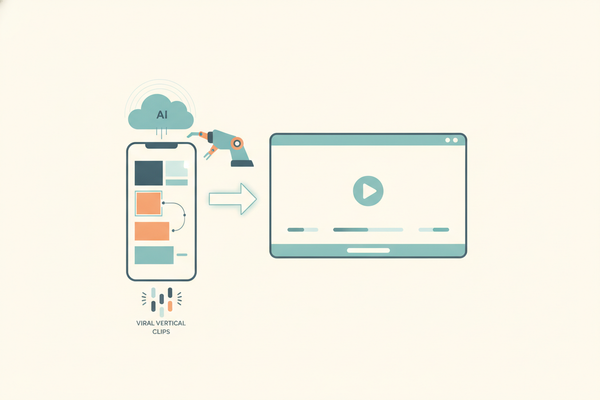
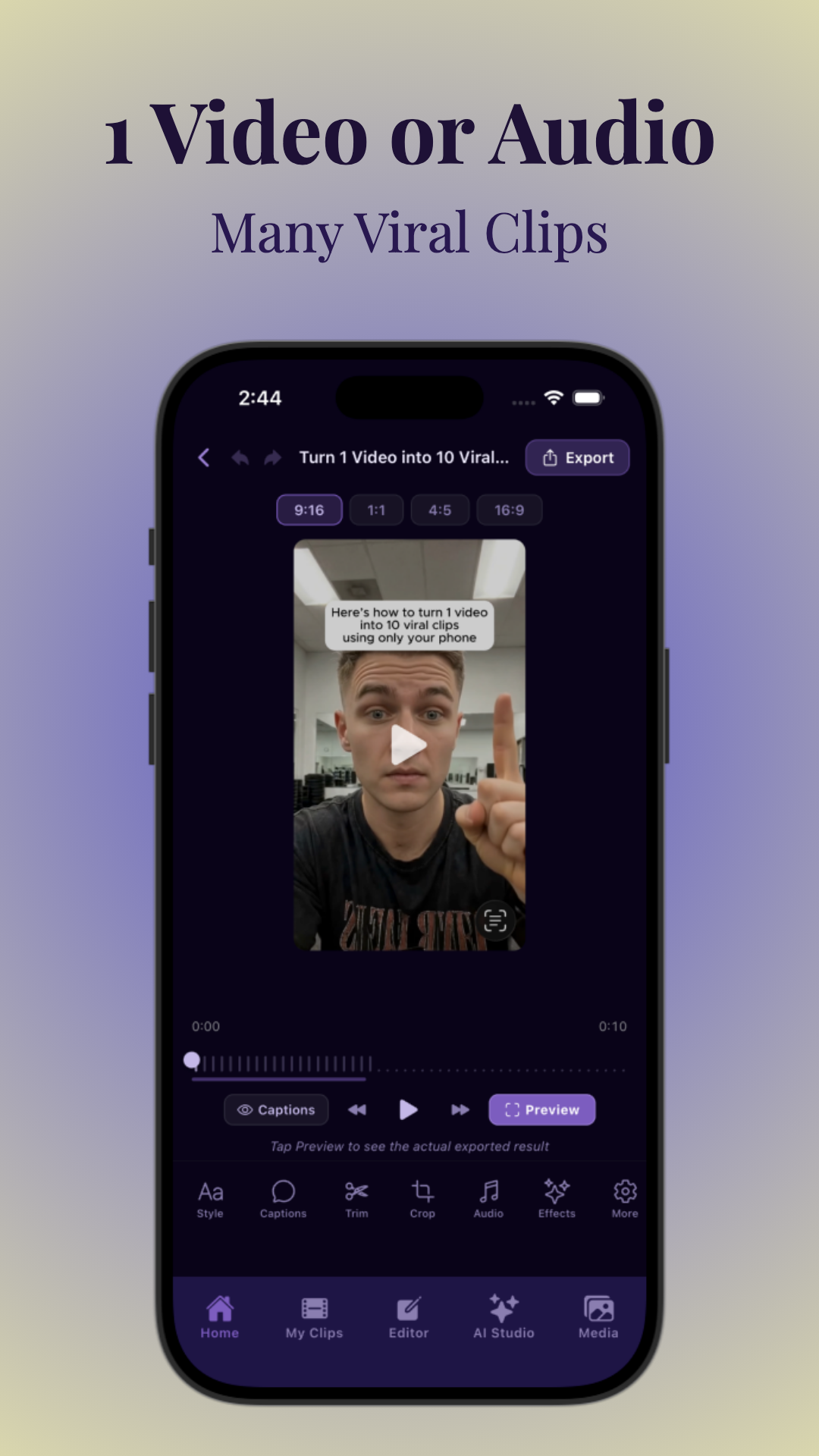
Vidulk is a standout free AI podcast video editor that turns long videos or audio into viral, vertical clips automatically. Simply upload your recording or paste a link, and Vidulk’s AI finds the best moments, adds dynamic captions, and formats the video for any platform. Vidulk’s unique AI algorithms focus on maximizing shareability, using engagement signals to rank and select highlights that are likely to perform well on social media.
- Best for: Creators who want fast, automated, and mobile-first editing. Podcasters with limited time or technical skills benefit most from Vidulk’s streamlined workflow.
- Key features: AI clip detection, smart captions, viral formats, and an AI Studio for custom visuals. Vidulk also offers batch editing, bulk exports, and integration with leading cloud storage providers for easy file management.
- Platforms: iOS, Android, and web-based editing. No downloads required for web use, making it accessible on any device.
For a deeper look at how AI can transform your editing workflow, see AI Clip Generator: Transform Long Videos Into Viral Shorts.
Example use case: An hour-long podcast episode with two hosts and a guest can be uploaded to Vidulk, which automatically generates 8–12 highlight clips, each under 60 seconds, with captions and branding applied. The editor provides suggestions for TikTok, Reels, and Shorts, allowing you to publish directly or download for later scheduling.
2. CapCut
CapCut is a popular free tool offering robust video editing for podcasts. It includes auto-captioning, effects, and easy timeline editing. While not podcast-specific, its features are well-suited for social media creators and podcasters who want more manual control over their edits. CapCut’s template library is extensive, with hundreds of effects, transitions, and trending layouts tailored for viral content.
- Best for: Versatile editing with more manual control. Ideal for creators who enjoy fine-tuning every detail or want to experiment with visual effects.
- Key features: Intuitive UI, templates, effects, and direct sharing. CapCut’s auto-captioning supports multiple languages and styles, and its timeline allows for precise trimming and rearranging.
- Platforms: iOS, Android, Windows, Mac, and web. Cross-platform syncing lets you start editing on one device and finish on another.
Example use case: A solo podcaster records on Zoom, imports the video into CapCut, uses templates to add animated intros, and exports both a vertical TikTok clip and a horizontal YouTube highlight—all from a phone or laptop.
3. Descript
Descript specializes in podcast and video editing using a text-based workflow. Edit your podcast video by editing the transcript, with automatic filler word removal and multi-track support. Descript’s "Overdub" feature allows you to correct mistakes in your own voice, while the free plan lets you create up to 1 hour of video per month with watermark. It’s ideal for podcasters who want to edit by reading and cutting text rather than manipulating a timeline.
- Best for: Transcription-driven editing and collaborative projects. Teams can comment, suggest edits, and work in real-time.
- Key features: Overdub, transcript editing, automatic captioning. Descript also offers audiogram creation and basic video effects.
- Platforms: Windows, Mac.
Example use case: A podcast team uploads a recorded Zoom call, uses Descript to remove filler words and awkward pauses, edits the transcript to create short highlight videos, and exports clips with captions for social sharing.
4. Riverside.fm
Riverside.fm offers a free tier for remote podcast recording and basic video editing. Their Magic Clips feature uses AI to auto-generate social-ready highlights, though advanced features and higher-quality exports require a paid plan. Riverside is designed for podcasters who prioritize studio-quality recording and want an integrated solution for both recording and editing.
- Best for: Remote interviews and all-in-one podcast production. Especially useful for podcasts with remote guests or co-hosts.
- Key features: Studio-quality recording, Magic Clips, separate audio/video tracks. Riverside records each participant locally for higher quality, then syncs and edits in the cloud.
- Platforms: Web, iOS, Android.
Example use case: A podcaster hosts remote interviews, records each participant’s video and audio in high resolution, then uses Magic Clips to instantly generate 5–10 short highlight videos for TikTok and Instagram.
5. Veed.io
Veed.io is a browser-based editor with a free plan and a focus on social video. It offers auto-subtitles, templates, and simple editing, but exports contain a watermark. Veed stands out for its speed and accessibility—no downloads or signups required for basic use—and its drag-and-drop interface is beginner-friendly.
- Best for: Quick, web-based edits for short podcast clips. Ideal for rapidly producing social teasers or testing out new formats without software installation.
- Key features: Auto-subtitles, templates, effects. Veed also features a live preview, background removal, and audio enhancement tools.
- Platforms: Web.
Example use case: A podcaster uploads a 5-minute video segment, uses Veed to add animated subtitles, applies a branded template, and exports a watermarked vertical clip for Instagram Reels.
For more on effortless video repurposing, also check out Video Clip Maker: Effortlessly Turn Long Videos into Viral Clips.
Section 4: Step-by-Step Guide to Editing Podcast Videos for Beginners
1. Import Your Raw Podcast Video
Most free podcast video editors support drag-and-drop importing, or allow you to paste a link from YouTube, Google Drive, or Dropbox. In Vidulk, for example, you can instantly import by uploading a file or pasting a URL—no lengthy setup required. This feature streamlines the workflow, especially if you batch record episodes or receive files from remote guests. Import times vary by file size and internet speed, but most cloud editors process standard podcast files (up to 2GB) within a few minutes.
- Supported formats: MP4, MOV, AVI, and more. Most editors also support legacy formats for compatibility with older cameras and recording software.
- Audio support: MP3, WAV for audio-only podcasts. If you want to add a static image or waveform visualization to audio, editors like Veed and CapCut provide easy templates.
Tip: Organize your files by episode and date, and use clear naming conventions to streamline your workflow—especially if you plan to batch edit multiple episodes.
2. Let AI Find the Highlights
Rather than manually scrubbing hours of footage, use an AI-powered free ai podcast video editor like Vidulk. The AI analyzes speaker sentiment, keywords, and engagement cues to select the most shareable moments—ideal for creating viral podcast clips. Advanced AI models can distinguish between hosts and guests, flag emotional peaks (like laughter or heated debate), and summarize key talking points for your review.
- Automatic detection of quotable moments, laughter, and audience reactions. Some tools highlight moments based on frequency of keywords or viewer engagement data from previous uploads.
- Scene detection for multi-guest podcasts. Editors like Descript and Vidulk can split scenes by speaker, making it easy to create clips featuring specific guests or topics.
Example workflow: Upload a 45-minute episode, let the AI surface 6–10 highlights, then review and approve the best segments for export. This process can reduce editing time from hours to minutes.
3. Customize Captions and Branding
Auto-generated captions improve accessibility and retention. Most editors let you tweak font, color, and positioning. Add your podcast logo and adjust the aspect ratio for vertical, square, or horizontal outputs. These enhancements are crucial for standing out on feeds: videos with captions are watched to completion 80% more often than those without, according to social platform analytics. Branding elements like logos, intro/outro animations, and watermark overlays help establish your show’s identity.
- Choose from pre-set styles or create your own. Editors like CapCut and Veed offer dozens of caption styles, while Vidulk lets you save custom branding sets for one-click application.
- Preview in real-time before exporting. This allows you to catch typos, adjust timing, and ensure your logo placement doesn’t obscure important visuals.
Tip: Keep captions large and high-contrast for mobile viewers, and use your brand colors to reinforce recognition. Consistent branding across all clips builds trust and encourages viewers to follow or subscribe.
4. Export and Share
Once satisfied, export your clips in the optimal format for your chosen platform. Many free podcast video editors, including Vidulk, offer direct posting or easy download options. Schedule posts or batch-export clips for consistent content output. Most editors allow you to select export resolution (720p, 1080p), bitrate, and aspect ratio. For platforms like TikTok and Instagram Reels, vertical 9:16 at 1080p is standard.
Some tools integrate with social media schedulers or offer API hooks for automated posting. For example, Vidulk lets you queue multiple clips for weekly rollout, while CapCut allows direct uploads to TikTok and YouTube Shorts.
Tip: Always preview your video on your phone before posting to ensure captions, branding, and cropping look correct on mobile screens.
Section 5: Advanced Editing with Free AI Podcast Video Editors
AI-Enhanced Editing Techniques
Modern AI podcast video editors go far beyond simple cutting. They employ advanced algorithms to:
- Auto-zoom and reframe: Keep speakers centered in vertical or square crops, even if the original was widescreen. This is particularly useful for group discussions or interviews shot with a single wide camera. AI tracking ensures each speaker stays in focus as they move.
- Remove filler words and silences: AI detects and trims "ums," "ahs," and dead air for a polished flow. Editors like Descript allow you to automatically remove hundreds of filler words in seconds, resulting in tighter, more engaging clips.
- Highlight emotional peaks: AI can identify laughter, applause, or heated debate, surfacing moments most likely to engage viewers. These emotionally charged segments are more likely to go viral and are ideal for social teasers.
Other advanced features include noise reduction, background blur (for home studios), and AI-driven color correction to enhance video quality regardless of your recording environment. Some editors even offer AI-generated b-roll or cutaway suggestions based on your topic, adding visual interest without manual searching.
Batch Editing for Multiple Clips
Batch processing is invaluable for content creators repurposing long-form podcasts into multiple short videos. Apps like Vidulk allow you to generate several viral-ready clips from a single episode in minutes, not hours. Batch editing lets you set parameters such as clip length, minimum engagement score, and preferred format. The AI then surfaces the best moments, and you can approve or fine-tune each one before exporting.
- Set batch parameters (clip length, number of clips). For example, generate ten 30-second clips from a 60-minute episode, each with unique captions and branding.
- Review AI-selected moments and approve or fine-tune. Editors provide a "suggested highlights" list, letting you quickly accept, reject, or adjust segments as needed.
This workflow is essential for podcasters looking to maximize output without sacrificing quality. Instead of editing one clip at a time, you can walk away with a week’s worth of content in a single editing session.
On-Device AI and Privacy
For privacy-conscious creators, on-device AI processing is a significant advantage. Vidulk’s AI Studio, for example, processes and enhances images directly on your device, reducing reliance on cloud uploads and keeping raw files secure. This is especially important for sensitive or embargoed content, as it minimizes the risk of leaks or unauthorized access.
On-device processing also reduces upload times and ensures you can edit even with limited internet connectivity. Mobile podcasters or those working from shared networks benefit from faster turnaround and greater control over their content.
For more technical depth on AI video tools, read AI Video Clip Generator: Transform Long Videos with AI.
Section 6: Tips to Optimize Podcast Videos for Virality
Why Viral Clips Matter
The most successful podcasters use short, punchy video clips to grow audiences and drive full-episode listens. Viral clips spread brand awareness, boost engagement, and help you reach new listeners where they already scroll. Social platforms prioritize short-form video in their algorithms, often featuring viral podcast clips on discovery pages and trending sections. Creators report that a single viral TikTok or Instagram Reel can generate thousands of new downloads and subscribers overnight.
Viral clips also encourage guest sharing. If your guest sees a well-edited, engaging video featuring their best moment, they’re more likely to share it with their audience, multiplying your reach.
Best Practices for Editing Viral Podcast Clips
- Hook viewers in the first 3 seconds: Start with a question, bold claim, or surprising moment. Data shows that drop-off rates spike after 3–5 seconds, so make your opening count.
- Keep it under 60 seconds: Shorter clips perform better on TikTok, Reels, and Shorts. Many platforms limit uploads to 60 seconds, and shorter videos are more likely to be watched to completion.
- Add dynamic captions: Bold, animated captions increase watch time and accessibility. Use motion, color, or emojis to emphasize key phrases or punchlines.
- Use vertical (9:16) or square (1:1) formats: Match the platform’s preferred layout for maximum reach. Vertical videos dominate TikTok and Instagram Reels, while square formats are great for Facebook and LinkedIn.
- Include your podcast branding: Logo, episode title, and a call-to-action help convert viewers into subscribers. Always end with a prompt to follow, subscribe, or check out the full episode.
Additional tips:
- Use trending sounds or music where allowed, as platform algorithms often boost content using popular audio.
- End with a cliffhanger or question to encourage comments and shares.
- Optimize your thumbnail—many tools let you select or upload a custom image. Eye-catching thumbnails improve click-through rates.
- Track performance and iterate. Use built-in analytics to see which clips perform best, then refine future edits based on real data.
Leverage AI for Consistency and Speed
Consistency is key for podcast growth. The best AI podcast video editors automate repetitive tasks, ensuring every clip is polished, captioned, and formatted perfectly—no matter how many you create each week. This frees you to focus on content and strategy, not tedious editing. For example, Vidulk can generate a "series" template so every clip in a batch has uniform branding, captions, and transitions, building a strong visual identity across platforms.
Some creators aim for a daily posting cadence, while others prefer 2–3 clips per week. Regardless of your schedule, AI-powered tools make it possible to maintain consistency even as your production volume increases.
Conclusion
The landscape of best podcast video editing software free options has never been richer or more accessible. AI-powered solutions like Vidulk are revolutionizing how podcasters of every level turn long-form episodes into viral, shareable video content. Whether you’re a complete beginner or looking to scale your output, these tools offer the speed, simplicity, and professional polish needed to stand out in today’s crowded market.
By leveraging free podcast video editors and embracing AI automation, you can multiply your reach, grow your audience, and spend less time editing—and more time podcasting. Try out a few of these tools, and watch as your episodes come to life across every major platform. Remember that the key to success is consistency, creative storytelling, and adapting your workflow as new tools and features become available. The future of podcasting is visual, accessible, and AI-driven—so now is the perfect time to upgrade your editing toolkit and reach new listeners around the world.
FAQ
Q: What is the best free podcast video editing software for beginners?
A: Vidulk and CapCut are both excellent choices for beginners. Vidulk automates most of the process using AI, while CapCut offers a straightforward manual timeline interface with templates and effects. Both support direct uploads, auto-captioning, and mobile editing, making them accessible and efficient for new podcasters.
Q: Can AI really edit podcast videos automatically?
A: Yes. The best ai podcast video editors use machine learning to detect highlights, generate captions, and reformat your video for social sharing with minimal manual input. While some manual adjustments may still be necessary, AI tools now handle 80–90% of the editing workload for standard podcast clips.
Q: Are there limitations to free podcast video editors?
A: Free plans may have export limits, watermarks, or restricted access to some premium features. However, for most podcasters starting out, these limitations are manageable and can be upgraded if needed. Always check the terms before relying on a tool for your main workflow.
Q: How do I make my podcast clips go viral?
A: Focus on short, engaging moments, add dynamic captions, and use vertical formats. AI-powered editors like Vidulk can identify and optimize these highlights automatically. Consistently post, use trending sounds, and engage with your audience to maximize virality.
Q: What file types do most free podcast video editors support?
A: Commonly supported formats include MP4, MOV, AVI for video and MP3, WAV for audio. Always check your chosen editor’s documentation for specifics, especially if you use less common recording equipment or need to export in a particular resolution or aspect ratio.