How to Repurpose Zoom Recordings with AI for Maximum Impact
Learn to repurpose Zoom recordings with AI to convert them into impactful social media clips. Discover AI Zoom clip generators and boost your content strategy.

Estimated reading time: 8 minutes
Key Takeaways
- Use AI tools to auto-detect and extract highlights from Zoom recordings.
- Customize prompts and templates for platform-specific video clips.
- Streamline workflows: from upload to clip download in minutes.
- Evaluate and select the right AI Zoom clip generator based on speed, customization, and pricing.
- Enhance outputs with captions, branding, and manual refinements when needed.
Table of Contents
- Understanding the Value of Repurposing Zoom Recordings
- Exploring AI-Powered Solutions
- How to Convert Zoom Recordings to Social Media Clips
- Evaluating Popular AI Zoom Clip Generators
- Practical Implementation – Workflow and Tools
- Conclusion
Section 1: Understanding the Value of Repurposing Zoom Recordings
When you repurpose Zoom recordings with AI, you turn long webinars or interviews into multiple short assets that extend your reach and engagement. Content repurposing maximizes ROI on every meeting and transforms passive recordings into dynamic social clips.
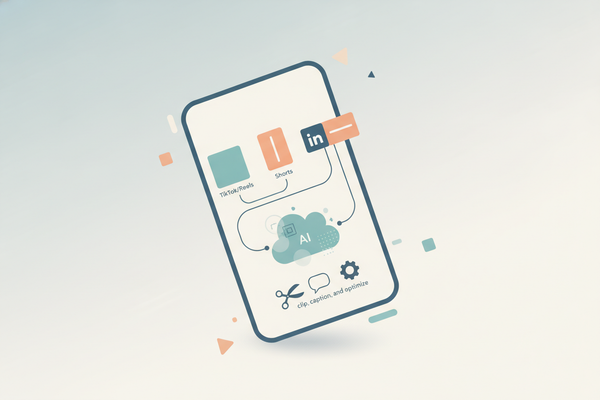
- Extended reach across TikTok, Instagram Reels, YouTube Shorts and LinkedIn stories
- Increased engagement via bite-sized, platform-tailored content
- Efficient use of existing resources instead of hiring editors or learning complex software
Manual editing challenges:
- Technical skill requirement—video tools have steep learning curves
- Time-consuming work—hours spent scrubbing footage for highlights
- Expensive software—subscriptions to Premiere Pro, Final Cut Pro, etc.
AI makes repurposing simple. An AI Zoom clip generator can analyze emotion, detect key phrases, and automatically create polished clips in minutes—no editing expertise required. A single 60-minute Zoom meeting can yield 10–20 clips ready for strategic posting, boosting brand consistency and content frequency.
Section 2: Exploring AI-Powered Solutions
An AI Zoom clip generator is an online tool that uses machine learning to detect video highlights and auto-create short clips. Behind the scenes, these platforms combine computer vision, natural-language processing, and template-based formatting to automate the entire editing pipeline. For webinar-specific workflows, check out this AI webinar clip generator.
Core AI processes:
- Video analysis for emotional peaks and key phrases—tools scan for laughter, tone shifts, and impactful statements to mark clip boundaries.
- Transcript generation for captioning—AI transcribes speech into text, enabling captions and keyword searches.
- Automated formatting—aspect ratio adjustments, intro/outro insertion, and branded overlays based on platform templates.
Benefits of using an AI Zoom clip generator:
- Efficiency: Process recordings in minutes, not hours, freeing up time for strategy.
- Accessibility: No editing skills required—anyone can produce professional clips.
- Creative control: Customize prompts (e.g., “extract top tips,” “highlight customer testimonials”) to retain brand voice.
Section 3: How to Convert Zoom Recordings to Social Media Clips
This step-by-step guide shows how to convert Zoom recordings to social media clips with minimal effort by using AI tools. Each step is designed for a Year-5 reading level—straightforward and actionable.
Step 1: Upload Recording
• Supported formats: MP4, M4A, MP3, WAV, AVI, MOV.
• Instructions: Drag-and-drop your file or paste a cloud storage link (Google Drive, Dropbox).
Step 2: Select or Create Prompt
• Presets: “Top soundbites,” “Expert tips,” “Funny moments.”
• Custom prompts: Enter keywords that your audience cares about, such as “marketing hacks,” “team success stories,” or “customer feedback.”
Step 3: Configure Output Settings
• Clip count & length: Example—5 clips × 30 seconds each.
• Aspect ratio by platform:
– TikTok/Reels/Shorts: 9:16 vertical
– Instagram square: 1:1
– LinkedIn landscape: 16:9
• Enable captions: Choose language for auto-captioning (English, Spanish, etc.).
Step 4: Customize Design
• Caption style: Font type, size, color, and background style.
• Branding: Add logos, color overlays, and intro/outro slides for consistent identity.
Step 5: Process & Download
• Submit the job—most tools send an email or in-app notification when ready.
• Download HD clips from the dashboard—files are named sequentially (Clip_01.MP4).

Section 4: Evaluating Popular AI Zoom Clip Generators
Choosing the right AI tool depends on your workflow, budget, and desired output. Here’s a comparison of four top AI Zoom clip generators:
Criteria for evaluation: processing speed, customization, export formats, pricing, usability.
Tool 1: AI Video Cut
- Features: Auto highlight detection, multi-platform templates, caption generation.
- Best for: Teams needing batch clip creation across platforms.
- Pricing: Freemium up to 5 clips; paid plans start at $29/month.
Tool 2: OpusClip
- Features: One-click clip generation, HD export, minimal setup.
- Best for: Quick turnaround, non-technical users.
- Pricing: $19/month with unlimited exports, free 3-day trial.
Tool 3: Sembly
- Features: Live and recorded meeting transcription, speaker identification, offline mode.
- Best for: Transcript-centric workflows that need searchable text.
- Pricing: $15/user/month, enterprise custom pricing.
Tool 4: Utell AI
- Features: Multi-format transcript exports (.vtt, .srt, .txt), transcript-first approach for deep text analysis.
- Best for: Users who build articles, blogs, and reports from meeting transcripts.
- Pricing: Free tier with 1 hour/month; paid from $25/month.
Key evaluation takeaways:
• Processing speed—most tools complete 60-minute recordings within 5–10 minutes.
• Customization—choose a tool that allows prompt tweaks and template edits.
• Export formats—verify support for vertical, square, and landscape outputs.
• Pricing—match your clip volume to subscription tiers to avoid overpaying.
For an in-depth comparison of repurposing solutions, see Best AI Video Repurposing Tools: Vidulk vs Veed vs Descript Compared.
Section 5: Practical Implementation – Workflow and Tools
A streamlined workflow ensures you consistently repurpose Zoom recordings with AI and maintain quality.
Phase 1: Preparation
• Record to Zoom cloud or local drive for high-quality footage.
• Enable native transcription in Zoom settings or export raw audio/video.
Phase 2: AI Processing
• Upload your recording to the chosen AI Zoom clip generator.
• Define highlight criteria via templates or custom prompts.
• Configure settings—aspect ratio, caption language, clip length.
• Submit and monitor status; most platforms show progress bars.
Phase 3: Enhancement & Export
• Download HD clips from the dashboard or email link.
• Optional manual refinement: color grading, adding transitions, or trimming intros/outros.
• Generate supplementary assets from the transcript using ChatGPT—for descriptions, blog summaries, and social captions.
Complementary Tools
• Transcription: Sembly, Utell AI—for searchable, editable transcripts.
• Caption Generators: Built-in platform tools or third-party services to boost accessibility.
• Brand Customization: Use Canva or Adobe Express to overlay logos, color schemes, and stickers.
Troubleshooting Common Pitfalls
• Slow transcription—Zoom’s native service can lag; switch to Utell AI or Sembly for faster results.
• Misaligned highlights—refine custom prompts with clear instructions (e.g., “focus on stats and data points”).
• Low export quality—always select the highest resolution; consider Pro plans for full HD or 4K.
• Audio degradation—record at high bitrate (256 kbps or above) and upload MP4 or WAV to preserve sound clarity.
Conclusion
AI-powered workflows transform Zoom recordings into professional social media clips in minutes. By automating highlight detection, transcription, and formatting, you achieve:
- Efficiency—process long-form videos in a fraction of the time.
- Accessibility—no editing expertise required.
- Consistent brand output—use templates and custom prompts to align with your identity.
Leverage these AI Zoom clip generator tools to convert Zoom recordings to social media clips effortlessly and elevate your content strategy.
Call-to-Action
Have you tried any AI Zoom clip generator yet? Share your favorite tools and experiences in the comments below.
Subscribe for more guides on AI in video editing and content repurposing to stay ahead of the curve.
To streamline mobile editing, try Vidulk - AI Video Clipping App, which uses AI to automatically detect highlights and generate short-form clips from your Zoom recordings.
La elección de una camiseta deportiva suele depender del ajuste, el tejido y las preferencias personales de cada aficionado. Para ordenar la búsqueda, camiseta deportiva del Real Madrid puede revisarse junto con las medidas y el tipo de ajuste preferido. También conviene revisar las condiciones descritas para evitar confundir estilo, talla y comodidad.
FAQ
- What file formats are supported? Most AI Zoom clip generators accept MP4, M4A, MP3, WAV, AVI, and MOV files.
- How long does processing take? A 60-minute recording usually processes in 5–10 minutes, depending on tool speed.
- Can I customize the look of my clips? Yes—fonts, colors, branding overlays, and templates can all be tailored.
- Do I need editing skills? No—AI tools handle all cutting, captioning, and formatting automatically.
- Are captions available in multiple languages? Most platforms support multiple languages, including English and Spanish.