Harness the Power of an AI Webinar Clip Generator to Turn Webinars into Short Clips Automatically
Discover how an AI webinar clip generator can automate the conversion of webinars to short clips, saving time and broadening audience reach with ease.

Estimated reading time: 6 minutes
Key Takeaways
- Automate clip creation from hours-long webinars in minutes.
- Boost engagement with bite-sized, shareable highlights on TikTok, Instagram, and YouTube.
- Save time and resources by eliminating manual editing and captioning.
- Expand your reach with vertical, square, and landscape formats plus predictive virality scoring.
Table of Contents
- What Is an AI Webinar Clip Generator?
- Behind the Scenes: How It Works
- Benefits of Using an AI Webinar Clip Generator
- Real-World Examples
- How to Use: Step-by-Step
- Conclusion & Next Steps
- FAQ
What Is an AI Webinar Clip Generator?
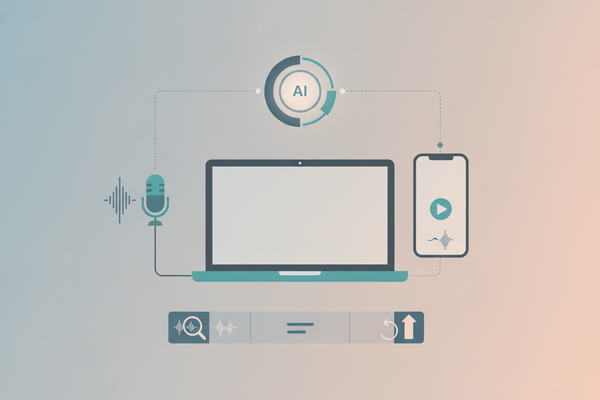
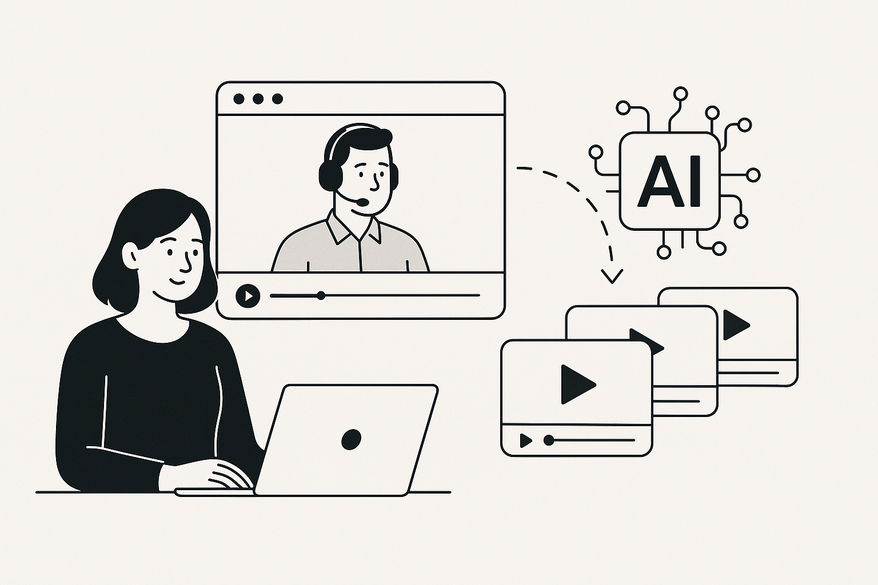
An AI webinar clip generator is software powered by machine learning that analyzes full webinar recordings to identify and extract the most engaging moments. Instead of manually scrubbing through hours of footage, these tools automatically produce 15–60 second snippets ready for social sharing.
- Audio/video processing for crisp visuals and clear sound
- Transcript analysis to spot keywords, questions, and high-impact statements
- Speaker detection that tracks who’s talking
- Moment scoring based on Q&A, emotion peaks, list items, and tone shifts
- Automated branding with logos, colors, and captions
Behind the Scenes: How Auto Clip Webinars Operate
Auto clip webinars use a five-step AI-driven workflow to eliminate manual editing:
- Upload the full webinar video
Supports MP4, Zoom, StreamYard and more via drag-and-drop or cloud sync. - AI deconstructs content
Separates audio tracks, visuals, and speech patterns for deep analysis. - Transcription & speaker detection
Converts speech to text and tags each speaker for clear attribution. - Intelligent pattern analysis
Identifies Q&A exchanges, numbered lists, tone shifts and emotional peaks. - Clip generation
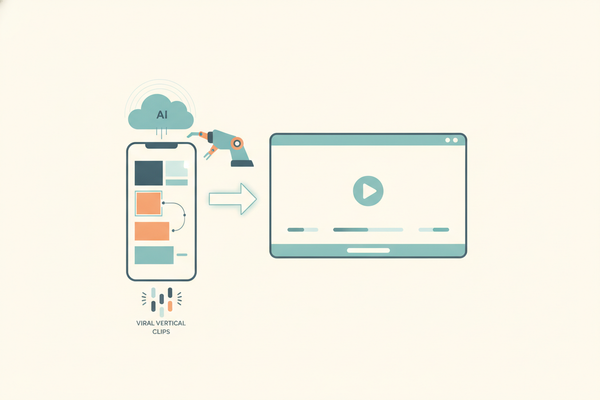
Produces polished 15–60 second clips with auto-captions, filler removal, vertical/square reframing and virality scoring.
Benefits of Using an AI Webinar Clip Generator
- Time Savings
Automate review and edits in minutes instead of hours; free your team to focus on strategy. - Engagement Boost
Create bite-sized highlights that hold attention; add captions for silent viewers (85% watch without sound). - Reach Expansion
Output vertical, square, and landscape formats automatically; use predictive virality scores to pick top clips.
Real-World Examples: Turning Webinars into Short Clips
Marketing Webinar on Sales Strategies
AI extracts a 30-second Q&A on “top three objections” and formats it vertically for LinkedIn Stories.
Educator Training Sessions
Teachers upload training webinars; AI generates bite-sized summaries so students get quick recaps instead of full rewatches.
Tech Firm Product Demo
AI flags key quotes, produces 10 branded clips, and pushes them via APIs to scheduling tools.
How to Use an AI Webinar Clip Generator: Step-by-Step
- Upload the webinar
Use MP4 from Zoom, StreamYard, or other platforms. - Automatic processing
AI transcribes, detects speakers, and spots high-impact moments; use live prompts like “Clip that.” - Review & customize
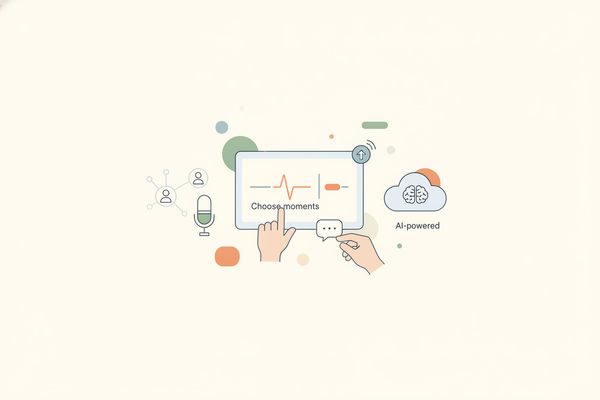
View clips ranked by virality score; apply your brand kit—logos, colors, fonts; adjust framing. - Export & distribute
Download clips or integrate via API to your scheduler; post top clips with AI-suggested hashtags and titles.
Best Practices: Use live on-air cues for key moments; test speaker detection on multi-person panels; tailor formats for each platform—emotional peaks for TikTok, insights for LinkedIn. For more inspiration, check out these short form video content ideas to maximize your reach.
Conclusion & Next Steps
AI webinar clip generators streamline content repurposing by saving time, boosting engagement, and expanding reach. They turn long-form webinars into dynamic social assets with auto-captions and branding. For tools like this, explore AI video clip maker, AI podcast clip generator, and AI reel clip generator. If you want to learn how to turn long videos into short clips efficiently, see our complete AI workflow guide.

Ready to transform your webinars? Unlock dozens of ready-to-post clips from a single recording to drive more views and engagement. Try Vidulk today.
FAQ
- Q: How accurate is highlight detection?
- A: Advanced AI uses tone, keywords, and structure. It learns from your feedback and on-air prompts to refine results.
- Q: Can I customize clips?
- A: Absolutely. Edit captions, branding, clip length, and use virality scoring to select top content.
- Q: How does it integrate with workflows?
- A: Many generators offer APIs to pull from cloud storage. StreamYard’s “Clip that” feature marks moments live.
- Q: Traditional editing vs. auto clipping?
- A: Manual work can take hours per clip. AI handles dozens of clips in minutes, adds captions, reframes, and scales via API.