Accessible Caption Tool for Video Clips: Your Complete Guide to Boosting Engagement & Compliance
Discover how an accessible caption tool for video clips can enhance viewer engagement, ensure ADA and WCAG compliance, and improve your content's reach.

Estimated reading time: 7 minutes
Key Takeaways
- Improved engagement: Captions can boost watch time by up to 80% (YouTube study).
- Legal compliance: Meet ADA and WCAG 2.1 standards for the 466 million people with hearing loss (WHO).
- SEO benefits: Search engines index captions, enhancing discoverability.
- Multiple workflows: Auto-generation, manual editing, hybrid review ensure 90–99%+ accuracy.
- Tool variety: From free solutions like YouTube Editor to enterprise offerings like 3Play Media.
Table of Contents
- Understanding Accessible Captions
- Top Caption Tools Overview
- Caption Workflow Explained
- Practical Best Practices
- Case Studies & Examples
- Conclusion & Next Steps
- FAQ
Understanding Accessible Captions
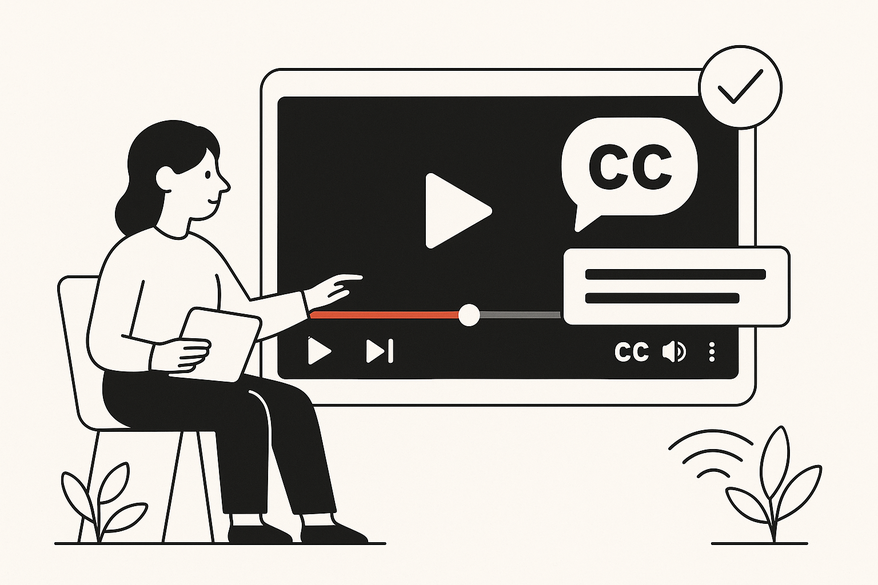
Creating truly *inclusive* video content means adding captions that convey not only dialogue but also speaker IDs and non-speech cues. This ensures everyone—regardless of hearing ability—can follow along seamlessly.

What Makes Captions Accessible?
- Text overlays synchronized with audio
- Include spoken words, speaker labels, and sound cues (e.g., “[door slams]”)
- Ensure readability with proper contrast and font size
Timing & Length Guidelines
Follow DCMP Captioning Key timing & length guidelines for optimal readability:
- 32–42 characters per line
- 1–7 seconds display time per caption
Top Caption Tools Overview
Leading tools share these core features:
- AI-driven auto-captioning
- Manual editing & precise syncing
- Exports in SRT, SBV, WebVTT
- Section 508 and WCAG compliance
- Integrations with YouTube, LMS, and web players
Popular Tools Compared
- ScreenPal – Auto-captions, interactive editor, closed/open captions; Section 508-compliant player; best for quick paid edits.
- YouTube Auto-Captions + Editor – Free auto-generated captions; transcript upload and auto-sync; ideal for clips under one hour.
- CADET (NCAM/WGBH) – Free web app for manual captioning with keyboard shortcuts; multi-format export.
- 3Play Media – Hybrid AI + human review; 99% accuracy guarantee; full WCAG compliance reports.
- OpusClip – Fast AI captions with style presets; optimized for social media; includes a free tier.
Caption Workflow Explained
- Upload/Import Video – File upload or URL (e.g., YouTube link).
- Auto-Generate Captions – AI-driven speech-to-text engines.
- Manual Editing & Sync – Use keyboard shortcuts or timeline tools for precise timing.
- Export Captions – Download as SRT or WebVTT, or bake-in open captions.
- Embed/Upload to Platforms – Enable CC in YouTube Studio or use compliant players on websites/LMS.
Emerging Technology Note: AI-driven captioning leverages contextual machine learning for 95%+ accuracy. Harvard recommends a hybrid AI + human review for noisy or multi-speaker content (Harvard Caption Study). For a deeper dive into how AI is transforming accessibility, see how AI auto-caption accessibility video clips are revolutionizing inclusive content.
Practical Best Practices
- Transcribe *verbatim*; avoid paraphrasing.
- Include speaker IDs and sound cues (e.g., “[applause]”).
- Validate 32–42 chars/line and 1–7 sec display (DCMP Guidelines).
- In YouTube: paste corrected transcript & click “Auto-sync” (Learn how to add captions).
- Aim for 99% accuracy; test with screen readers at 0.5× speed.
- Use accessibility checkers like wave.webaim.org.
Case Studies & Examples
Harvard University (3Play Media): AI captions → human review → WCAG compliance report → 99% accuracy, full ADA/WCAG adherence, 25% higher course completion (Harvard Case Study).
University of Arkansas: Private YouTube uploads → auto-captions → SRT export for LMS → zero vendor spend.
ScreenPal User – Eric Moore, UT Knoxville: Download YouTube auto-transcript → edit → paste in ScreenPal → auto-sync → 50% reduction in editing time; improved feedback (AEM Center).
Conclusion & Next Steps
Accessible caption tools empower creators with auto-generation, precise editing, and legal compliance—all while boosting reach and SEO. Whichever solution you choose, maintain high accuracy, follow timing guidelines, and always include closed captions.
To streamline both video clipping and caption workflows, explore how Vidulk – AI Video Clipping App integrates on-device AI STT for captions plus auto-clip detection, ensuring your content is both accessible and engaging. If you're looking for more ways to optimize your workflow, check out the ultimate auto post video clips tool guide for automation tips.
FAQ
- Which caption formats should I use? Use SRT or WebVTT for broad compatibility; WebVTT also supports styling.
- How accurate are auto-captions? AI engines can reach 90%+ accuracy, but human review is essential to hit 99%.
- What are the key timing rules? Stick to 32–42 characters per line and display each caption for 1–7 seconds.
- How do I test accessibility? Validate with screen readers at different speeds and use tools like wave.webaim.org.