How to Animate Text Message Conversations: Ultimate How-To Guide
Learn how to animate text message conversations for chat story videos, fake iMessage, WhatsApp chats, and more. Step-by-step methods, tips, and tools.

Estimated reading time: 11 min
Key Takeaways
- Learn step-by-step how to animate text message conversations for viral videos.
- Explore tools and templates for iMessage, WhatsApp, and other chat styles.
- Integrate typing indicators, read receipts, reactions, and realistic chat motion.
- Export your chat story video in the best format for TikTok, Instagram, or YouTube.
- Discover how AI chat video generators like Vidulk streamline the process.
Animated text message conversations have exploded in popularity—from fake iMessage videos and WhatsApp chats to Reddit story videos and TikTok chat stories. Whether you want to create a fake text message video for entertainment, narrate a real-life drama, or produce a chat story video for YouTube Shorts, this guide will show you exactly how to animate text message conversations using the latest techniques and tools. You’ll learn how to script your chat, pick the right app (including AI chat video generators), and polish your video with authentic details like typing indicators and chat bubbles. Let’s dive in!
Step 1: Plan and Script Your Chat Story Video
Before animating, decide on the story you want to tell. Whether it’s a fake iMessage conversation, a WhatsApp drama, or a Reddit-inspired chat video, scripting is key for clarity and engagement.
- Open a notes app or text editor.
- Write each message as a separate line or bullet, marking who is speaking (e.g., "Alex: Are you coming tonight?").
- Use emojis, timestamps, and reactions for realism.
- Keep your story punchy—short texts and quick replies work best for TikTok or Instagram Reels.
- Decide if you want to add a voiceover later, and plan where messages will appear for pacing.
For inspiration, look at trending chat story videos and fake text message videos on TikTok. If you’re making a Reddit story video, copy-paste the best lines from the post.
Step 2: Choose the Right App or Tool for Animation
There are several ways to animate text message conversations, depending on your skill level and desired style. Here are the most popular options:
- Canva: Easy animated text message templates for iMessage, WhatsApp, Messenger, and more. Great for beginners.
- After Effects: Professional custom chat animations, including bubble and screen effects. Ideal for advanced users.
- Envato/Template Marketplaces: Download pre-made chat animation templates for fast setup in Premiere Pro, Final Cut, or CapCut.
- AI Chat Video Generators: Tools like Vidulk and others automate fake WhatsApp chat videos, iMessage videos, and TikTok chat stories, saving hours of editing. See this guide for more on AI-powered workflows.
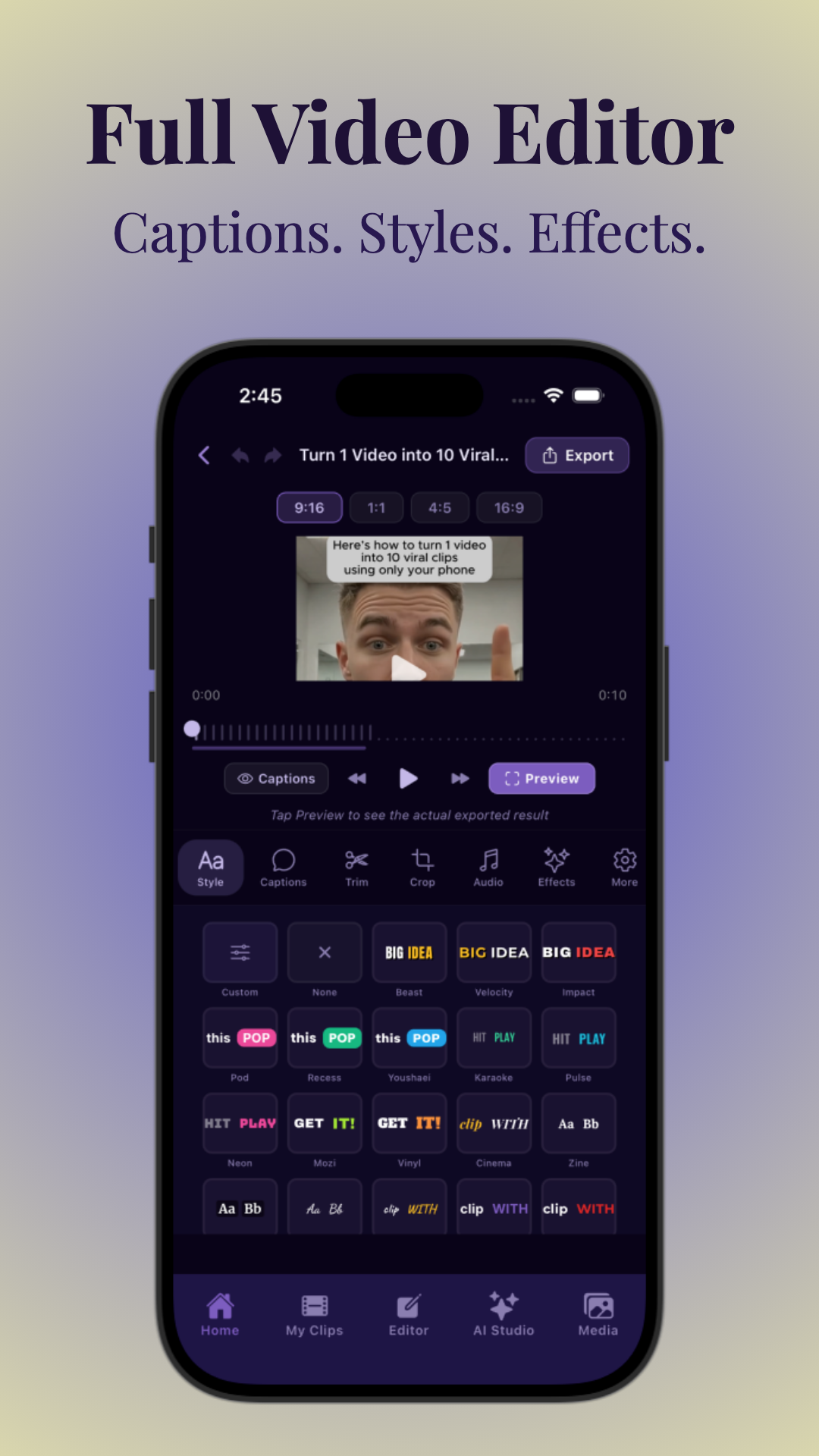
- Mobile Editors (CapCut, InShot): Perfect for making chat animations on your phone, with drag-and-drop chat bubbles and text overlays.
Choose based on your platform (mobile or desktop), the chat style (iMessage, WhatsApp, Messenger), and how much control you want over animation details.
Step 3: Create or Import Your Chat Conversation
Now, bring your script to life by laying out the conversation visually. How you do this depends on your chosen tool:
- Canva: Use a chat story template, customize contact names, avatars, bubble colors, and fonts. Drag and drop text for each message. Animate each bubble to appear in sequence using "Animate" effects.
- After Effects: Build chat bubbles manually or import a template. Use keyframes to animate bubble entrance, text typing, and timing. Add sound effects for realism.
- Envato Templates: Open the downloaded project in Premiere Pro or After Effects. Replace placeholder text and avatars with your script.
- AI Chat Video Generator (e.g., Vidulk): Upload your script or paste a chat log. AI will generate a realistic fake iMessage or WhatsApp video, complete with bubble animations and avatars. Many generators let you tweak colors, fonts, and timing on the fly.
- Mobile Apps (CapCut, InShot): Add chat-style overlays, position text bubbles, and animate with simple tap controls.
For a step-by-step on using AI tools for chat videos, check out this in-depth tutorial.
Step 4: Add Realistic Effects—Typing, Read Receipts, and Reactions
The magic of a great fake text message video is in the details. Make your chat story video stand out by mimicking real chat app features:
- Typing Indicators: Animate three dots or a “typing…” bubble before each message. In Canva or After Effects, use animated GIFs or keyframed layers. AI tools usually add this automatically.
- Read Receipts & Timestamps: Place "Delivered", "Read", or blue checkmarks under messages. Adjust timing for realism.
- Reactions: Add thumbs up, hearts, or emoji reactions to chat bubbles. Many templates include these as built-in options.
- Chat Motion: Animate subtle upward scrolling as new messages appear. In After Effects, use a "position" keyframe; in Canva, use "Move" animation.
Combining these touches with authentic chat backgrounds (matching iOS, Android, WhatsApp, or Messenger) makes your video instantly recognizable and more engaging.
Step 5: Customize Chat Bubbles, Avatars, Colors, and Fonts
Personalize your text message animation for maximum impact:
- Chat Bubble Shape & Color: Match iMessage (blue/gray), WhatsApp (green/white), or Messenger (blue/white) styles. Most apps and templates let you adjust these easily.
- Avatars: Upload photos or use AI-generated avatars. For group chats, vary the images for each participant.
- Fonts: Stick to system fonts (San Francisco for iOS, Roboto for Android) for realism.
- Backgrounds: Use subtle gradients or blurred wallpapers to mimic real chat apps.
- Timing: Control the speed at which messages appear for comedic or dramatic effect. AI chat video generators like Vidulk often provide easy timing sliders.
For more on customizing and exporting, see this fake chat video guide.
Step 6: Add Voiceover, Sound Effects, or Background Music
Voiceovers elevate chat story videos, making them more immersive. Here’s how to add one:
- Record your narration using your phone or a microphone. Optional: Use AI voice generators for multiple characters.
- Import the audio into your video editor (Canva, CapCut, Premiere Pro, After Effects).
- Sync message timing with the voiceover for a natural flow.
- Add sound effects like typing, sent/received pings, or notification dings for authenticity.
- Subtle background music can enhance mood—keep it low to avoid overpowering the conversation.
Some AI chat video generators can auto-sync chat bubbles to your audio, making the process even faster.
Step 7: Export Your Chat Animation in the Right Format
For maximum reach, export your animated text message conversation in the right specs for your target platform:
- Vertical (9:16) MP4 or MOV: Perfect for TikTok, Instagram Reels, or YouTube Shorts.
- Transparent Background (Alpha Channel): For overlaying chat bubbles on real footage or vlogs. Export as MOV with alpha, or PNG sequence if supported.
- High-Resolution (1080x1920): Ensures crisp text and avatars on mobile screens.
- Trim and test: Preview your video on your phone to check timing and readability.
If you’re using Vidulk, you can export in social-ready formats with captions optimized for engagement. See this post for more on output options.
Tips & Common Mistakes
- Don’t cram too much text in one bubble—break it up for better pacing and readability.
- Match bubble colors and fonts to the platform you’re simulating (iMessage, WhatsApp, Messenger).
- Keep animations smooth—avoid jerky or too-fast transitions.
- Use avatars to distinguish speakers, especially in group chats or Reddit story videos.
- Preview on mobile to ensure text size and effects work on small screens.
- Don’t forget copyright—use royalty-free sound effects and music.
Conclusion
Animating text message conversations is the secret sauce behind viral chat story videos, fake iMessage clips, and TikTok drama shorts. By planning your script, choosing the right tool, and adding realistic chat details, you can create compelling videos that keep viewers hooked. Whether you want to use advanced editors, drag-and-drop templates, or AI chat video generators like Vidulk for ultra-fast results, the process is now easier than ever. Start experimenting today—and watch your chat stories go viral!
FAQ
- How do I animate a text message conversation in Canva?
Use a chat story template in Canva, add your messages as individual text elements, and apply "Animate" effects so each bubble appears in sequence. Customize avatars, colors, and backgrounds for authenticity. - How do you make a realistic text message chat animation in After Effects?
Create chat bubbles with shape layers and text, then animate their entrance using keyframes. Add typing indicators, scrolling, and sound effects for realism. Use pre-made templates for faster results. - Can you animate iMessage text effects like bubble and screen effects?
Yes. In After Effects or with advanced templates, you can replicate bubble and screen effects (like "loud", "gentle", confetti) by animating scale, movement, or overlays. Some fake text message video makers include these as built-in effects. - What is the easiest way to create a text message conversation video?
The fastest method is using an AI chat video generator or fake text message video maker—just paste your script, choose a style (iMessage, WhatsApp, Messenger), and export. See the guide on creating fake chat videos with AI for more tips. - How do I add typing indicators and read receipts to a chat animation?
In Canva or After Effects, add animated "typing..." indicators or checkmarks as separate layers, timing them before or after messages. Many templates and AI tools let you toggle these on/off automatically. - What format should I export a text message animation in for TikTok or Premiere Pro?
Export in vertical (9:16) MP4 or MOV for TikTok, Instagram, and Shorts. For editing in Premiere Pro or overlays, use high-res MP4/MOV or transparent MOV (alpha channel). Always test on your target platform before publishing.