How to Clip GoPro Footage for Socials: A Step-by-Step Guide
Learn how to clip GoPro footage for socials with AI tools. Quick, actionable steps for making viral vertical clips from your GoPro videos, ready to post.

Estimated reading time: 8 min
Key Takeaways
- Clipping GoPro footage for socials maximizes your reach with short, engaging videos.
- AI tools like Vidulk automate finding the best moments and formatting for platforms.
- Vertical clips with captions perform better on Instagram Reels, TikTok, and YouTube Shorts.
- Efficient workflows save hours compared to manual editing.
Table of Contents
- Section 1: Why Clip GoPro Footage for Socials?
- Section 2: Preparing Your GoPro Footage
- Section 3: How to Clip GoPro Footage with AI
- Section 4: Optimizing Clips for Social Media
- Section 5: Tips for Viral GoPro Clips
- Conclusion
- FAQ
Section 1: Why Clip GoPro Footage for Socials?
The Power of Short-Form Video
GoPro cameras capture dynamic, immersive footage, but raw videos are often too long for social media platforms. Clipping your GoPro footage into short, vertical videos lets you:
- Highlight the most exciting moments for maximum impact.
- Increase shareability and reach wider audiences.
- Fit the preferred formats of Instagram Reels, TikTok, and YouTube Shorts.
Trends in Social Video
Short-form content consistently outperforms longer videos on socials. Platforms prioritize vertical clips under 60 seconds, often with captions for silent viewing. By learning how to clip GoPro footage for socials, you position your content for higher engagement and discoverability.
Section 2: Preparing Your GoPro Footage
Transfer and Organize Files
Before you start editing, transfer your GoPro footage to your computer or phone. Organize files by date or activity to quickly locate the best source videos.
- Use GoPro Quik or a card reader for fast transfers.
- Back up raw footage to a cloud service for safety.
Basic Edits Before Clipping
Trim dead space, correct horizon tilt, and stabilize shaky footage. This gives you a clean starting point for creating social-ready clips. Most GoPro models offer in-camera stabilization, which can save time at this stage.
Section 3: How to Clip GoPro Footage with AI
Why Use AI for Clipping?
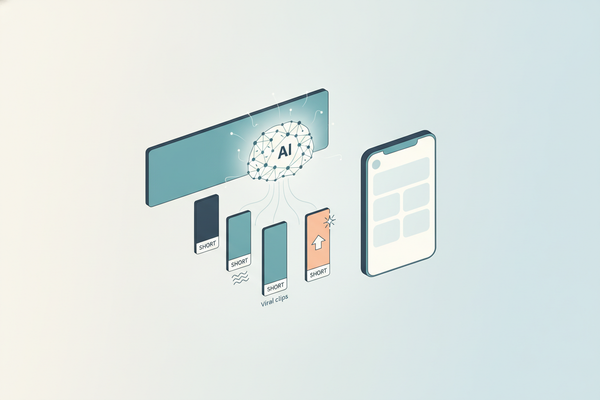
Manually scanning hours of action footage for highlights is time-consuming. AI-powered apps like Vidulk instantly detect the best moments—jumps, tricks, reactions—and turn them into short, shareable clips. This workflow is ideal for creators who want to maximize output without spending hours in a traditional editor.
Step-By-Step: Clipping with Vidulk
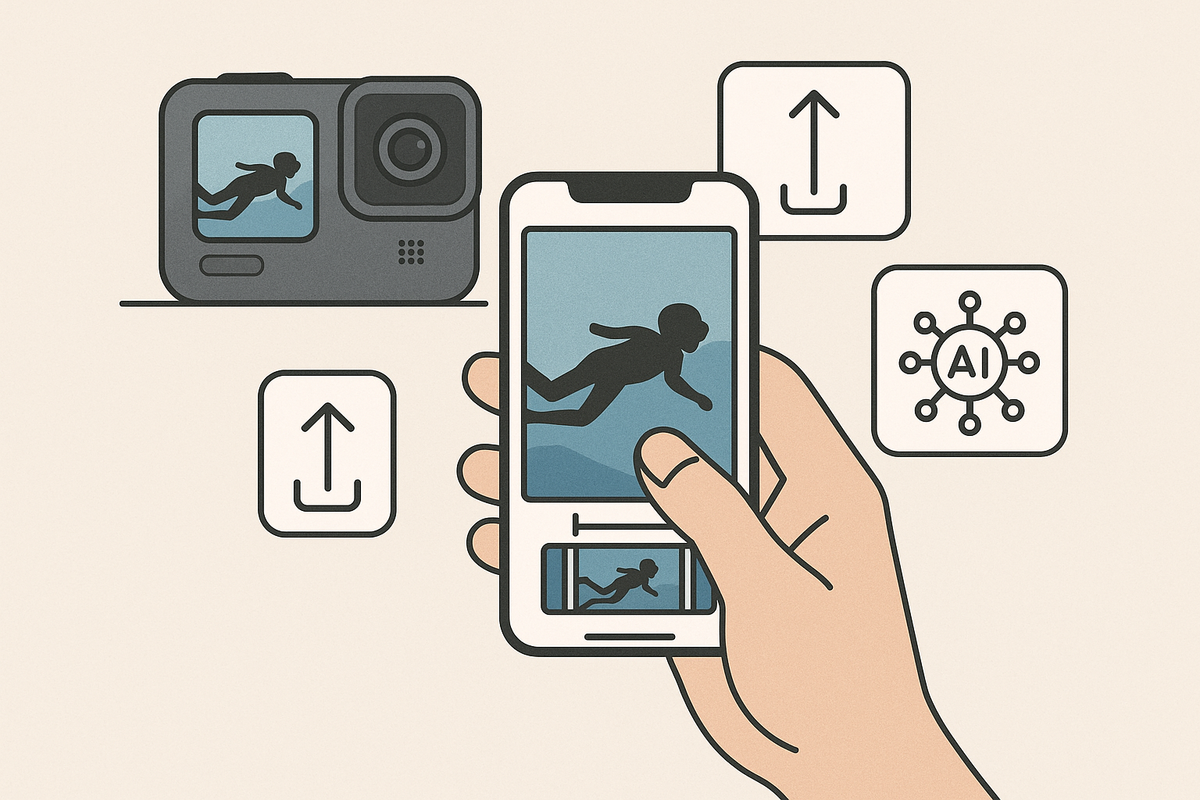
- Upload your GoPro video to Vidulk from your camera roll, computer, or cloud storage.
- Let Vidulk’s AI analyze the footage to find high-energy segments, reactions, and key moments.
- Automatically generate multiple short, vertical clips with captions ready for socials.
- Review, tweak, or merge clips as needed in the AI Studio before exporting.
For a deeper dive into how AI transforms long videos into viral clips, see this guide on using AI clip generators for social media.
Section 4: Optimizing Clips for Social Media
Format for Each Platform
Each platform has its own requirements for video length, aspect ratio, and captions. Here’s how to get it right:
- Instagram Reels / TikTok: 9:16 vertical, up to 60 seconds, bold captions.
- YouTube Shorts: 9:16 vertical, up to 60 seconds, concise titles.
- Facebook Stories: 9:16 vertical, up to 20 seconds, auto-captions recommended.
Captions and Engagement
Most users watch social videos without sound. Use auto-captions—Vidulk generates these automatically—to keep viewers engaged. Customizing font, color, and timing can boost retention.
Section 5: Tips for Viral GoPro Clips
Hook Viewers Instantly
Start your clip with the action or an intriguing moment. The first two seconds are crucial for retention.
- Use jump cuts to skip downtime.
- Add AI-enhanced images or overlays for context.
Batch Process for Consistency
Clipping multiple videos at once ensures a consistent output schedule. Vidulk’s batch processing lets you prepare a week’s worth of content in minutes, perfect for creators building momentum.
Experiment with AI Studio Features
Leverage the AI Studio in Vidulk to generate thumbnails, enhance images, or adjust video tone. For more on video tone adjustments, check out our practical AI video tone guide.
Conclusion
Learning how to clip GoPro footage for socials is essential for creators aiming to grow on Instagram, TikTok, and YouTube. AI-driven apps like Vidulk make the process fast and effortless, automatically turning your best moments into vertical, captioned clips that are ready to post. Focus on storytelling, optimize for each platform, and let AI handle the heavy lifting so you can spend more time creating and less time editing.
FAQ
Q: What’s the best length for GoPro clips on social media?
A: Aim for 15–60 seconds. Shorter clips perform better on TikTok, Instagram Reels, and YouTube Shorts.
Q: Can I add captions automatically?
A: Yes, Vidulk generates captions with AI, making your GoPro clips accessible and engaging even without sound.
Q: Is manual editing still necessary?
A: AI tools handle most of the work, but manual tweaks—like trimming or merging—can help personalize your clips.
Q: What video settings should I use on my GoPro?
A: Record in 4K or 1080p, 60fps or higher for smooth slow motion, and keep your camera steady for best results.
Antes de escoger una camiseta de selección, puede ser práctico comprobar medidas, cuidados de lavado y comodidad. Para comparar detalles generales, camisetas seleccion argentina puede revisarse junto con información de talla, tejido y uso habitual. También conviene revisar las condiciones descritas para evitar confundir estilo, talla y comodidad.