How to Use a LinkedIn Live Clip Generator to Supercharge Your LinkedIn Marketing
Learn how a LinkedIn Live clip generator turns long-form streams into high-engagement clips, boosting your LinkedIn marketing effectiveness.

Estimated reading time: 8 minutes
Key Takeaways
- Save time: Automate clip extraction from hours of LinkedIn Live to bite-sized videos.
- Boost engagement: Short, captioned highlights drive up to 50% more watch time.
- Extend reach: Repurpose clips across LinkedIn, YouTube Shorts, and Instagram Reels.
- Streamline workflow: From recording to posting in minutes, no video editor needed.
- Improve ROI: Turn one live event into multiple touchpoints for sustained visibility.
Table of Contents
- Introduction to the LinkedIn Live Clip Generator
- Understanding LinkedIn Live and the Clip Generator Role
- What Is a LinkedIn Live Clip Generator?
- Benefits of Using a Clip Generator
- Step-by-Step Guide to Generating Clips
- Best Practices for Optimal Results
- Case Studies & Examples
- Conclusion & Call-to-Action
Introduction to the LinkedIn Live Clip Generator
Editing hours of LinkedIn Live recordings can drain resources. An AI-powered clip generator automatically extracts the most valuable moments, formats them for LinkedIn, and helps you maintain a consistent posting schedule. In this guide, you’ll learn:
- How the clip generator works
- Why repurposing live content drives higher views
- A detailed walkthrough from upload to publish
For more AI-powered clipping solutions, check out our guides on AI Live Stream Clip Maker and AI Webinar Clip Generator.
Understanding LinkedIn Live and the Clip Generator Role
LinkedIn Live requires third-party encoders like Socialive or Restream to broadcast. Those tools handle delivery and recording while LinkedIn hosts the stream. Live videos on LinkedIn earn up to 24× more comments than standard posts and offer 7% higher engagement versus pre-recorded clips.
A clip generator:
- Scans recordings for key insights and reactions
- Automatically creates multiple short clips
- Enables posting as updates, stories, or ads to extend reach
What Is a LinkedIn Live Clip Generator?
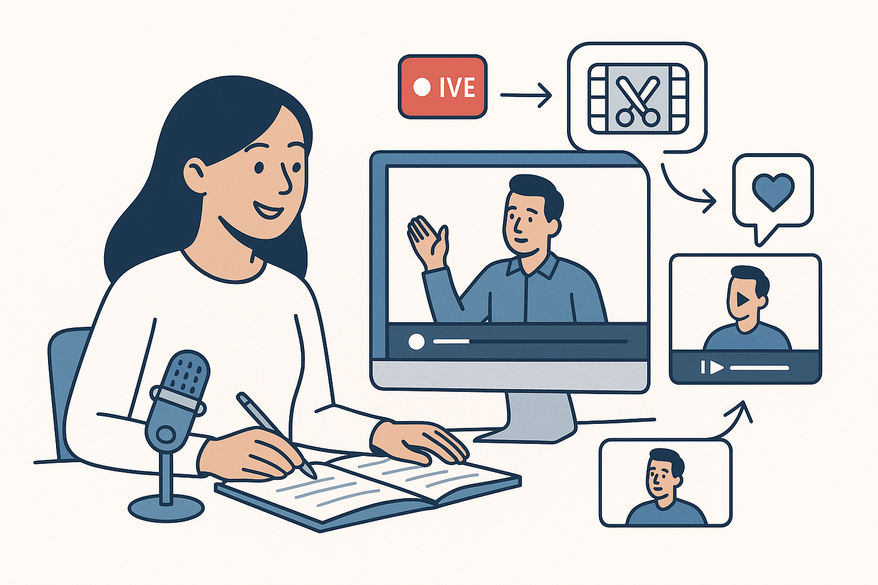
An AI-driven tool analyzes your recordings—sessions, webinars, or podcasts—to detect high-impact moments and trim them into 15–60-second clips with captions and branding.
- Upload a LinkedIn Live recording via link or file.
- AI identifies “worthy moments” and assigns a virality score.
- Customize layouts, B-roll, speaker highlights, and your logo.
- Export ready-to-post clips directly to LinkedIn or download for other platforms.

Key features include:
- AI Virality Prediction – Ranks clips by engagement potential
- Active Speaker Detection – Highlights key speakers automatically
- Auto-Captions & Subtitles – Boosts accessibility
- Direct LinkedIn Export – One-click posting
Benefits of Using a Clip Generator
Integrating a LinkedIn Live clip generator into your marketing delivers:
Content Repurposing
- Transform one session into multiple snackable videos
- Schedule clips over weeks to reinforce messages
Engagement Boost
- Short, captioned clips increase watch time by up to 50%
- Viewers engage without sitting through hour-long streams
Improved Discoverability
- Optimized formats align with LinkedIn’s algorithm
- Cross-post to YouTube Shorts, X, or Instagram Reels
Time & Cost Savings
- Save 5–10 hours of manual editing per session
- Eliminate reliance on external video editors
Step-by-Step Guide to Generating Clips
Follow these steps to turn your live sessions into high-impact videos:
Step 1 – Capture Your Session
- Use Restream Studio or Socialive as your encoder
- Select “record only” for test runs
Step 2 – Upload Your Recording
- Import via device, YouTube link, or LinkedIn event
Step 3 – Generate Clips
- Trigger AI auto-trim and review clips ranked by virality
Step 4 – Edit & Customize
- Add captions, logos, and B-roll
- Use AI prompts to craft engaging titles and descriptions
Step 5 – Export & Publish
- Download or post directly with optimal dimensions
Technical Tips
- Ensure browser-based UI compatibility on Mac and PC
- Test with sessions over 5 minutes to unlock LinkedIn’s “Generate Clips”
Best Practices for Optimal Results
Crafting Titles & Descriptions
- Incorporate “LinkedIn Live clip generator” naturally in your copy
- Leverage AI to produce concise, value-packed messaging
Content Strategy Integration
- Schedule clips weekly for consistency
- Repurpose within LinkedIn Articles or newsletters
Dos & Don’ts
- Do add captions and branding
- Don’t over-edit; keep the live feel
- Do prioritize high-virality clips
- Don’t post untrimmed long videos directly
Case Studies & Examples
Restream Case Study: A 60-minute webinar auto-trimmed into 10 highlights led to a 40% increase in views within a month.
OpusClip Example: A 30-minute demo became 8 clips with virality scores over 75%, doubling comments and shares.
Flowjin Success Story: A 10-minute expert interview yielded 10 captioned clips, enabling weekly posts without extra editing.
Conclusion & Call-to-Action
A LinkedIn Live clip generator amplifies your ROI by converting long-form streams into multiple, high-engagement assets. Tools like Vidulk can detect and extract top moments from your live streams in minutes, saving hours of editing. Learn more at Vidulk - AI Video Clipping App.
Ready to boost your LinkedIn marketing? Upload your next session to Restream or OpusClip and watch your presence soar with minimal effort and maximum impact.
FAQ
Q1: Does LinkedIn offer a native clip generator?
A1: Yes—sessions over 5 minutes get a “Generate Clips” button in LinkedIn Events; clips are editable before download.
Q2: What software do I need for LinkedIn Live?
A2: You need third-party encoders like Restream or Socialive, since LinkedIn only hosts the player.
Q3: How accurate is the AI in selecting clip moments?
A3: AI reliably detects speaker changes and hook moments; virality scores help you refine selections.
Q4: Can I use it for non-live videos?
A4: Absolutely—upload prerecorded webinars, podcasts, or interviews for LinkedIn-optimized clips.