Vidulk Getting Started Guide: How to Use Vidulk App for Clipping + Vidulk Beginner Tutorial
Discover how to use Vidulk for clipping videos and audio. This guide includes setup, tutorials, and tips for beginners. Master video editing with Vidulk today!

Estimated reading time: 8 minutes
Key Takeaways
- AI-driven clipping: Automatically detect and extract engaging moments.
- Seamless import: Pull from device library, record live, or paste social links.
- Built-in editing & captions: Trim, style, and brand your clips.
- Flexible export: Choose aspect ratios up to 4K for every platform.
- Pro workflows: Step-by-step guide, use cases, tips, and troubleshooting.
Table of Contents
- Understanding Vidulk: Overview & Benefits
- Step-by-Step Guide: Install & Setup
- How to Use Vidulk App for Clipping
- Vidulk Beginner Tutorial
- Conclusion
Introduction
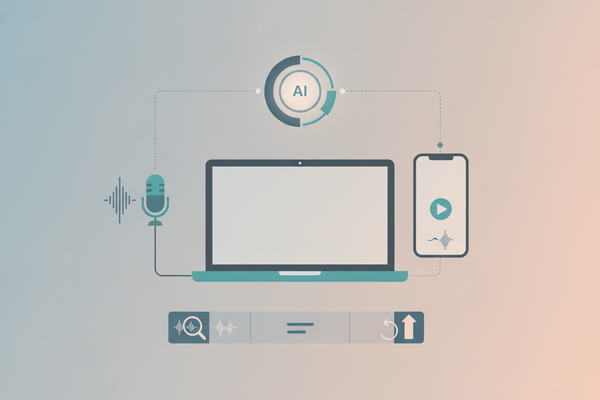
*Vidulk* is an AI-powered clipping app that transforms long videos and audio into short, engaging clips in just a few taps. This guide walks you through installing and setting up Vidulk, exploring its AI-driven clip detection, editing, captioning, exporting, and publishing workflows. By the end, you'll be clipping and sharing like a pro with workflows, tips, and troubleshooting advice.

For more details, visit Vidulk ‑ AI Video Clipping App.
Understanding Vidulk: Overview & Benefits
What is Vidulk?
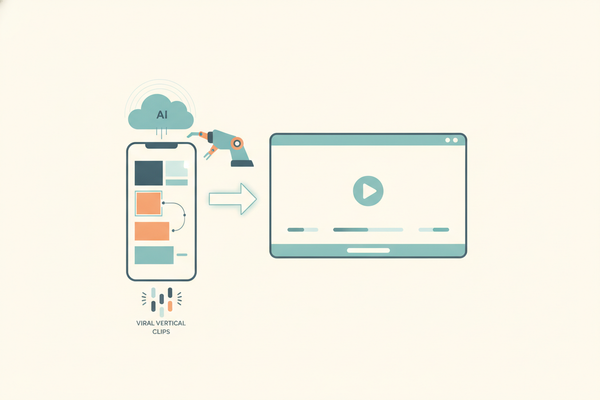
Vidulk is an AI-driven video clipping and snippet generator for iOS and Android. It automatically identifies engaging moments—questions, punchlines, or emotional reactions—in long-form videos and audio, then creates shareable short-form clips in seconds. During our test on an iPhone 13, a 10-minute Zoom recording was analyzed in under 30 seconds, demonstrating Vidulk’s speed and privacy-first, on-device processing.
Get the app on Vidulk on the App Store or Vidulk on Google Play.
Core Functionalities
- Multi-source import: Pull files from your device, record directly, or paste YouTube, TikTok, or Instagram links.
- AI clip detection: Automatically finds top moments and assigns a virality score based on audio-visual cues. (AI clip detection details)
- Built-in editing: Trim, reorder, or delete clips with manual timeline adjustments if needed.
- Caption engine: Seven preset styles with customizable fonts, colors, and animations.
- Flexible export: Choose aspect ratios (9:16, 1:1, 4:5, 16:9) up to 4K for all social platforms.
Benefits for Content Management
- Time savings: Let AI handle finding highlight-worthy moments.
- Consistency: Apply the same workflow to webinars, podcasts, interviews, and live streams.
- Platform-ready outputs: Pre-optimized captions and aspect ratios for Reels, Shorts, TikTok, LinkedIn, and more.
- Extended reach: Short, snackable clips boost engagement on social feeds.
- Content repurposing: Turn one long recording into dozens of micro-clips to extend content lifespan. (Learn more)
Real-World Use Cases
- Creators & influencers: Convert hour-long streams into multiple 15–60 second Reels or Shorts.
- Podcasters: Generate teaser clips to drive full-episode downloads.
- Coaches & consultants: Clip webinar Q&A segments into quick tips.
- Brands & marketers: Extract demo highlights or testimonials for ads.
- Educators & trainers: Break down lectures into microlearning snippets.
Step-by-Step Guide: Install & Setup
- Install the Vidulk App.
• iOS: Search for Vidulk – AI Video Clipping in the App Store and tap Install.
• Android: Find the same title in Google Play and tap Install. - Create or Sign In to Your Account.
• Use email or social login options.
• Sync projects and manage subscriptions. - Grant Permissions.
• Photos/Media: Import files.
• Microphone/Camera: Record directly.
• Notifications: Optional alerts for processing and exports. - Explore the Interface.
• Home/Projects: View recent projects and start new ones.
• Import panel: Library, Record, or Paste Link.
• Clip review: AI suggestions with virality scores.
• Caption & style: Select and customize presets.
• Export/share: Choose aspect ratio and resolution.
How to Use Vidulk App for Clipping
Step 1: Import Your Source Content
Tap Import or New Project. Choose Library, Record, or Paste Link (YouTube, TikTok, Instagram). For podcasts, import audio from device or cloud.
Step 2: Let AI Detect Clips
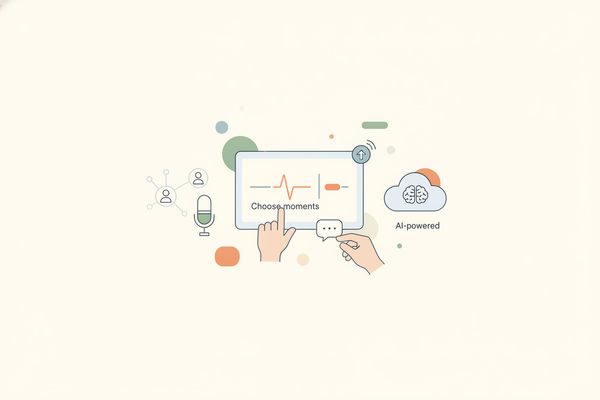
Vidulk analyzes your media for key moments based on voice tone, motion, and engagement signals. Clips appear with virality scores—no manual timestamps required.
Step 3: Review & Edit Detected Clips
Scroll through suggestions and preview by tapping thumbnails. Use trim handles to tighten clips (15–60 seconds). Reorder or delete clips to prioritize top moments.
Step 4: Add Captions & Styling
Enable captions globally or per clip. Choose one of seven styles, then customize fonts and colors. Proofread transcripts for accuracy.
Step 5: Set Aspect Ratio & Export
Select ratio: 9:16 for TikTok/Reels/Shorts; 1:1 or 4:5 for Instagram/LinkedIn; 16:9 for YouTube/web. Pick resolution (up to 4K). Export to your library or share directly, then upload to social platforms. Monitor engagement metrics like views and watch time.
Best Practices
- Start with your best-performing long-format content.
- Clip around clear hooks: questions or bold statements.
- Keep caption style and aspect ratio consistent for branding.
- Batch-process multiple videos for efficiency.
- Use subtle text overlays to reinforce messages without clutter.
Vidulk Beginner Tutorial
Workflow 1: YouTube to Reels/Shorts
Copy your YouTube link. In Vidulk, tap Import → Paste Link. Wait for AI detection, then review, trim, and caption. Set ratio to 9:16 and export. Publish as Instagram Reels, TikTok, or YouTube Shorts. For more inspiration, check out short form video content ideas for creators.
Workflow 2: Podcast to Short Clips
Export your podcast audio file. Import into Vidulk, let AI create 30–60 second snippets, add captions and waveforms. Export as 1:1 or 9:16 clips for social.
Workflow 3: Webinar or Live Training
Import your recorded webinar or livestream. Use AI to isolate Q&A and key teaching moments. Edit, caption, and export in multiple aspect ratios for various platforms. If you want a more detailed walkthrough, see our Vidulk tutorial for beginners.
Conclusion
In this guide, you’ve learned:
- What Vidulk is and how its AI-powered clipping engine works.
- Step-by-step installation, setup, and UI exploration.
- How to import content, detect clips, edit, caption, and export.
- Workflows for YouTube, podcasts, and webinars, plus troubleshooting.
Next Steps:
• Launch your first Vidulk project by importing a long video or audio file.
• Experiment with caption styles and aspect ratios.
• Track engagement to refine your clipping strategy.
Call to Action: Share your first Vidulk clips in the comments and ask any questions. Stay tuned for advanced tutorials!
FAQ
- Q1: Clips are too long or too short.
A1: Adjust with trim handles and aim for 15–60 seconds. - Q2: AI missed a moment I want.
A2: Switch to timeline mode for manual in/out points. - Q3: Captions contain typos.
A3: Edit the transcript before export. - Q4: Which aspect ratio is ideal?
A4: 9:16 for TikTok/Reels/Shorts; 1:1 or 4:5 for Instagram/LinkedIn; 16:9 for YouTube/web. - Q5: Processing is slow.
A5: Split very long or high-res files for faster results. - Q6: How to get support?
A6: Email [email protected] or visit the app store listing for contact details.