How to Add Captions to Reels: Step-by-Step for Creators
Learn how to add captions to Reels using Instagram and AI tools. Step-by-step guide for auto-captions, subtitles, and making your Reels more engaging.

Estimated reading time: 10 min
Key Takeaways
- Adding captions to Reels increases engagement, accessibility, and reach.
- Instagram offers built-in auto-caption and manual text options.
- AI tools like Vidulk automate captioning, clipping, and styling for creators.
- Customization helps keep captions on-brand and readable.
- Best practices and troubleshooting tips ensure professional results.
Learning how to add captions to Reels is crucial for content creators looking to go viral, boost accessibility, and reach a wider audience. Whether you want to use Instagram’s auto-caption tools, manually add subtitles, or leverage powerful AI video editing tools for creators like Vidulk, this guide covers every step. Read on for a complete walkthrough, plus expert tips and solutions to common issues.
Step 1: Understand Your Captioning Options for Reels
Instagram Reels support multiple ways to add captions and subtitles:
- Auto-generated captions via the Captions sticker
- Manual text captions using the text tool
- Third-party AI tools for auto caption video and advanced styling
Each method has pros and cons. Instagram’s built-in tools are quick; third-party apps like Vidulk offer advanced features including AI clip generation, accurate auto subtitles, and viral formatting. Decide whether you want captions for accessibility, branding, or both.
Step 2: Add Auto-Generated Captions in the Instagram Reels Editor
The fastest way to add captions to Reels is by using Instagram’s Captions sticker. Here’s how:
- Create or upload a Reel inside the Instagram app.
- Tap the sticker icon at the top (smiley face square).
- Select the Captions sticker. Instagram will auto-transcribe the audio.
- Review the autogenerated captions as they appear on your video.
If you don’t see the Captions sticker, check that your app is updated and your account is set to a supported language. Some regions or accounts may not have access yet—see our troubleshooting section below.
Step 3: Edit and Sync Auto-Generated Captions
Auto-captions are fast, but they aren’t always perfect. To ensure clarity and professionalism:
- Tap the captions on your Reel to enter edit mode.
- Correct any spelling, grammar, or timing errors.
- Use the timeline to sync captions precisely with the audio.
Editing is crucial for avoiding embarrassing mistakes and ensuring viewers understand your message. For more robust editing, consider AI video editing tools for creators that offer subtitle timing and batch corrections.
Step 4: Customize Caption Style—Font, Color, Size, and Placement
Instagram and third-party tools let you style captions to match your brand:
- Change font style and size for readability.
- Pick caption color and add a background for better contrast.
- Move captions to a non-distracting area—avoid covering faces or vital visuals.
- Preview your Reel to check for overlaps or readability issues.
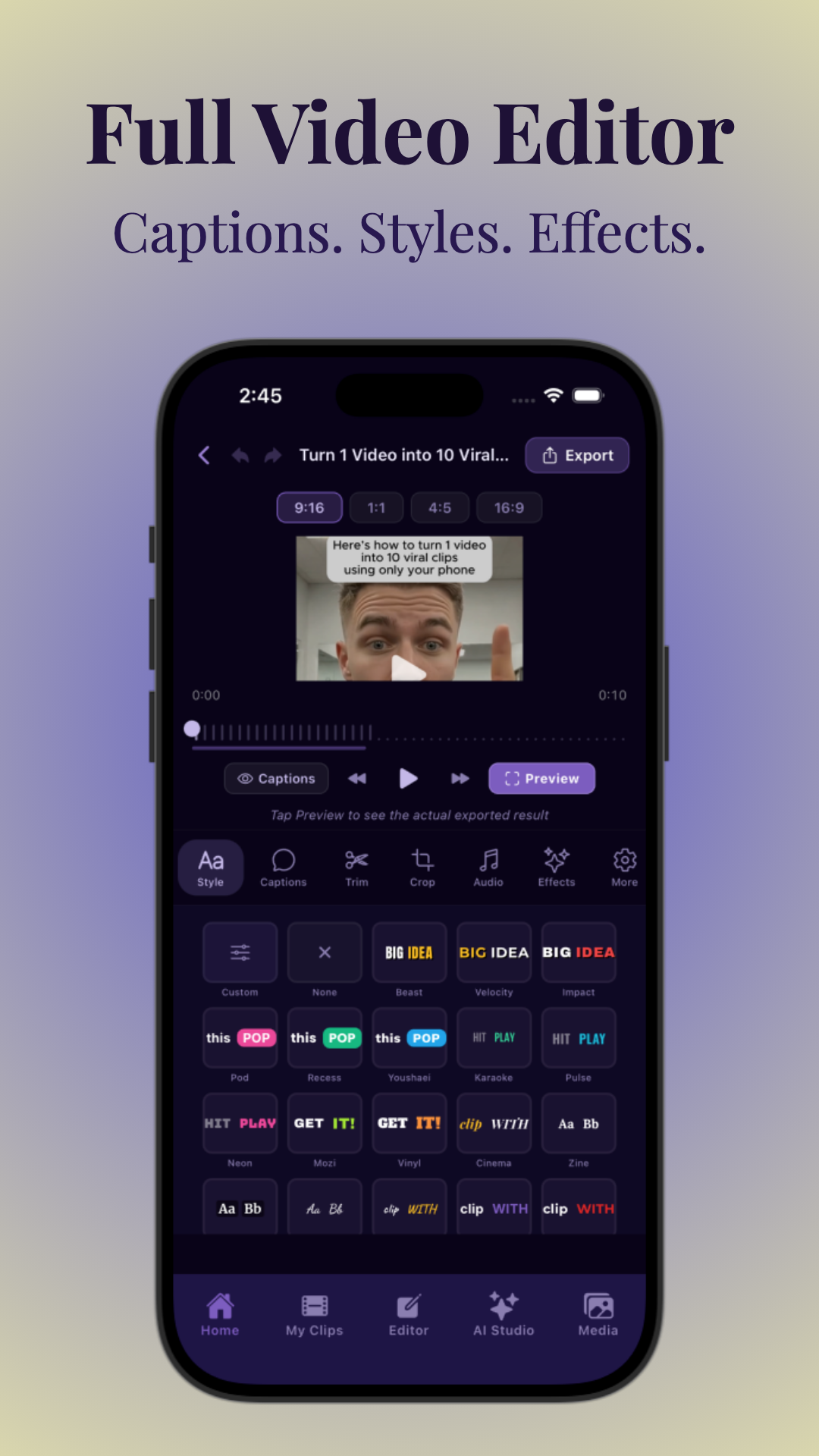
Apps like Vidulk offer advanced caption customization, including on-device AI enhancements and viral clip layouts. For more on transforming long videos into viral shorts, read AI Clip Generator: Transform Long Videos Into Viral Shorts.
Step 5: Add Manual Text Captions and Subtitles
If you want full control or need to add context, use the Text tool in Instagram Reels:
- Tap the Text (Aa) icon in the Reels editor.
- Type your caption, adjust style, and position on screen.
- To sync with audio, tap the timeline at the bottom and set in/out points.
This method is best for callouts, speaker names, or non-speech subtitles. Manual text is also useful if auto-captioning misses words or if you want more creative freedom.
Step 6: Captioning Uploaded vs. Recorded Videos
You can add captions to both newly recorded Reels and uploaded videos:
- Recording inside Instagram: All caption tools are available immediately.
- Uploading a video: After upload, use the same steps to add Captions stickers or manual text.
Note: For polished results on longer or edited videos, many creators use AI-powered apps to add subtitles to video automatically before uploading to Instagram. This ensures perfect timing and avoids in-app captioning limitations.
Step 7: Use Third-Party AI Tools to Add Captions Automatically
For high-volume creators, advanced AI tools streamline the workflow:
- Use the best AI clip generator apps to automatically find highlights, crop vertical, and add subtitles to video automatically.
- Vidulk lets you paste a YouTube, podcast, or long video link, and its AI clips, captions, and styles the best moments for Reels.
- Edit captions, adjust fonts, and export ready-to-post vertical clips.
These AI tools for content creators save hours and deliver consistent, on-brand captions. Want to master AI video clipping? See How to Turn Long Videos Into Short Clips: The Complete AI Workflow.
Step 8: Enable Accessibility Options and Closed Captions
To make your Reels accessible:
- Always add captions for spoken audio.
- Use clear, readable fonts and high-contrast backgrounds.
- Double-check that auto-captions are enabled before posting.
- In your Reel’s settings, add alt text or description for visually impaired users if relevant.
Accessible videos reach more viewers and show your brand values inclusivity.
Step 9: Best Practices and Fixes for Captions on Reels
To guarantee professional, viral-ready Reels:
- Proofread all captions and subtitles for errors.
- Keep captions concise—avoid cluttering the screen.
- Test captions on mobile to ensure readability.
- If captions are missing or desynced, update the app or use a third-party tool.
- Stay on-brand with colors, fonts, and placement.
For more on optimizing your captions and making your workflow seamless, check out these tips for the best clipping apps for mobile.
Tips & Common Mistakes
- Don’t rely solely on auto-captions: Always review and edit for accuracy.
- Watch out for overlapping text: Place captions where they don’t cover faces or key visuals.
- Keep it concise: Long captions can overwhelm viewers and cause them to skip.
- Maintain consistency: Use the same caption style across all Reels for branding.
- Update your app: Missing features are often due to outdated versions.
Conclusion
Learning how to add captions to Reels is now essential for creators aiming to maximize engagement, accessibility, and viral potential. Instagram’s built-in tools are great for quick posts, while AI-powered apps like Vidulk automate clipping, auto caption video workflows, and advanced styling. By following these steps and best practices, your Reels will be both professional and inclusive, ready to stand out in today’s fast-moving feed. Try Vidulk to save time and elevate your content creation process.
FAQ
- How do I add captions to a Reel on Instagram?
Tap the sticker icon in the Reels editor and choose the Captions sticker. Instagram will auto-generate captions, which you can edit and style before posting. - Why can’t I see the Captions sticker on my Reels?
The Captions sticker may not be available if your app is outdated, your region isn’t supported yet, or you’re using an account type with limited features. Try updating Instagram or switching to a personal/creator account. - How do I edit auto-generated captions on Instagram Reels?
Tap the captions while editing your Reel to enter edit mode. Correct any errors and adjust timing as needed. - Can I add captions to a Reel after posting it?
No, you can’t edit captions on an already posted Reel. You’ll need to delete and re-upload the Reel with updated captions. - What’s the difference between captions, subtitles, and text on Instagram Reels?
Captions are synchronized transcriptions of spoken audio. Subtitles may also translate audio. Manual text can be any on-screen writing, like speaker names or callouts. - How do I make captions look better on Reels?
Use high-contrast colors, readable fonts, and avoid covering faces. Apps like Vidulk let you fully customize styles for a polished, on-brand look.