How to Add Subtitles to Video Automatically: The Ultimate AI Guide
Learn how to add subtitles to video automatically with AI tools. Discover the best AI clip generators, auto caption options, and editing tips for creators.

Estimated reading time: 14 min
Key Takeaways
- AI-powered tools can add subtitles to video automatically in minutes, boosting accessibility and engagement.
- Modern apps like Vidulk combine auto captioning, AI video clipping, and editing for viral-ready short videos.
- Auto-generated subtitles can be fully customized for font, color, timing, and exported as burned-in or standalone files.
- Support for multiple input formats, platforms, and languages enables creators to repurpose content everywhere.
- Understanding workflow essentials, from importing video to exporting polished clips, empowers content creators to work faster.
Table of Contents
- Section 1: Why Add Subtitles to Video Automatically?
- Section 2: Uploading & Input Sources: Supported Formats
- Section 3: AI Speech-to-Text & Auto Caption Generation
- Section 4: Editing, Styling, and Customizing Subtitles
- Section 5: Exporting Subtitles: Burned-In or Downloadable Files
- Section 6: Subtitles for Social, YouTube & Multilingual Content
- Conclusion
- FAQ
Section 1: Why Add Subtitles to Video Automatically?
The Power of Accessible Content
Subtitles and captions are no longer just a nice-to-have—they’re a necessity for content creators aiming for reach and impact. When you add subtitles to video automatically, you instantly make your content accessible to viewers who are deaf or hard of hearing, as well as those watching on mute (which is the majority on social media). This simple addition can lead to higher watch time, increased engagement, and a broader audience.
Statistically, over 80% of social video is watched on mute, especially on mobile devices. By providing subtitles, you ensure your message is conveyed regardless of audio, breaking down barriers for millions of users. Accessibility laws in many regions are also making captions mandatory for organizations; failing to provide them can limit your audience and even expose you to legal risk. For educators, marketers, and businesses, this step is now as essential as having a mobile-friendly website.
Social Media & The Viral Clip Era
On platforms like Instagram Reels, TikTok, and YouTube Shorts, captions are a must. Creators need tools that not only auto caption video but also crop, stylize, and export content in the right format for each platform. Apps with the best AI clip generator features can transform an hour-long podcast into a week’s worth of viral-ready clips, each with perfect subtitles.
Viral content is often consumed in snackable formats—30- to 60-second clips that are easy to digest and share. Subtitles not only make your content accessible but also help capture attention in crowded feeds. Many viral videos use animated or colorful captions to highlight key phrases, increasing the odds viewers will stop scrolling and watch. The right subtitle workflow, powered by AI, lets you meet the fast-paced demands of modern content creation without sacrificing quality.
AI Tools for Content Creators
- Speed up tedious tasks: No more manual transcription or time-coding. AI can transcribe an hour-long video in minutes—what used to take hours or even days.
- Consistency: Automated tools ensure subtitle formatting is consistent across all videos, preserving your brand’s look and feel and making your library more professional.
- Multitasking: Focus on creating, while AI handles repetitive work. You can shoot, edit, and plan new content while the AI processes your subtitles in the background.
Ultimately, using AI video editing tools for creators means you can post more frequently, with less effort, and in a more accessible way. This approach is transforming workflows for solo creators, agencies, and brands alike, giving everyone the means to compete for attention in the digital space.
Section 2: Uploading & Input Sources: Supported Formats
Flexible Import Options
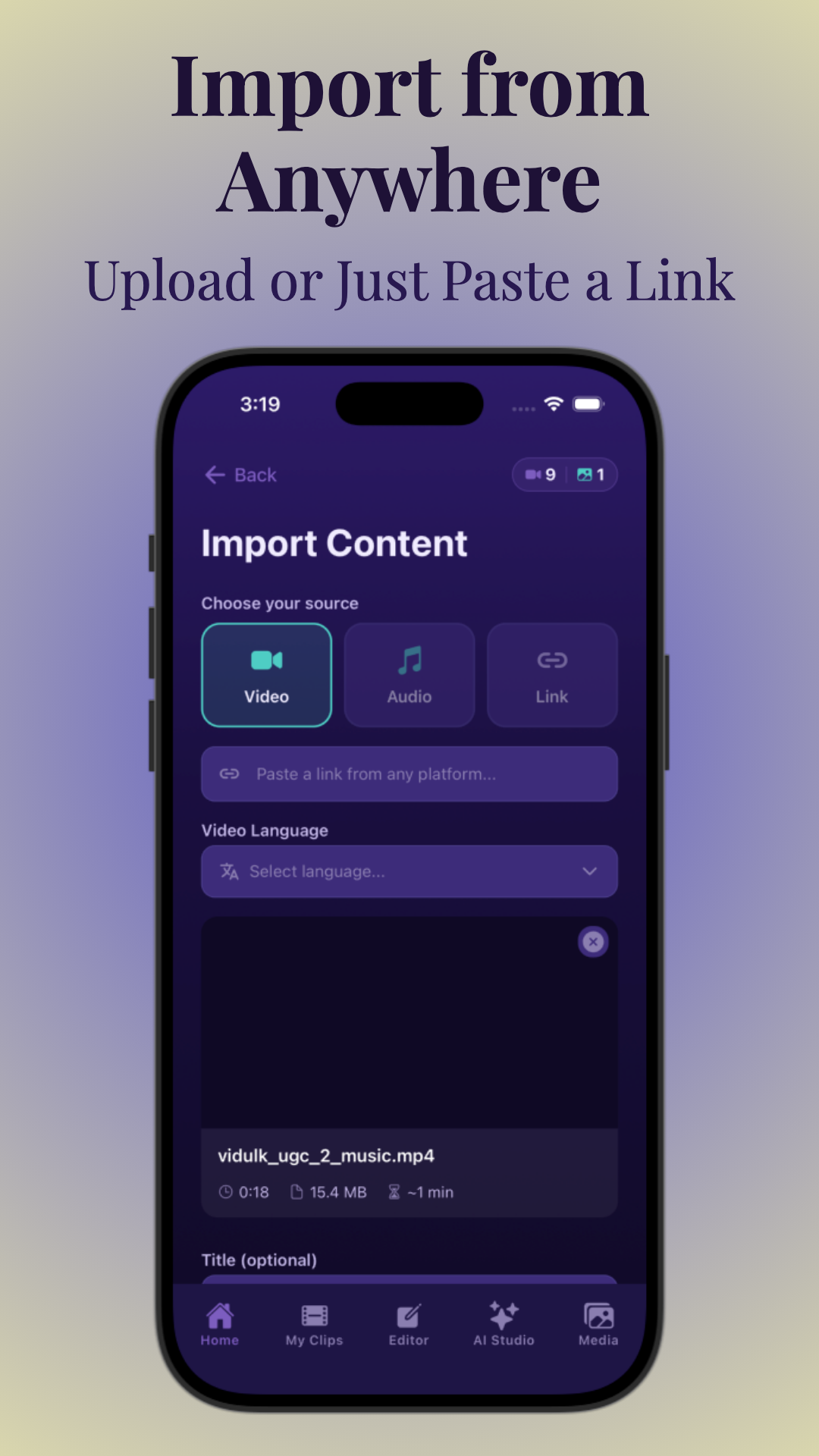
Modern AI subtitle generators recognize that content comes in many forms. Whether you’re working with video, audio, or even links, today’s tools make it easy to get started. For instance, Vidulk allows you to:
- Upload video files (MP4, MOV, AVI, MKV, and more)
- Import audio files (MP3, WAV, AAC, etc.)
- Paste a YouTube, Vimeo, or direct video URL
- Connect to cloud storage accounts (Google Drive, Dropbox)
This flexibility means you can work with any source—be it a recorded podcast, a lecture, or a trending YouTube video.
Vidulk and similar apps also support drag-and-drop upload, so you can quickly add multiple files at once from your desktop. For creators working on mobile, uploading directly from your phone’s gallery or cloud storage is supported, making it seamless to process content on the go. The ability to import content from different sources—local drives, cloud, or direct URLs—eliminates bottlenecks and ensures you can get started regardless of where your files reside.
Batch Processing & Bulk Import
Many creators work at scale. Leading AI video editing tools for creators now support:
- Bulk uploading multiple files for simultaneous processing
- Batch subtitle generation for series or podcast seasons
Such features are invaluable for agencies or creators with high output needs.
Imagine you’ve just recorded a 10-episode season of a podcast, or you’re managing dozens of video testimonials for a client. Instead of uploading and captioning each file individually, you can select all files and let the app process them in parallel. Vidulk, for example, can handle up to 20 videos at once, processing each with its own set of subtitles—saving hours of manual labor. For multi-lingual projects, batch processing can also automate translation for each file, providing instant access to global audiences.
Choosing the Spoken Language
Before transcription begins, select the spoken language in your video. This ensures the highest accuracy for the AI speech-to-text engine. Most tools support dozens of languages, including English, Spanish, French, Hindi, and more.
For content with multiple speakers or mixed languages, some advanced tools allow you to set the primary and secondary languages, or even identify language automatically. This is crucial for international creators or educators. For example, a webinar with both English and Spanish speakers can be transcribed more accurately when both languages are specified. Proper language selection reduces errors and minimizes post-generation editing time.
Section 3: AI Speech-to-Text & Auto Caption Generation
How AI Auto Subtitles Work
When you add subtitles to video automatically, the AI engine analyzes the audio, detects speech, and converts it into text. State-of-the-art models use deep learning to distinguish speakers, recognize accents, and even add punctuation.
- Automatic transcription: Converts speech to text in real time or batch. Some tools even handle heavy background noise or overlapping voices by leveraging advanced filtering algorithms.
- Speaker diarization: Identifies who is speaking (useful for podcasts or interviews). For example, in a podcast with three hosts, the AI can separate the dialogue, labeling them as Speaker 1, Speaker 2, and so on, making editing and review more manageable.
- Auto punctuation: Adds commas, periods, and question marks for readability. Proper punctuation makes subtitles easier to read and improves comprehension.
Recent advances in natural language processing mean that AI can now handle industry-specific jargon, technical terms, and even slang with much greater accuracy. This is invaluable for creators in specialized fields, educators, or anyone producing content with unique vocabulary.
Accuracy: What Can You Expect?
Today’s best AI tools for content creators boast accuracy rates up to 95% for clear, well-recorded speech. However, factors like background noise, multiple speakers, or heavy accents can affect results. Always review and edit for best results.
For optimal results, record in a quiet environment and use a good microphone. While AI has made incredible leaps, even the best systems can misinterpret words if speakers talk over each other or if there’s significant background music. In a typical workflow, the first AI-generated draft will get you most of the way there—often requiring only minor corrections, especially for names or uncommon terms. This is a massive timesaver compared to manual transcription.
Automatic Caption Timing & Placement
AI doesn’t just transcribe—it also syncs the text with the audio, assigning precise in and out times for each subtitle. This makes the captions appear exactly as words are spoken, crucial for a professional look.
- Frame-level accuracy for perfect sync. This ensures that subtitles don’t lag behind or jump ahead, which can be distracting for viewers.
- Flexible options to adjust timing post-generation. You can manually drag subtitles earlier or later if needed, which is especially useful for dramatic pauses or comedic timing.
If you want to dive deeper into AI-powered clipping, check out this guide on using AI to transform long videos into shorts.
For creators working with fast-paced content (such as reaction videos or news), frame-accurate timing ensures your captions match the energy of the piece. Some tools even allow you to set maximum subtitle length (for example, no more than 35 characters per line), preventing overwhelming blocks of text and improving readability on small screens.
Section 4: Editing, Styling, and Customizing Subtitles
Edit Text, Timing, and More
Even the best AI-generated subtitles may need tweaks. Top video editing tools for creators offer robust editors for:
- Text corrections (fixing names, adding missing words, etc.)
- Punctuation and grammar adjustments
- Manually shifting subtitle timing for perfect sync
This ensures your captions are both accurate and easy to read.
Editing interfaces in apps like Vidulk let you click directly on subtitle lines to make instant changes. Keyboard shortcuts can speed up this process—jumping between lines, splitting long captions, or merging short ones. If you’re working with a team, collaborative editing is supported, so multiple people can review and approve subtitles before publishing. This is especially important for branded content or high-stakes releases where accuracy is critical.
Subtitle Styling & Brand Customization
How your subtitles look can affect engagement—especially on social. With Vidulk and similar apps, you can:
- Change font family, size, and color to match your brand
- Add a background box for readability on any footage
- Position captions (top, bottom, custom location)
- Apply animation effects for dynamic subtitles
Some tools even let you save style presets for consistency across clips. For creators wondering how to add captions to reels or shorts with custom branding, this is a game-changer.
For example, a fitness influencer might use bold, high-contrast captions in yellow and black to stand out against gym backgrounds, while a tech reviewer may opt for a sleek white-on-black look. Animated subtitles—such as word-by-word highlighting or pop-in effects—are increasingly popular on TikTok and Instagram, helping to guide viewer attention and reinforce key messages.
Vidulk’s editor also includes tools for line break control (ensuring captions never cover a speaker’s face) and the ability to add emojis or highlight keywords for extra impact. Style guides can be saved as templates, so every video in a series retains a signature look without manual setup each time.
Real-World Example
Below is an example of Vidulk’s editing interface, where you can tweak both the text and the style of your subtitles with a few taps:
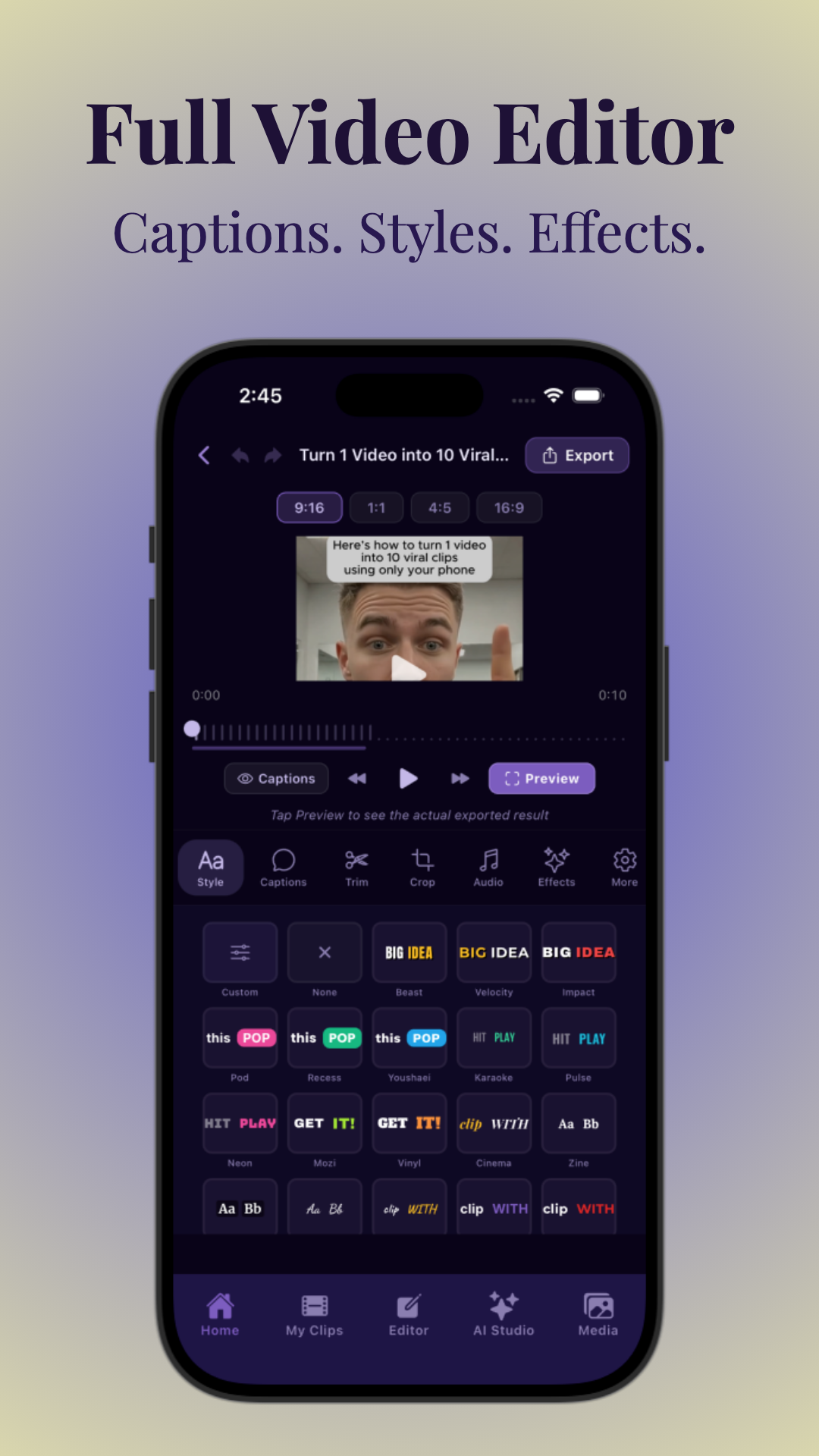
In practice, creators use this interface to quickly scan for spelling errors, adjust line breaks for readability, and apply their brand’s font and color scheme before exporting. For long-form content, features like search-and-replace are invaluable for correcting repeated terms or names throughout an entire transcript in seconds.
Section 5: Exporting Subtitles: Burned-In or Downloadable Files
Burned-In (Hardcoded) vs. Standalone Files
After you add subtitles to video automatically, you have two main export options:
- Burned-in (Hardcoded) Subtitles: Captions are embedded directly into the video pixels. This guarantees everyone sees them, regardless of platform.
- Downloadable Subtitle Files: Export your captions as SRT, VTT, or TXT files. These can be uploaded alongside your video on YouTube, Facebook, or other platforms that support closed captions.
Most AI subtitle tools let you choose the format that best fits your workflow.
Burned-in subtitles are ideal for platforms like Instagram and TikTok, where caption files are not supported and you want to guarantee the viewing experience. On YouTube and Facebook, uploading SRT or VTT files allows viewers to toggle captions on or off, and enables search engines to index your video content for better discoverability.
Export Formats Supported
- SRT (SubRip Subtitle) – ideal for YouTube, Facebook, LinkedIn. Widely supported and easy to edit with any text editor.
- VTT (WebVTT) – for web videos and HTML5 players. Supports styling and position control.
- TXT or CSV – for scripts and transcripts. Useful for repurposing video as blog content or for accessibility documentation.
- Direct video export with burned-in captions.
This flexibility makes it easy to distribute content across multiple channels.
For agencies and content teams, batch export enables the creation of multiple subtitle versions (for example, one with English captions and another with Spanish), as well as the simultaneous export of both burned-in and closed caption files for different platforms. Some tools also offer API integrations, so large-scale publishers can automate the export process directly into their content management systems.
Repurposing for Multiple Platforms
Want to turn a single video into a dozen platform-specific versions? Batch export makes it simple. Use AI video editing tools for creators to generate:
- Square or vertical videos for Instagram Reels and TikTok
- Horizontal versions for YouTube
- Clipped highlights for Twitter or LinkedIn
For more on creating viral clips, see our guide on how to make AI video clips.
Vidulk and similar apps often include aspect ratio presets (1:1, 9:16, 16:9, etc.), so you can quickly adapt your video for each channel. AI-powered cropping ensures the main subject stays centered, even when converting from horizontal to vertical. Subtitle placement and size are automatically adjusted to fit the new dimensions, ensuring your captions remain legible and visually appealing. This means you can turn a single interview into a full suite of content—long-form for YouTube, 60-second square for Facebook, and 15-second vertical for TikTok—all with perfect, platform-optimized subtitles.
If you're looking for ways to maximize your output and grow your audience, consider exploring the ultimate repurposing guide for posting more content to streamline your workflow even further.
Section 6: Subtitles for Social, YouTube & Multilingual Content
Platform-Specific Workflows
Each social platform has its own requirements. Here’s how auto subtitle and AI clip generators streamline publishing:
- YouTube: Upload SRT/VTT files for search-friendly, toggleable captions
- Instagram Reels & TikTok: Burned-in captions ensure everyone sees your text
- Shorts & Stories: Crop and auto-caption vertical clips in a single workflow
Curious about the best app for mobile? See what’s the best clipping app for mobile for an in-depth comparison.
On YouTube, captions improve SEO, helping your videos surface in search results for keywords spoken in the video. For Instagram and TikTok, captions must be burned in—ensuring they appear regardless of device settings. Some tools also optimize subtitle size and position based on platform-specific safe zones, so text never gets cut off by app UI elements (like progress bars or share buttons).
Translating Subtitles: Reach a Global Audience
Leading AI tools for content creators now support instant subtitle translation into 100+ languages. This means you can publish English clips with Spanish, French, or Hindi captions—unlocking entirely new markets.
- Automatic translation of entire subtitle tracks
- Edit translations for cultural accuracy
- Export multilingual videos or captions with a single click
Some workflows even let you download multiple language files for the same video, maximizing reach with minimal effort.
For instance, a business targeting North America and Latin America can use Vidulk to generate both English and Spanish subtitles in one export. Translators or team members can review and fine-tune these translations for regional idioms. Multilingual subtitle files can be uploaded to YouTube, enabling viewers to select their preferred language. This approach is critical for international growth and ensures compliance with accessibility standards in various countries.
AI Clip Generators: The Full Viral Workflow
Apps like Vidulk do more than just subtitle—they use AI to detect the best moments, crop for vertical, and auto caption, all in one. This is why they’re considered the best AI clip generator option for creators aiming to post more in less time. To learn more, visit Vidulk.
AI-powered clip generators can analyze long-form content (like a 2-hour webinar) and automatically extract highlights based on audience engagement, keyword analysis, or speaker changes. Each highlight is captioned, stylized, and formatted for the intended platform—ready to publish instantly. This workflow allows creators to maximize the value of every recording and maintain a constant presence across all social channels without manually editing every clip. The result: increased output, more engagement, and faster channel growth.
For more inspiration on what to create, check out this ultimate guide to short form video content ideas for creators.
Conclusion
In today’s creator economy, the ability to add subtitles to video automatically is a superpower. AI video editing tools like Vidulk empower you to repurpose long-form content into viral, captioned, platform-ready clips in minutes—not hours.
From flexible upload options and accurate auto captioning to deep customization and multi-platform export, the right AI tools for content creators can transform your workflow. Whether you’re making Reels, YouTube Shorts, or multi-language social assets, automated subtitles and AI-powered video clipping are the key to posting more—and growing faster.
Ready to experience the future of video editing? Try Vidulk and see how easy it is to turn your long videos into shareable, captioned clips.
FAQ
Q: How do I add subtitles to a video automatically?
A: Use an AI subtitle generator app like Vidulk. Upload your video or paste a link, select the spoken language, and the tool will transcribe and sync captions to your video in minutes. You can then edit, style, and export subtitles as needed.
Q: What is the best free auto subtitle generator?
A: Many apps offer free trials or basic plans. Vidulk provides accurate AI-powered auto captioning with editing and export options. Alternatives include Kapwing, VEED, and YouTube’s built-in transcription, but features and quality vary.
Q: Can I add subtitles to a YouTube video automatically?
A: Yes. YouTube has built-in auto-captioning, or you can use tools like Vidulk to generate, edit, and export SRT or VTT files, then upload them to your YouTube video for improved accuracy and styling.
Q: How accurate are automatic subtitles for videos?
A: AI-generated subtitles can be up to 95% accurate for clear speech, but factors like background noise or accents may reduce accuracy. Always review and edit your captions for best results.
Q: Can I edit auto-generated subtitles after they are created?
A: Absolutely. Modern AI tools let you correct text, adjust timing, and customize styling before exporting your video or subtitle files.
Q: What file formats can I export subtitles in, like SRT or VTT?
A: Most AI subtitle generators support SRT, VTT, and TXT formats. Some also offer burned-in (hardcoded) subtitles for direct video export.