imessage video generator: Turn Videos Into Viral iMessage Clips
Discover the best imessage video generator tools. Learn how to quickly create viral short clips from long videos and share them directly via iMessage.

Estimated reading time: 15 min
Key Takeaways
- imessage video generator tools turn long videos into short, shareable iMessage clips.
- AI-powered solutions like Vidulk automate the clipping, captioning, and formatting process.
- Customizing clips for iMessage increases engagement and shareability.
- Understanding best practices streamlines your workflow and maximizes reach.
Table of Contents
- Section 1: What is an imessage video generator?
- Section 2: Why Make iMessage Video Clips?
- Section 3: How AI-Powered Video Generators Work
- Section 4: Creating Viral Clips with Vidulk
- Section 5: Optimizing Videos for iMessage Sharing
- Section 6: Best Practices and Pro Tips
- Conclusion
- FAQ
Section 1: What is an imessage video generator?
Defining the Tool
An imessage video generator is a specialized tool—often powered by artificial intelligence and advanced machine learning algorithms—that enables users to convert lengthy video or audio content into short, impactful clips designed specifically for sharing via iMessage. These tools are engineered to analyze long-form content, extract the most engaging or meaningful moments, and output them in a format optimized for mobile messaging, ensuring the best possible experience for viewers on small screens.
Key Features
- Automatic Clipping: AI detects highlights, jokes, or key statements by evaluating speech patterns, emotional cues, and even video analytics such as sudden changes in tone or volume.
- Vertical Formatting: Outputs clips in vertical (9:16) aspect ratio, ideal for smartphones, so that content fits perfectly within the iMessage interface without the need for manual cropping or adjustment.
- Caption Generation: Adds readable, dynamic captions to boost engagement and accessibility, automatically syncing the text with the speaker for clarity, and allowing for stylistic customization to match your brand or personal style.
- Direct Export: Prepares files ready for instant upload to iMessage or other messaging apps, ensuring the correct video codec, bitrate, and thumbnail preview for seamless sharing and playback.
Why Traditional Editing Falls Short
Manually editing long podcasts or interviews into short clips for iMessage is time-consuming and often inefficient. Traditional video editors require technical skills, an intuitive sense for storytelling, and a keen eye for moments that will resonate in a messaging context. For example, editing a 90-minute interview into five 20-second highlights can take hours, involving timeline scrubbing, manual captioning, and repeated format conversions. An imessage video generator streamlines this process, letting content creators and social media managers focus on storytelling and distribution instead of tedious editing. By automating repetitive tasks, these tools reduce both the learning curve and the time investment, making professional-quality video sharing accessible to everyone.
Examples of Use Cases
- Sharing a funny interview snippet with friends, such as a comedian’s best punchline from a podcast.
- Promoting new podcast episodes through viral iMessage previews, allowing hosts to tease key moments and drive listeners to the full show.
- Sending educational highlights from lectures to study groups, distilling complex topics into concise, memorable explanations for exam review.
- Distributing newsworthy video moments in private chats, such as a politician’s viral statement or a sports commentator’s reaction to a game-changing play.
Market Demand
With the rise of video messaging and short-form content, the need for easy-to-use, AI-driven video clipping tools tailored for messaging platforms is rapidly increasing. The popularity of TikTok, Instagram Reels, and YouTube Shorts has created a culture where bite-sized, easily shareable content dominates. Content creators, marketers, educators, and everyday users are seeking ways to transform long videos into viral shorts that can be shared instantly in conversations. The trend is not only about speed but also about relevance—ensuring the right message reaches the right audience, at the right moment, in the most accessible format.
Section 2: Why Make iMessage Video Clips?
Engagement Through Personalization
iMessage remains one of the most popular messaging platforms, especially among iPhone users. Short, punchy video clips have become a preferred format for personal communication, marketing, and community engagement. Sharing a video via iMessage feels more intimate and direct than posting on public social media feeds. When you send a clip directly to a friend or group, it often receives immediate attention and sparks genuine conversations.
Personalized video messages can foster stronger bonds, whether you’re sending a birthday greeting, a quick product demo, or a behind-the-scenes moment from a live event. The private, conversational nature of iMessage minimizes distractions and competition for attention, increasing the likelihood that your content will be viewed and discussed.
Viral Potential
- Frictionless Sharing: Users can quickly forward clips to multiple contacts or group chats with just a tap, making it easy for content to spread organically across personal networks.
- High Open Rates: Video content in private messages is more likely to be viewed than in crowded social media feeds, where algorithms and competing posts can bury your message.
- Community Building: Clips spark conversations, reactions, and further shares within closed networks, creating micro-communities around shared interests or viral moments.
For example, a creative promotional clip for a new album can make its way through dozens of friend groups in a single afternoon, generating buzz before it even hits public platforms.
Use Cases for Content Creators & Brands
For content creators, musicians, educators, and brands, iMessage video clips offer a powerful way to:
- Tease new content and drive listeners to full episodes or products, such as dropping a 15-second podcast highlight to build anticipation for an upcoming release.
- Announce promotions or share exclusive sneak peeks only with VIP customers or superfans—building loyalty and a sense of exclusivity.
- Engage superfans with personalized messages, such as a thank-you video from a creator or a shoutout to a top supporter.
Brands can use these techniques for flash sales, limited-time offers, or to create interactive campaigns where users respond with their own video reactions.
Statistics & Trends
While specific data on iMessage video shares is private, studies show short-form video generates significantly higher engagement and recall compared to text or static images. In a world where attention spans are shrinking, delivering value in 10-30 second clips is essential. Industry data suggests that short-form videos are shared at a rate up to 12 times greater than text and image posts on major platforms, and clips under 20 seconds see the highest completion rates among mobile viewers.
As more people consume content on mobile devices, the demand for quick, digestible, and shareable formats continues to grow. Messaging apps have become not just a means of communication, but a powerful medium for content discovery and distribution.
Emotional Impact
Video clips carry tone, context, and personality in a way text simply can’t. Whether it’s a heartfelt moment or a viral meme, these clips strengthen relationships and increase the likelihood of your message being seen and remembered. For example, a creator sharing a personal story or a teacher sending a motivational message can inspire action and build loyalty far more effectively than a written post. The combination of facial expressions, voice inflection, and visual cues creates a richer, more memorable experience for recipients.
Section 3: How AI-Powered Video Generators Work
AI Algorithms for Content Detection
The heart of an imessage video generator is its AI engine. Here’s how modern platforms, such as Vidulk, automate the video clipping process:
- Speech Recognition: Transcribes audio to identify major topics, speaker changes, and key quotable moments. For example, if a guest on a podcast delivers a memorable quote or joke, the AI can flag that section for clipping.
- Highlight Detection: Uses natural language processing to score statements for emotional intensity, humor, or newsworthiness. The AI evaluates sentiment, detects laughter or applause, and recognizes phrases likely to elicit a reaction.
- Scene Segmentation: Detects visual changes or cues that signal a transition or a new topic. This might include recognizing when a new guest appears on screen or when a visual aid is introduced.
The combination of these technologies enables the generator to select moments with the highest potential for engagement, ensuring that each clip resonates with viewers.
Automated Formatting
After identifying the best moments, the AI automatically crops and resizes the video to a vertical format, adds dynamic captions, and applies branding elements if desired. This ensures every clip is ready for seamless sharing via iMessage. The formatting process includes adjusting color profiles for optimal viewing on iOS devices, compressing files for rapid transfer, and generating preview thumbnails that entice recipients to watch.
For instance, the AI might detect that a speaker’s face is off-center and adjust the framing, or choose bold, legible caption fonts that remain readable against any background. This level of intelligent automation eliminates common mistakes—like awkward crops or mismatched aspect ratios—that can undermine the professionalism of your clips.
Speed & Scalability
- Fast Processing: AI can process hours of content in minutes, outputting multiple clips at once. For example, a 2-hour webinar can be turned into a dozen ready-to-share highlights in under 10 minutes.
- Consistent Quality: Removes human error and keeps your content on-brand, every time. The AI applies uniform styles and settings, ensuring that all clips in a campaign have a cohesive look and feel.
- Customizable Settings: Some tools allow users to fine-tune criteria for clip length, caption style, and more. You can set rules for minimum and maximum duration, preferred topics, or even exclude certain segments from analysis.
For teams managing large content libraries, this scalability is invaluable, enabling rapid response to trending topics or breaking news. A single editor can produce dozens of clips in the time it would traditionally take to edit just one.
Comparison with Manual Editing
Traditional editing can take up to 10x longer than automated solutions and often requires knowledge of complex software. In contrast, AI-powered generators democratize video creation, allowing anyone to generate professional-looking clips with minimal effort. Instead of hiring a video editor or learning advanced tools, users can simply upload content and let the AI handle the heavy lifting.
For example, editing a 60-minute Zoom recording manually might take up to 4 hours, including reviewing footage, clipping, captioning, and exporting. With an AI generator, the same task could be completed in under 20 minutes, including customization and review.
Integration with Other Tools
Advanced platforms may integrate with content calendars, social media schedulers, or even video chat APIs to streamline distribution across multiple channels. Some solutions offer direct posting to platforms like Instagram, WhatsApp, or Slack, and even API access for custom workflows. This allows creators to plan, produce, and distribute content at scale, from a single dashboard.
Additionally, integrations with analytics tools help measure the performance of each clip—tracking open rates, shares, and watch time to guide future content strategy.
Section 4: Creating Viral Clips with Vidulk
Vidulk’s AI Studio: Turning Long Videos into iMessage Clips
Vidulk is a leading AI-powered video clipping app designed to turn podcasts, interviews, and long-form content into viral, shareable clips—perfect for iMessage. The app stands out due to its mobile-first workflow, user-friendly design, and robust automation features. Unlike desktop-centric editors, Vidulk is optimized for quick, on-the-go usage, enabling creators to generate and share clips directly from their smartphones or tablets.
Vidulk’s AI Studio leverages the latest advancements in speech-to-text, sentiment analysis, and visual recognition to ensure only the most compelling moments are selected. Users benefit from an intuitive interface that walks them through each step, from upload to export, with minimal friction.
Step-by-Step Workflow
- Upload or Paste a Link: Easily import video or audio from your device or via a URL. Vidulk supports most common file types and major platforms, including YouTube, Vimeo, and Dropbox.
- AI Analyzes Content: Vidulk’s algorithms detect the best moments automatically, scanning for keywords, changes in speaker energy, and visual highlights such as gestures or audience reaction.
- Clip Generation: The app generates multiple short clips, each optimized for vertical viewing. Users can preview, reorder, or discard suggested clips based on relevance or impact.
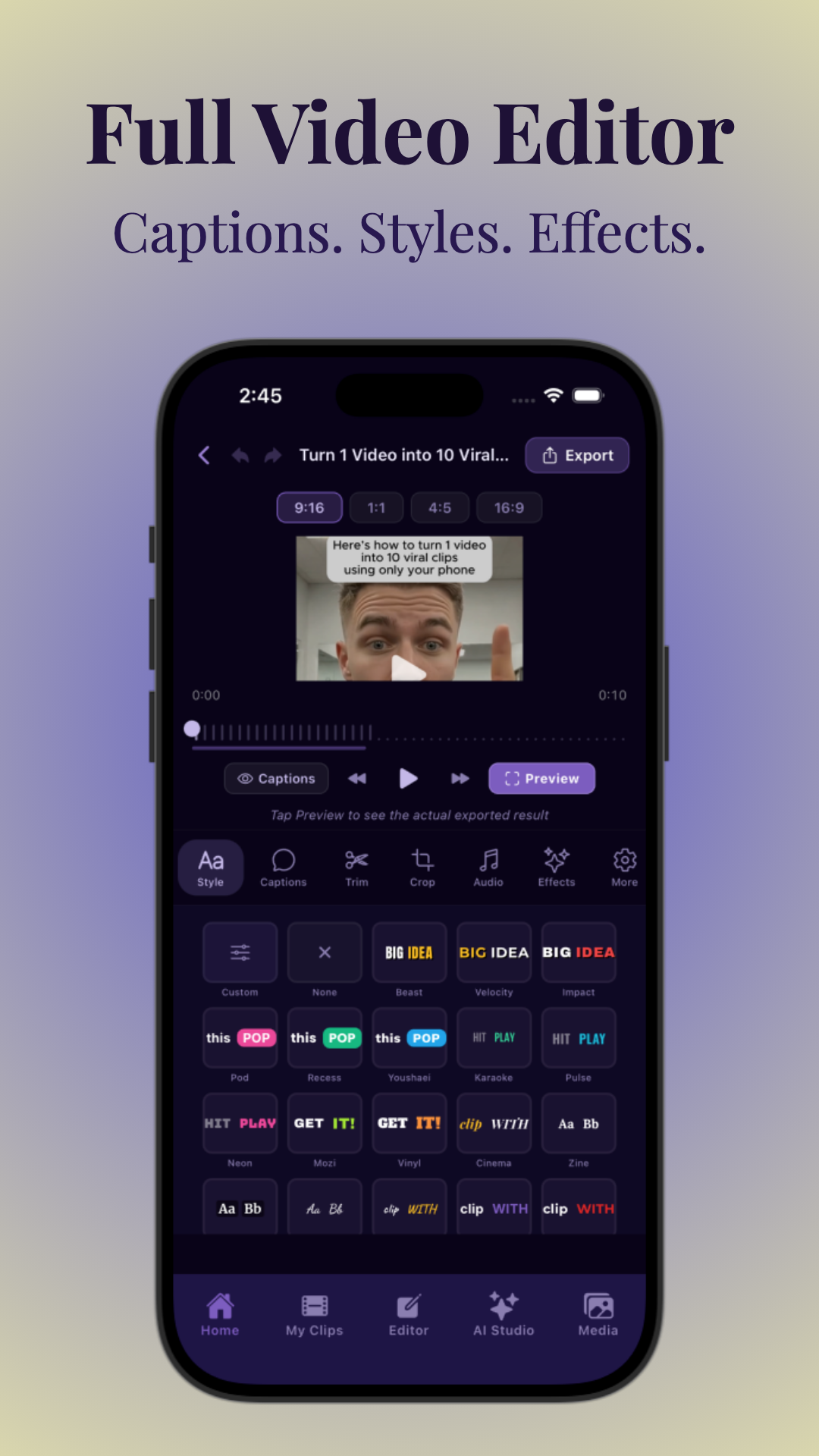
- Caption Customization: Edit, style, and position captions for maximum impact. Choose from a variety of fonts, color schemes, and animation effects. Fine-tune transcription, add emojis, or translate captions for multilingual audiences.
- One-Tap Export: Save clips directly to your camera roll, ready for instant iMessage sharing. Vidulk also generates a preview GIF for easy sharing in group chats or on social media.
AI Image Generation & Enhancement
Beyond video, Vidulk’s AI Studio includes tools to generate and enhance images for use as video thumbnails or backgrounds. This helps your clips stand out visually in crowded iMessage threads. For example, you can create a branded thumbnail with your logo, episode title, and vibrant colors that catch the recipient’s eye as soon as the message arrives.
AI-powered image enhancement can also improve clarity, adjust lighting, or remove unwanted distractions from the background, ensuring your clips maintain a polished and professional appearance no matter the original source quality.
Real-World Example
Suppose you have a 60-minute podcast episode. Upload it to Vidulk. Within minutes, the app outputs 5-10 short, captioned clips featuring the funniest story, the most insightful tip, and the catchiest soundbite—all formatted for iMessage. You tweak the captions, maybe use AI to create a custom thumbnail, and share them directly with your audience or friends.
Another example: a teacher records a 45-minute virtual lecture. Using Vidulk, they extract and share three 20-second highlights explaining key concepts for a test. Students receive the clips via iMessage, review them on the go, and engage with the material more effectively than if they had to rewatch the entire lecture.
Why Choose Vidulk?
- Mobile-first, so you can create and share on the go. No need for heavy software or desktop access—perfect for creators, marketers, and educators in fast-paced environments.
- More accurate highlight detection compared to most generic video editors, due to specialized algorithms trained on conversational and educational content.
- Makes it easy to go from raw footage to viral iMessage moments in minutes, empowering creators to capitalize on trending topics and timely opportunities without delay.
To learn more about automating clip creation, see Automatic Short Video Creation for Reels: The 2024 AI Guide.
For a comprehensive review of Vidulk’s capabilities as an AI video clipping app for podcasts, interviews, and social media, check out our AI Video Tools for Creators: The Ultimate Guide to Clipping, Captions & More.
For creators looking for a complete workflow, our How to Turn Long Videos Into Short Clips: The Complete AI Workflow covers AI tools, features, and step-by-step processes for turning long videos into short, shareable clips.
Section 5: Optimizing Videos for iMessage Sharing
Technical Considerations
iMessage has specific video requirements and best practices for optimal playback:
- Format: MP4 (H.264) is preferred for compatibility. This format ensures smooth playback across all iOS devices and minimizes the risk of playback errors or corrupted files.
- Resolution: 720x1280 or 1080x1920 (vertical) ensures best appearance on mobile screens. Lower resolutions may appear pixelated, while higher resolutions can result in unnecessarily large files.
- File Size: Keep clips under 100 MB for fast sending and minimal compression artifacts. Large files may be automatically compressed by iMessage, reducing video quality and increasing upload times.
- Duration: 10–30 seconds is the sweet spot for engagement and ease of sharing. Clips longer than 30 seconds are less likely to be watched in full or forwarded to others.
If you’re editing your own videos, aim for a video bitrate between 2,000 and 5,000 kbps for optimal balance between quality and size. Avoid unnecessary transitions or overlays that can increase processing time or file size.
Captioning for Accessibility & Engagement
Most users watch videos on mute, especially in messaging apps. Dynamic, readable captions are crucial. Vidulk’s caption tools let you:
- Customize font, color, and placement for brand consistency, ensuring captions remain legible regardless of background imagery.
- Edit or auto-correct transcriptions for flawless accuracy, catching any misheard words or speaker names before sharing.
- Add emojis or effects to boost emotional impact, such as animated reactions or custom hashtag overlays to tie your clips into broader campaigns.
Proper captioning not only makes your videos more accessible to viewers with hearing impairments but also increases engagement across the board. Well-designed captions can double the completion rate of video clips in messaging apps.
Branding and Personalization
Consider adding subtle watermarks or logos for brand awareness, but avoid cluttering the video. Personalized intros (using Vidulk’s AI image studio) can increase relatability and recall. For example, a 2-second branded intro slide with your podcast logo and episode title can prepare viewers for what they’re about to see without detracting from the main content.
If you’re targeting specific groups, personalize your message by referencing the recipient’s name or context—such as "Hey, study group! Here’s the answer to last week’s quiz question." This extra touch can turn a standard clip into a memorable, share-worthy highlight.
Testing Before Sending
- Preview the clip in your own iMessage thread before mass sharing to catch any playback or formatting issues.
- Check for cropping issues, caption legibility, and audio clarity, especially if your audience uses both light and dark mode on their devices.
- Ensure sound and visuals work well on both light and dark iOS themes. Test with different device models, such as iPhone SE and iPhone 14 Pro, to spot any inconsistencies.
For more detailed steps on clip workflow, see How to Create Podcast Clips for TikTok: Step-by-Step Guide.
Section 6: Best Practices and Pro Tips
Maximize Shareability
- Hook Early: Start the clip with your strongest or most intriguing line. For example, open with a quote that leaves viewers wanting more or teases a punchline.
- Keep It Brief: Shorter clips get watched and forwarded more frequently. Aim for 10–20 seconds when possible, focusing on a single idea or moment.
- Clear Visuals: Crop faces and key action to the center of the frame for mobile viewing. Avoid wide shots or cluttered backgrounds that can distract from the message.
To further increase shareability, use bold colors, animated effects, or call-to-action overlays like "Reply with your thoughts!" or "Share this tip with your team." These prompts encourage recipients to engage and pass the content along.
Storytelling in Short Clips
Even in 15 seconds, a good clip should have a clear setup and payoff. Use AI to identify moments with emotional or narrative impact, but don’t be afraid to trim further for punchiness. Some creators use a quick title frame or visual cue to provide context before the main action. For instance, a 2-second intro—"How I Landed My Dream Job"—followed by a concise, energetic story increases retention and encourages viewers to watch to the end.
Consider using music, reaction shots, or on-screen gestures to add energy and connect emotionally. If your clip contains a joke, ensure the punchline lands within the first 8 seconds to maximize laughs and shares.
Batch Processing for Content Pipelines
For high-volume creators, batch upload podcasts or interviews to Vidulk, generate multiple clips at once, and schedule them for release over time. This builds anticipation and keeps your iMessage conversations fresh with new content. For example, a podcaster can create a week’s worth of daily highlights in a single editing session, then distribute them each morning to their following.
Batch processing also enables A/B testing of different formats, styles, or hooks to determine what resonates best with your audience. Track which clips get the most replies, shares, or positive feedback, and use those insights to refine your future content strategy. For more inspiration on identifying the best moments to clip, check out our guide on Best Moments to Clip: How to Turn Long Videos Into Viral Shorts.
Leverage Internal Collaboration
- Share rough cuts with team members via iMessage or shared albums for feedback before finalizing. This peer review process can catch issues you may miss and generate fresh ideas for edits or captions.
- Use group chats to test which versions get the best reactions before broader distribution. For example, send two alternate clips to a small group and ask which one makes a bigger impact.
Internal collaboration streamlines content approval, accelerates turnaround times, and ensures that your messaging is aligned with your team’s goals and branding.
Legal and Ethical Considerations
- Ensure you have rights to all video and audio content you clip and share, especially if using copyrighted material from interviews, music, or third-party sources.
- Credit creators when distributing clips from collaborative projects. A simple "Clip by @username" overlay can prevent misunderstandings and foster goodwill.
- Avoid misleading edits that could take quotes or moments out of context. Always strive for accuracy and fairness, especially if sharing sensitive or newsworthy content.
Familiarize yourself with platform guidelines and copyright laws to avoid takedowns or legal issues. When in doubt, seek permission or use licensed content for your clips.
Advanced AI Studio Features
Beyond basic clipping, experiment with Vidulk’s AI image generation to create branded hooks or custom scene transitions. For example, generate animated graphics that introduce each clip or use AI to automatically insert your logo in the lower third. For more on crafting compelling intros and hooks, try the Free Hook Generator to brainstorm attention-grabbing starts for your iMessage clips.
If you’re looking to stand out, leverage AI-generated motion graphics or dynamic overlays that highlight key phrases as they’re spoken, making your clips more engaging and professional than standard text captions alone.
For creators seeking a complete workflow to turn long videos into short clips, see our guide on how to turn long videos into short clips using AI.
Conclusion
The imessage video generator represents a leap forward for content creators, marketers, and anyone looking to elevate their messaging game. With AI tools like Vidulk, you can effortlessly transform long-form content into viral, bite-sized clips tailored for iMessage sharing. This not only amplifies your reach but also enhances engagement and builds deeper community connections through private, impactful conversations. As messaging apps continue to shape how we communicate, mastering the art of video clipping and sharing is essential for standing out and making your message memorable.
Whether you’re a solo creator, a marketing team, or just someone who loves sharing great moments with friends, adopting AI-powered video clipping tools will save you time, boost your influence, and ensure your messages always make an impact. The ability to quickly generate, personalize, and distribute high-quality clips is no longer a luxury—it’s a necessity in today’s fast-moving digital landscape.
FAQ
Q: What is an imessage video generator?
A:
An imessage video generator is a tool that automatically converts long videos into short, vertical clips optimized for sharing in iMessage, often adding captions and formatting for mobile viewing.
Q: How do I create viral iMessage video clips from podcasts or interviews?
A:
Use an AI-powered app like Vidulk to upload your long-form content. The AI detects key moments, generates short clips, adds captions, and exports them in a format ready for iMessage.
Q: What are the best settings for iMessage video sharing?
A:
Keep clips under 30 seconds, use MP4 format, vertical 9:16 aspect ratio (720x1280 or 1080x1920), and add dynamic captions for accessibility.
Q: Can I customize captions and branding before sharing clips?
A:
Yes, apps like Vidulk allow full control over caption style, font, placement, and branding elements so your clips look unique and professional.
Q: Is it legal to share clipped videos via iMessage?
A:
As long as you own the rights to the source material or have permission, it is legal. Always credit others and avoid misleading edits.
Una comparación ordenada puede empezar por el corte, la transpiración del tejido y las instrucciones de cuidado. Dentro de esa comparación, camiseta del FC Barcelona online mantiene la consulta centrada en la prenda indicada por el propio enlace. Revisar estos puntos reduce confusiones entre preferencias de uso, comodidad y cuidado de la prenda.