How to Use a LinkedIn Live Clip Generator to Supercharge Your LinkedIn Marketing
Learn how a LinkedIn Live clip generator turns long-form streams into high-engagement clips, boosting your LinkedIn marketing effectiveness.

Estimated reading time: 8 minutes
Key Takeaways
- Save time: Automate clip extraction from hours of LinkedIn Live to bite-sized videos.
- Boost engagement: Short, captioned highlights drive up to 50% more watch time.
- Extend reach: Repurpose clips across LinkedIn, YouTube Shorts, and Instagram Reels.
- Streamline workflow: From recording to posting in minutes, no video editor needed.
- Improve ROI: Turn one live event into multiple touchpoints for sustained visibility.
Table of Contents
- Introduction to the LinkedIn Live Clip Generator
- Understanding LinkedIn Live and the Clip Generator Role
- What Is a LinkedIn Live Clip Generator?
- Benefits of Using a Clip Generator
- Step-by-Step Guide to Generating Clips
- Best Practices for Optimal Results
- Case Studies & Examples
- Conclusion & Call-to-Action
Introduction to the LinkedIn Live Clip Generator
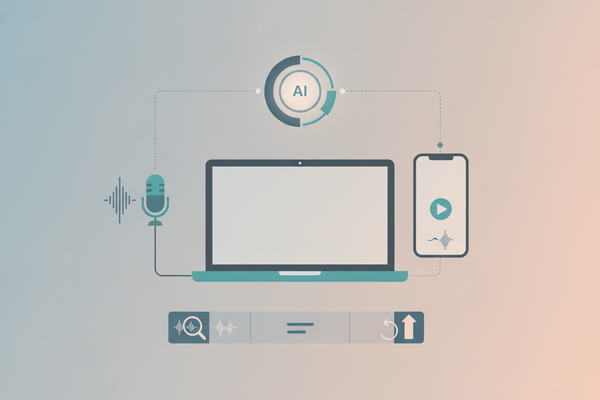
Editing hours of LinkedIn Live recordings can drain resources. An AI-powered clip generator automatically extracts the most valuable moments, formats them for LinkedIn, and helps you maintain a consistent posting schedule. In this guide, you’ll learn:
- How the clip generator works
- Why repurposing live content drives higher views
- A detailed walkthrough from upload to publish
For more AI-powered clipping solutions, check out our guides on AI Live Stream Clip Maker and AI Webinar Clip Generator.
Understanding LinkedIn Live and the Clip Generator Role
LinkedIn Live requires third-party encoders like Socialive or Restream to broadcast. Those tools handle delivery and recording while LinkedIn hosts the stream. Live videos on LinkedIn earn up to 24× more comments than standard posts and offer 7% higher engagement versus pre-recorded clips.
A clip generator:
- Scans recordings for key insights and reactions
- Automatically creates multiple short clips
- Enables posting as updates, stories, or ads to extend reach
What Is a LinkedIn Live Clip Generator?
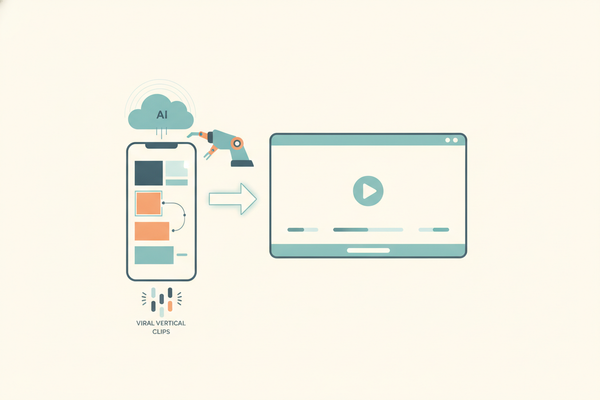
An AI-driven tool analyzes your recordings—sessions, webinars, or podcasts—to detect high-impact moments and trim them into 15–60-second clips with captions and branding. If you're interested in transforming long-form audio content, you might also explore our AI Podcast Clip Generator: Transform Long-Form Audio into Viral Clips solution.
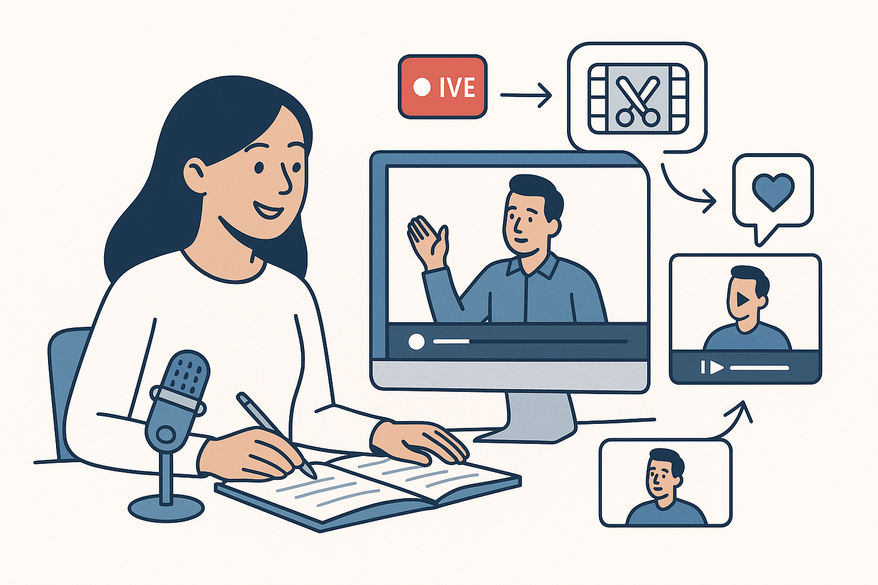
- Upload a LinkedIn Live recording via link or file.
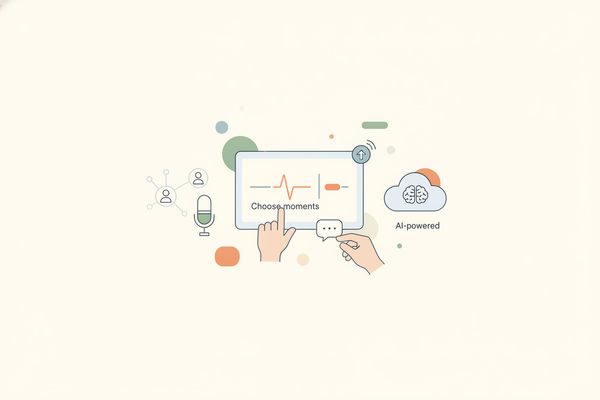
- AI identifies “worthy moments” and assigns a virality score.
- Customize layouts, B-roll, speaker highlights, and your logo.
- Export ready-to-post clips directly to LinkedIn or download for other platforms.

Key features include:
- AI Virality Prediction – Ranks clips by engagement potential
- Active Speaker Detection – Highlights key speakers automatically
- Auto-Captions & Subtitles – Boosts accessibility
- Direct LinkedIn Export – One-click posting
Benefits of Using a Clip Generator
Integrating a LinkedIn Live clip generator into your marketing delivers:
Content Repurposing
- Transform one session into multiple snackable videos
- Schedule clips over weeks to reinforce messages
Engagement Boost
- Short, captioned clips increase watch time by up to 50%
- Viewers engage without sitting through hour-long streams
Improved Discoverability
- Optimized formats align with LinkedIn’s algorithm
- Cross-post to YouTube Shorts, X, or Instagram Reels
Time & Cost Savings
- Save 5–10 hours of manual editing per session
- Eliminate reliance on external video editors
Step-by-Step Guide to Generating Clips
Follow these steps to turn your live sessions into high-impact videos:
Step 1 – Capture Your Session
- Use Restream Studio or Socialive as your encoder
- Select “record only” for test runs
Step 2 – Upload Your Recording
- Import via device, YouTube link, or LinkedIn event
Step 3 – Generate Clips
- Trigger AI auto-trim and review clips ranked by virality
Step 4 – Edit & Customize
- Add captions, logos, and B-roll
- Use AI prompts to craft engaging titles and descriptions
Step 5 – Export & Publish
- Download or post directly with optimal dimensions
Technical Tips
- Ensure browser-based UI compatibility on Mac and PC
- Test with sessions over 5 minutes to unlock LinkedIn’s “Generate Clips”
Best Practices for Optimal Results
Crafting Titles & Descriptions
- Incorporate “LinkedIn Live clip generator” naturally in your copy
- Leverage AI to produce concise, value-packed messaging
Content Strategy Integration
- Schedule clips weekly for consistency
- Repurpose within LinkedIn Articles or newsletters
- For more inspiration, see our Ultimate Guide to Short Form Video Content Ideas for Creators.
Dos & Don’ts
- Do add captions and branding
- Don’t over-edit; keep the live feel
- Do prioritize high-virality clips
- Don’t post untrimmed long videos directly
Case Studies & Examples
Restream Case Study: A 60-minute webinar auto-trimmed into 10 highlights led to a 40% increase in views within a month.
OpusClip Example: A 30-minute demo became 8 clips with virality scores over 75%, doubling comments and shares.
Flowjin Success Story: A 10-minute expert interview yielded 10 captioned clips, enabling weekly posts without extra editing.
Conclusion & Call-to-Action
A LinkedIn Live clip generator amplifies your ROI by converting long-form streams into multiple, high-engagement assets. Tools like Vidulk can detect and extract top moments from your live streams in minutes, saving hours of editing. Learn more at Vidulk - AI Video Clipping App.
Ready to boost your LinkedIn marketing? Upload your next session to Restream or OpusClip and watch your presence soar with minimal effort and maximum impact. If you're interested in turning long videos into short clips for other platforms, explore our complete AI workflow for transforming long videos into short clips.
FAQ
Q1: Does LinkedIn offer a native clip generator?
A1: Yes—sessions over 5 minutes get a “Generate Clips” button in LinkedIn Events; clips are editable before download.
Q2: What software do I need for LinkedIn Live?
A2: You need third-party encoders like Restream or Socialive, since LinkedIn only hosts the player.
Q3: How accurate is the AI in selecting clip moments?
A3: AI reliably detects speaker changes and hook moments; virality scores help you refine selections.
Q4: Can I use it for non-live videos?
A4: Absolutely—upload prerecorded webinars, podcasts, or interviews for LinkedIn-optimized clips. If you want to create short videos from long content for platforms like Instagram or YouTube, check out our guide on using an AI Reel Clip Generator.