Vidulk Google Drive Integration: Streamline Your Video Workflow
Discover how Vidulk Google Drive integration optimizes video workflows by centralizing storage, enhancing collaboration, and automating tasks with AI highlights.

Estimated reading time: 8 minutes
Key Takeaways
- Cloud-first storage: Vidulk’s Google Drive integration offloads large video files to the cloud.
- Seamless collaboration: Real-time editing, version history, and AI tools keep teams aligned.
- Multi-cloud flexibility: Combine Google Drive, Dropbox, and other services for a resilient workflow.
- Automation: Auto-export clips based on status changes or AI-generated highlights.
- Redundancy and security: Dual backups and permission controls protect your video assets.
Table of Contents
- Understanding Vidulk Google Drive Integration
- Exporting Vidulk Clips to Dropbox
- Saving AI Clips to Cloud Storage
- Integrating Multiple Cloud Storage Services
- Best Practices and Tips
- Conclusion
1. Understanding Vidulk Google Drive Integration
What Is Vidulk Google Drive Integration?
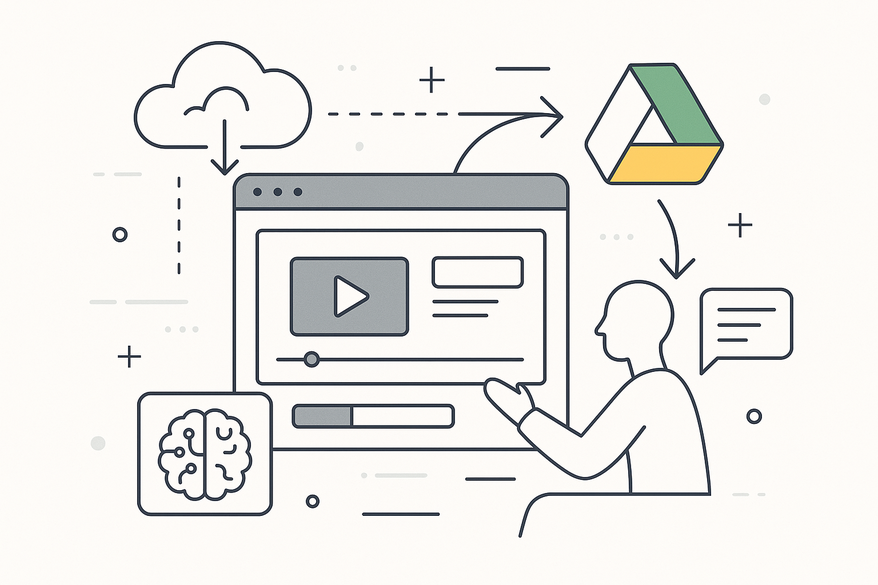
Vidulk Google Drive integration connects your Vidulk workspace directly to your Google Drive account, allowing you to import, edit, and save video files without manual downloads. It turns Drive into your primary storage layer for all Vidulk assets.
Why it’s essential:
- Video files are large—offload to cloud to free local space
- Syncs with teams using Google Workspace for seamless collaboration
- Provides redundancy, version history, and global access

How to Connect Vidulk to Google Drive
- Open Vidulk and navigate to Settings → Integrations → Google Drive.
- Click “Connect,” then sign in via Google’s OAuth screen.
- Grant Vidulk “view, create, edit, delete” permissions.
- (Optional) Restrict integration to a specific folder or shared drive by supplying its folder ID.
- Confirm and save the integration token.
Key Benefits
- Ease of access: Browse Drive folders inside Vidulk without switching apps.
- Automation: Auto-export final clips to designated Drive folders on status change.
- Backup & redundancy: Use Drive’s version history to protect against data loss.
For more details on how Vidulk manages your clip workflow under the hood, see how Vidulk manages your clip workflow under the hood.
2. Exporting Vidulk Clips to Dropbox
How to Export Vidulk Clips to Dropbox
Many creative teams pair Dropbox with Drive. Clients sometimes prefer Dropbox for asset sharing; agencies use it for file requests and external reviews, and it serves as a secondary backup.
Step-by-Step Setup
- In Vidulk, go to Settings → Integrations → Dropbox.
- Click “Connect with Dropbox,” then log in.
- Grant Vidulk file-access permissions.
- Select or create a default export folder (e.g.,
/Apps/Vidulk/ProjectX). - Configure export settings: format, resolution, bitrate, naming convention (
{project}_{date}). - Choose export trigger: manual or automatic on status change (e.g., when clips are “Approved”).
- Test export: verify the correct folder, file name, and format in Dropbox.
Dropbox vs. Google Drive for Video Storage
- Ecosystem: Drive is built into Google Workspace; Dropbox integrates with a broad toolset.
- Collaboration: Drive offers in-browser comments and AI summaries; Dropbox provides file requests and Smart Sync.
- AI features: Google’s Gemini handles video summarization; Dropbox suggests smart sync based on usage.
- Versioning: Both offer history logs; Drive ties into Workspace audit trails.
3. Saving AI Clips to Cloud Storage
What Are AI Clips?
AI clips are video snippets auto-generated by Vidulk’s AI to highlight key moments, assemble highlight reels, or apply scripted templates. They accelerate content creation by extracting the most relevant segments. For a comprehensive overview of how AI tools can enhance your workflow, check out our ultimate guide to AI video tools for creators.
Cloud Storage Options
- Google Drive: Save AI clips to
/AI-Clips/Highlightsand leverage Gemini for summaries and search. - Dropbox: Archive AI clips in
/AI-Clips/Reelsor client-specific folders for marketing. - Other services: Use OneDrive or Amazon S3 for analytics, cold storage, or external integrations.
Real-World Scenarios
- Meeting recordings → AI highlights saved in Drive shared folder for quick team review.
- Social media content → Auto-export clips to Dropbox for marketing scheduling.
- Training sessions → Key instructional segments stored in Drive/Dropbox for onboarding.
- Client recaps → Deliver final AI clips in Dropbox for secure external sharing.
4. Integrating Multiple Cloud Storage Services
Building a Multi-Cloud Vidulk Workflow
Combining Drive and Dropbox lets you leverage each platform’s strengths for a resilient, role-based video process.
Role-Based Strategy
- Drive: Internal drafts, reviews, and AI processing.
- Dropbox: Final deliverables, client sharing, and archival backups.
Lifecycle-Based Storage
- Early stage (editing/feedback) → Drive.
- Final stage (publication/archive) → Dropbox.
- Dual-saving mission-critical clips in both services.
Organization & Management Tips
- Mirror folder structures across platforms (e.g.,
/Clients/ClientA/Project1). - Use clear naming conventions:
{client}_{project}_{date}_{status}.mp4. - Leverage Vidulk tags and metadata to track storage location and clip type.
Troubleshooting Common Issues
- Expired OAuth tokens → Re-authenticate in Vidulk settings.
- Permission errors → Adjust access in Google Admin or Dropbox team settings.
- Sync conflicts → Use export logs and consistent naming.
- Monitor storage quotas to prevent overages.
5. Best Practices and Tips
- Standardize workflows
- Document the sequence: Record → Edit → Save WIP to Drive → Auto-save AI clips → Final export to Dropbox
- Automate rules
- “All approved clips auto-export to Drive folder X.”
- “AI highlights auto-export to Dropbox folder Y.”
- Security & backup
- Use two-factor authentication and least-privilege access.
- Connect via service accounts or folder-scoped integrations.
- Maintain dual backups for critical content.
- Customization & integrations
- Naming templates:
{project}_{clipType}_{date}_{version}. - Link storage folders to PM tools (Jira, Asana) and embed review links.
- Leverage external AI (e.g., Gemini) for summarization and search.
- Naming templates:
Conclusion
Integrating Vidulk with cloud storage services transforms your video workflow. With Vidulk Google Drive integration, you gain centralized, collaborative storage, automation, and AI-powered insights. Exporting Vidulk clips to Dropbox enhances client delivery, archival backups, and cross-tool workflows. Saving AI clips ensures key moments are always accessible and searchable.
By adopting a multi-cloud strategy—Drive for collaboration, Dropbox for delivery, and both for redundancy—you build a resilient, scalable video process. Ready to get started? Connect your Google Drive today, configure Dropbox exports, and start saving AI-generated clips to the cloud for an optimized video workflow. For even more automation possibilities, explore how to automate your video workflows with Vidulk Zapier integration. You can also streamline your video workflow further by exploring our Vidulk YouTube integration for automated publishing and management.
For advanced automation using the Vidulk API, see Vidulk API documentation.
Vidulk’s Google Drive integration is just one way the platform simplifies video workflows. Learn more at Vidulk - AI Video Clipping App. If you want to further optimize your video asset workflow, check out our guide on mastering Vidulk clip library management. For teams looking to streamline collaboration across roles and departments, see our ultimate guide to seamless multi-user collaboration in Vidulk.
Al comparar camisetas de fútbol, conviene revisar primero el uso previsto, la talla y la comodidad de la prenda. Para ordenar la búsqueda, camiseta Messi online puede revisarse junto con las medidas y el tipo de ajuste preferido. Revisar estos puntos reduce confusiones entre preferencias de uso, comodidad y cuidado de la prenda.
FAQ
- How do I reconnect Google Drive if the integration token expires?
- Simply revisit Settings → Integrations → Google Drive in Vidulk and re-authenticate via Google’s OAuth flow.
- Can I export Vidulk clips to multiple Dropbox accounts?
- Yes. Configure separate integrations for each account and assign distinct export folders per project.
- Where are AI clips stored by default?
- By default, Vidulk saves AI clips to
/AI-Clips/Highlightsin Google Drive, or/AI-Clips/Reelsin Dropbox. - Does Vidulk support other cloud storage services?
- In addition to Drive and Dropbox, Vidulk can integrate with OneDrive and Amazon S3 for analytics, cold storage, or custom workflows.
- Is my data secure with Vidulk integrations?
- Absolutely. We use OAuth 2.0, two-factor authentication, and least-privilege access scopes. Dual backups enhance redundancy and security.