How to Cut a Video Into Shorts: The Ultimate Step-by-Step Guide
Learn how to cut a video into Shorts, trim highlights, add captions, and repurpose long videos using AI tools like Vidulk. Full workflow for creators.


Estimated reading time: 12 min
Key Takeaways
- Learn how to cut a video into Shorts using both manual and AI-powered methods
- Discover the best practices for trimming, formatting, and captioning your clips
- Understand how to pick the moments that go viral and repurpose content across platforms
- Get step-by-step instructions for YouTube’s built-in Shorts editor and mobile apps
- See how Vidulk’s AI can automate clipping and boost your content workflow
Short-form video platforms like YouTube Shorts, Instagram Reels, and TikTok are driving massive engagement. But how do you turn a long podcast, interview, or YouTube upload into a short, punchy clip that gets noticed? This guide will show you exactly how to cut a video into Shorts, whether you want to trim manually or use modern AI video clipping tools like Vidulk. We’ll cover picking the best moments, editing with built-in YouTube tools and third-party apps, adding captions and effects, and best practices for repurposing across platforms. Ready to make your videos go viral? Let’s get started!
Step 1: Choose the Source Video and Identify Key Moments
The heart of every great Short is a compelling moment. Start by picking the video you want to turn into a Short. This could be:
- A podcast episode
- A recorded livestream or webinar
- An existing YouTube upload
- A long-form interview or panel discussion
Review your source video and look for moments that are:
- Funny, dramatic, or insightful
- Easy to understand without context
- Visually engaging or feature a strong hook
- Likely to spark curiosity or conversation
If you’re not sure where the best moments are, AI video clipping tools like Vidulk can help by automatically detecting highlights and generating suggested clips. To learn more about using AI for this step, see AI Clip Generator: Transform Long Videos Into Viral Shorts.
Step 2: Import Your Video Into the Editing Tool
Once you’ve picked your moments, it’s time to bring your video into an editor. You have a few options:
- YouTube Mobile App: Use the built-in ‘Remix’ or ‘Edit into a Short’ feature on your own uploaded videos.
- Vidulk App: Paste a link or upload your file to let AI analyze and clip highlights automatically.
- Other Mobile Editors: Apps like CapCut, InShot, or native phone editors can also be used for manual trimming.
For creators looking to automate the process, Vidulk makes it easy: just upload your podcast, video, or audio, and the AI will suggest the best hooks and highlights to turn into Shorts. If you want a complete workflow from long-form to short clips, see our guide to turning long videos into short clips with AI.
Step 3: Trim and Cut the Video to the Right Length
Now it’s time to actually cut your video into a Short. Here’s how to do it step-by-step:
- YouTube Shorts Editor: After selecting ‘Remix’ or ‘Edit into a Short,’ use the trim handles to select up to 60 seconds of your video. Drag the handles from the beginning, middle, or end to find the perfect moment. YouTube will show a preview in vertical format.
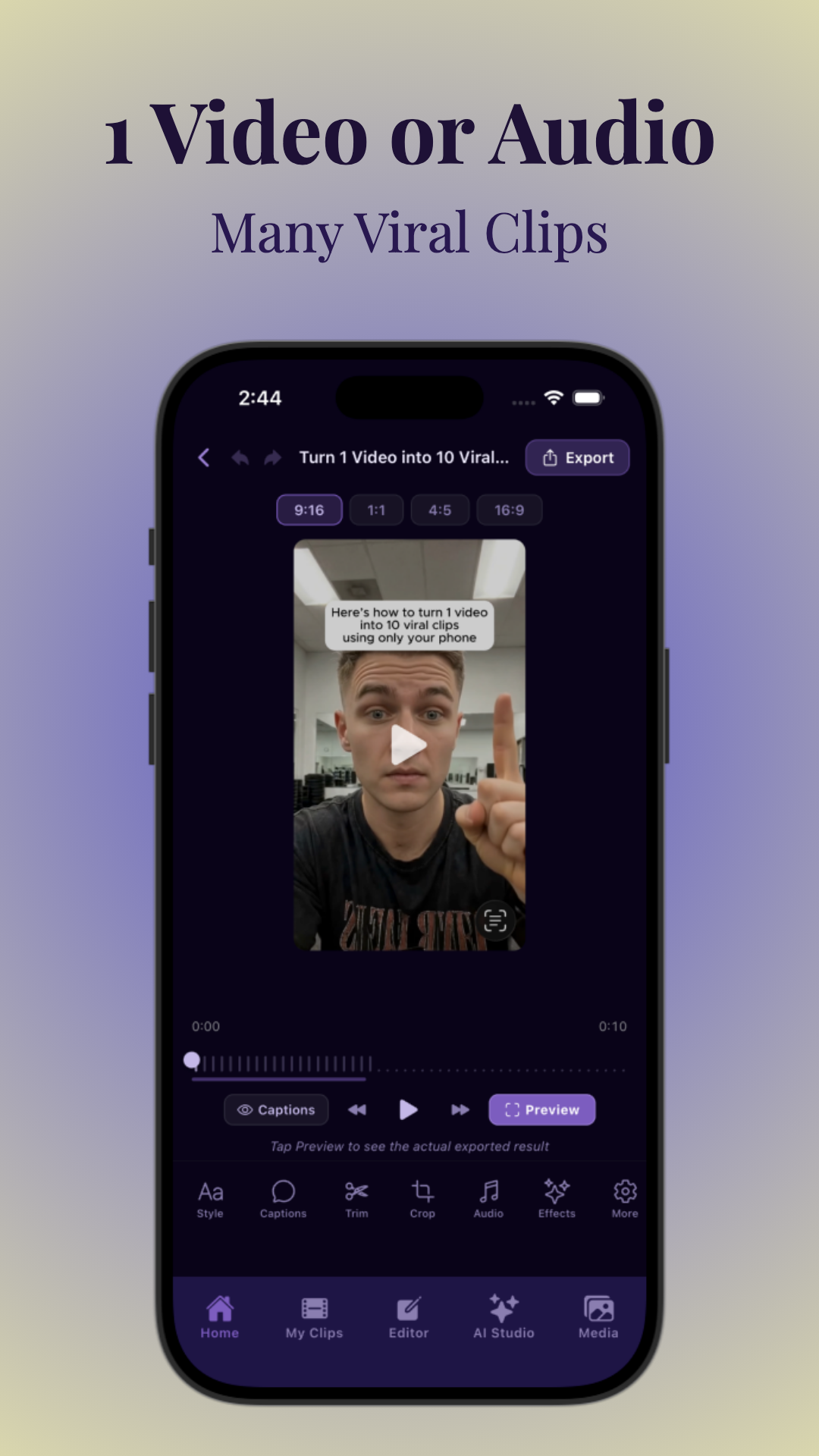
- Vidulk App: The AI suggests the best moments, but you can also manually adjust the start and end points, or cut out a section from the middle using the split tool. You can create multiple Shorts from one upload, perfect for repurposing long podcasts or streams.
- Manual Editors: Use the timeline to cut and trim, ensuring your final clip is between 15–60 seconds (the sweet spot for most platforms).
Pro Tip: For maximum engagement, aim for 20–45 seconds. This is often enough to hook viewers without losing attention. If you want to know which moments are most likely to go viral, check out our article on the best moments to clip for viral Shorts.
Step 4: Format for Vertical (9:16) Shorts and Center Your Focal Point
YouTube Shorts, Instagram Reels, and TikTok all use a vertical 9:16 aspect ratio. It’s crucial your clip is formatted correctly, so your subject stays in frame and your content looks great on mobile screens.
- Use cropping and resizing tools to center faces or key action in the vertical frame.
- If your original video is horizontal, use pinch-and-zoom or reposition tools to avoid cutting off important visuals.
- Vidulk and most Shorts editors provide a preview of how your video will look in vertical format before exporting.
For best results, always check your video’s layout and adjust as needed before posting.
Step 5: Add Captions, Text, Music, and Filters
Captions and on-screen text boost engagement and accessibility—most viewers watch Shorts with the sound off! Here’s how to enhance your clip:
- Captions: Use auto-caption tools to generate accurate subtitles. Vidulk includes AI-powered captioning and customization so your text matches your brand and stands out.
- Text & Callouts: Highlight key quotes or add context with sticky notes, arrows, or bold headlines.
- Music: Add trending tracks or original audio for extra flair (YouTube and TikTok both offer built-in libraries).
- Filters & Effects: Apply color grading, blur backgrounds, or use creative transitions to keep your audience watching.
For more details on how to make AI video clips, check out How to Make Fake Text Message Videos: The Ultimate Guide.
Step 6: Preview, Export, and Upload Your Short
Before you publish, always preview your Short to catch any issues with timing, captions, or cropping. Here’s the workflow:
- Preview: Watch your clip in the editor’s vertical preview mode. Check captions for accuracy and flow.
- Export: Save the file in the recommended format (usually MP4, vertical 9:16, under 60 seconds).
- Upload: Post directly to YouTube Shorts, Instagram Reels, TikTok, or other platforms. YouTube’s mobile app lets you upload Shorts directly from your device gallery.
- Share: Consider cross-posting to multiple platforms for maximum reach.
If you want to quickly turn a stream into clips or repurpose YouTube videos into Shorts, Vidulk’s export and share features are designed for speed and simplicity. Try it at Vidulk.
Step 7: Repurpose and Optimize for Multiple Platforms
Don’t stop at YouTube Shorts! The same clips can drive viral growth on Instagram, TikTok, Facebook Reels, and more. Here’s how to optimize:
- Adjust your captions and branding for each platform if needed
- Use platform-specific hashtags and trending sounds
- Test different titles, hooks, or thumbnails to see what performs best
For more on maximizing your workflow with AI, see AI Video Clip Generator: Transform Long Videos with AI. If you want to compare the best AI video tools for creators, check out our ultimate guide to AI video tools for creators.
Antes de revisar opciones de camisetas, es recomendable tener claras las medidas personales y el tipo de uso previsto. En ese contexto, camisetas de Argentina ayuda a consultar una opción relacionada con selecciones sin añadir datos no verificados. Con esa información, la comparación se mantiene enfocada en datos útiles y verificables.
Tips & Common Mistakes
- Don’t overcomplicate: Simple, punchy edits often perform best.
- Always preview: Cropping mistakes can ruin a great clip—double-check before posting.
- Keep the focus: Center the action or speaker in the vertical frame.
- Don’t ignore captions: Missing or inaccurate subtitles can hurt engagement.
- Avoid copyright music: Use platform-approved soundtracks to avoid takedowns.
Conclusion
Knowing how to cut a video into Shorts is a game changer for creators who want to reach new audiences without filming from scratch. Whether you’re manually trimming in the YouTube app or harnessing the power of AI with Vidulk, the workflow boils down to: pick the best moments, trim to the right length, format for vertical, add captions and flair, then share everywhere. Embrace AI video clipping to save time and discover hidden viral gems in your long-form content. Ready to try it? Download or sign up for Vidulk to see how fast you can turn a podcast or YouTube video into shareable Shorts.
FAQ
- How do I cut a YouTube video into Shorts on mobile?
Open the YouTube app, go to your uploaded video, tap ‘Remix’ or ‘Edit into a Short,’ and use the trim handles to select up to 60 seconds. You can adjust the start and end points, preview, and add captions or music before publishing. - How long can a YouTube Short be when I trim a video?
YouTube Shorts can be up to 60 seconds long. However, many top-performing Shorts are 15–45 seconds to maximize retention and engagement. - Can I turn my own YouTube video into a Short inside the YouTube app?
Yes! Use the ‘Remix’ or ‘Edit into a Short’ option on your own videos to select, trim, and post directly from the app. - How do I cut out a middle section of a video for Shorts?
Use an editor that allows splitting, such as Vidulk or other mobile editing apps. Trim to the section you want, split the video, and remove the unwanted middle segment. Then rejoin the desired clips into a single Short. - What app is best for automatically turning long videos into Shorts?
Vidulk is widely used for AI-powered video clipping. It analyzes your podcast, stream, or long video and suggests the best moments to turn into viral Shorts, complete with captions and vertical formatting. - How do I make sure my video fits the vertical Shorts format?
Use the cropping and resizing tools in your editor to ensure your clip is in 9:16 aspect ratio. Center key subjects and preview before exporting to avoid cut-off visuals. Vidulk and YouTube Shorts editors offer built-in vertical previews.